Each vehicle must exist within a type and a class in the Vehicle Structure hierarchy. Vehicles represent the lowest level in the structure.
Details Page
Each vehicle in the VertiGIS FM database has its own details page. You can navigate to an vehicle's details page either of two ways:
•by double-clicking a vehicle in the Vehicles section on the details page of the fleet type that contains the vehicle.
•by selecting Vehicles under Objects on the Fleet Management search page and double-clicking a vehicle in the search grid.
Details
Each vehicle has the following core properties.
Vehicle Details
Field |
Description |
|---|---|
Stock no. |
The vehicle's unique identifier. VertiGIS FM assigns a vehicle a Stock no. value according to its class, its type, and how many other vehicles are already in the type. |
Vehicle identifcation number (VIN) |
The unique 17-character code that identifies the vehicle's manufacturer, general characteristics, and specific identifiers. VIN implementations vary in different parts of the world. |
Name |
The name of the vehicle. |
Licence plate number |
The licence plate currently assigned to the vehicle. You can assign any licence plate in the system that is not already assigned to another vehicle or that has the Interchangeable Number Plate property selected. |
Barcode |
|
Person responsible |
A person who can be contacted for vehicle maintenance or information. You must select a contact or company stored in the Contact Management module. |
Reservable |
|
Lockable |
A check box that, if selected, means the vehicle can be locked and unlocked using a key managed in the Key Management module. When this check box is selected, the asset's details page has a Key section in which you can assign keys to it. Refer to Assign Keys to Other Lockable Objects. |
Field |
Description |
|---|---|
Manufacturer |
The vehicle's manufacturer. Selectable options are saved in the Manufacturer catalog. |
Vehicle type |
Selectable options are saved in the Vehicle Type catalog. |
Structure |
The vehicle's body style. Selectable options are saved in the Structure catalog. |
Year of construction |
The year the vehicle was built. |
Model |
The vehicle's model. |
Model description |
A description of the vehicle. |
Commissioning |
The date the vehicle was commissioned. |
Kind of engine |
The vehicle's engine type. Selectable options are saved in the Kind of Engine catalog. |
Consumption [l/100km] |
The average litres consumed per 100 kilometres in trips taken in the vehicle, according to its driver's log. VertiGIS FM populates this value programmatically using data from the driver's log. Refer to Consumption [l/100km]. |
Power [kW] |
The vehicle's engine's motor power output in kilowatts. |
Cubic capacity |
The volume of the vehicle's engine's cylinders. |
Number of doors |
The number of doors the vehicle has. |
Commercial Characteristics
Field |
Description |
|---|---|
Organization |
The organization or department within your company associated with the vehicle. Selectable options are stored in the Organizations section on the Own Company or Tenant administration page. |
Owner |
The vehicle's owner. You must select a contact or company stored in the Contact Management module. |
Ownership |
The commercial status of the vehicle. Selectable options are stored in the Ownership catalog entry. If you select Leasing from this menu, the form loads an additional Leasing section in which you can enter details about the vehicle's lease. |
Odometer reading on the day of transfer |
The odometer reading on the date your organization received the vehicle. |
Catalogue price |
The vehicle's market price. |
Purchase price |
The price the vehicle was purchased for. |
Vehicle registration document |
A reference to the vehicle's registration document. |
Insurance policy number |
The vehicle's insurance number. |
Inventory number |
The vehicle's inventory number. |
Allowance (km) [€] |
|
Start warranty |
The date the vehicle's warranty started. |
Duration warranty |
The length of the vehicle's warranty. |
End of warranty |
The date the vehicle's warranty ends. |
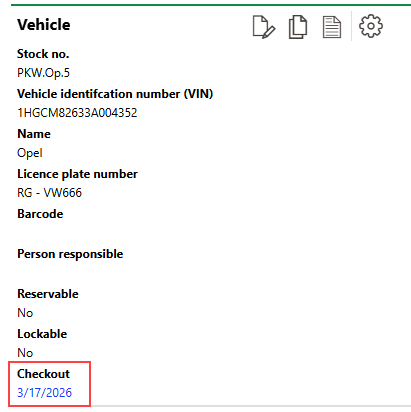
Checkout |
The date the vehicle was unregistered, or the date its registration lapsed. The date entered in this field appears in blue text on the vehicle's details page.
Vehicle Checkout Property |
Service package |
Whether the vehicle's servicing is covered. |
Comment service package |
Additional information about the vehicle's service package. |
Tank card |
A payment card to which gas expenses for the vehicle can be charged. |
Dig. Vignette vorhanden |
A check box that indicates whether tolls for roads are covered with this vehicle. This feature is primarily intended for European customers. |
Tunnelkarte vorhanden |
A check box that indicates whether tolls for tunnels are covered with this vehicle. This feature is primarily intended for European customers. |
GEZ |
A check box that, if selected, indicates payment for radio services (Rundfunkbeitrag) is covered. This feature is intended for European customers only. |
Cost center |
The cost center associated with the vehicle. |
Equipment
In the Equipment section, select the vehicle's features from the list:
•Automatic
•All-Wheel
•Towing hitch
•Navigation
•Hands-free equipment
•Air conditioning system
•Non-smoker vehicle
•Radio
•Seat heating
•Roof rails
•Parking sensor
•Alarm system
You can also click the color picker in the Color field to select the vehicle's color.
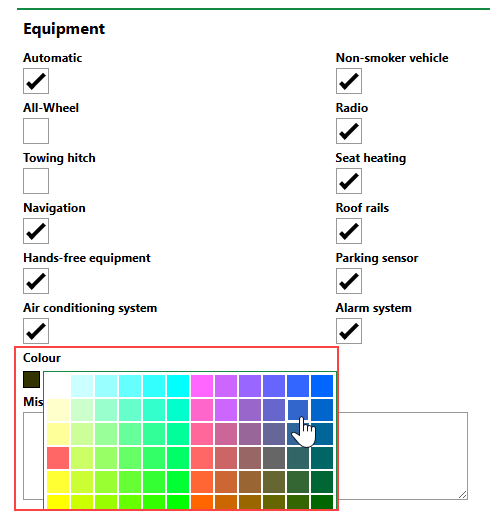
Color Picker
Field |
Description |
|---|---|
Special payment |
A one-time payment made on the lease. |
Monthly leasing rate |
The price of monthly payments made on the lease. |
Runtime |
The length of the vehicle's lease. |
End of lease |
The date the vehicle's lease ends. |
Laufleistung [km/Jahr] |
The vehicle's expected annual mileage on the lease. |
The Leasing section is only visible if Leasing is selected in the Ownership menu under Commercial Characteristics.
If any of the sections described in this topic do not appear on the details page, you may need to edit the section authorization to show them.
Components
The Components section lists vehicle components that have been installed in the vehicle. Components currently installed in the vehicle have empty cells in the Until column.
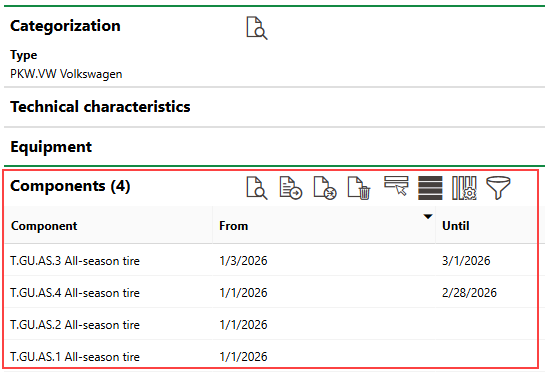
Components Section
Components in this section have no hierarchical relationship to each other within the vehicle. It is simply a list of components installed in the vehicle. Refer to Install Components in a Vehicle.
Vehicle Conversion
In the Vehicle Conversion section, you can quickly document parts in the vehicle that have been replaced or exchanged, separate from a formal order or service desk ticket. To document a part exchange, click the Additional Editing ( ) icon.
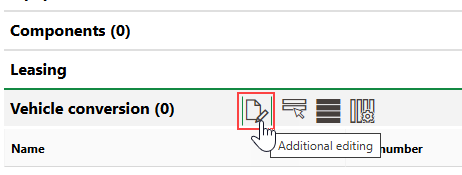
Adding a Part Exchange (1/2)
You can then click the Add ( ) icon to document one or more parts exchanged in the vehicle.
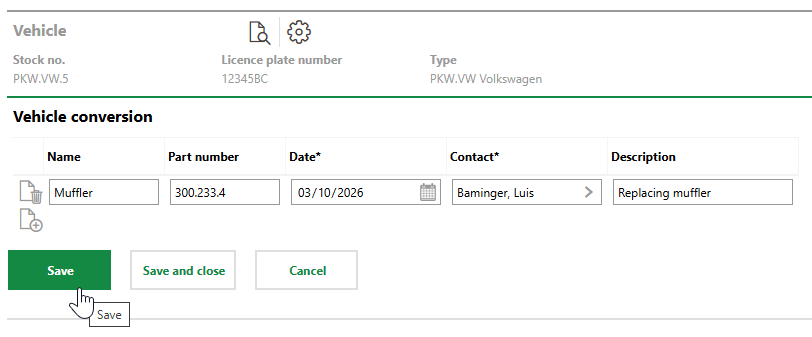
Adding a Part Exchange (2/2)
You cannot associated parts documented as exchanged in this section with vehicle components in the system.
Contracts
The Contracts section lists the contracts associated with the vehicle. These can include standard contracts, insurance contracts, or rental agreements.
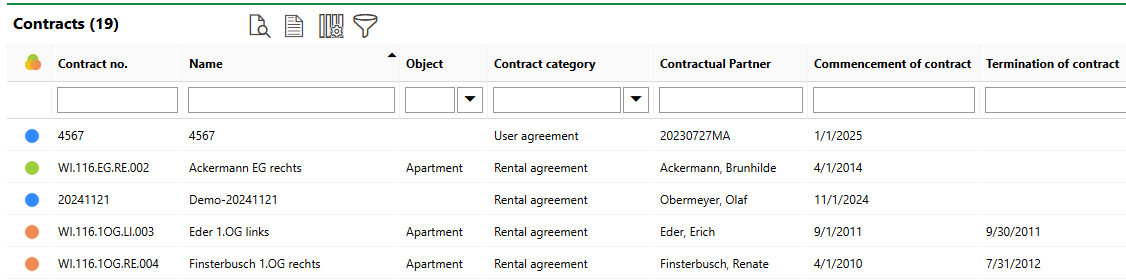
Contracts Section
Contracts are managed in VertiGIS FM Contracts. Refer to the VertiGIS FM Contracts product's documentation for more information.
Maintenance Strategies
The Maintenance Strategies section lists the maintenance strategies currently applied to the vehicle. Maintenance strategies applied to a vehicle generate orders uniquely for the vehicle.
Refer to Maintenance Strategies for more information.
Tickets
The Tickets section lists any service desk tickets associated with the vehicle.
Orders
The Orders section lists scheduled orders for the vehicle. These can be created manually as standalone events, or generated programmatically, as part of a maintenance strategy.

Orders Section on the Device Details Page
Click the Add () icon to add an order for the vehicle. If you create an order this way, its location will be used to show the location of the order on any web maps you have integrated with VertiGIS FM.
Refer to Orders for more information.
Driver
In the Driver section, you can specify the employees in your organization who are authorized to drive the vehicle. Assignment dates can overlap, meaning the vehicle can have multiple authorized drivers at a time.
You can add more employees by clicking the Assign Driver ( ) icon. You can select any employees in your system, which are listed in the Employees section on the Administration > Own Data > Client or Tenant page.
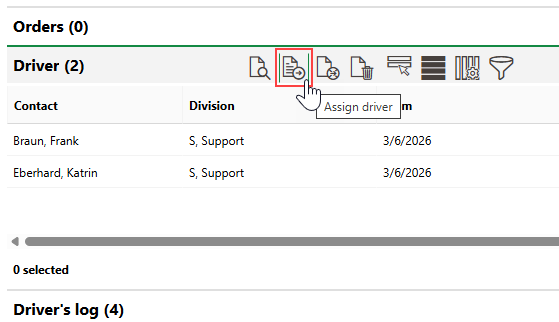
Vehicle Driver Assignment
Idle Periods
The Idle Periods section lists the idle periods scheduled for the vehicle. The vehicle cannot be reserved during these periods.
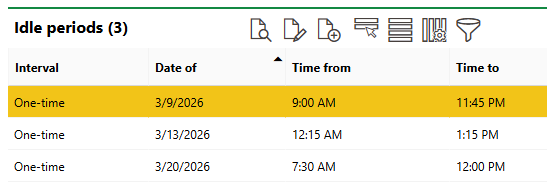
Idle Periods Section
Idle periods are scheduled in conjunction with the Reservation Management module, which is typically bundled in licences for VertiGIS FM Buildings
Refer to Schedule Idle Periods.
Appointments
The Appointments section lists the scheduled appointments (a call or in-person meeting) that are associated with the vehicle. Appointments are action items that can be scheduled for any object in VertiGIS FM. They are not the same thing as orders.
To add an appointment for the vehicle, click the Add () icon in the Appointments section on the details page.
Notes
The Notes section lists notes that have been posted in relation to the vehicle.
Costs/Revenues
The Costs/Revenues section lists the invoices associated with the vehicle. These can include purchasing invoices, maintenance invoices, insurance costs, and more.
Refer to Invoices for more information.
Key
The Key section lists keys keys that lock and unlock the vehicle. You can double-click the key to navigate to its details page. Keys are managed in the Key Management module.
This section is only visible if the Lockable check box is selected in the vehicle's core details.
Refer to Assign Keys to Other Lockable Objects for more information.
Assessment Condition
The Condition Assessment (or Assessment Condition) section lists status range assessments recorded for the vehicle. Refer to Record Status Range Assessments for more information.
This section is associated with the Condition Assessment module, which is typically bundled in licences for VertiGIS FM Buildings.
Identifier History
The Identifier History section shows a chronological list of licence plates that have been assigned to the vehicle.
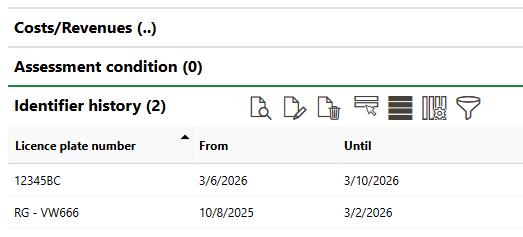
Identifier History Section
Refer to Assign a Licence Plate to a Vehicle.
Documents
The Documents section lists the documents, including image files, associated with the vehicle. Refer to Document Management for more information, including instructions on how to upload a document.
Location
In the Location section, you can select a location in the VertiGIS FM Buildings hierarchy (for example, a room) as the location of the device. If no VertiGIS Studio project is integrated with the VertiGIS FM implementation, the device can be displayed on the Open Street Map using the address of the asset selected in the Location section. Multiple locations can be assigned to a device as long as the dates associated with them do not overlap.

Assigned Locations on the Device Details Page
For instructions on how to assign a location to a vehicle, click here.
Authorised Person
The Authorised Person section lists individuals authorized to work with the vehicle. This feature is used in conjunction with the VertiGIS FM Health and Safety module.
If any of the sections described in this topic do not appear on the details page, you may need to edit the section authorization to show them.
