The Key Management module in VertiGIS FM Buildings includes features and workflows designed to manage locking systems, keys, cylinders, and doors used in your facilities. You can establish locking system hierarchies that include central (master), group, and individual locks, issue and revoke keys to your employees based on their access needs, and easily document key and access authorizations.
Open
To access the Key Management module, click the Key icon on the VertiGIS FM home page.
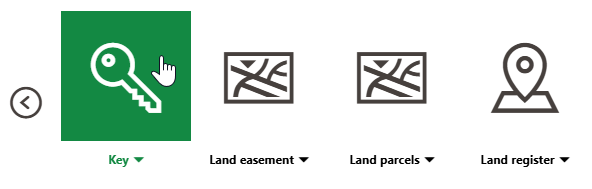
Key Management Icon
Click the down-arrow button on the icon to access shortcuts to important Key Management resources and workflows.
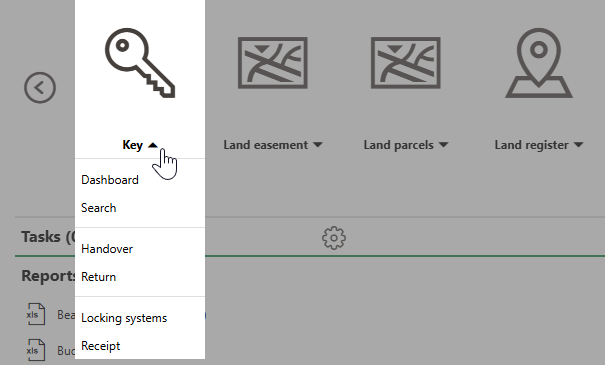
Key Management Workflows Accessed from the Home Screen
You can also access the dashboard and search page from the modules panel in the left pane.
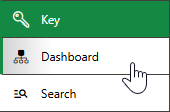
Key Management Dashboard and Search Page Access
Dashboard
You can access the Key Management dashboard by expanding Key in the modules panel and clicking Dashboard.
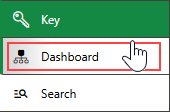
Link to Key Management Dashboard
Legacy Dashboard
By default, the legacy dashboard is available to customers who have not customized their own dashboard. The legacy dashboard for fleet management includes the sections below.
Operational Procedures
The Operational Procedures section of the Key Management dashboard includes shortcuts to the issue and return key workflows for routine use.
|
Handover•Initiates the workflow to issue keys to a key bearer in your system, or to request that keys be assigned to a key bearer. |
|
Return•Initiates a workflow to document key returns from people they were issued to. |


Tasks
The Tasks section shows keys assigned to a key bearer that have a Planned Return date.
The leftmost column corresponds to the date the key bearer must return the key by.
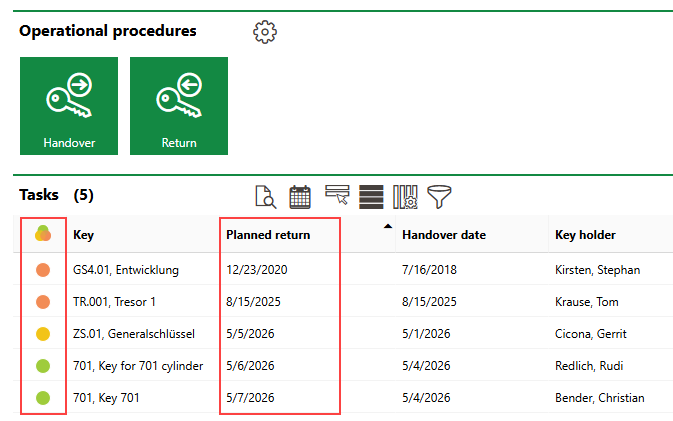
Key Assignment Statuses and Planned Return Dates
Key Bearer Assignment Statuses
Icon |
Status |
|---|---|
|
The key bearer assignment's Planned Return date is more than one day in the future. |
|
The key bearer assignment's Planned Return is tomorrow, and the key should be returned by then. |
|
The key bearer assignment's Planned Return date is in the past, and the key's return is overdue. |


The Tasks section only lists key bearer assignments that have a Planned Return property. Planned Return is not a mandatory field for key bearer assignments.
Refer to Issue Keys and Return Keys.
Actions
The Actions section lists links to the following Inventory Management tools and resources:
•Locking systems: access and manage your organization's locking systems, which contain your sites' central, group, and individual locks.
•Receipt: access unprinted key issuance and key return receipt documents for download.
For Release
The For Release section lists key assignment requests for keys that are on the key release list for the user signed in to the application.
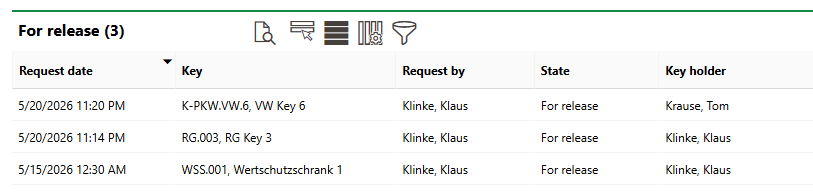
For Release Section
Requests in this section are on the key release list for the user signed in to the application. The user must approve or decline these requests for the key to be assigned to the user indicated in the Key Holder column.
Approved
The Approved section lists key requests that have been approved by the user signed in to the application.
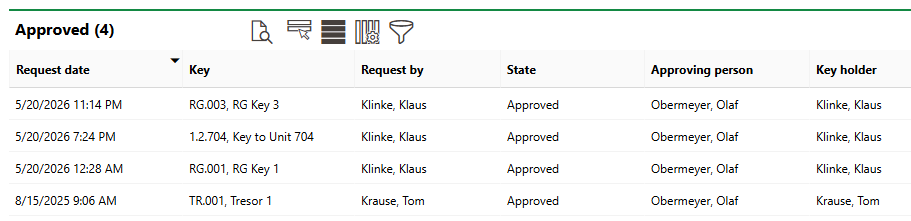
Approved Section
Refer to Process Key Requests.
Reports
The Reports section lists download links for the reports the system administrator has made available on this page for the role your user has been assigned. Clicking the link generates the report. Refer to the Report and Query Permissions administration topic for more information.
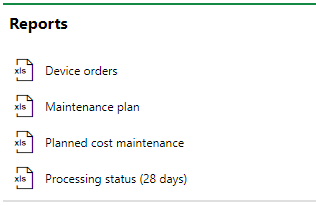
Reports Section
You can generate reports using other data on the search page. Refer to Generate Reports for more information.
Queries
The Queries section lists links to the search queries the system administrator has made available on this page for the role your user has been assigned. Refer to Report and Query Permissions for more information.
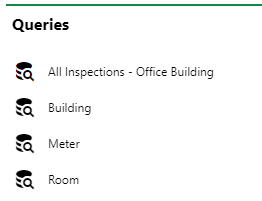
Queries Section
Refer to Save a Query for instructions on how to create a query.
Dashboard Customization
As a system administrator, you can create a customized dashboard for each VertiGIS FM product and module included in your license. Tools in the dashboard customization feature allow you to design a dashboard that conveys important information to your users, using your own live VertiGIS FM data associated with any assets, data objects, and properties in your system.
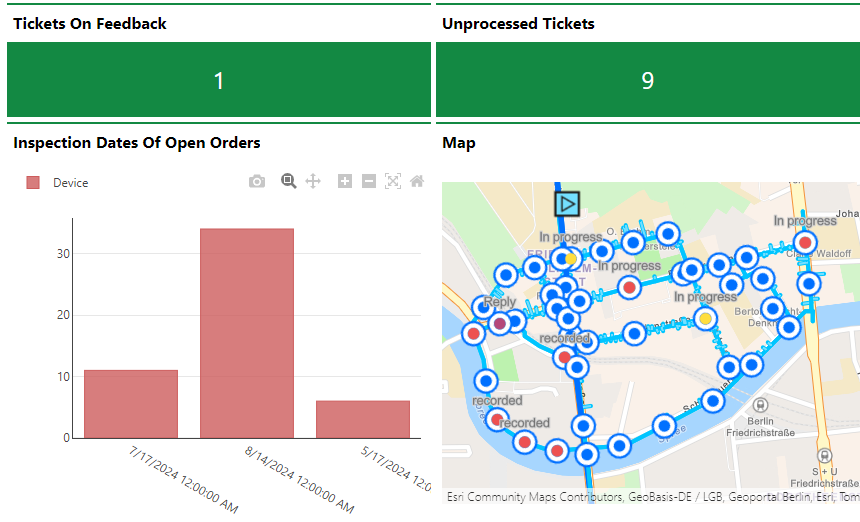
Customized Dashboard with Characteristic Values, Charts, and a Map
Dashboard objects you can add to your start page include KPI metrics, charts, lists, and maps. You can also include any of the template sections from the legacy dashboard in your customized dashboard.
When you create a custom dashboard, you can add any of the items below to it.
Dashboard Object Presentation Types
Presentation Type |
Description |
|---|---|
A counter that reflects the quantity of a data object (e.g., the number of buildings or devices) in the VertiGIS FM database, or the sum or average of a property with a numeric value across all data objects of a given type (e.g., the total floor area across all buildings in the system). |
|
A line, bar, or circle (pie) chart that visualizes data associated with a VertiGIS FM data object. |
|
A list of data objects of a given type (e.g., devices, buildings, or work orders), with their properties sorted into columns so users can search and filter them on the dashboard. |
|
A VertiGIS Studio web map that has been integrated with your VertiGIS FM environment. You can configure it to display a layer mapped to a data object in VertiGIS FM. |
|
An icon and text that links to an external application or website. |
|
Default data objects, like Actions, Operational Procedures, and task-based objects associated with the user signed in to VertiGIS FM. |
To access the dashboard customization page, click the gear icon ( ) at the top of the dashboard you want to customize.
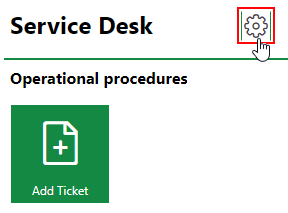
Link to Dashboard Customization Page
Refer to Dashboard Customization for instructions on how to add custom objects to your dashboard.