You can issue keys to system employees and contacts to document who is in possession of your facilities' keys, and who can access their various doors and rooms. If the key is not on an administrator's release approval list, you can issue any available keys to key bearers in your system, including to yourself.
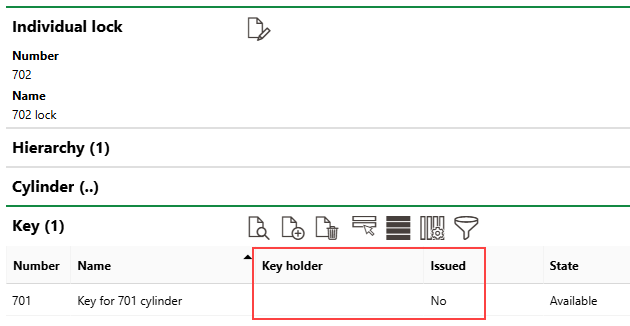
Key with No Key Holder Assigned
If the key is on an administrator's release approval list, they must approve the key release. The key will not be issued to the selected key bearer until the administrator approves the request.
If the key assigned to a key bearer is associated with a lock in a locking system, the contact or employee will be able to access the doors and rooms the associated lock controls access to. Refer to Manage Door and Room Access.
You can only issue keys to employees and contacts assigned the Key contact type. Refer to Contact Types for more information.
You can either issue a key to a key bearer on the Key Management dashboard or on the details page of the key you want to issue.
Issue or Request Keys on the Dashboard
You can issue any available keys to a contact or employee on the Key Management legacy dashboard. This workflow lets you issue multiple keys to a key bearer in one action and print a document that outlines the details of the key assignment.
To Issue a Key on the Dashboard
1.Navigate to the Key Management legacy dashboard.
2.Under Operational Procedures, click Handover.
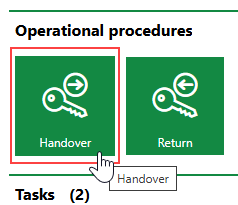
If you do not see the Operational Procedures template, an administrator must add it to your custom dashboard or restore the legacy dashboard. Refer to Dashboard Customization.
3.Click the > button in the Key Holder menu.
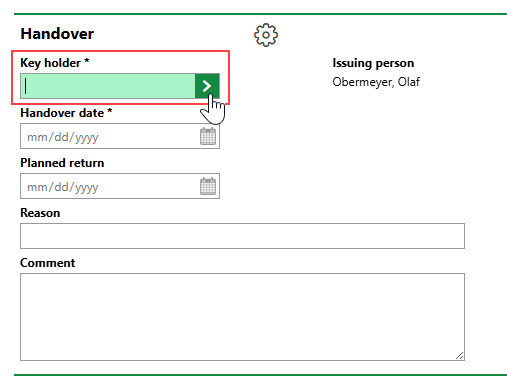
4.Select the employee or contact you want to issue the key to and click Apply, or double-click the contact or employee.
You can only issue keys to employees and contacts assigned the Key contact type. Refer to Contact Types for more information.
5.Click the calendar icon ( ) in the Handover Date menu and select the date the key was given to the key bearer.
You cannot select a future date.
6.Optionally,
▪click the calendar icon () in the Planned Return menu and select the date the key bearer will return the key.
▪enter the reason you are issuing the key to the key bearer in the Reason text box.
VertiGIS FM does not programmatically remove the key bearer assignment on the date selected in the Planned Return date. The system tells you when key bearer assignments are overdue, but you must manually complete the Key Return workflow to end the key bearer assignment.
7.In the Key section, click the Add ( ) icon.
8.Select the key you are issuing the key bearer and click Apply, or double-click the key.
9.Repeat steps 7-8 for any additional keys being issued to the contact or employee.
You can only select keys in your system that are not already assigned to another key bearer.
If the cell in the Approval Required column next to the key you select indicates Yes, the key is on an administrator's key release list. They must approve the key assignment for the key to be assigned to the intended key bearer.
10.In the Signature section,
▪record your signature in the Signature box.
▪enter your name in the Full Name text box.
▪select the date using the calendar picker () in the Date menu.
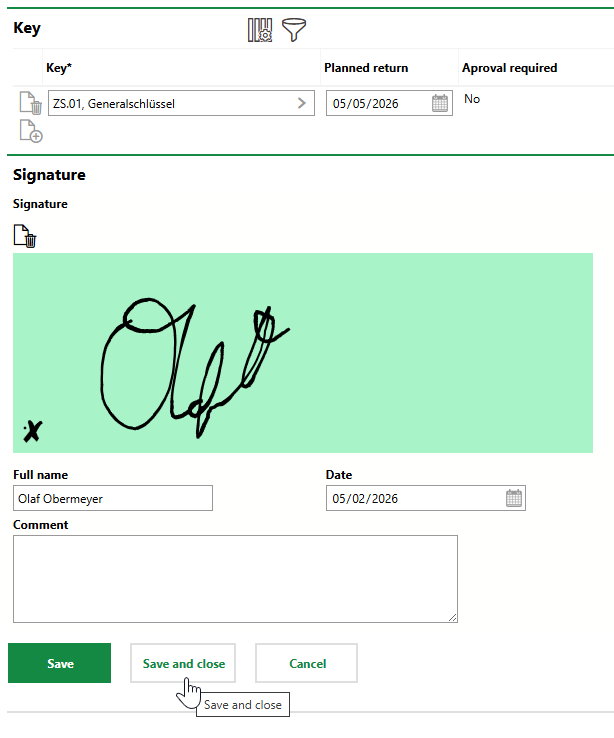
11.Click Save or Save and Close.
The contact or employee now appears in the Key Holder section on the key's details page. If the key you selected is not on an administrator's key release list, the key is immediately assigned to the key bearer. When the key is assigned, the State column in the Key Holder section indicates Issued.
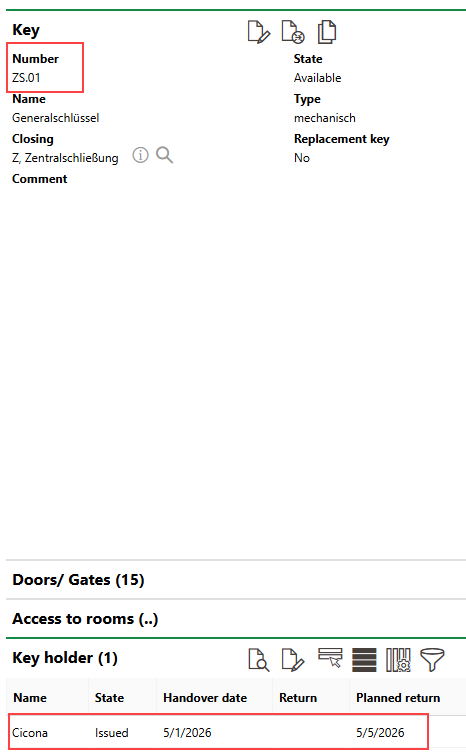
Key Bearer on Key Details Page
The key also appears in the Key section on the contact's or employee's details page.
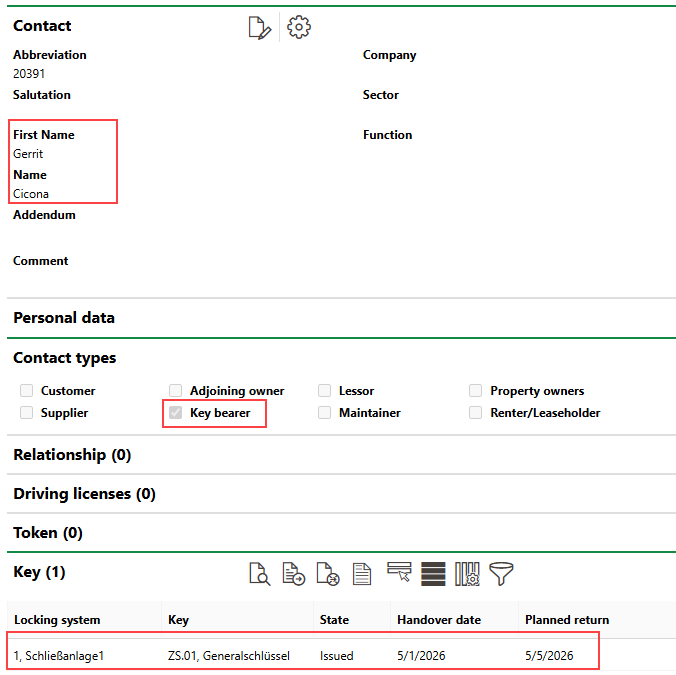
Key on Contact's or Employee's Details Page
If the key is on an administrator's key release list, the administrator must approve the key assignment. The contact or employee still appears in the Key Holder section on the key's details page, but the Status column indicates For Release until the administrator approves the release.
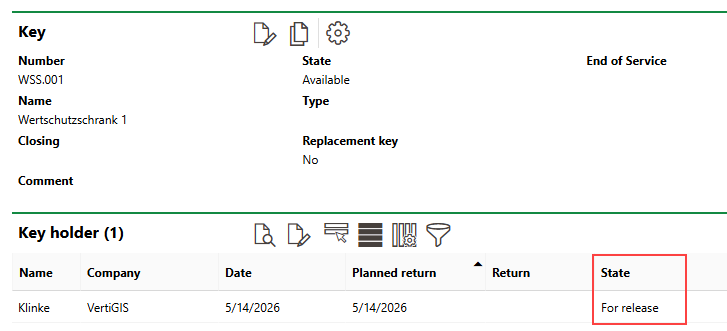
Key Assignment Pending Release Approval
Key Issuance Receipt
When the key is assigned to a key bearer, VertiGIS FM presents a dialog asking if you want to download a document that outlines which key was issued to which contact or employee.
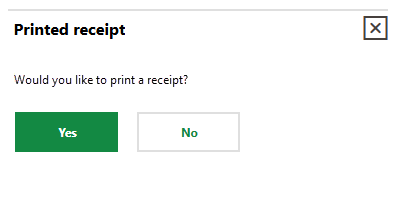
Print Receipt Dialog
If the key is not on a release approval list, this dialog appears as soon as you complete the procedure to issue a key. If the key is on a release approval list, VertiGIS FM presents this dialog to the administrator when they approve the key assignment.
Click Yes to download the key issuance receipt. If you click No, you can still print a receipt later on the Key Issuance Receipt page.
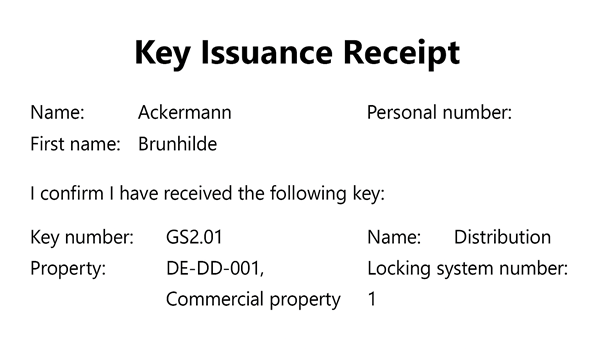
Sample Key Issuance Receipt
Issue a Key on the Key's Details Page
As an alternative to using the dashboard workflow, you can issue a key to a key bearer on the key's details page.
Unlike the key assignment workflow you can initiate on the dashboard, this workflow does not offer you the opportunity to print a receipt of the key assignment.
To Issue a Key on the Key's Details Page
1.Navigate to the details page for the key you want to issue.
2.Click the Handover ( ) icon.
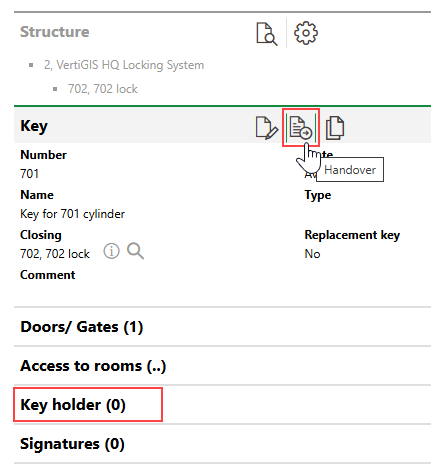
3.Click the > button in the Key Bearer menu.
4.Select the employee or contact you want to issue the key and click Apply, or double-click the contact or employee.
You can only select keys in your system that are not already assigned to a key bearer.
5.Click the calendar icon () in the Handover Date menu and select the date the key was given to the key bearer.
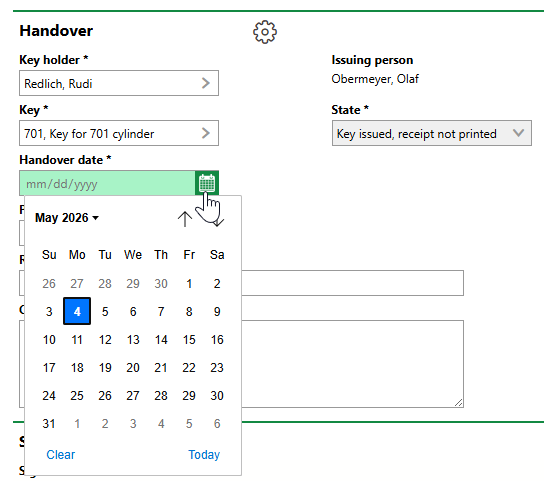
You cannot select a future date.
6.Optionally,
▪click the calendar icon () in the Planned Return menu and select the date the key bearer will return the key.
▪enter the reason the key is being issued to the key bearer in the Reason text box.
VertiGIS FM does not programmatically remove the key bearer assignment on the date selected in the Planned Return date. The system tells you when key bearer assignments are overdue, but you must manually complete the Key Return workflow to end the key bearer assignment.
7.In the Signature section,
▪record your signature in the Signature box.
▪enter you name in the Full Name text box.
▪select the date using the calendar picker () in the Date menu.
8.Click Save or Save and Close.
The key is now assigned to the key bearer. Additionally, the Handover () icon is replaced with the Return ( ) icon so that the key can be returned when necessary.
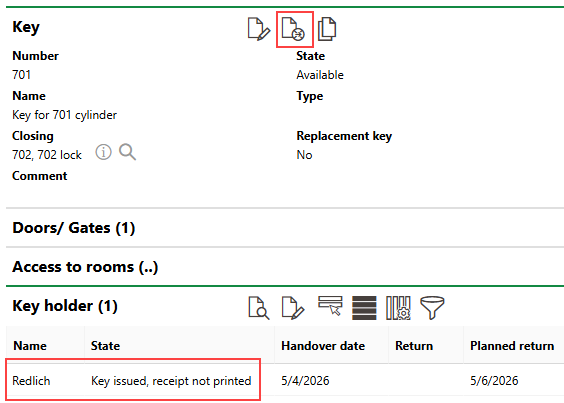
Issued Key
Access Unprinted Key Issuance Receipts
When you issue keys to a key bearer or receive keys back from a key bearer and document the transfer using the dashboard workflows, VertiGIS FM asks you if you want to print a document that outlines the issuance or receipt of the keys.
Print Receipt Dialog
Templates used to render key issuance receipts are managed in the Hand-over of keys report definition in the Report and Queries administration section. Refer to Report Definitions.
If you click Yes, a document file is downloaded to your computer. If you click No, no file is downloaded, but you can access it later on the Key Issuance and Return Receipt page.
Key Issuance and Return Receipt Page
Access the Key Issuance and Return Receipt page by clicking Receipt under Actions on the Key Management legacy dashboard.
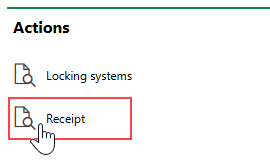
Actions Section on Key Management Dashboard
If you do not see the Actions section, an administrator must add its template to your custom dashboard or restore the legacy dashboard. Refer to Dashboard Customization.
The page that opens lists all the key handovers (times keys were issued to key bearers or returned by key bearers) and key returns for which no receipt was printed (i.e., the person issuing the key clicked No on the dialog above).
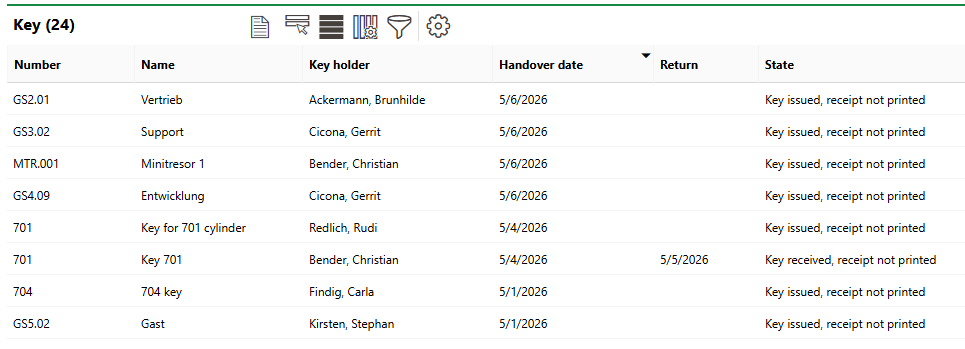
Unprinted Key Issuance Receipts
Key issuance transfers have a state of Key issued, receipt not printed. Key return transfers have a value in the Return column and a state of Key received, receipt not printed.
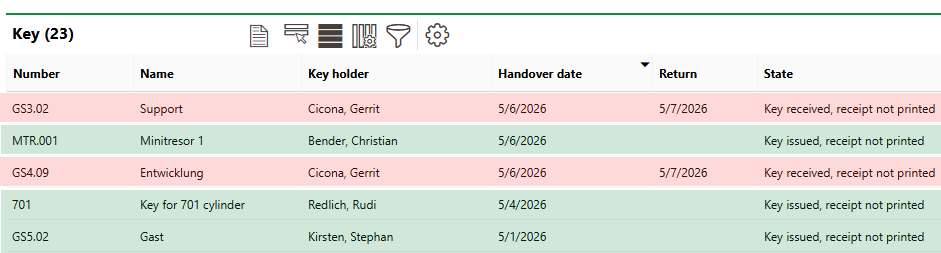
Key Issuance (Green) and Return (Red) Receipts on the Key Receipt Page
To print a receipt for the key transfer, select it and click the Print Receipt ( ) icon.
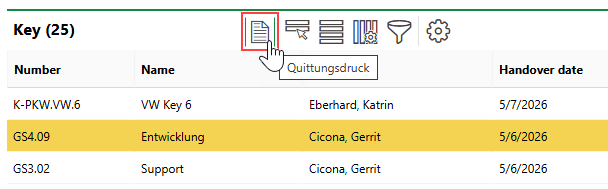
Print Receipt Icon
You can now open the document on your computer.
Sample Key Issuance Receipt
In VertiGIS FM, click Yes on the dialog that appears after you click the Print Receipt () icon to remove the key transfer from the Key Issuance Receipt Page. This means that you will not be able to download additional copies of the key issuance receipt for the key transfer. If you click No, the key transfer remains in the table so that you can download additional copies of the document.
View Key Return Dates
You can see the dates key bearers must return their issued keys in the Tasks section on the Key Management legacy dashboard.
If you do not see the Tasks section, an administrator must add its template to your custom dashboard or restore the legacy dashboard. Refer to Dashboard Customization.
The icon in the leftmost column indicates the status of the key assignment based on its Planned Return column.
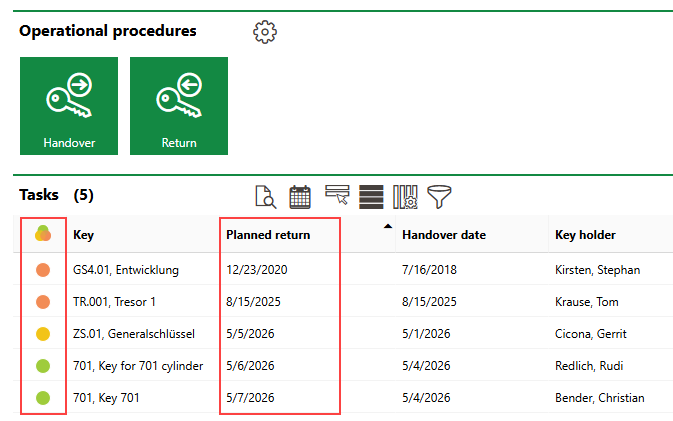
Key Assignment Statuses and Planned Return Dates
Key Bearer Assignment Statuses
Icon |
Status |
|---|---|
|
The key's Planned Return date is more than one day into the future. |
|
The key's Planned Return is tomorrow, and the key should be returned by then. |
|
The key's Planned Return date is in the past, and the key's return is overdue. |


You can double-click a key assignment in the Tasks section to see the key assignment's details.
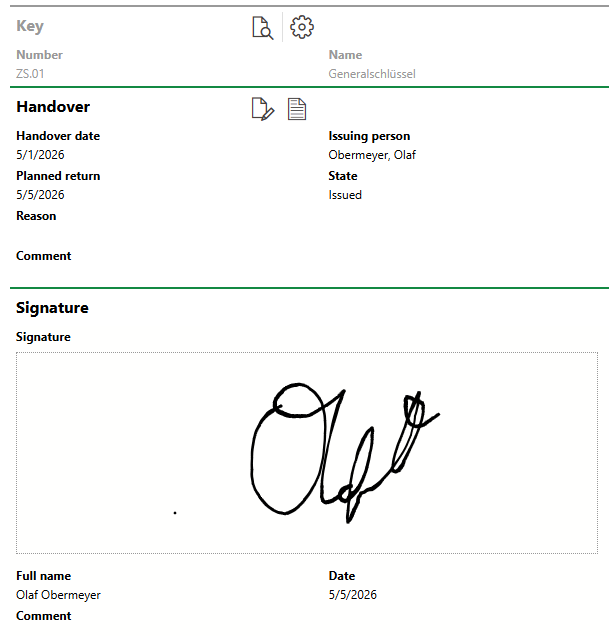
Key Assignment Details
Key Assignment Details
Field |
Description |
|---|---|
Handover date |
The date the keys were given to the contact or employee. |
Planned return |
The date the key bearer should return the keys by. VertiGIS FM does not automatically end the key bearer assignment on the Planned Return date. You must manually complete the Return Keys workflow by this date. |
Reason |
The reason the keys were issued to the key bearer. |
Issuing person |
The employee who issued the keys to the key bearer. The system populates this field with the employee associated with the user signed in to the application when the key bearer assignment is recorded in VertiGIS FM. |
State |
The state of the keys (Issued or Available) |
Signature |
The signature of the Issuing Person or the key bearer. |
Full name |
The name of the person whose signature is recorded. |
Date |
The date the signature was recorded. |