Some types of keys cannot be immediately issued to people in your system and must be reviewed by a manager or administrator of your organization's keys.
Administrators can require that certain keys require approval for assignment to a key bearer. This means that when a key on an approver's key release list is requested for assignment to an employee or contact, the key will not be assigned to the bearer until the approver whose list the key is on approves the request.
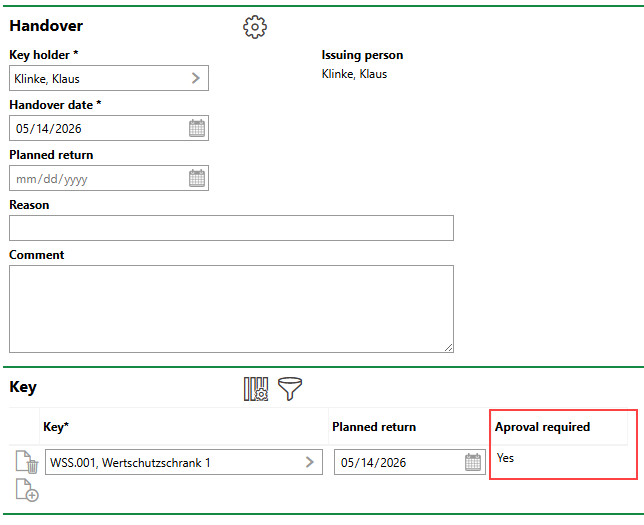
Approval Required Indicator for Key Being Requested
If a key is not on any employee's key release list, VertiGIS FM assigns the key to the specified key bearer as soon as the request is submitted.
Key Release Lists
An employee's key list indicates the keys whose assignments they must approve. You can access all the key lists for employees in your system in the Key Release section on the Administration > Own data > Client or Tenant page.
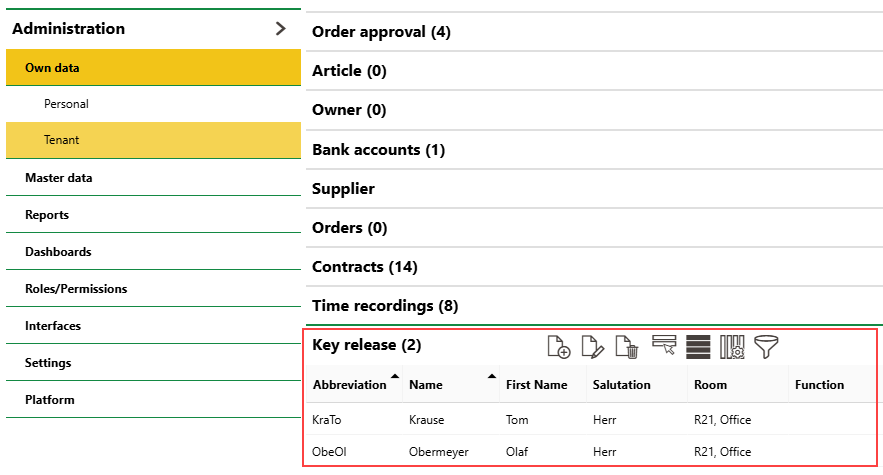
Key Release Section
To see an employee's key release list, select the employee in the Key Release section and click the Edit ( ) icon.
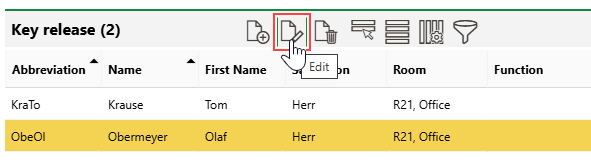
Viewing Employee's Key Release List
Keys listed in the Key section must have any key assignments requested by other employees approved by the employee whose key release page the key is added to (in the example below, Obermeyer). Click the Add ( ) icon in the Key section to add another key to the employee's key release list.
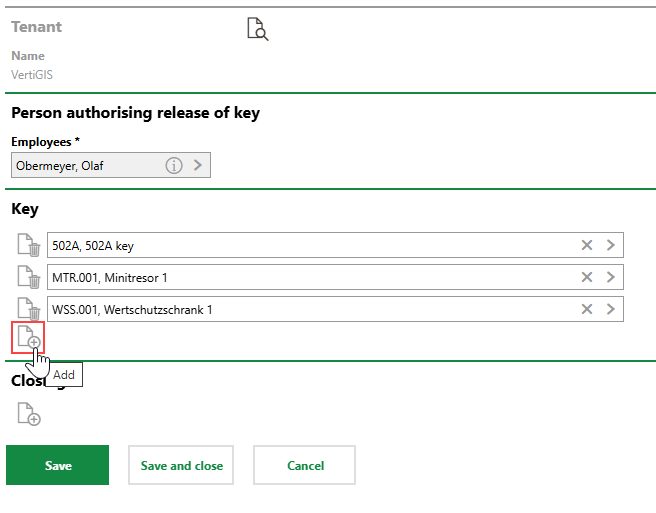
Adding Key to Release List
You can only add keys that are not currently assigned to a locking system to the key release list.
When key requests are submitted by an employee for a key that is on another employee's key release list, the employee who has the key on their key release list must approve the request.
Set Key Release By Lock
Instead of managing key approvals using an employee's key release list, you can set key release by lock. This means that any keys assigned to one of the locks in the Locks section are subject to the same request and release procedure as the keys listed in the Keys section.
In this example, lock 704 ("704 lock") is added to the Locks section in an employee's key release administration.
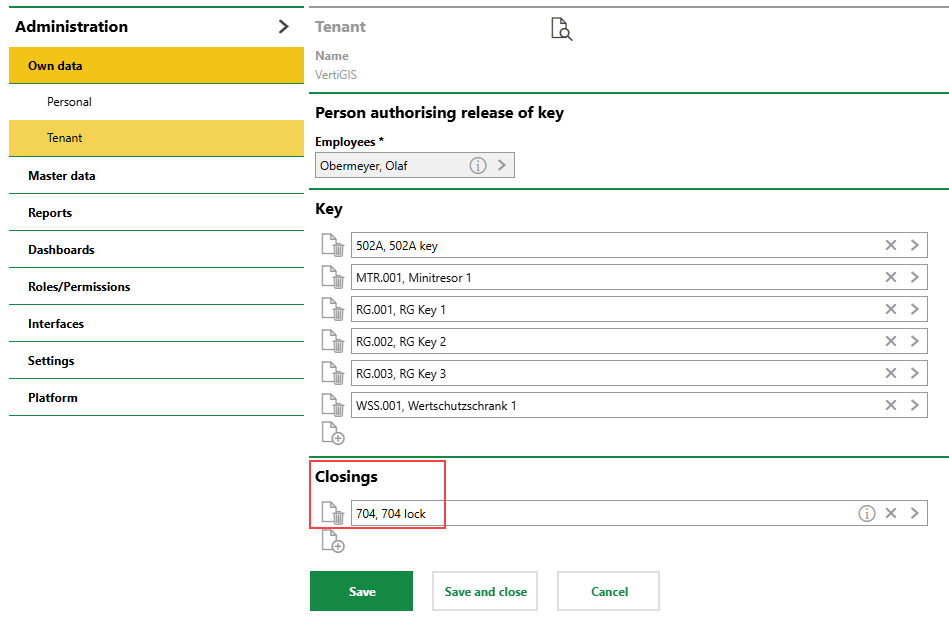
Locks Section on Employee Key Release Page
The key assigned to the lock, 1.2.704 ("Key to Unit 704"), is not currently issued to a key bearer.
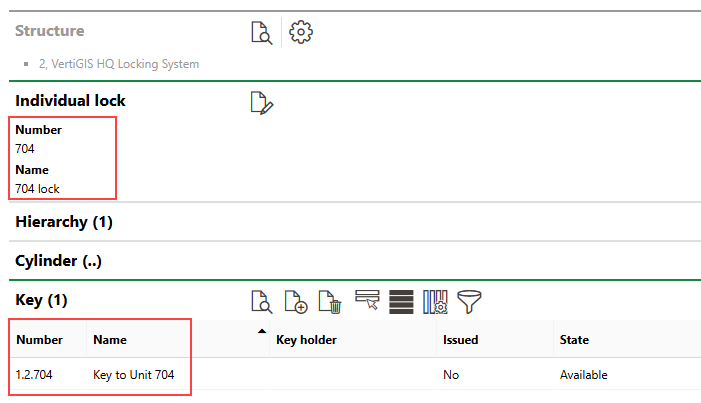
Key Associated with Lock on Key Release Page
In this example, the key is requested for assignment by another employee (Klinke).
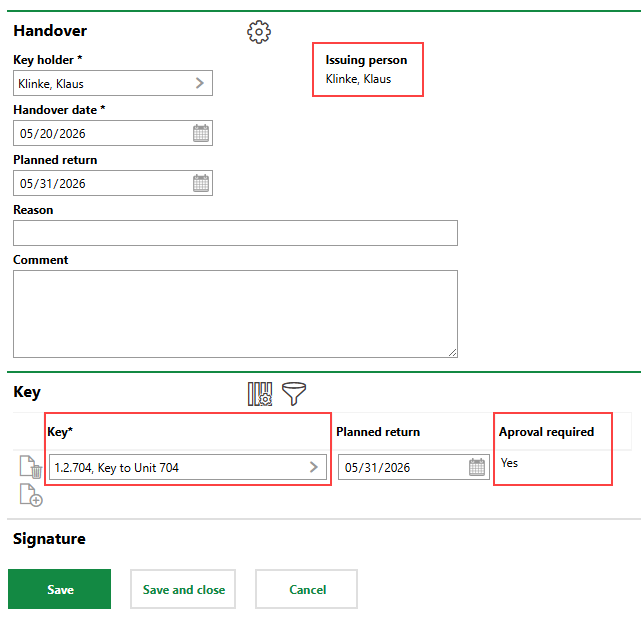
Key Request for Key Associated with Lock
Because the lock that key 1.2.704 is assigned to is on another employee's key release list, the key is not immediately assigned to the employee. The employee who has the key on their key release list (Obermeyer) now sees the key request in the Tasks section on the Key Management legacy dashboard.
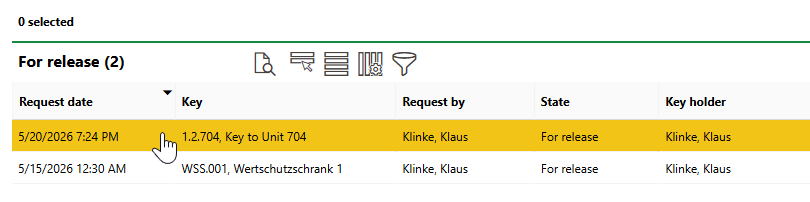
Key Request Pending Approval
When the employee with the key's associated lock on their key release list (Obermeyer) approves the key request, the key is assigned to the employee, and the key request now appears in the Approved section on the legacy dashboard.
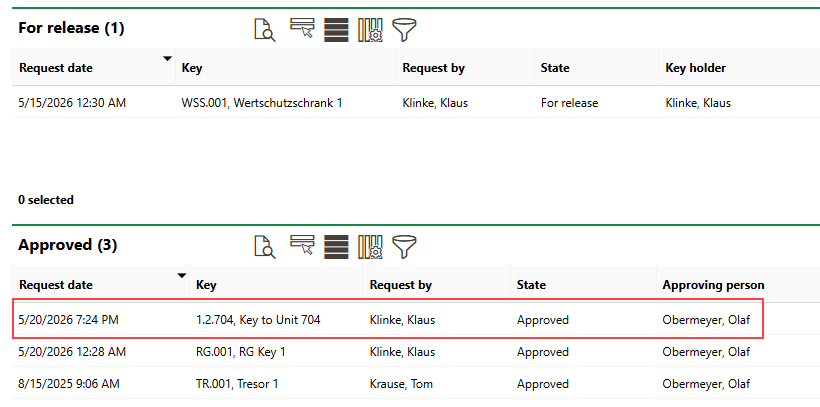
Approved Key Request
Approve or Decline Key Requests
When key assignment is requested for a key on an employee's key release list, or for a key associated with a lock on the employee's key release list, VertiGIS FM generates a key request.
Key Release List |
Key Request for Key on Release List |
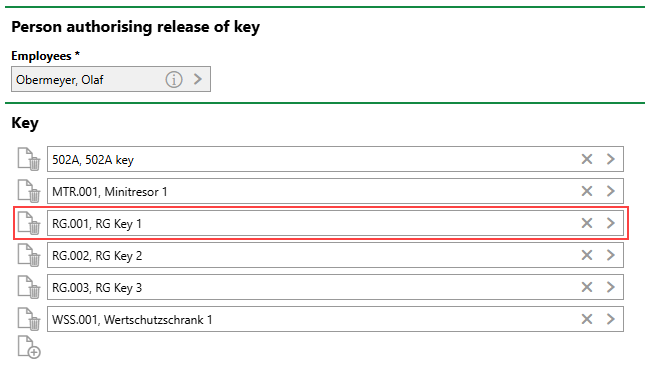
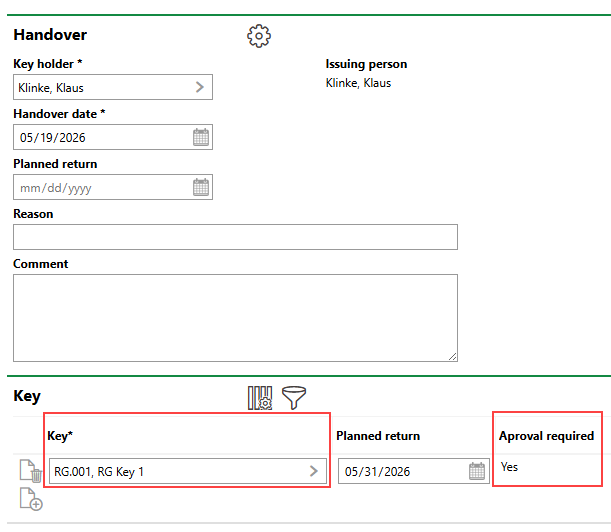
The employee whose release list the key is on sees the request in the For Release section on the Key Management legacy dashboard. Other employees can see the request in the Tasks section.
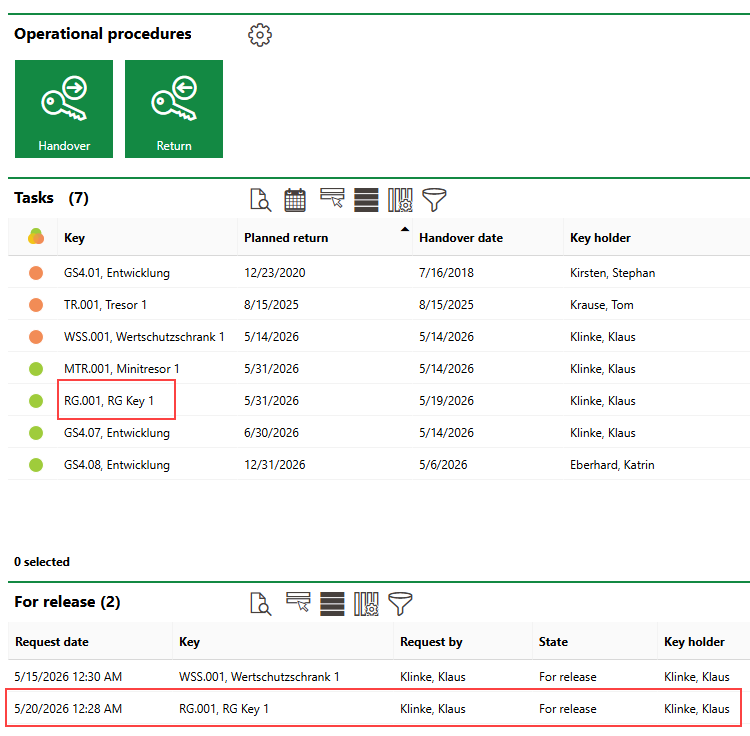
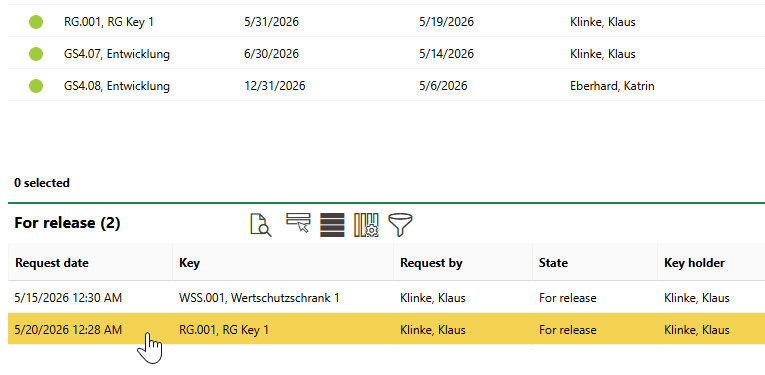
Key Request on Dashboard
The employee whose release list the key is on can approve or decline the request by completing the steps below.
To Approve or Decline a Key Request
1.Navigate to the Key Management legacy dashboard.
2.In the For Release section, double-click the request you want to approve or decline.
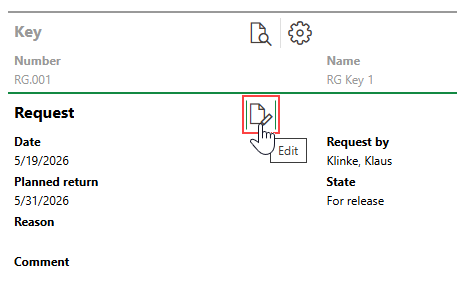
3.Click the Edit () icon.
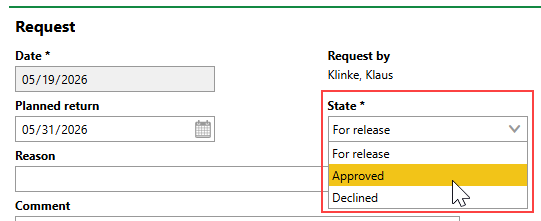
4.Select Approved or Declined from the State drop-down menu.
5.Click Save and Close.
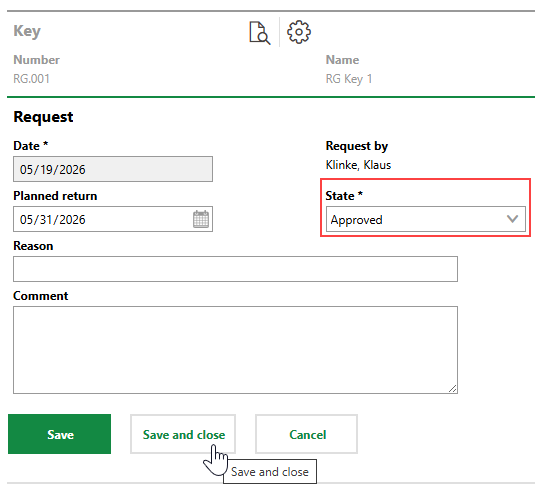
After you save the approved or declined key request, the request is removed from the For Release section. If you approved the request, you can now see it in the Approved section on the dashboard.
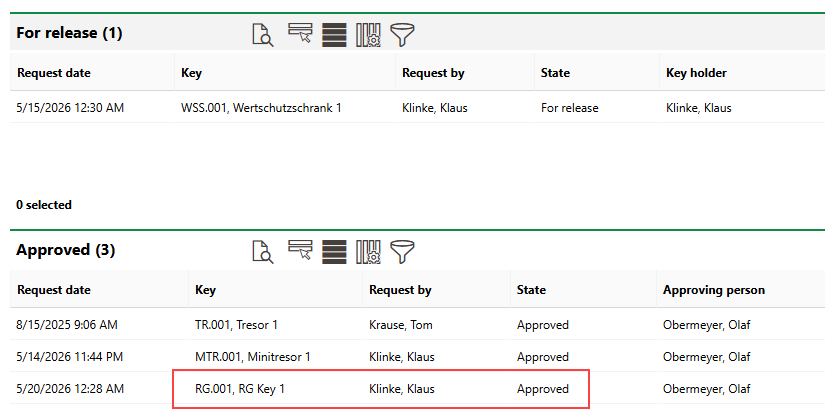
Approved Key Request
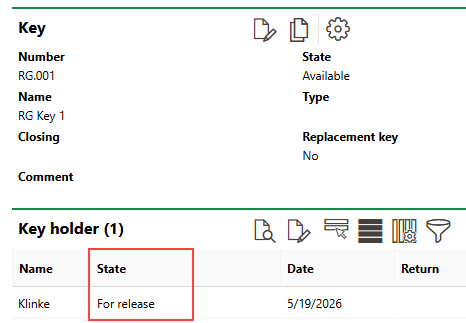
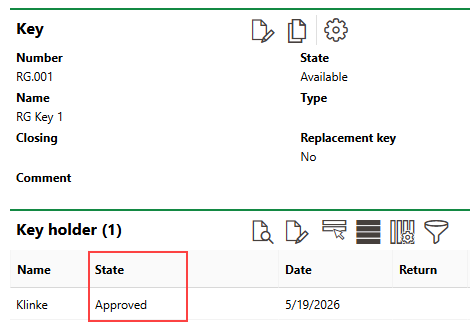
The key is now assigned to the key bearer. The key's State in the Key Holder section is updated from For Release to Approved.
Key Holder Pending Approval |
Key Holder After Approval |
If you decline the key request, it no longer appears in the For Release section on the dashboard, but you can still see the request in the Tasks section.