You can generate a key request based on a service desk ticket if the ticket's resolution involves a key assignment. For example, the resolution of a service desk ticket can involve replacing a damaged key and assigning it to an employee or the need to expand an employee's access by assigning them a key.
If the service desk ticket has a key selected in the Object field in the ticket details, you can only create a key request for that key.
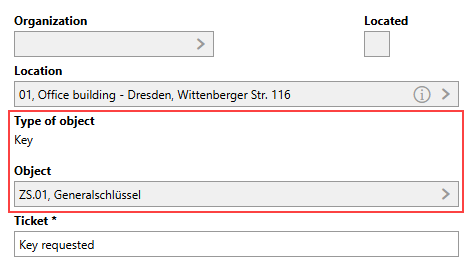
Service Desk Ticket with Key Selected in Object Field
If the ticket is associated with another type of data object or not associated with any data object, you can generate a key request for any key in your system that isn't already assigned to another person.
You can generate a key request based on a service desk ticket in any state.
1.Navigate to the ticket details page for the service desk ticket you want to create a request based on.
2.Click the Generate Key Request ( ) icon.
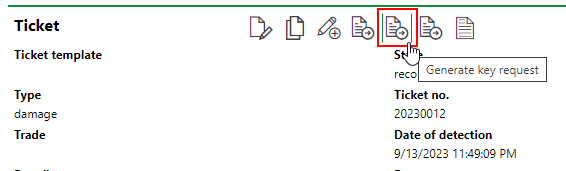
3.Click the > button in the Key Bearer menu.
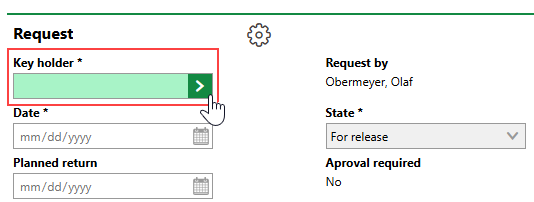
4.Select the employee or contact you want to issue the key to and click Apply, or double-click the contact or employee.
You can only issue keys to employees and contacts assigned the Key contact type. Refer to Contact Types for more information.
5.Click the > button in the Key menu.
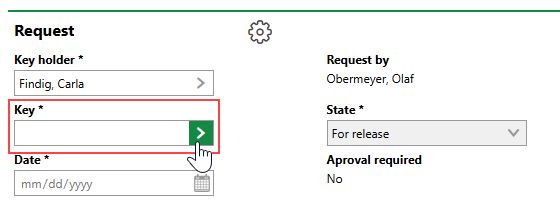
6.Select the key you are issuing to the key bearer and click Apply, or double-click the key.
7.Click the calendar icon ( ) in the Handover Date menu and select the date the key was given to the key bearer.
You cannot select a future date.
8.Optionally,
▪click the calendar icon () in the Planned Return menu and select the date the key bearer will return the key.
▪enter the reason you are issuing the key to the key bearer in the Reason text box.
VertiGIS FM does not programmatically remove the key bearer assignment on the date selected in the Planned Return date. The system tells you when key bearer assignments are overdue, but you must manually complete the Key Return workflow to end the key bearer assignment.
9.In the Signature section,
▪record your signature in the Signature box.
▪enter your name in the Full Name text box.
▪select the date using the calendar picker () in the Date menu.
10.Click Save and Close.
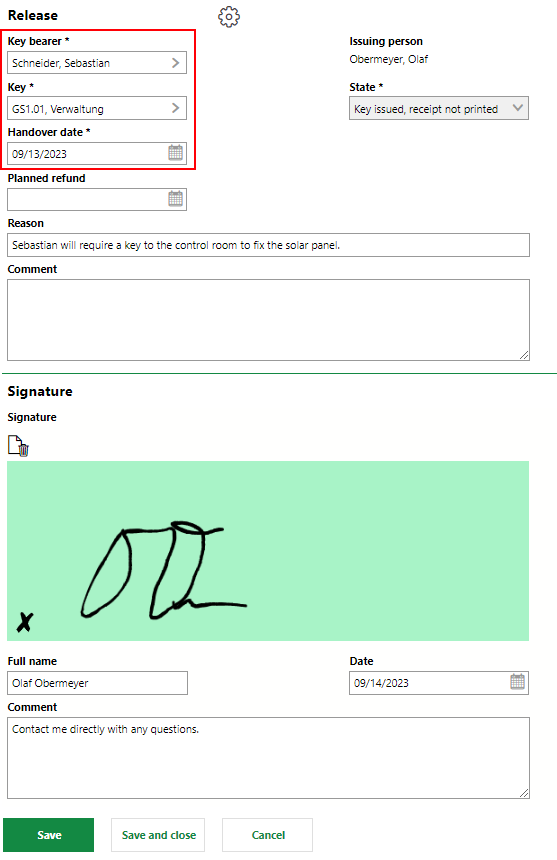
Generate Key Request Form
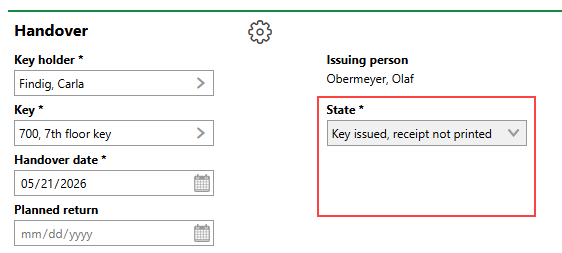
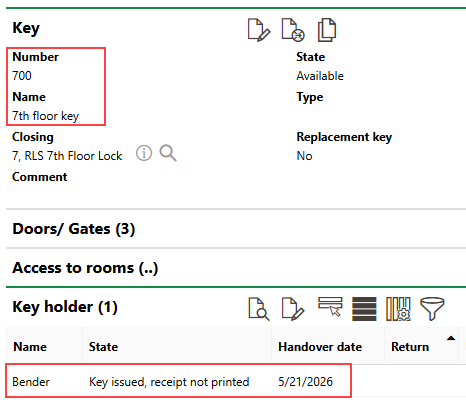
If the key is not on any employee's key release list, the State field indicates Key issued, receipt not printed. VertiGIS FM instantly assigns the key to the contact or employee selected in the Key Holder menu.
Key That Does Not Require Approval for Assignment |
Key Assigned to Employee |
If the key is on another employee's key release list, that employee must approve the key release before it is assigned to the selected key bearer. The key assignment requires approval if Yes appears under the Approval Required field that loads after you select the key in step 6 of the procedure to generate a key request based on a service desk ticket.
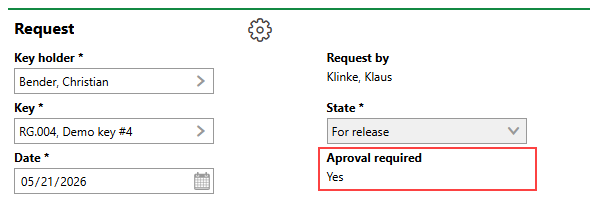
Key Request for Key on Approval List
Refer to Process Key Requests for instructions on how to approve or decline key requests.