In VertiGIS FM, you can track a key's assignment to employees, assign it to locks, and specify the doors it opens and rooms it grants access to.
Key Details Page
Each key in VertiGIS FM has its own details page, which you can access
•from the Key Management search page, by selecting Key under Objects and then double-clicking a key in the search grid.
•by double-clicking a key in the Key section on the details page for another type of data object (for example, a lock, door, or room).
The key details page includes the information fields and sections below.
Details
The Details section stores the key's high-level properties.
Field |
Description |
||||||||||||||||||
|---|---|---|---|---|---|---|---|---|---|---|---|---|---|---|---|---|---|---|---|
Number |
A number or code to identify the key by. |
||||||||||||||||||
Name |
The name of the key. |
||||||||||||||||||
Lock |
The lock (central lock, group lock, or individual lock) that the key opens. This menu is not visible if the key is assigned to a non-lockable object. If this is the case, its details page has an Objects section and shows the asset the key is assigned to. |
||||||||||||||||||
State |
The current state of the key.
|
||||||||||||||||||
Type |
The type of key. Selectable options are saved in the Key Type catalog. |
||||||||||||||||||
Replacement key |
A check box that, if selected, means the key was ordered as a replacement for another key that was damaged or lost. |
||||||||||||||||||
Key cabinet |
A description of the key's storage location within a cabinet your organization uses to store keys. |
||||||||||||||||||
Key shelf |
A description of the key's storage location on a shelf your organization uses to store keys. |
||||||||||||||||||
End of service |
The date the key will be taken out of service. |


Doors/Gates
The Doors/Gates section lists the doors the key opens. This section can list multiple doors, especially if the key is associated with a group lock or central lock.
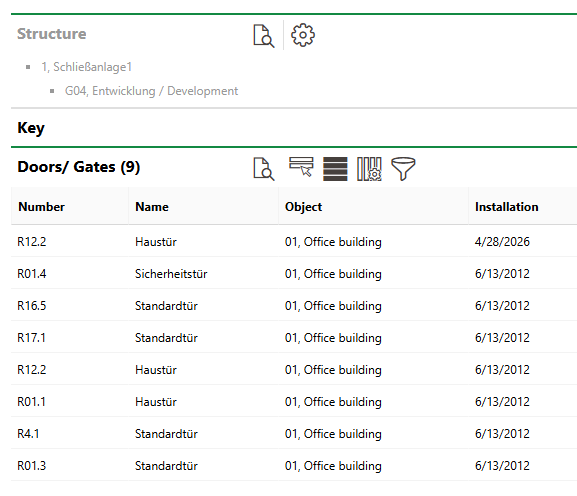
Doors/Gates Section
For a door to appear in this section, the key must be assigned to a lock. Doors that the lock's associated cylinders are installed in are therefore associated with the key and appear in the Doors/Gates section on the key's details page. Refer to Manage Door and Room Access for more information.
Access to Rooms
The Access to Rooms section lists the rooms whose doors the key locks and unlocks.

Access to Rooms Section
Key Holder
The Key Holder section lists the contacts and employees the key has been assigned to. If the Return column is empty, the key is still assigned to the person in that row.
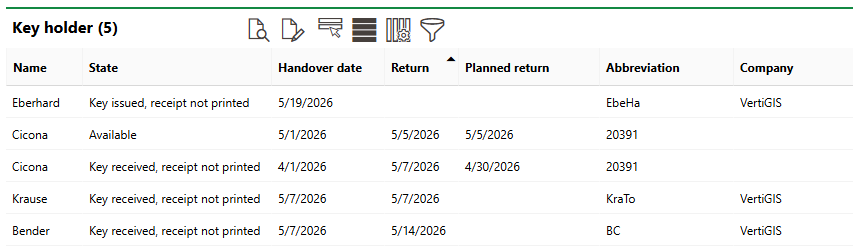
Key Holder Section
Refer to Assign Keys to People.
Objects
The Objects section indicates the asset the key locks and unlocks if it is not associated with a lock in your locking system. Refer to Assign Keys to Other Lockable Objects.
Signatures
The Signatures section shows the signatures of people who have issued the key to key bearers or requested it be issued to them. The signee's name and the date the signature was recorded are also shown.
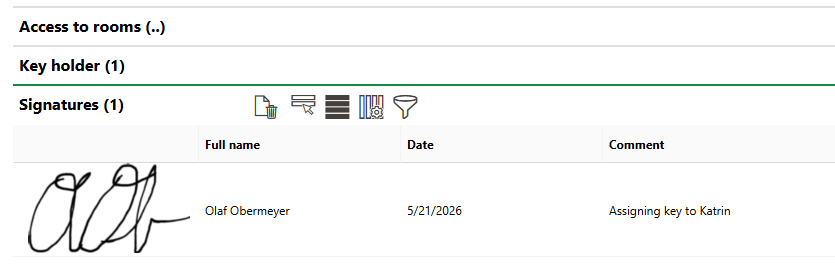
Signatures Section
Refer to Issue or Request Keys.
Tickets
The Tickets section lists any service desk tickets associated with the key.
You must manually add service desk tickets in this section. Service desk tickets used to generate key requests for this key do not appear in this section.
Documents
The Documents section lists the documents, including image files, associated with the key. Refer to Document Management for more information, including instructions on how to upload a document.