This topic outlines how to add, edit, and delete a key in VertiGIS FM.
This topic outlines how to manually add individual keys in VertiGIS FM. You can alternatively import your own internal record of keys into the VertiGIS FM database using a CSV or XML file. This option is ideal for adding large quantities of keys simultaneously (for example, to establish an initial record of keys in the VertiGIS FM database).
Create a Key
There are two ways of manually creating keys in VertiGIS FM. One method requires you to create the new key specifically for an existing lock in the system. The other method includes an option to assign the new key to an existing lock but also allows you to create a new key independently of any locks. This allows you to assign the key to another lockable data object in VertiGIS FM (for example, a device, vehicle, or inventory item).
Create a New Key for a Specific Lock
If the key you want to create is for a specific lock that already exists in the system, create it on the details page for the lock (central, group, or individual). Keys you create on a lock's details page cannot be assigned to a different lock, assigned to another lockable data object, or left unassigned.
To Create a Key on the Lock's Details Page
1.Navigate to the details page for the central lock, group lock, or individual lock whose door(s) and cylinder(s) the new key opens.
2.Expand the Key section and click the Add ( ) icon.
3.Enter a Name and State for the key, and any other key details, as available.
Refer to Key Details for descriptions of all information fields.
The lock whose details page you created the key on is already selected in the Lock menu. The system does not allow you to delete the lock shown in the Lock menu.
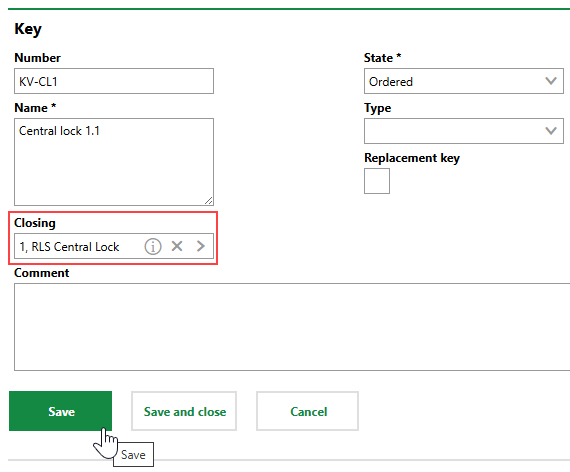
4.Click Save or Save and Close.
Create a Key on the Search Page
Alternatively, you can create keys on the Key Management search page. Keys you create this way can be assigned to a lock in the system, assigned to another lockable data object, or left unassigned for future assignment.
If you want to add a new key to an administrator's key release list, create the key using this method, add it to the release list, and then assign it to a lock.
To Add a Key on the Search Page
1.Navigate to the Key Management search page.
2.Under Objects, click Key.
3.Click the Add () icon.
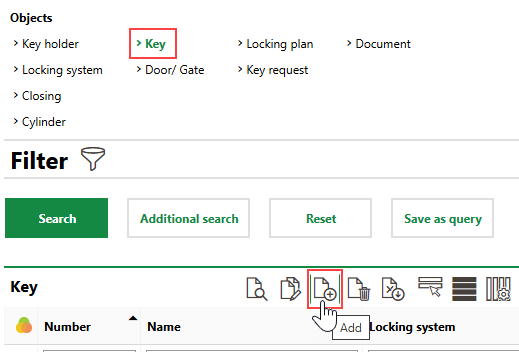
4.Enter a Name and State for the key, and any other key details, as available.
Refer to Key Details for descriptions of all information fields.
5.Click Save or Save and Close.
Assign an Existing Key to a Lock
If the key already exists in the system but does not have an associated lock, you can assign it to one by following these steps.
To Assign an Existing Key to a Lock
1.Navigate to the details page for the key you want to assign to a lock.
2.Click the Edit ( ) icon.
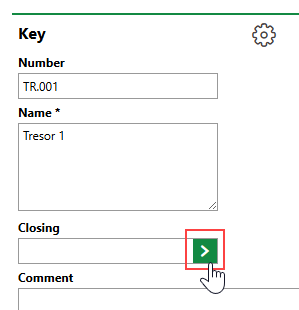
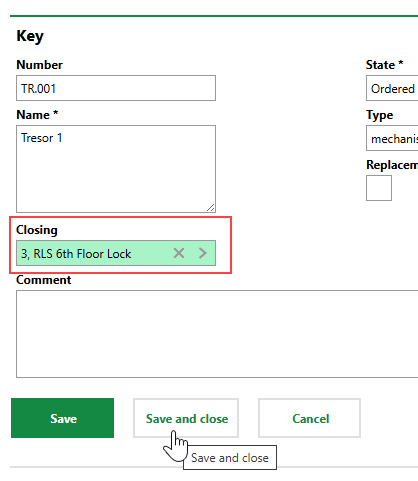
3.Click the > button in the Lock menu and select the central lock, group lock, or individual lock whose cylinder and door the key opens.
4.Click Save and Close.
Edit a Key
You can edit a key on its details page.
To Edit a Key
1.Navigate to the details page of the key you want to edit.
2.Click the Edit () icon.
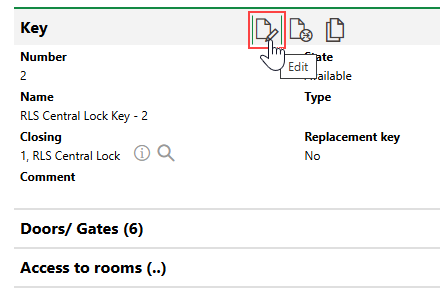
3.Edit the key's details as required.
4.Click Save or Save and Close.
Batch Edit Keys
You can perform a batch edit on keys to edit the Name, State, Type, Replacement Key, Key Cabinet, Key Shelf, and End of Service properties of two or more keys in one action.
You can perform a batch edit on the Key Management search page.
To Batch Edit Multiple Keys
1.Navigate to the Key Management search page.
2.Under Objects, click Key.
3.In the search grid, select the keys you want to edit and click the Edit Keys ( ) icon.
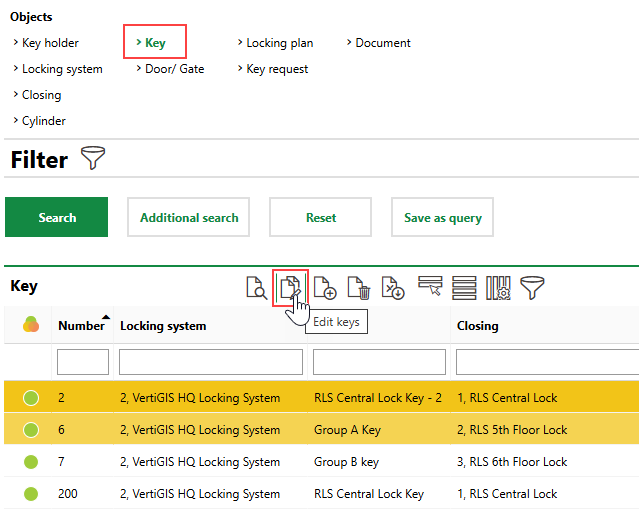
Press the ctrl key on a Windows keyboard to select items in the search grid that are not directly on top of or beneath each other.
4.For the property or properties whose values you want to batch edit, select the check box and select or enter the new value.
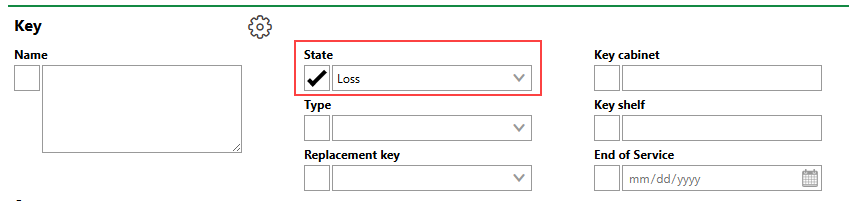
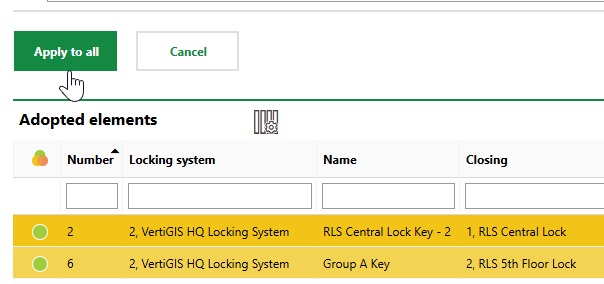
5.Click Apply to All. Affected keys are listed in the Adopted Elements section.
Delete a Key
You can delete a key on the search page or on the details page of the lock (central, group, or individual) it opens.
To Delete a Key on the Search Page
1.Navigate to the Key Management search page.
2.Under Objects, click Key.
3.Select the key you want to delete.
4.Click the Delete ( ) icon.
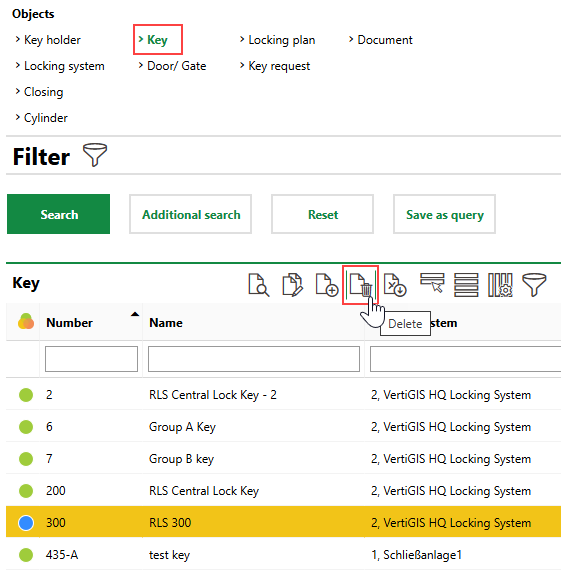
5.Click OK.
To Delete a Key on the Lock's Details Page
1.Navigate to the details page for the lock (central, group, or individual) whose door and cylinder the key opens.
2.Expand the Key section.
3.Select the key you want to delete and click the Delete () icon.
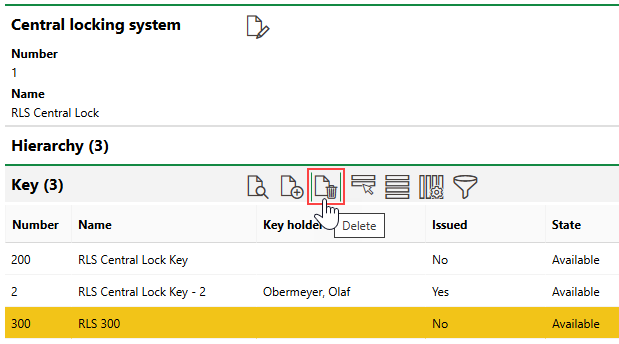
4.Click OK.