Keys you create in the Key Management module are typically created for and assigned to a type of lock (central, group, or individual) in a locking system. Alternatively, you can create keys on the search page and leave them unassigned so that you can then assign them to other lockable assets managed in VertiGIS FM.
Lockable Assets in VertiGIS FM
Asset |
Module |
Product |
|---|---|---|
VertiGIS FM Buildings |
||
Core VertiGIS FM Maintenance module |
VertiGIS FM Maintenance |
|
VertiGIS FM Maintenance |
||
VertiGIS FM Buildings |
VertiGIS FM Buildings assets like rooms are associated with keys through their assignment to locks, cylinders, and doors. Refer to Manage Room Access.
These assets have a Lockable check box in their core details that, when selected, loads a Key section on the asset's details page in which you can assign keys to the assets.
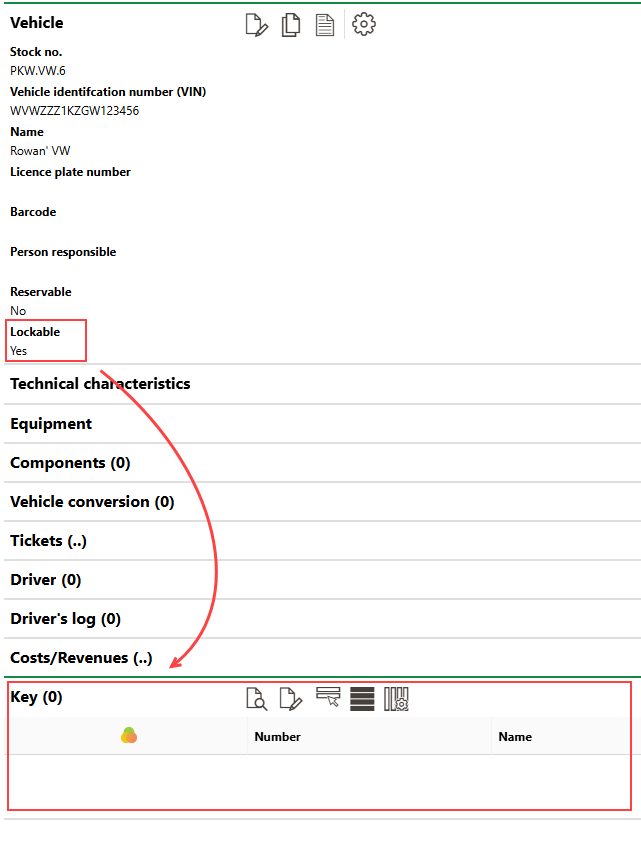
Lockable Property and Key Section
This functionality allows you to document key assignment for various assets without leveraging full Key Management features and workflows. Keys assigned to assets managed outside of the Key Management workflows are not associated with locks or locking systems.
Assign a Key to a Lockable Object
Before you assign a key to a lockable object other than a lock, ensure its Lockable check box is selected. The asset's details page does not show the Key section unless the asset's Lockable property is selected.
To Assign a Key to a Lockable Object
1.Navigate to the details page of the lockable object (for example, a vehicle or an inventory item).
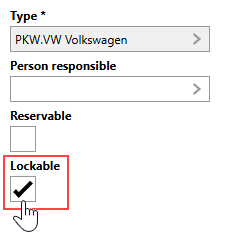
2.Ensure the asset's Lockable property is set to Yes. If it is not, edit the asset's core properties and select the Lockable check box.
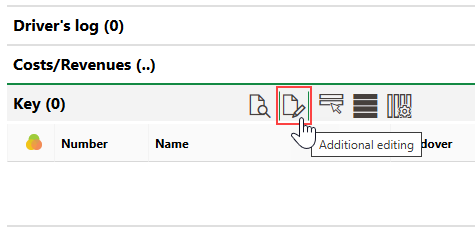
3.Expand the Key section and click the Additional Editing ( ) icon.
4.Click the Add ( ) icon.
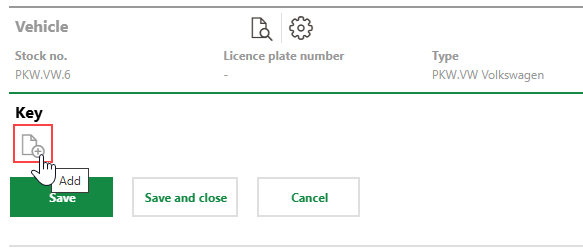
5.Select the key you want to assign the to the asset and click Apply, or double-click the key.
6.Click Save and Close.
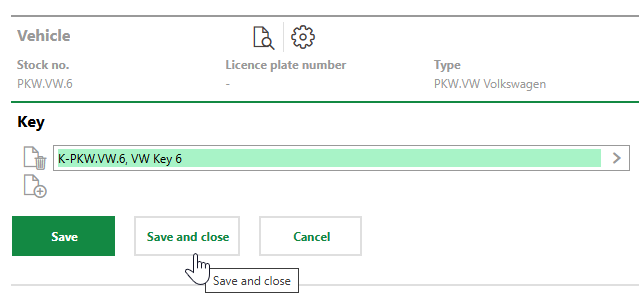
The key is now listed in the Key section on the asset's details page. Accordingly, the asset appears in the Objects section on the key's details page.