Locking systems are multi-level networks that specify hierarchical relationships between types of locks and their keys. Hierarchical relationships in a locking system determine which keys can open individual locks, specific groups of locks, or all locks in a system.
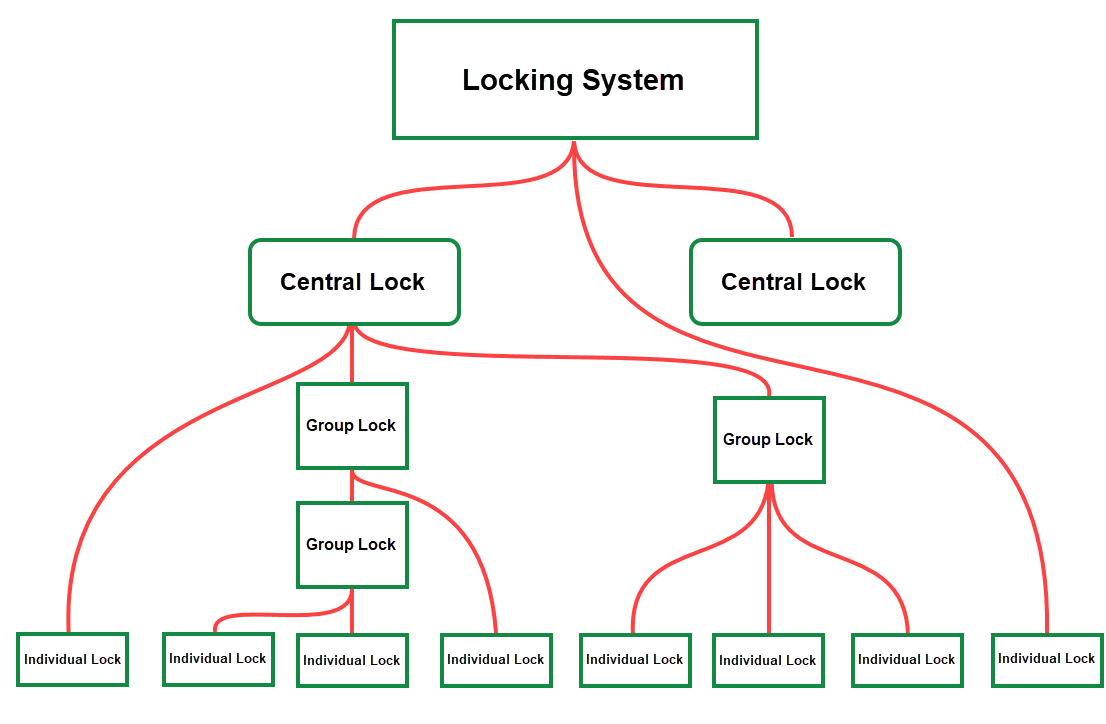
Possible Hierarchical Relationships in Locking System Hierarchies
Levels
Locking systems in VertiGIS FM can have three distinct levels, depending on their needs and the type of facility:
Locking System Levels
Field |
Description |
|---|---|
Central lock |
Also called a master lock, a central lock refers to a locking mechanism for all groups and individual locks beneath it in the locking system's hierarchy. |
Group lock |
The middle level in a locking system, group locks comprise a group of individual locks. A group lock key can open all of the individual locks assigned to the group. Group locks themselves can have multiple tiers. You can specify a group as being superior or subordinate to another group lock. |
Individual lock |
The lowest level in a locking system, an individual lock is simply a lock that restricts access to a room, area, or asset in your facility. |
Your locking system does not have to comprise all available levels if not necessary. For example, if your locking system only requires individual locks, you do not need to establish central or group locks in the system. Similarly, your locking system could comprise individual locks and a central lock but no group locks.
Hierarchies
VertiGIS FM does not assume hierarchical relationships between central locks, group locks, and individual locks in the same locking system. In addition to adding locks to the system, you must document their hierarchical relationship to each other.
An up-arrow next to a lock in this section indicates that the lock whose details page you are viewing has a superior relationship to the lock in the Hierarchy section. A down-arrow indicates that the lock whose details page you are viewing has a superior relationship to the lock in the Hierarchy section.
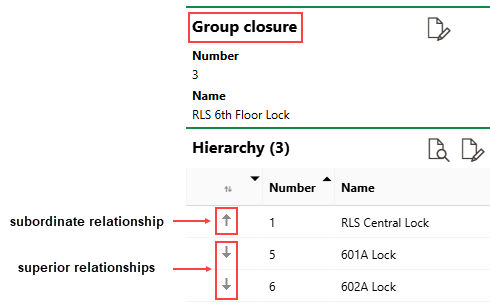
Group Lock with Subordinate and Superior Relationships
For example, locking systems can have multiple central locks with different groups, or multiple groups that unlock some but not all individual locks in the system.
Click Locking Systems under Actions on the Key Management legacy dashboard to view and manage the locking systems in your VertiGIS FM implementation.
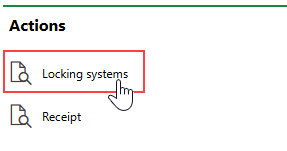
Link to Locking Systems
The page that opens lists your existing locking systems. Double-click a locking system to navigate to its details page, and see the various central, group, and individual locks in the system.
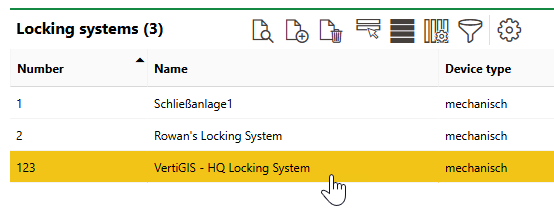
Locking Systems Table
Locking System Details Page
Each locking system has its own details page that stores its properties and associated data objects. You can navigate to a locking system's details page either of two ways:
•by double-clicking a locking system in the Locking Systems section of the page that lists all locking systems in your database.
•by selecting Locking Systems under Objects on the Key Management search page and double-clicking a locking system in the search grid.
Each locking system details page includes the following sections.
Details
Each locking system has the following core properties.
Field |
Description |
|---|---|
Number |
A number to identify the locking system. The locking system's Number value must be unique. |
Name |
The name of the locking system. |
Device Type |
The type of locking system. Selectable options are stored in the Device Type catalog. |
Manufacturer |
The organization that manufactured the locking system. You must select a company stored in the Contact Management module. |
Supplier |
The organization that supplied the locking system. You must select a company stored in the Contact Management module. |
Person Responsible |
A person who can be contacted for locking system maintenance or information. You must select a contact or company stored in the Contact Management module. |
Real Estates
The Real Estates section lists the real estates on which the locking system is installed.
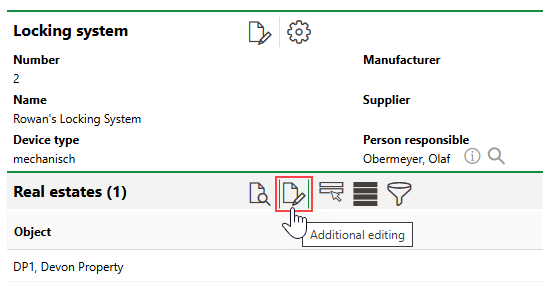
Real Estates Section
You can then click the Add ( ) icon to assign additional real estates, or click the Delete (
 ) icon to remove an existing real estate assignment.
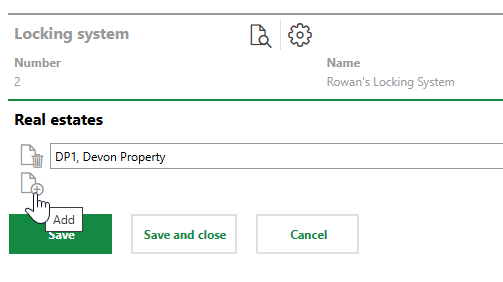
Assigning Additional Real Estates
Click Save or Save and Close to register new or deleted real estate assignments. You can assign a locking system to more than one real estate.
Central Locks
The Central Locks section lists central locks in the locking system.
Group Locks
The Group Locks section lists group locks in the locking system.
Individual Locks
The Individual Locks section lists individual locks in the locking system.
Documents
The Documents section lists the documents, including image files, associated with the locking system. Refer to Document Management for more information, including instructions on how to upload a document.
If any of the sections described in this topic do not appear on the details page, you may need to edit the section authorization to show them.