Inventory items are individual assets within your building. Each one must belong to a version that defines its general properties.
Generally, inventory refers to assets in your building that should be counted but do not require regular maintenance. Assets that require regular maintenance and inspection should be added to the system as devices or components in VertiGIS FM Maintenance.
Details Page
Each inventory item has its own details page that stores its properties and associated data objects. You can navigate to an inventory item's details page either of two ways:
•by double-clicking an inventory item in the Objects section on the details page of the version that contains the inventory item.
•by selecting Inventory under Objects on the Inventory Management search page and double-clicking an inventory item in the search grid.
Each inventory item details page includes the following sections.
Details
Each inventory item has the following core properties.
Inventory Item Details
Field |
Description |
|||||||||
|---|---|---|---|---|---|---|---|---|---|---|
ICS |
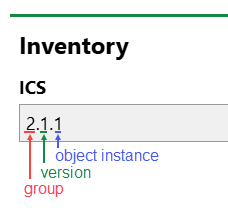
A system-generated identifying string for the inventory item. The value reflects the inventory item's group, designation (if applicable) and version, and distinguishes the inventory item from other inventory items in the same version with a decimal number.
Asset Identifying Code In the example above, subsequent objects added to the same inventory version would have codes of 2.1.2, 2.1.3, and so on. |
|||||||||
Name |
The name of the inventory item. |
|||||||||
Serial number |
The inventory item's serial number. |
|||||||||
Barcode |
The parsed barcode identifier of the inventory item. You can populate this field by clicking the Inventory items should have associated barcodes if you plan to conduct stocktakes using a barcode scanner. |
|||||||||
Type |
The inventory item's inventory version. |
|||||||||
State |
The status of the inventory item. Selectable options are
|
|||||||||
Reason |
A reason that explains the status selected in the State field. Selectable options are saved in the Reason catalog. |
|||||||||
End of Service |
The date until which the inventory item can be used. |
|||||||||
Reservable |
A check box that indicates whether the inventory item can be reserved. If this value is set to Yes, the Idle Periods section appears on the inventory item's details page. |
|||||||||
Lockable |
A check box that, if selected, means the inventory item can be locked and unlocked using a key managed in the Key Management module. When this check box is selected, the asset's details page has a Key section in which you can assign keys to it. Refer to Assign Keys to Other Lockable Objects. |
|||||||||
Stock-taking obligatory |
A check box that, if selected, means that the inventory item must be counted in stocktakes for the inventory item's location. If this check box is unselected, the inventory item will not appear in inventory lists for stocktakes of the location. |
 icon and scanning the inventory item's barcode using the Inventory Management Mobile App.
 Commercial Characteristics
Field |
Description |
|---|---|
Division |
The department or division of the company the inventory item belongs to. Selectable options are stored in the Divisions section on the Divisions section on the Own Company or Tenant administration page |
Person responsible |
A person who can be contacted for inventory item maintenance or information. You must select a contact or company stored in the Contact Management module. |
Organization |
The organization or department within your company associated with the inventory item. Selectable options are stored in the Organizations section on the Own Company or Tenant administration page. Only users whose associated employees have the same Organization property selected in their employee details can access the inventory item and its associated entities (for example, orders and invoices) in VertiGIS FM. If no organization is selected in this menu, users associated with employees in all organizations in your system can access the inventory item. This functionality only applies to users that have the Organization Filter Active check box selected in their user profile. Refer to Organization Filter Active. |
Ownership |
The commercial status of the inventory item. Selectable options are stored in the Ownership catalog entry. |
Purchase price |
The price for which the inventory item was purchased. |
Date of purchase |
The date the inventory item was purchased. |
Actual cash value |
The market value of the inventory item. |
Cost center |
The cost center to which maintenance or consumption costs incurred by the inventory item are to be charged. An option must be selected from the set of cost centers created in the Costs and Budgets module. |
Cost object |
The cost object associated with the inventory item. |
Start warranty |
The date the inventory item's warranty started. |
Duration warranty |
The length of the inventory item's warranty. |
End of warranty |
The date the inventory item's warranty ends. |
Manufacturer |
The organization that manufactured the inventory item. You must select a company stored in the Contact Management module. |
Manufacturer no. |
A manufacturer-assigned tracking number. |
Supplier |
The organization that supplied the inventory item. You must select a company stored in the Contact Management module. |
Installer |
The party that installed the inventory item. You must select a company stored in the Contact Management module. |
Inventory number |
An internal tracking number. |
Last stock-taking |
The date the inventory item was most recently accounted for in an inventory check. |
Warranty
When you enter the Start Warranty and one of the Duration Warranty or End of Warranty fields and click Save, VertiGIS FM populates the third field based on the warranty data entered.
|
|
|
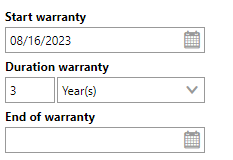
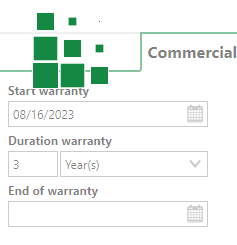
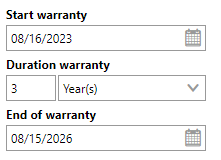
When you save the form with a valid warranty, a warranty message appears in red text on the inventory item's details page to indicate that the inventory item is covered by a warranty. This message no longer appears after the warranty expires.
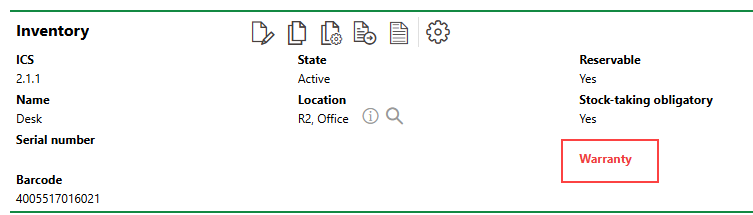
Warranty Warning on Item's Details Page
Value
VertiGIS FM can calculate an estimated market value of the inventory item in the Actual Cash Value field if you enter the Estimated Service Life value in the Technical Characteristics tab and the Purchase Price and Date of Purchase in the Commercial Characteristics tab. This feature allows you to make cost-sensitive decisions about the maintenance of the asset. For example, you may decide that a damaged asset that is no longer under warranty should not be repaired because the repair cost exceeds the value of the asset.
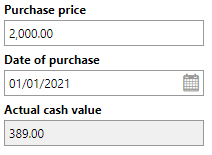
Value Field in the Commercial Characteristics Tab
Technical Characteristics
Field |
Description |
|---|---|
Model no. |
A serial number or product code for the inventory item. |
Year of construction |
The year the inventory item was manufactured. |
Start-up Date |
The date the inventory item has been in production since. |
Estimated service life |
The estimated lifespan of the inventory item. Refer to Estimate Service Life for more information. |
Quantity |
The quantity of the inventory item. This field could be used if, for example, an organization has hundreds of identical demo devices but finds it sufficient to only create one instance of it in VertiGIS FM. |
Width [m] |
The width of the inventory item in meters. |
Length (depth) [m] |
The length of the inventory item. |
Height [m] |
The height of the inventory item. |
Diameter [m] |
The diameter of the inventory item. |
Weight [kg] |
The weight of the inventory item. |
Icon |
The symbol that represents the inventory item graphically in CAD drawings. Symbols that have been created under Administration can be selected. |
Workplace |
|
Deducted cleaning area |
|
Description |
Additional comments regarding the inventory item's commercial details. |
Several properties in the Commercial Characteristics tab are assigned to a new inventory item programmatically based on the property values in the Default Values section of the version to which they are added.
Estimated Service Life
It is important to enter the Estimated Service Life so that VertiGIS FM can calculate the market value of the inventory item. Refer to Value in Commercial Characteristics for more information.
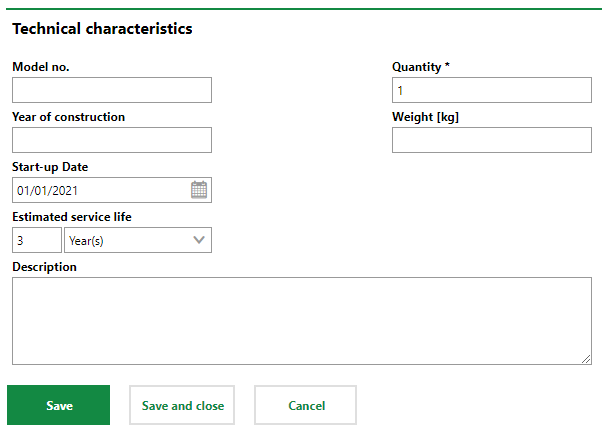
Technical Characteristics Tab on the Device Details Page
Categorization
The Categorization section indicates the inventory item's version. This is the version selected in the Type field in the inventory item's core properties. You can click the View Details ( ) icon to navigate to the version's details page.
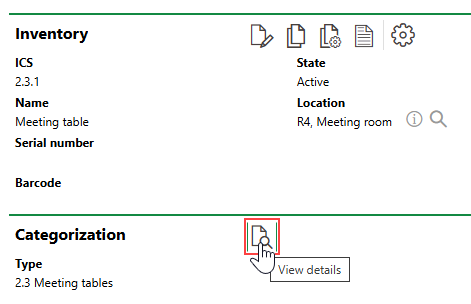
Link to Inventory Item's Version Page
Image
The section to the right of the Navigation section indicates Image or Map, depending on whether images related to the inventory item have been uploaded and whether any maps are available to show the location of the inventory item. No section appears in this space if neither images nor maps are available for the inventory item.
If both images and a map are available, you can toggle between them by clicking the  and
and  icons.
Toggle to Map |
Toggle to Image |
Image
When the Image section is already displayed, you can click the  icon to view an enlarged version of the image.
Images uploaded in the Documents section are then displayed in the Image section. You can upload images related to the inventory item by attaching an image file in the Documents section on the details page.
To Upload an Image
1.Expand the Documents section on the details page. You may need to show the section first.
2.Click the Add ( ) icon.
3.Click Place files for upload here (or click) and double-click the image file in Windows Explorer. Alternatively, you can drag the file from a Windows Explorer window into the box.
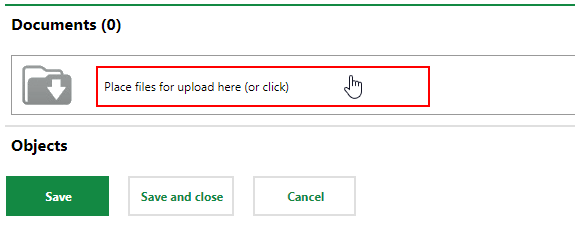
If you want to attach the image to another inventory item while you're uploading it, click the icon and select an additional inventory item. You can do this for multiple inventory items when you upload an image.
4.Click Save and Close.
Location
The Location section lists the building locations in which the inventory item has been installed. These can include real estates, buildings, floors, and rooms.
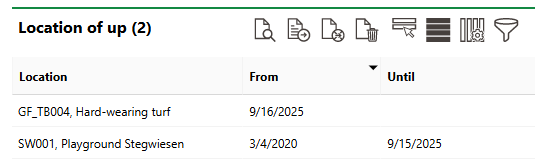
Location Section
You can double-click a real estate, building, floor, or room in this section to navigate to its details page.
A inventory item can only be installed in one location at a time. Therefore, the time spans marked by the From and Until fields cannot overlap.
Refer to Install Inventory in a Location.
Employees
The Employees section lists the employees assigned to the inventory item. Refer to Employees for more information.
Tickets
The Tickets section lists any service desk tickets associated with the inventory item.
Appointments
The Appointments section lists the scheduled appointments (a call or in-person meeting) that are associated with the inventory item. Appointments are action items that can be scheduled for any object in VertiGIS FM. They are not the same thing as orders.
To add an appointment for the inventory item, click the Add () icon in the Appointments section on the details page.
Notes
The Notes section lists notes that have been posted in relation to the inventory item.
Condition Assessment
The Condition Assessment (or Assessment Condition) section lists status range assessments recorded for the inventory item. Refer to Record Status Range Assessments for more information.
This section is associated with the Condition Assessment module, which is typically bundled in licences for VertiGIS FM Buildings.
Idle Periods
This section lists periods of time during which the room cannot be reserved. This section is not visible unless the Reservable property in the inventory item details is set to Yes. To add a "Blocking Time", click the Add () icon.
Documents
The Documents section lists the documents, including image files, associated with the inventory item. Refer to Document Management for more information, including instructions on how to upload a document.
Key
The Key section lists keys keys that lock and unlock the inventory item. You can double-click the key to navigate to its details page. Keys are managed in the Key Management Module.
This section is only visible if the Lockable check box is selected in the inventory item's core details.
Refer to Assign Keys to Other Lockable Objects for more information.
Document Type
Hierarchy
Document how hierarchies work
If any of the sections described in this topic do not appear on the details page, you may need to edit the section authorization to show them.