The Inventory Management module allows you to manage inventory in your building facilities in a structured, hierarchical manner. Typically, this module is used to manage assets in your buildings that do not require regular maintenance to maintain their value. It is often used to manage items like desks, chairs, and office inventory. Manage assets that require regular preventative and corrective maintenance in VertiGIS FM Maintenance.
With the Inventory Management module, you can enhance your buildings' CAD or IFC visualizations by specifying the indoor locations of your inventory items.
Open Inventory Management
To access the Inventory Management module, click the Inventory icon on the VertiGIS FM home page.
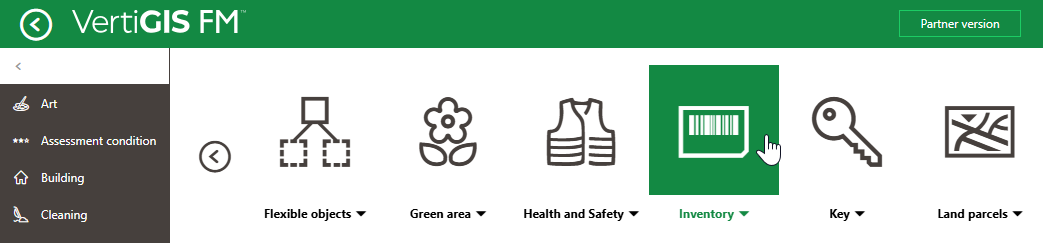
Inventory Management Icon
Click the down-arrow button on the icon to access shortcuts to key Inventory Management links and workflows.
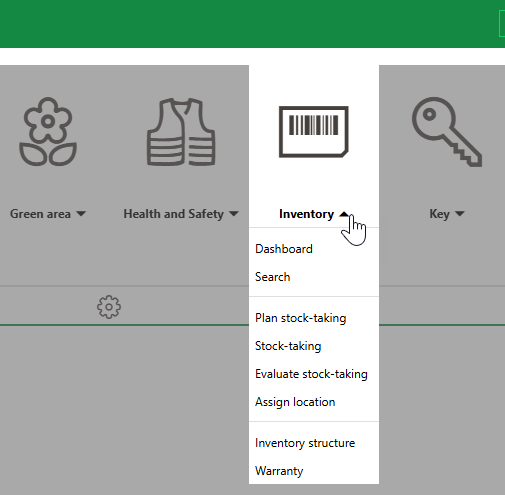
Inventory Management Workflows as Accessed from the Home Screen
You can also access the dashboard and search page from the modules panel in the left pane.
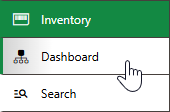
Inventory Management Dashboard and Search Page Access
Dashboard
You can access the Inventory Management dashboard by expanding Inventory in the modules panel and clicking Dashboard.
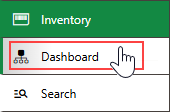
Link to Inventory Management Dashboard
Legacy Dashboard
The legacy dashboard for Inventory Management is divided into the sections below.
Operational Procedures
The Operational Procedures section of the Inventory Management dashboard includes shortcuts to various workflows within the application.
Operational Procedures
|
Plan Stock Taking•Initiates a workflow to plan stocktakes. •Select the building locations whose inventory you want to check, specify the inventory and device version you want to stocktake, and select a date and employee for the stocktake. |
|
Stock Taking•Initiates a workflow to conduct stocktakes. •Using a barcode scanner (recommended) or your mouse, mark assets present in each building location targeted by the stocktake. Missing inventory and inventory that does not exist in the system but whose barcodes were scanned during the stocktake can be managed by the employee who reviews the stocktake. |
|
Evaluate Stock Taking•Initiates a workflow to review and complete stocktakes that have been conducted. •Review scanned or manually counted assets, missing assets, and assets that were counted but do not exist in the database, in locations targeted by the stocktake, and mark the stocktake complete. |
|
Assign Location•Opens a list of inventory items that are not assigned to a location. You can select any items in this list, click the Assign Location ( •Refer to Install Inventory Item in a Location. |


Actions
The Actions section lists links to the following Inventory Management tools and resources:
•Inventory Structure: links to the top level of an inventory structure into which all assets in the inventory management module must be sorted.
•Warranty: Opens a list of all inventory items currently under warranty.
You can expand or collapse the Actions panel by clicking on the arrow in the top-right corner.
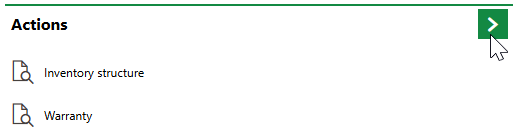
Expand/Collapse Button on the Actions Panel