When you issue keys to a key bearer or receive keys back from a key bearer and document the transfer using the dashboard workflows, VertiGIS FM asks you if you want to print a document that outlines the issuance or receipt of the keys.
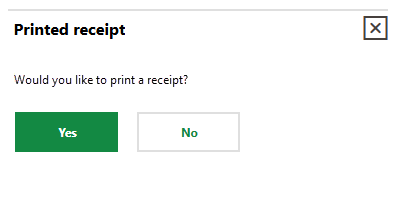
Print Receipt Dialog
Templates used to render key issuance receipts are managed in the Hand-over of keys report definition in the Report and Queries administration section. Refer to Report Definitions.
If you click Yes, a document file is downloaded to your computer. If you click No, no file is downloaded, but you can access it later on the Key Issuance and Return Receipt page.
The option to print key issuance or return receipts is only available when you execute the Issue Keys and Return Keys workflows on the dashboard. You cannot generate receipts when you assign a key to a contact or employee on the key's details page.
Key Issuance and Return Receipt Page
Access the Key Issuance and Return Receipt page by clicking Receipt under Actions on the Key Management legacy dashboard.
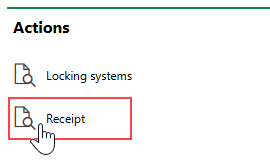
Actions Section on Key Management Dashboard
If you do not see the Actions section, an administrator must add its template to your custom dashboard or restore the legacy dashboard. Refer to Dashboard Customization.
The page that opens lists all the key handovers (times keys were issued to key bearers or returned by key bearers) and key returns for which no receipt was printed (i.e., the person issuing the key clicked No on the dialog above).
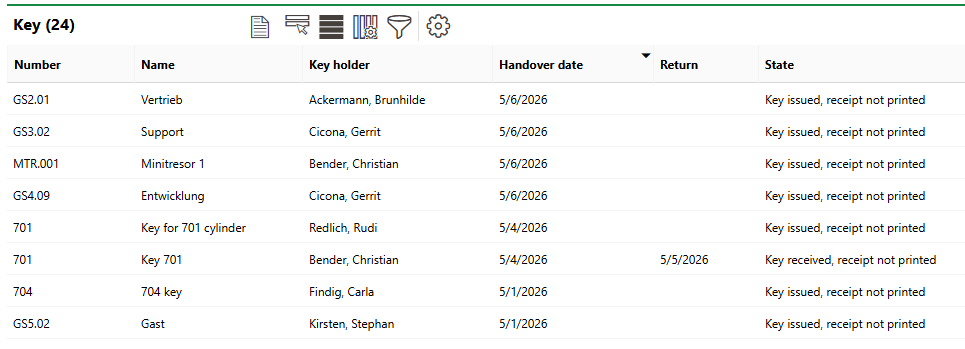
Unprinted Key Issuance Receipts
Key issuance transfers have a state of Key issued, receipt not printed. Key return transfers have a value in the Return column and a state of Key received, receipt not printed.
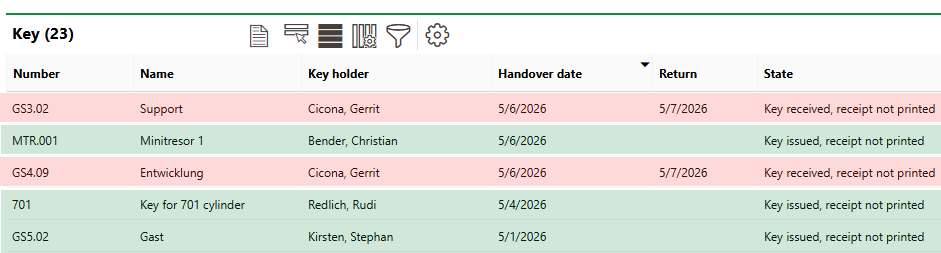
Key Issuance (Green) and Return (Red) Receipts on the Key Receipt Page
Download Receipts
To print a receipt for the key transfer, select it and click the Print Receipt ( ) icon.
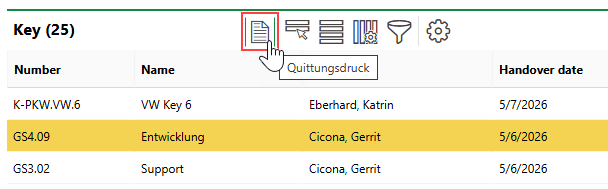
Print Receipt Icon
You can now open the document on your computer.
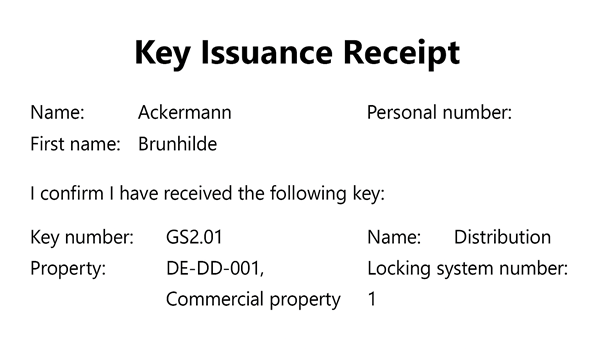
Sample Key Issuance Receipt
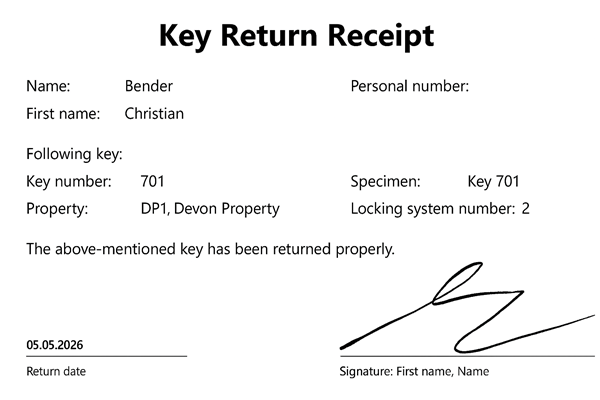
Sample Key Return Receipt
In VertiGIS FM, click Yes on the dialog that appears after you click the Print Receipt () icon to remove the key transfer from the Key Issuance Receipt Page. This means that you will not be able to download additional copies of the key issuance receipt for the key transfer. If you click No, the key transfer remains in the table so that you can download additional copies of the document when necessary.