Each vehicle in VertiGIS FM has its own driver's log that lets you document trips taken in the vehicle. Entries in a vehicle's driver's log allow you to capture who drove the vehicle, the distance travelled, whether fuel was purchased during the trip, and more.
Additionally, a driver's log programmatically populates its vehicle's Consumption property by calculating the fuel consumption per distance travelled. Driver's logs also allow you to track the mileage of vehicles under lease and compare the vehicles' usage against the expected mileage specified in their leases.
View Existing Log Entries
You can see all log entries across all vehicles in your system by clicking Driver's Log under Objects on the Fleet Management search page. The search grid shows all trips logged across all vehicles in your fleet.
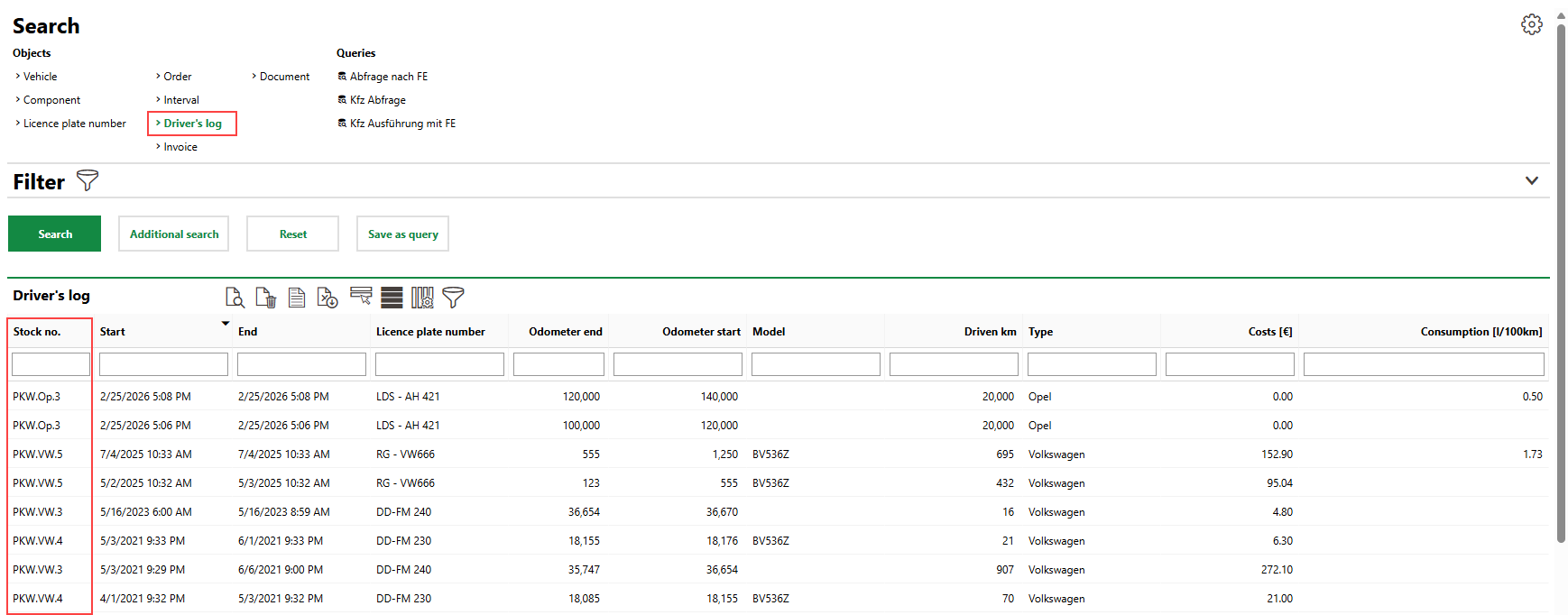
All Trips Listed on Search Page
Filter and sort using the data points in the various columns to quickly find a trip taken in a specific vehicle.
In addition to filtering the search page using the Stock no. property, you can also see all trips associated with a specific vehicle in the Driver's Log section on the vehicle's details page.
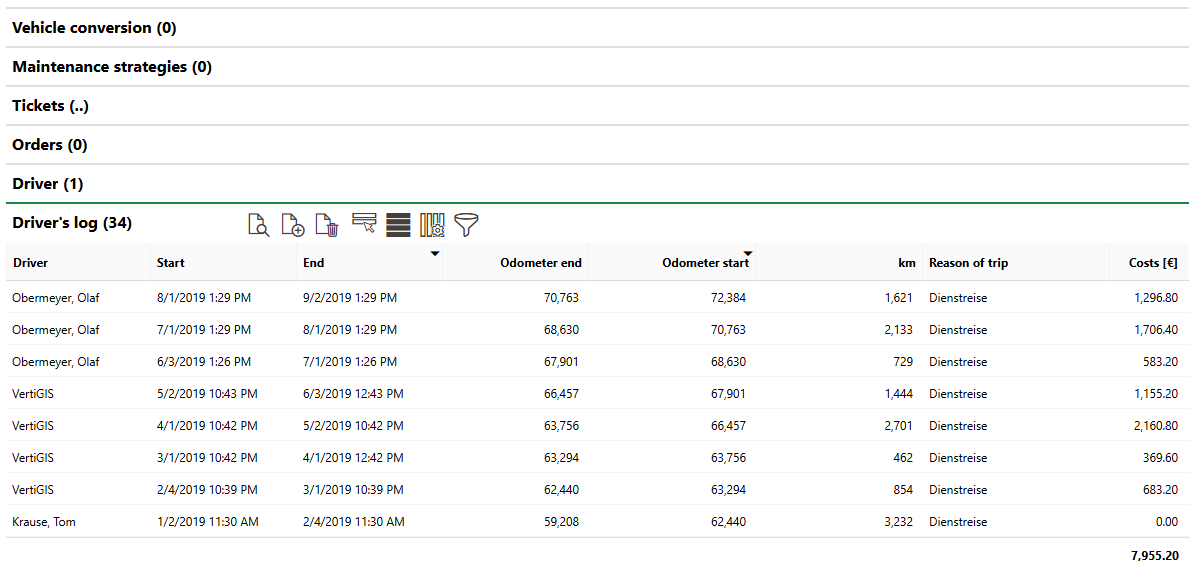
Driver's Log Section on Vehicle Details Page
Double-click an entry in the search grid or in the Driver's Log section to see its details. Refer to Driver's Log Entry Details for form field descriptions.
Add an Entry to a Driver's Log
You can document a trip taken in a vehicle by adding an entry to the driver's log on the vehicle's details page.
To Add an Entry to a Driver's Log
1.Navigate to the details page for the vehicle whose driver's log you want to add an entry to.
2.Expand the Driver's Log section and click the Add ( ) icon.
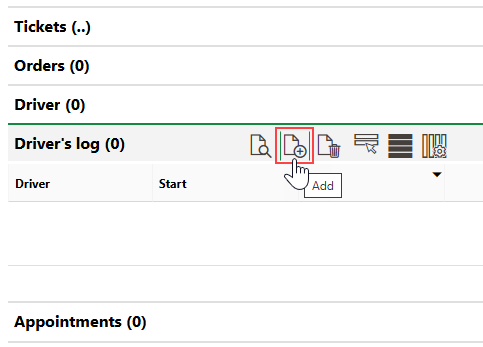
3.Enter the trip details in the corresponding information fields. At minimum, enter
▪the date and time the trip began in the Start field.
▪the date and time the trip ended in the End field.
▪the odometer reading at the start of the trip in the Odometer Start field.
▪the odometer reading at the end of the trip in the Odometer End field.
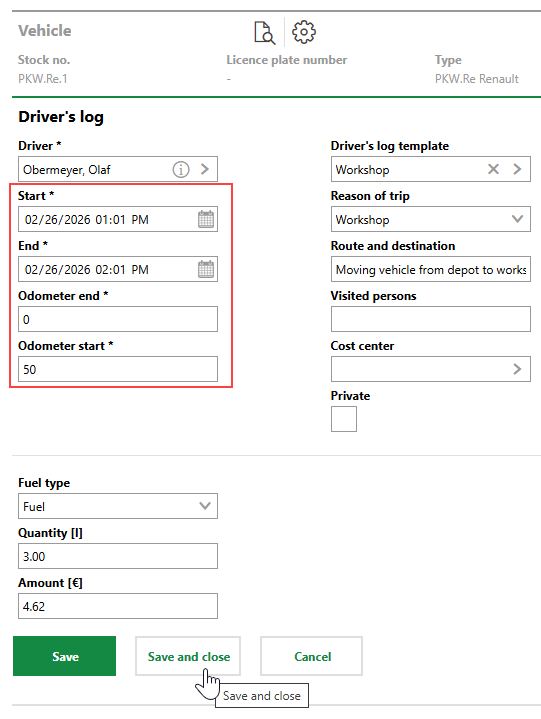
Unless the log entry you are adding is the first one for this vehicle, VertiGIS FM populates the Odometer Start property with the Odometer End value from the previous log entry.
Refer to Driver's Log Entry Details for more information.
4.Click Save or Save and Close.
The trip is now documented in the vehicle's Driver's Log section.

Driver's Log
Edit a Driver's Log Entry
You can only edit the most recent entry added to the driver's log.
To Edit a Driver's Log Entry
1.Navigate to the details page for the vehicle whose driver log entry you want to edit.
2.Expand the Driver's Log section.
3.Double-click the most recent entry in the driver's log.
4.Click the Edit ( ) icon.
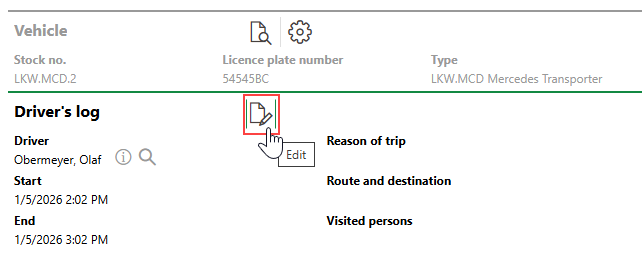
5.Edit the entry as required.
6.Click Save or Save and Close.
Field |
Description |
|---|---|
Driver |
The person who drove the vehicle during the trip. You can select people saved in the VertiGIS FM Contact Management module. By default, VertiGIS FM populates this field with the user signed in to the application when the entry is created. |
Start |
The date and time the trip began. |
End |
The date and time the trip ended. |
Odometer end |
The odometer reading at the beginning of the trip (or end of the previous trip). |
Odometer start |
The odometer reading at the end of the trip (or the beginning of the next trip). |
Driver's log template |
The driver's log template that applies to the trip. You can select any entry saved in the Driver's Log Template catalog. The entry you select in this field populates the Reason of Trip and Route and Destination fields, if the selected template has those properties associated with it. |
Reason of trip |
The reason for the trip. Selectable options are saved in the Reason for Trip catalog. Alternatively, you can populate this field by selecting an entry that has a Reason of Trip property associated with it in the Driver's Log Template field. |
Route and destination |
A description of where the vehicle went during the trip. You can type the description in the text box or populate this field by selecting an entry that has a Route and Destination property associated with it in the Driver's Log Template field. |
Visited persons |
People visited during the trip. You can type names manually in this field. |
Cost center |
The cost center to which fees associated with the trip should be budgeted. |
Private |
A check box that, if selected, indicates that the trip occurred for the driver's private use. |
Fuel type |
The type of fuel used in the vehicle. Selectable options are saved in the Fuel Type catalog. |
Quantity [l] |
The amount of fuel used in litres during the trip. This value is multiplied by the distance travelled (calculated using the Odometer end and Odometer start properties and adjusted per 100 km) to determine the Consumption [l/100km] of the trip. Refer to Consumption [l/100km]. |
Amount |
The costs associated with the amount of fuel used during the trip. |
Consumption [l/100km]
If a vehicle has multiple entries in its driver's log, VertiGIS FM calculates its average Consumption [l/100 km].

Consumption [l/100km] Trip Property
The property reflects the relationship between the distance travelled during a trip and the amount of fuel used on the trip. In the example shown above, 5 litres was used to travel 60 km. Because this value reflects the consumption per 100 km, and 100/60 = 1.666, you can multiply this value by the number of litres used on the trip to yield the litres per 100 km value of the trip (1.666 × 5 = 8.33).
As more entries are added to the driver's log, VertiGIS FM calculates the average Consumption [l/100km] value of all trips taken in the vehicle.
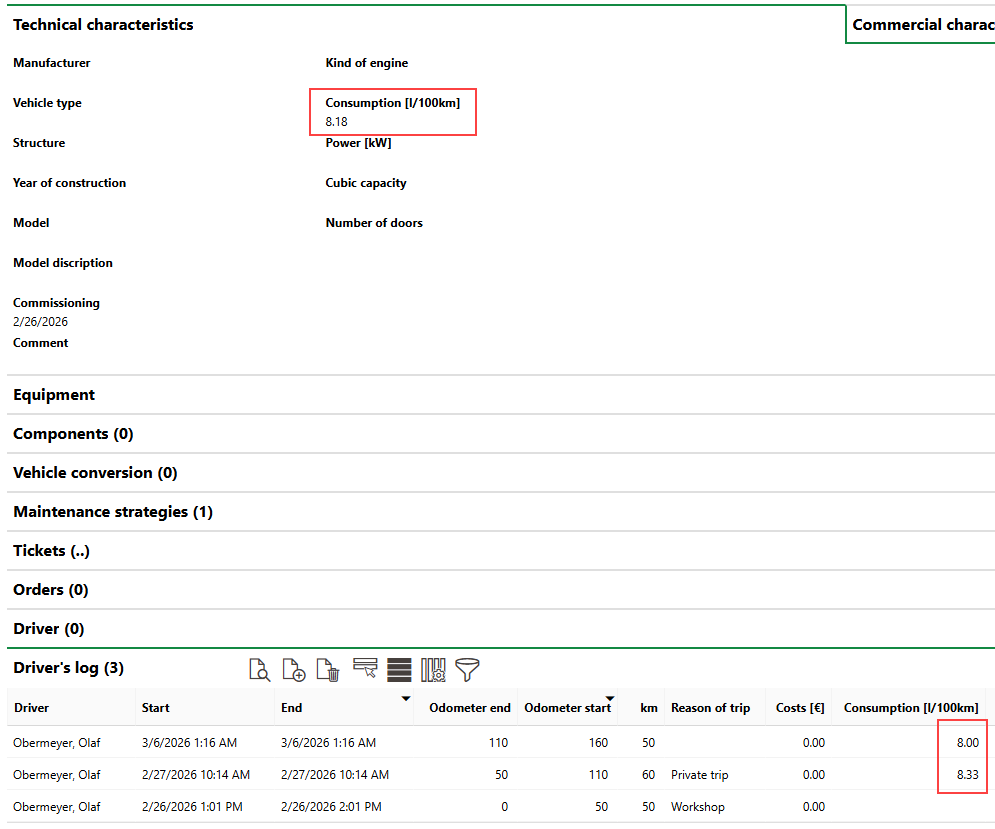
Averaged Consumption Value Shown in Technical Characteristics
The system shows the calculated Consumption [l/100km] value in the Technical Characteristics section of the vehicle's core properties as its current fuel consumption rate.
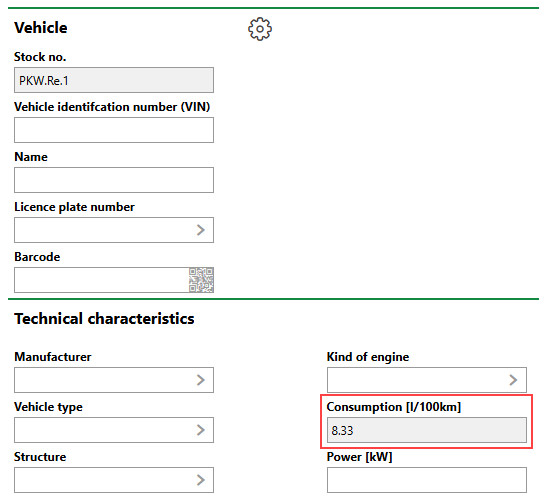
Consumption [l/100 km] Value
Leasing
The driver's log data for vehicles under lease is used to generate warnings in the KM Check section on the Fleet Management legacy dashboard. Refer to Lease a Vehicle for more information.
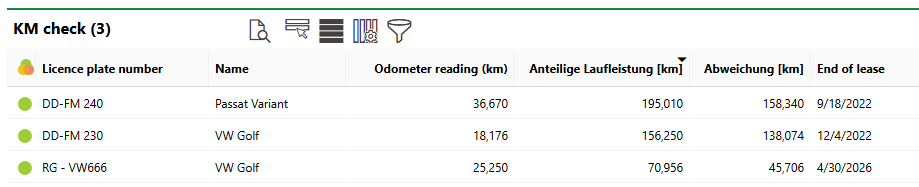
KM Check Section on Fleet Management Legacy Dashboard
