You can enter assessment data for any assets for which an administrator has specified assessable components and assigned selectable scores and values.
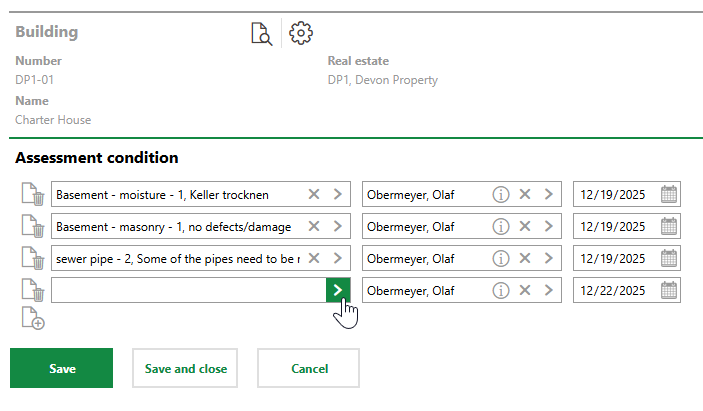
Entering Assessments for a Building Using Status Ranges
Refer to Status Ranges for information about how to set up the system for assessments.
For buildings, you can enter assessments in a building inspection. For other types of assets listed on the Status Ranges page, like devices and vehicles, as well as for buildings, you can enter assessments on the asset's details page, in the Condition Assessment section.
Record Status Range Assessments During Building Inspections
If you have created inspections for a building using the Condition Assessment module, you can enter assessments when you complete an inspection. Assessments you record during an inspection are visible in the Assessment Condition section on the building's details page.
To Enter an Assessment in a Building Inspection
1.Initiate a building inspection. Refer to Complete a Building Inspection for more information.
2.Expand the Condition Assessment section.
The Condition Assessment section lists all assessments previously recorded for the building.
3.Click the Additional Editing ( ) icon.
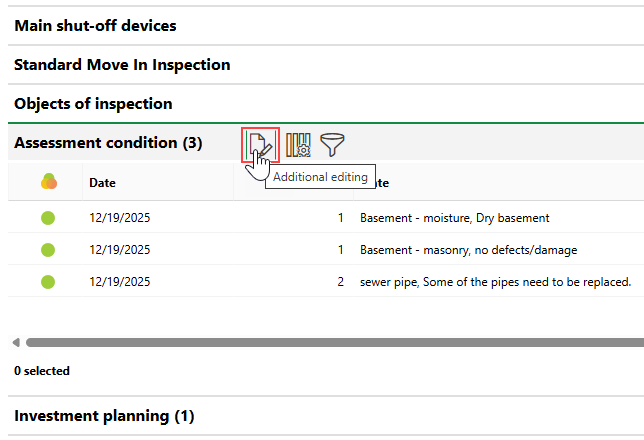
4.Click the Add ( ) icon.
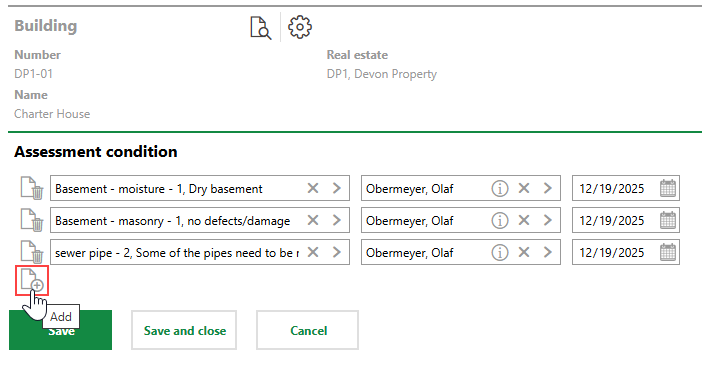
5.Double-click the entry (i.e., component, area, or functionality) of the building you want to assess.
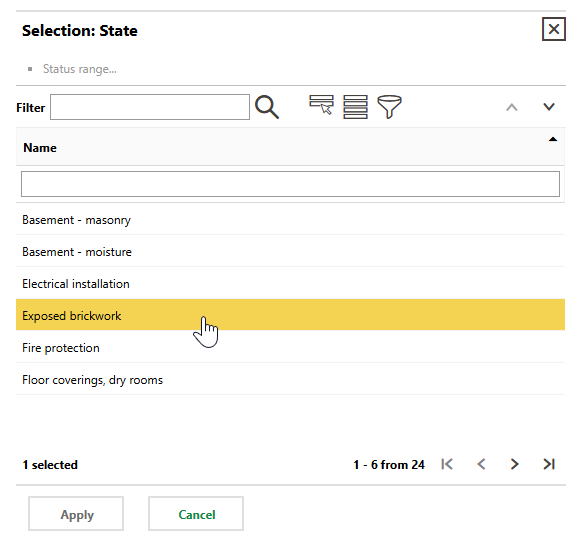
6.Double-click the condition of the selected entry, or select it and click Apply.
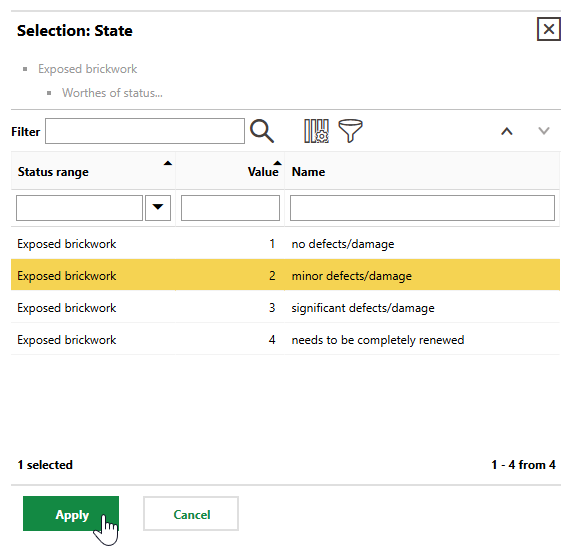
7.Repeat steps 4-6 for additional building entries you want to assess.
8.Click Save and Close.
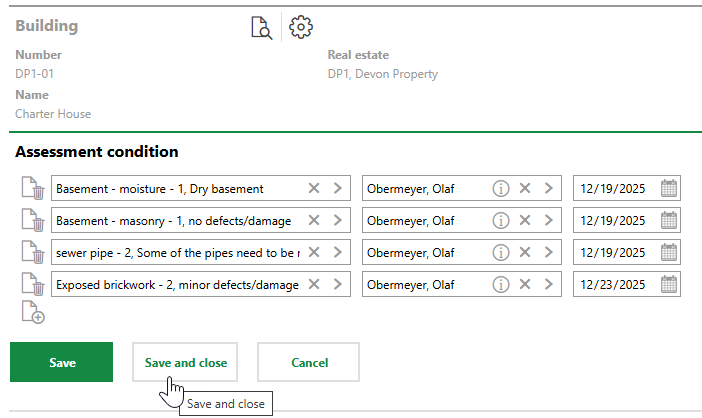
The new assessment, showing the date of the assessment, assessed entry or component, and assigned value and condition, is now visible in the Condition Assessment section on the building's details page. You do not have to complete the inspection to record the assessment.
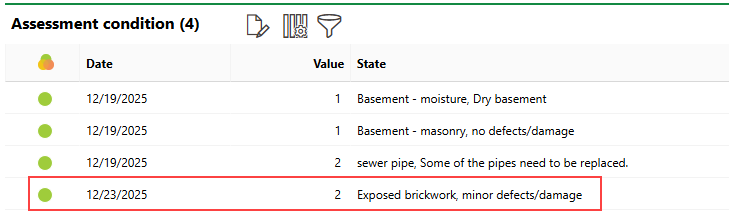
New Assessment Recorded for Building
Record Status Range Assessments on an Asset's Details Page
You can enter assessments on the details page of any assets listed on or included in a group or subgroup listed on the status ranges page, including buildings, as long as it has at least one status range created. Assessments you enter this way are no different than assessments entered during a building inspection.
To Enter an Assessment on the Asset's Details Page
1.Navigate to the details page for the asset for which you want to record a condition assessment (for example, the device details page).
2.In the Condition Assessment section, click the Additional Editing () icon.
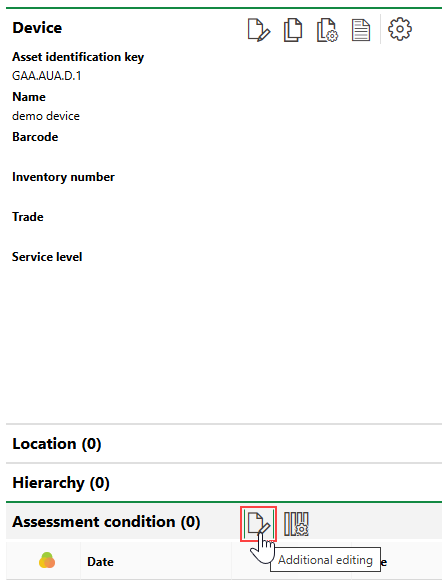
3.Click the Add () icon.
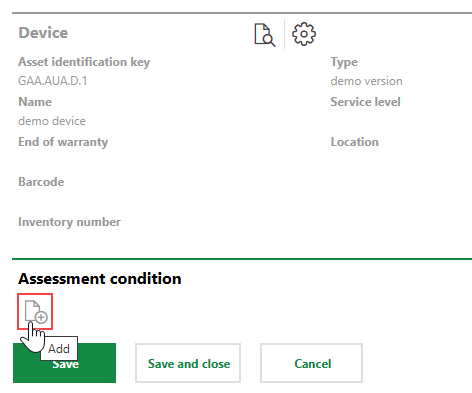
4.Double-click the entry (i.e., component, area, or functionality) of the asset you want to assess.
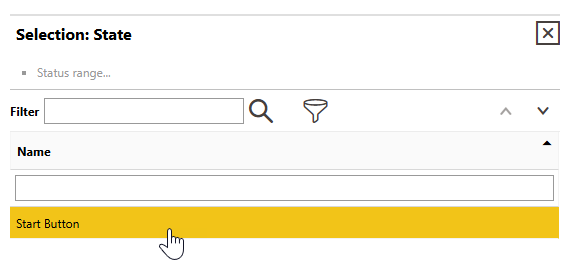
No selectable options appear in this dialog if the status range entry for the asset, group, or subgroup does not have at least one status worth defined by an administrator.
5.Double-click the condition of the selected entry, or select it and click Apply.
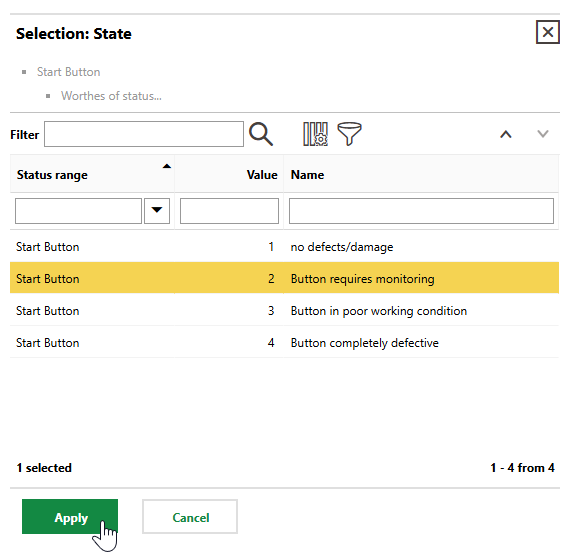
6.Repeat steps 3-5 for other entries associated with the asset for which you want to record a condition assessment.
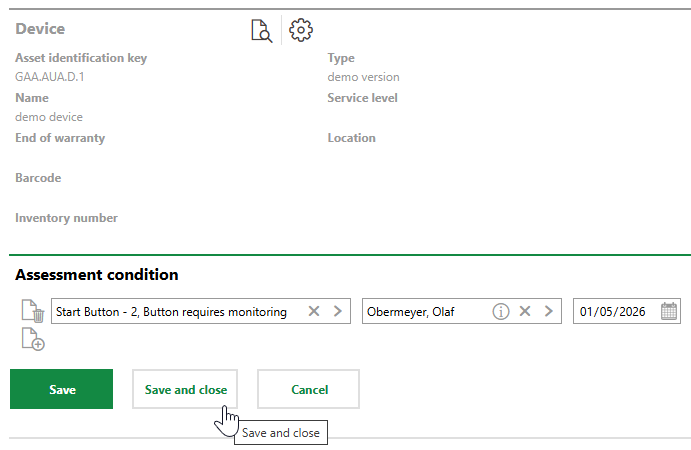
7.Click Save and Close.
You can see all assessments recorded for this entry, and for other entries associated with the asset, in the Condition Assessment section on the asset's details page.
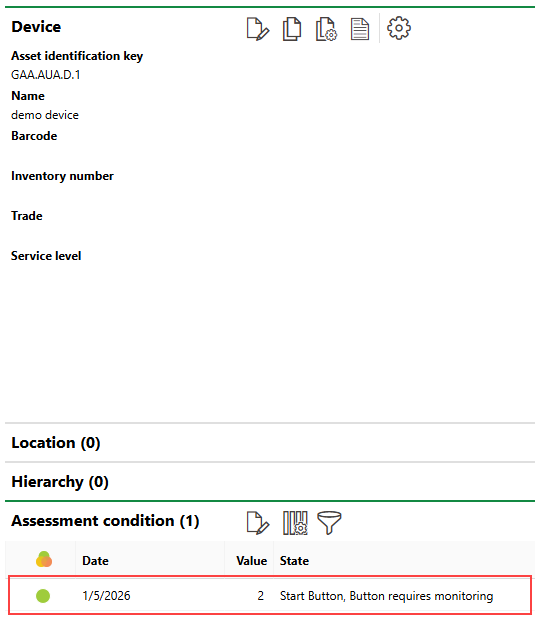
Assessment Condition Recorded for Device
