You can register licence plates and assign them to vehicles in your fleet.
Add a Licence Plate
You can add a licence plate on the Fleet Management search page.
To Add a Licence Plate
1.Navigate to the Fleet Management search page.
2.Under Objects, click Licence Plate Number.
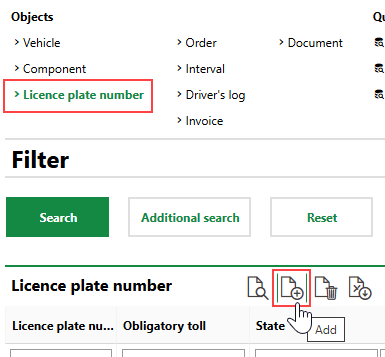
3.Click the Add ( ) icon.
4.Under Licence Plate Number, enter the licence plate's details.
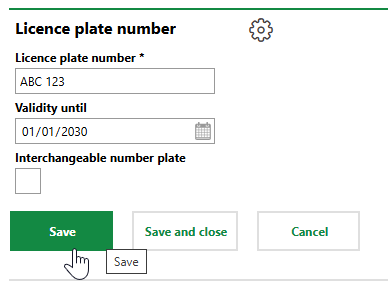
Enter the assignment details if you want to assign the new licence plate to a vehicle immediately. You can also assign the licence plate to a vehicle after you create it.
5.Click Save or Save and Close.
Field |
Description |
|---|---|
Licence Plate Number |
The string of numbers or text shown on the licence plate. |
Valid until |
The date until which the licence plate is valid. |
Interchangeable number plate |
A check box that, if selected, means the licence plate can be used by multiple vehicles. If you select this check box, the system hides the Assignment section on the left side of the licence plate page. However, you can still select the licence plate for assignment to a vehicle on the vehicle's details page. Licence plates that have this check box selected can be selected by multiple vehicles from their details pages. |
Field |
Description |
|---|---|
Vehicle |
The vehicle to which the licence plate is assigned. You can select any vehicles in your fleet that does not already have a licence plate number assigned. |
State |
Whether the licence plate is registered with a motor vehicle licensing authority. If a licence plate has Unregistered selected in this menu, certain features are disabled for the vehicle it is assigned to. For example, the vehicle will not appear in the KM Check widget if it is assigned an unregistered licence plate. |
Assign a Licence Plate to a Vehicle
There are two methods of assigning licence plates to vehicles: on the Fleet Management search page, or on the vehicle's details page. You can also unassign licence plates from vehicles using both of these methods.
If you want to assign a licence plate whose Interchangeable number plate property is set to Yes, you can only assign the licence plate to a vehicle on the vehicle's details page.
To Assign a Licence Plate to a Vehicle on the Search Page
1.Navigate to the Fleet Management search page.
2.Under Objects, click Licence Plate Number.
3.Double-click the licence plate you want to assign to a vehicle.
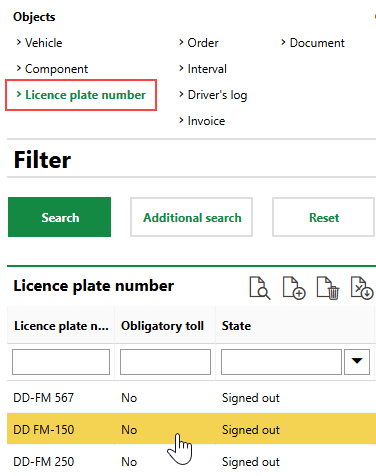
4.Click the Edit ( ) icon.
5.Click the > icon in the Vehicle menu.
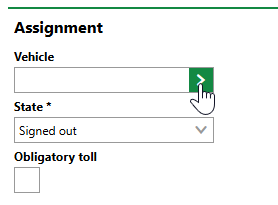
6.Select the vehicle to which you want to assign the licence plate and click Apply, or double-click the vehicle.
You can select any vehicle that is not already assigned a licence plate.
7.Click Save or Save and Close.
To Assign a Licence Plate to a Vehicle on the Vehicle's Details Page
1.Navigate to the details page for the vehicle to which you want to assign a licence plate.
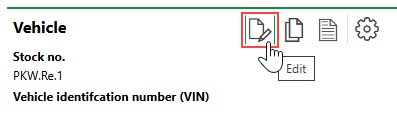
2.Click the Edit () icon.
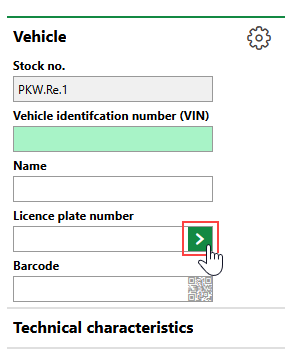
3.Click the > button in the Licence Plate Number menu.
4.Select the licence plate you want to assign to the vehicle.
You can select any licence plate that is not already assigned to another vehicle or any licence plate whose Interchangeable number plate property is set to Yes.
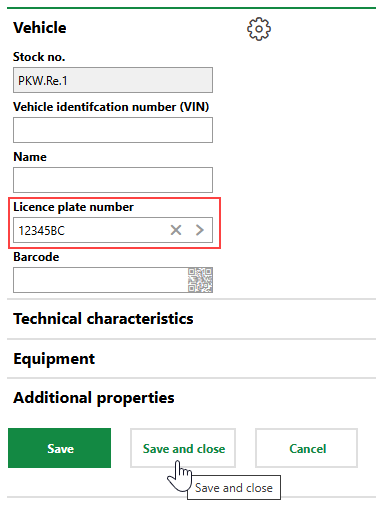
5.Click Save or Save and Close.
Unassign a Licence Plate from a Vehicle
You can unassign a licence plate using either of the assignment methods outlined above.
To remove a licence plate from a vehicle using the search page method, click the X icon in the Vehicle menu under Assignment, and then click Save or Save and Close.
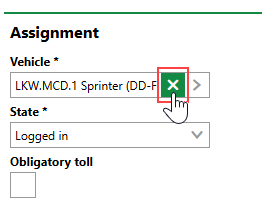
Unassigning a Licence Plate (Licence Plate Details)
To unassign a licence plate on the vehicle details page, edit the vehicle and click the X icon in the Licence Plate Number menu.
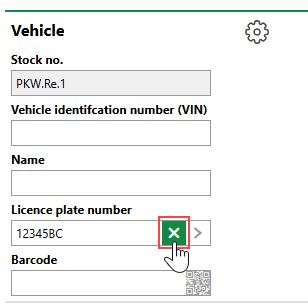
Unassigning a Licence Plate (Vehicle Details)
You can also unassign a licence plate from a vehicle in the Licence Plate History section on the vehicle's details page. Refer to Licence Plate History.
Edit a Licence Plate
You can change an existing licence plate's number, validity, and interchangeability by editing it.
To Edit a Licence Plate
1.Navigate to the Fleet Management search page.
2.Under Objects, click Licence Plate Number.
3.Double-click the licence plate you want to edit.
4.Click the Edit () icon.
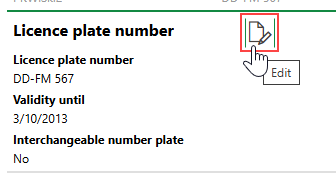
5.Edit the licence plate's details as required.
6.Click Save or Save and Close.
Delete a Licence Plate
You can delete an existing licence plate on the Fleet Management search page, by selecting the licence plate you want to delete and clicking the Delete ( ) icon.
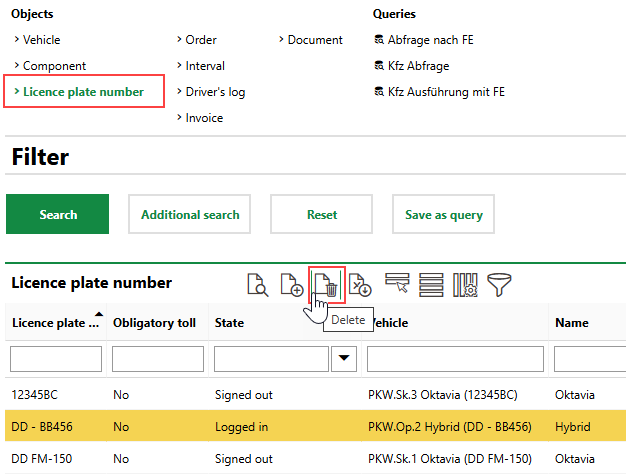
Deleting a Licence Plate
Licence Plate History
You can see a historical record of all licence plates that have been assigned to the vehicle in the Licence Plate History section on the vehicle details page.
You can unassign the licence plate currently assigned to the vehicle by selecting the licence plate and clicking the Edit () icon.
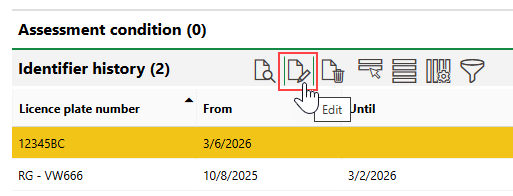
Identifier History Section
In the form that opens, you can specify the date the plate's assignment to the vehicle will end.
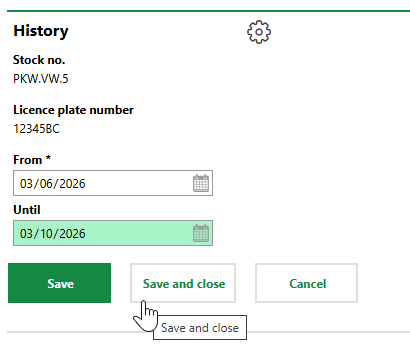
Unassigning a Vehicle's Licence Plate
After you click Save or Save and Close, VertiGIS FM will clear the current licence plate assignment when the date selected in the Until field passes.
