In the Project Management module, you can store key data associated with construction projects and other facilities projects, and track projects' progress from start to finish. With document deadlines, budgets, contractors, work orders, and drawings, the module helps ensure projects complete on time and within set budgets.
Open Project Management
To access the Project Management module, click the Project Management icon on the VertiGIS FM home page.
Project Management Icon
Click the down-arrow button on the icon to access shortcuts to key Project Management resources and workflows.
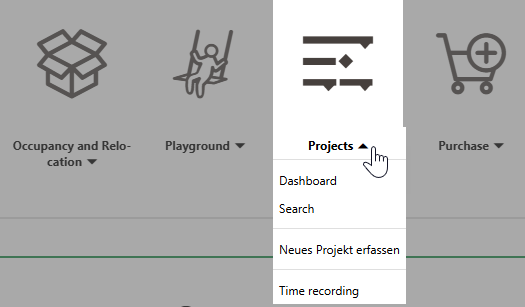
Project Management Workflows Accessed from the Home Screen
You can also access the dashboard and search page from the Modules panel in the left pane.
Dashboard
You can access the Project Management dashboard by expanding Project Fleet in the modules panel and clicking Dashboard.
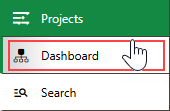
Link to Project Management Dashboard
Legacy Dashboard
By default, the legacy dashboard is available to customers who have not customized their own dashboard. The legacy dashboard for project management includes the sections below.
Operational Procedures
The Operational Procedures section of the Project Management dashboard includes a shortcut to create a new project.
Operational Procedures
|
•Initiates a workflow to create a new construction project. |

Appointments
The Appointments section lists the appointments (calls or in-person meetings) scheduled for the user signed in to the application. For an appointment to display in the Appointments section on the start page, the user signed in to VertiGIS FM must be indicated in the Employees field of the appointment form.

Appointments Section on the VertiGIS FM Maintenance Start Page
Appointments are events that can be scheduled for most data objects in VertiGIS FM and are not to be confused with orders. Because an appointment must be associated with an object (for example, a device or component), you must create it on the details page for an object. You cannot create them on the search page, like you can for other event-based objects.
Actions
Under Actions, you can click Time Recording and then select an employee to view their recorded hours working on tasks associated with projects in the system.
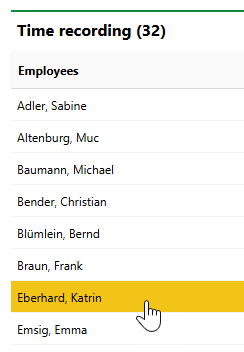
Time Recordings by Employee
On the page that opens, you can see the project order tasks assigned to the employee and the number of hours recorded on each task, or click the Fast Capture Working Period ( ) icon to add additional time recordings for the employee.
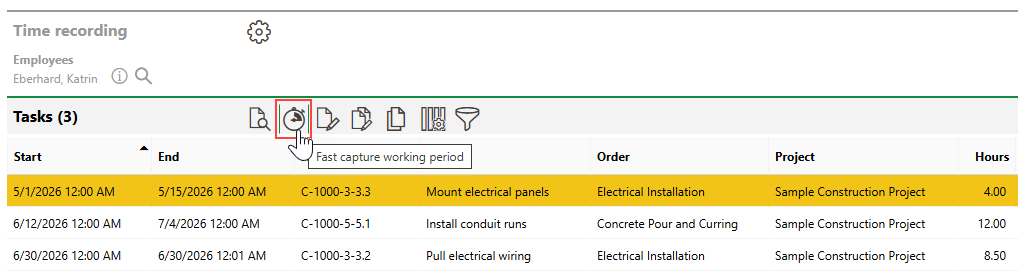
Tasks and Recorded Hours for Selected Employee
Refer to Add Time Recordings and Time Recording Module.
Tasks
The Tasks section lists the project order tasks assigned to the user signed in to the application, across all projects in the system.
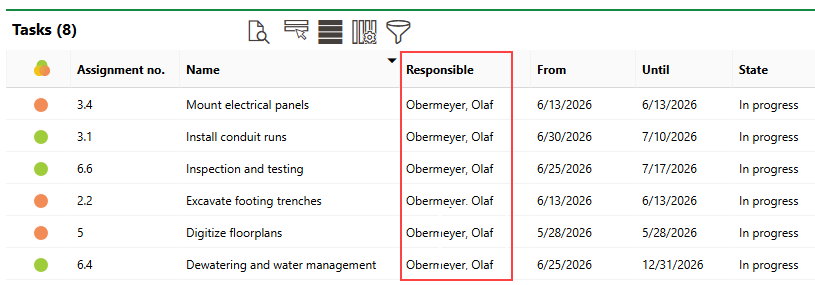
Tasks Section
Orders
The Orders section lists project orders assigned to the user signed in to the application, across all projects in the system.
Plans for release
The Plans for Release section lists uploaded documents related to projects managed in the module. Documents uploaded in the Plans section on a project's details page appear in this section until it is reviewed. These can include site plans, foundation plans, floor plan drawings, and more.
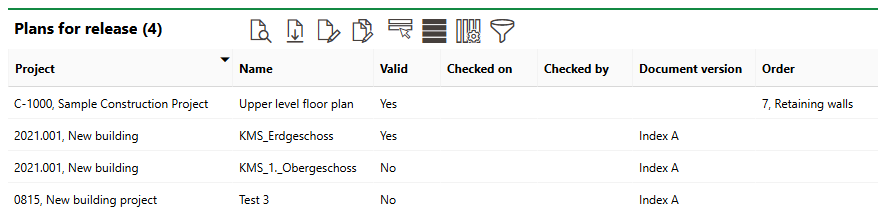
Plans for Release Section
You can double-click a file to download it, select the Edit ( ) icon to validate and check it, and refer to its associated project orders, if applicable. Refer to Manage Floor Plan Documents.
Defect indications
The Defect Indications section lists defect indications associated with the Enter value.
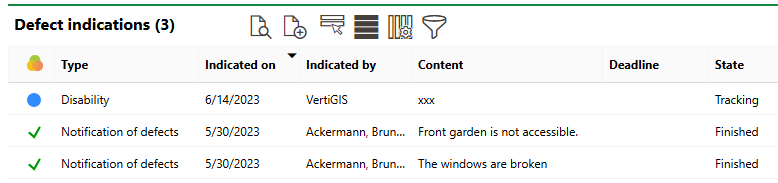
Defect Indications Section
Refer to Defect Indications for more information.
Milestones
The Milestones section sorts projects and project orders in your system based on their scheduled start and end dates. For an order, the end date can refer to its milestone date if its Milestone property is activated, or to its Until date if the order's Milestone property is inactive.
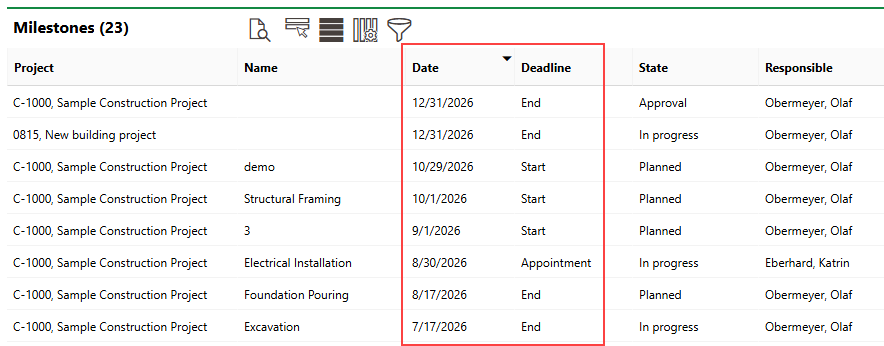
Milestones Section
New documents and plans
The New Documents and Plans sections lists documents that have been uploaded in associated with a project and have the user signed-in to the application selected as the document's Distributor.
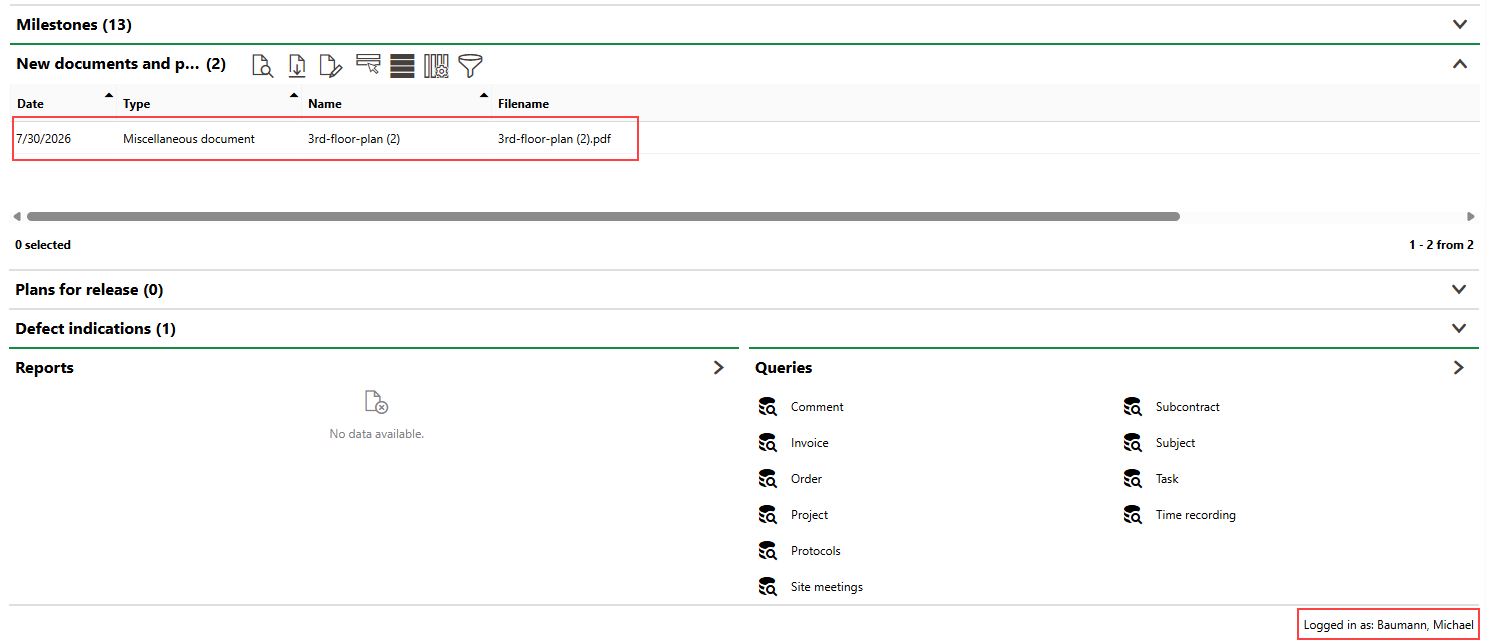
Dashboard for User Associated with Project Team Member Selected as Document Distributor
You can select any project team member as a distributor when you upload a new document on a project's details page.
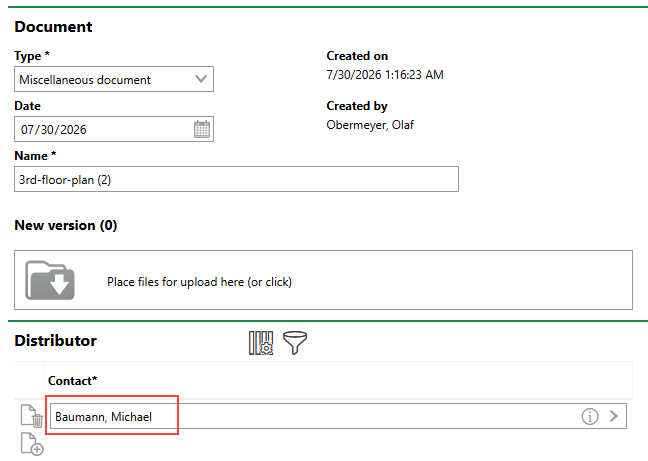
Project Team Member Selected as Document Distributor
Refer to Documents (Projects).
Reports
The Reports section lists download links for the reports the system administrator has made available on this page for the role your user has been assigned. Clicking the link generates the report. Refer to the Report and Query Permissions administration topic for more information.
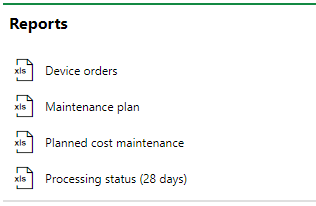
Reports Section
You can generate reports using other data on the search page. Refer to Generate Reports for more information.
Queries
The Queries section lists links to the search queries the system administrator has made available on this page for the role your user has been assigned. Refer to Report and Query Permissions for more information.
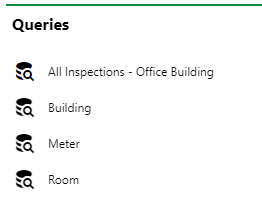
Queries Section
Refer to Save a Query for instructions on how to create a query.
