This topic outlines how to add, edit, and delete a project in VertiGIS FM.
Add a Project
You can add a new project to the database on the Project Management search page or on the dashboard.
To Add a Project on the Search Page
1.Navigate to the Project Management search page.
2.Under Objects, click Project.
3.Click the Add New Project ( ) icon.
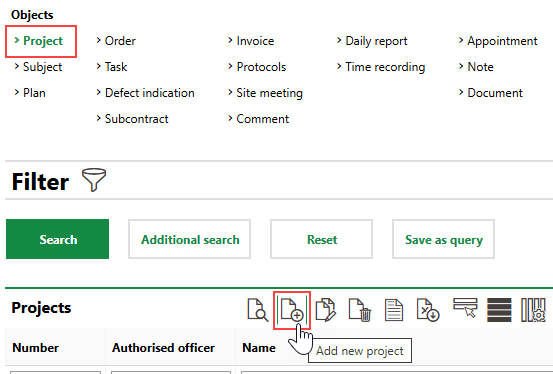
4.Enter the project's details. At minimum,
▪enter a name for the project in the Name text box.
▪select the project type from the Project Type drop-down menu.
▪select the tax option from the Kind of VAT menu.
Refer to Project Details for descriptions of all form fields.
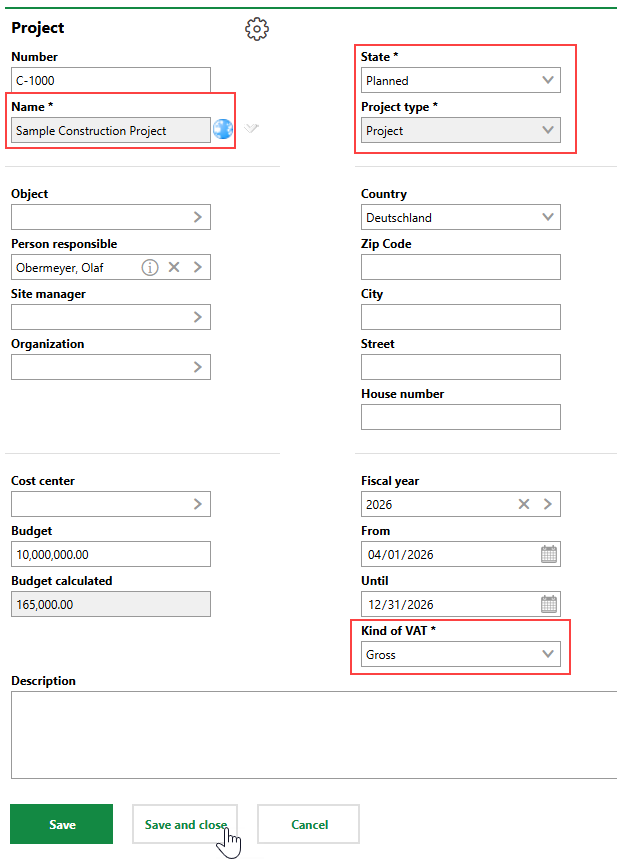
5.Click Save or Save and Close.
To Add a Project on the Dashboard
1.Navigate to the Project Management dashboard.
2.Under Operational Procedures, click New Project.
If you do not see the Operational Procedures template, an administrator must add it to your custom dashboard or restore the legacy dashboard. Refer to Dashboard Customization.
3.Enter the project's details. At minimum,
▪enter a name for the project in the Name text box.
▪select the project type from the Project Type drop-down menu.
▪select the tax option from the Kind of VAT menu.
Refer to Project Details for descriptions of all form fields.
4.Click Save or Save and Close.
Edit a Project
You can edit the core properties of an existing project on its details page.
To Edit a Project
1.Navigate to the details page for the project you want to edit.
2.Click the Edit ( ) icon.
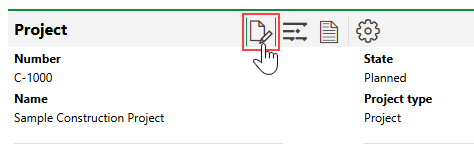
3.Edit the project details as necessary.
4.Click Save or Save and Close.
Mark Project Complete
When you edit a project, you can update its State property to Finished to indicate the project is complete.
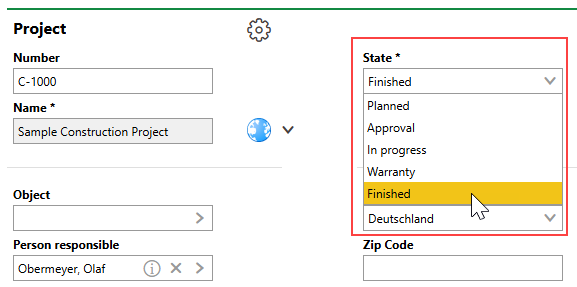
Updating a Project's Status
After you click Save or Save and Close, the project is now completed and can only be found on the search page when the Include History check box is selected.
When you close a project, VertiGIS FM closes any orders associated with the project that were still in the Planned or In Progress states. It does not close open tasks associated with these orders.
Batch Edit Projects
You can perform a batch edit on projects to edit the Person Responsible, Site Manager, Organization, State, Cost Center, and Budget properties, as well as any flexible properties created for projects in your system, of two or more projects in one action.
You can perform a batch edit on the Project Management search page.
To Batch Edit Multiple Projects
1.Navigate to the Project Management search page.
2.Under Objects, click Project.
3.In the search grid, select the projects you want to edit and click the Edit Inventory ( ) icon.
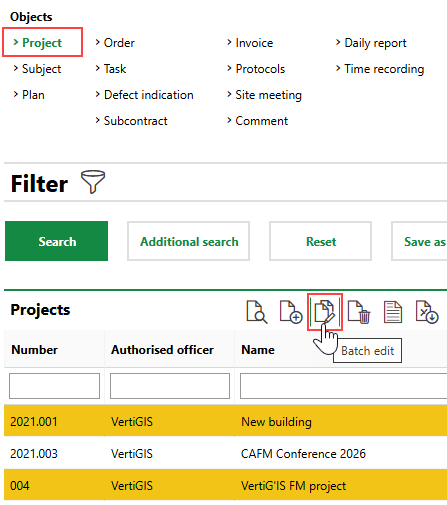
Press the ctrl key on a Windows keyboard to select items in the search grid that are not directly on top of or beneath each other.
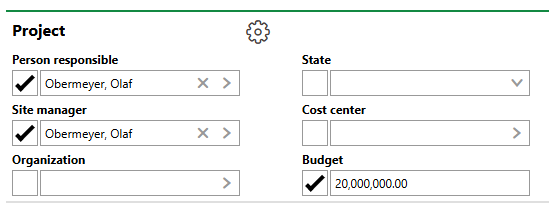
4.For the property or properties whose value(s) you want to batch edit, select the check box and select or enter the new value.
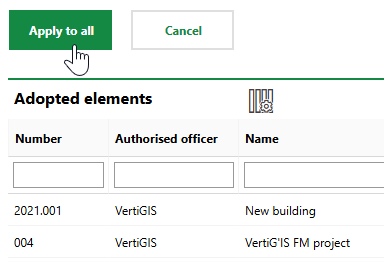
5.Click Apply to All. Affected projects are listed in the Adopted Elements section.
6.Click OK on the confirmation dialog.
The updated properties are assigned to the selected projects.
Delete a Project
You can delete cancelled or inactive projects from your database if they do not have any orders associated with them.
You can delete a project on the Project Management search page.
To Delete a Project
1.Navigate to the Project Management search page.
2.Under Objects, click Project.
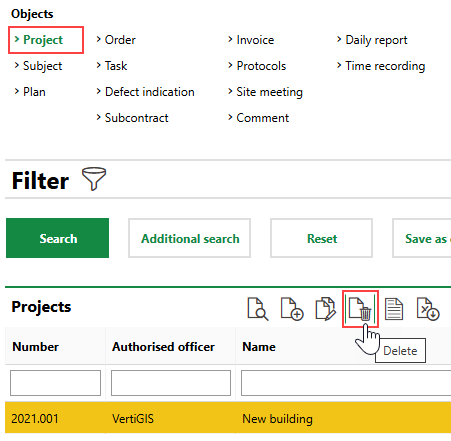
3.Select the project you want to delete and click the Delete ( ) icon.
4.Click OK.
VertiGIS FM prevents you from deleting a project that has orders associated with it.
