In VertiGIS FM's Project Management module, orders are significant units of work associated with a construction project. Orders themselves are associated with dates, milestones, and statuses that help track their project's overall progress, and with budgets that contribute to the project's total budget.
Orders associated with a given project appear in the Orders section on the project's details page.
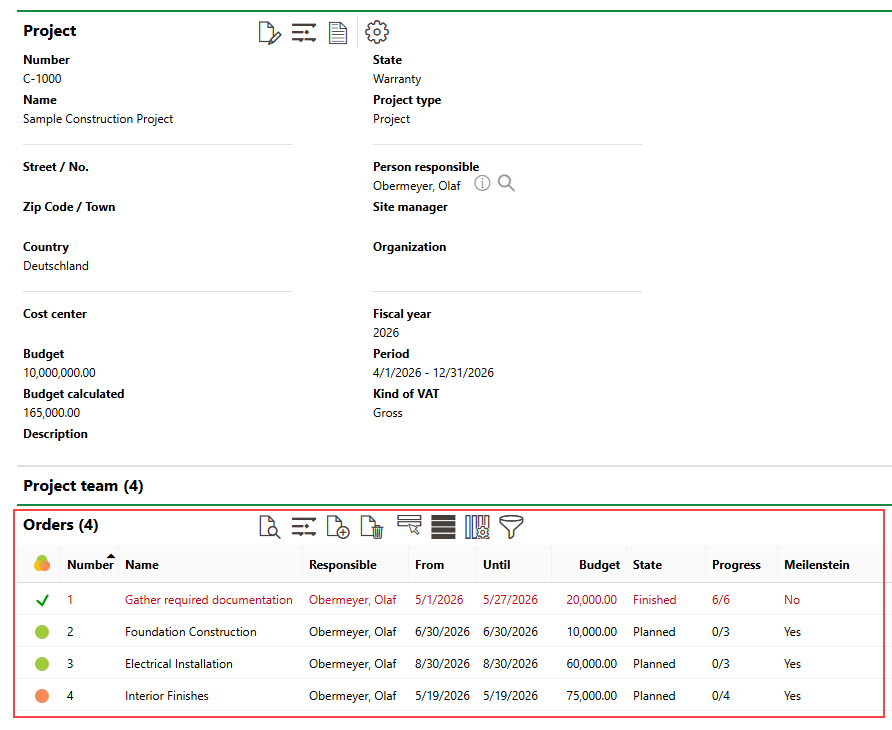
Orders Section on Project Details Page
You can see all existing orders on the Project Management search page, by clicking Orders under Objects.
Tasks
You can break down orders into smaller units of work, called tasks. Refer to the table below for examples of relationships between orders and subordinate tasks.
Order and Task Examples
Order |
Tasks |
|---|---|
Foundation Construction |
Lay out footing locations |
Excavate footing trenches |
|
Install formwork |
|
Electrical Installations |
Install conduit runs |
Pull electrical wiring |
|
Mount electrical panels |
Alternatively, you can create tasks that are directly associated with the project and not with any project orders. These types of tasks appear in the Tasks section on the project's details page.
Refer to Manage Order Tasks for more information.
Details Page
Each project order has its own details page, which you can access by double-clicking the order in the Orders section on the project's details page.
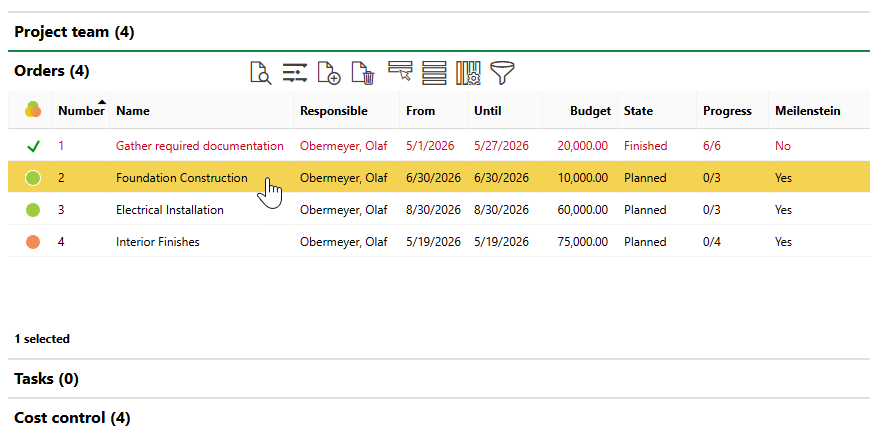
Navigating to an Order's Details Page
Order and Task Icons
Icon |
Description |
|---|---|
|
The order's status is Planned or In Progress, and the order's Until or Milestone date has passed. |
|
The order's status is Planned or In Progress, and the order's Until or Milestone date is in the future. |
|
The order's status is Finished. |


Each order details page includes the sections and information fields below.
Order
The Order section stores the order's high-level properties.
Field |
Description |
||||||
|---|---|---|---|---|---|---|---|
Number |
A number or code used to identify and serialize the order. |
||||||
Name |
A name that describes the order. |
||||||
Position |
A number used to sort the order in lists and search results. |
||||||
Trade |
The trade or industry associated with the order. Selectable options are saved in the Trade catalog. |
||||||
Budget |
The budget for the order. |
||||||
Authorised officer |
The person who authorized the order. You can select any person saved in the Contact Management module. |
||||||
Responsible |
The person responsible for the completion of the order. You can select any member of the project team. |
||||||
Description |
A description of the order. |
||||||
State |
The current state of the order.
|
||||||
Milestone |
A check box that, if selected, indicates that the order must be completed by a deadline specified in the Date field. If this check box is not selected, you can specify the time range during which work on the order will occur in the From and Until fields. |
||||||
Date |
The date the order must be completed by. This field only appears if the Milestone check box is selected. |
||||||
From |
The date work on the order begins. This field only appears if the Milestone check box is not selected. |
||||||
Until |
The date work on the order ends. This field only appears if the Milestone check box is not selected. |
||||||
Color |
The color used to represent the order on the project's Gantt chart. |
Participants
The Participants section lists members of the project team that the order and its tasks can be assigned to. Click the Additional Editing ( ) icon to select members of the project team you want to add as participants, or click the Assign All Project Team Members (
 ) icon to add all project team members as participants for the order.
Refer to Assign Team Members to Orders and Tasks.
Subcontracts
The Subcontracts section lists subcontracts associated with the order. For projects, subcontracts are used to invoice work that is counted against orders' and the projects' budget.
Refer to Subcontracts and Ordering and Billing for Projects in VertiGIS FM.
Invoices
The Invoices section lists invoices associated with the order. Notably, this section lists incoming invoices that, when checked, count against the order's budget.
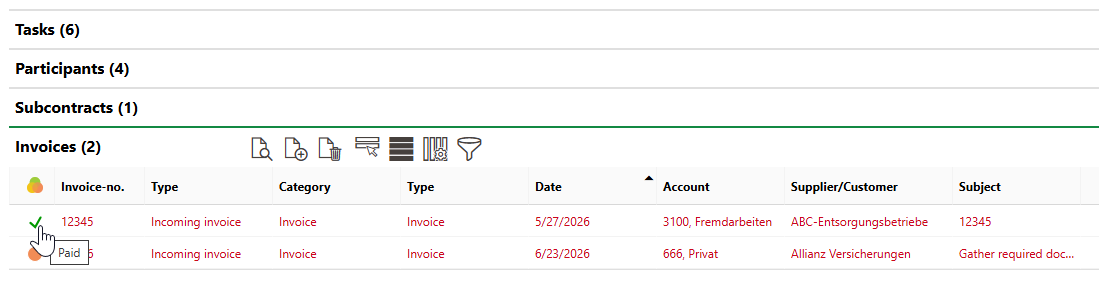
Invoices Section
Refer to Manage Project Costs and Invoices.
Time Recording
The Time Recording section lists time recording entries saved for employees who worked on this order. Each entry indicates the task associated with the time recording, the employee who worked the hours, and the number of hours the employee worked on the task.
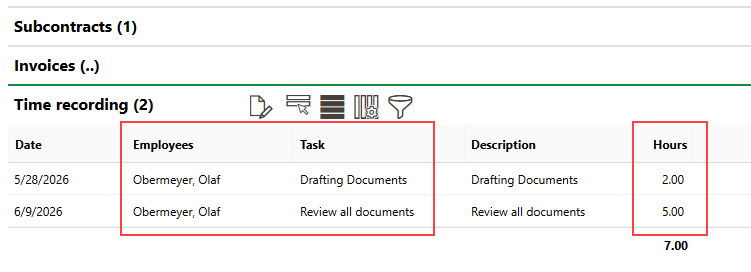
Time Recording Section
Refer to Add Time Recording to an Order Task and Time Recording Module for more information.
Defect Indications
The Defect Indications section lists defect indications associated with the order.
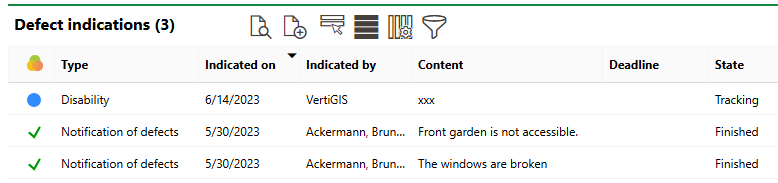
Defect Indications Section
Refer to Defect Indications for more information.
Plans
In the Plans section, you can upload documents relevant to the execution of the order. These can include site plans, foundation plans, floor plan drawings, and more. Refer to Upload Floor Plan Documents.
Documents
The Documents section lists the documents, including image files, associated with the order. Refer to Document Management for more information, including instructions on how to upload a document.
Notes
The Notes section lists notes that have been posted in relation to the order.
Appointments
The Appointments section lists the scheduled appointments (a call or in-person meeting) that are associated with the order. Appointments are action items that can be scheduled for any object in VertiGIS FM. They are not the same thing as orders.
To add an appointment for the order, click the Add ( ) icon in the Appointments section on the details page.
