A project team is a list of employees, contacts, and companies in your system assigned to work on a project. Only members of your project team can be assigned to orders and tasks required to complete the project's orders, and recorded as being present for site meetings. Only employees on your project team can have time recordings saved for hours they work on project tasks.
You can assign any member of a project's project team to orders in the project. For each order, you can specify a group of parties from the project team that can be assigned tasks associated with their assigned order.
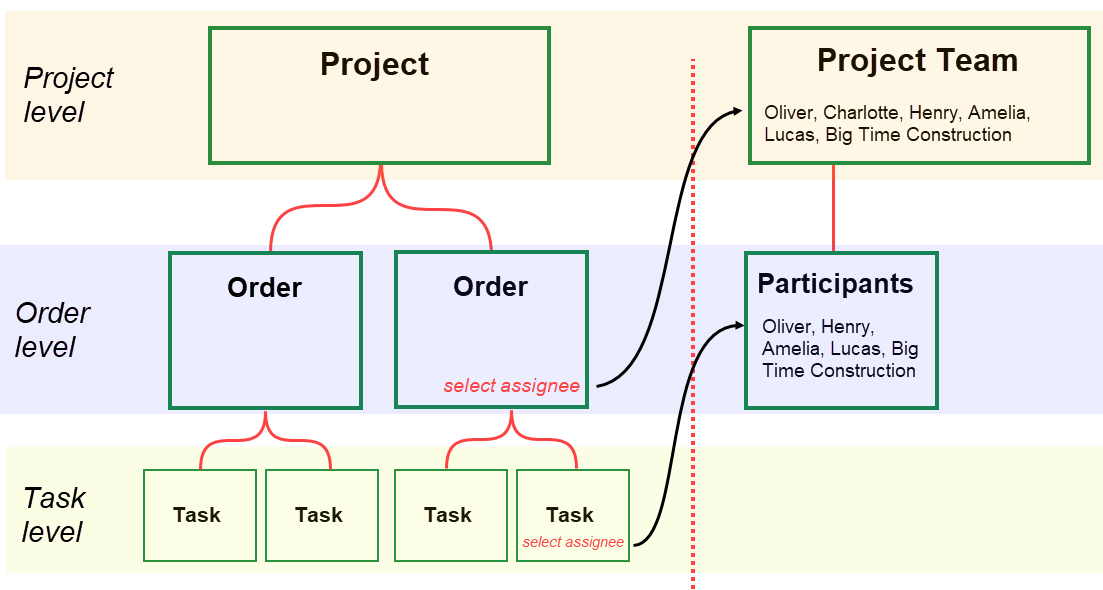
Project Orders and Possible Assignees
The project team is listed in the Project Team section on the project details page.
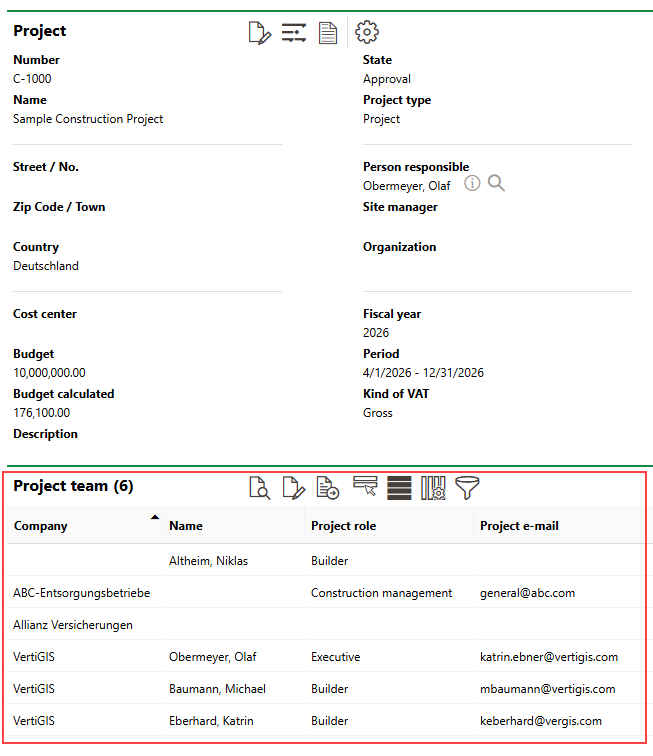
Project Team Section
Define Project Team
You can select from your system's employees, contacts, and companies on a project's details page to define its project team.
To Define a Project Team
1.Navigate to the details page for the project you want to define a project team for.
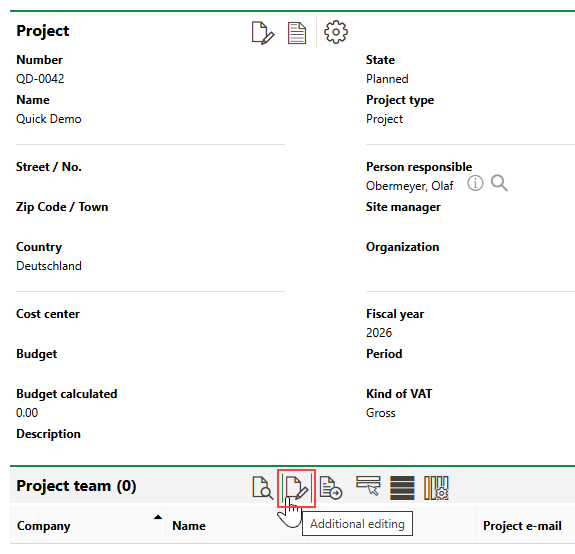
2.Expand the Project Team section and click the Additional Editing ( ) icon.
3.Click the > button in the contact menu under Assign people to project team.
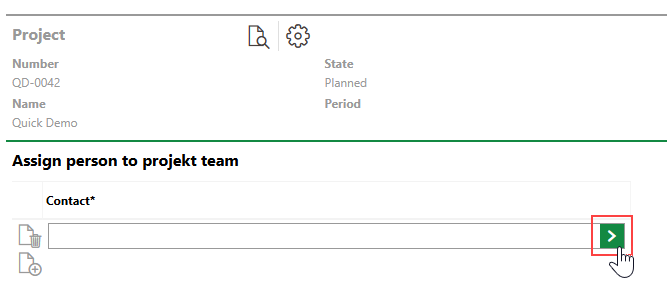
4.Select an employee from your organization or a contact or company saved in the Contact Management module and click Apply, or double-click the entry.
5.Repeat steps 3-4 to add additional people to the project team, as many times as required.
6.Click Save or Save and Close.
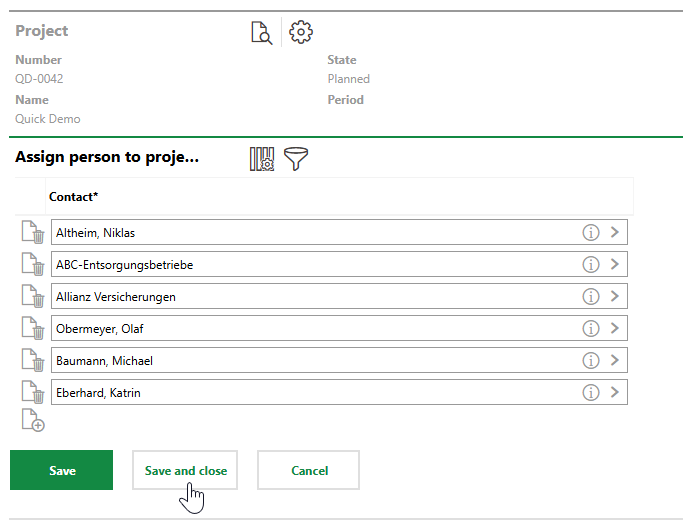
The project team is now established. You can now assign each member roles and assign project orders and tasks to them.
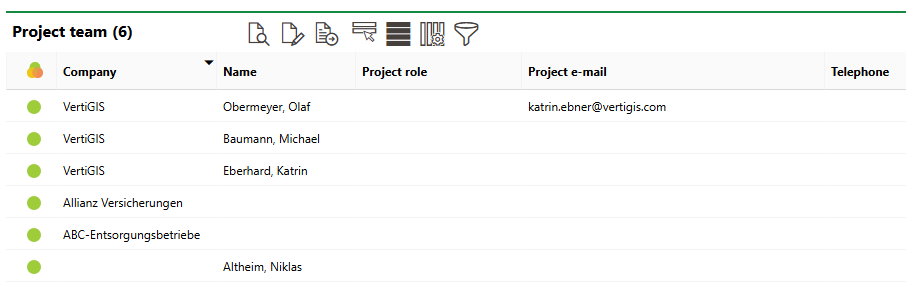
Project Team Section on Project Details Page
Assign Team Roles and Other Details
You can assign team roles to project team members, as defined in the Project Team section.
To Assign Team Roles and Other Details
1.Navigate to the details page for the project whose team members you want to assign roles to.
2.Expand the Project Team section.
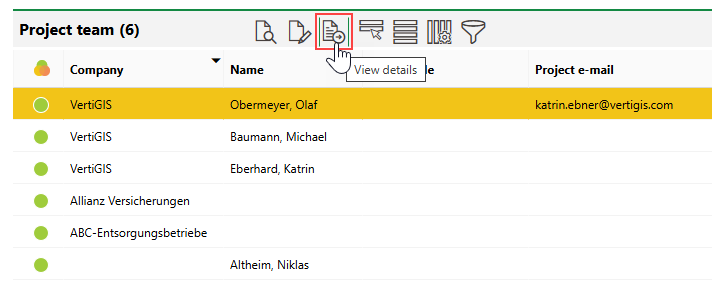
3.Select the team member you want to assign a role to or enter other information for, and click the View Details ( ) icon.
4.Click the > button in the Project Role menu and select the member's project role.
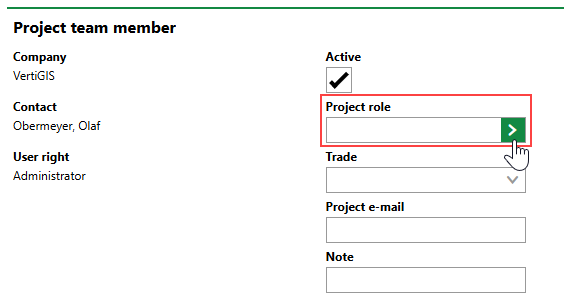
5.Enter additional member details as available. Refer to Project Member Details for more information.
6.Click Save and Close.
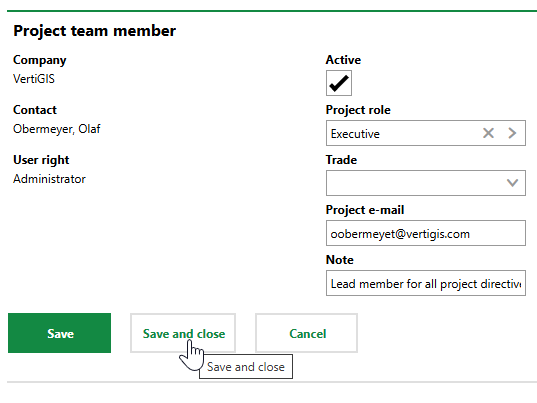
Complete the procedure above to define roles for all project team members.
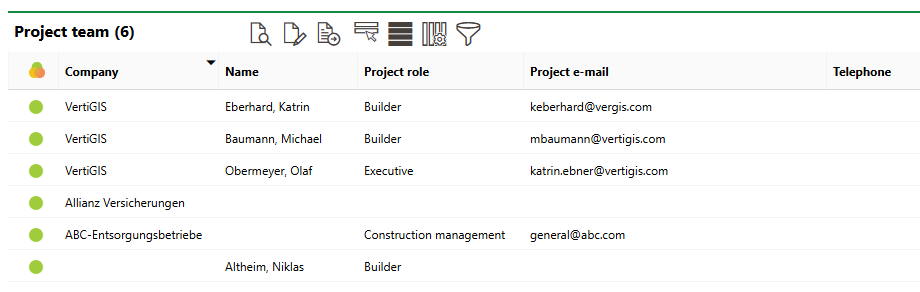
Project Team with Assigned Roles
The Telephone property is saved in the employee's or contact's details.
Field |
Description |
|---|---|
Active |
Whether the project member can be assigned to project orders and tasks. |
Project Role |
The project member's role. Selectable options are saved in the Function catalog. |
Trade |
|
Project email |
The email address to contact the project member with for project-related matters. |
Note |
Additional information about the project member's role. |
Assign Team Members to Orders and Tasks
Orders and tasks associated with projects must all be assigned to team members.
Assign Team Members to Orders
Assign project orders to a team member in the order's Responsible field.
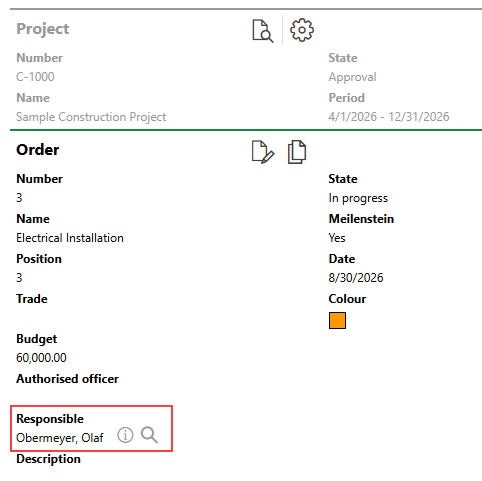
Project Team Member Assigned to Role
You can select any party on the project team when you assign a project order to someone.
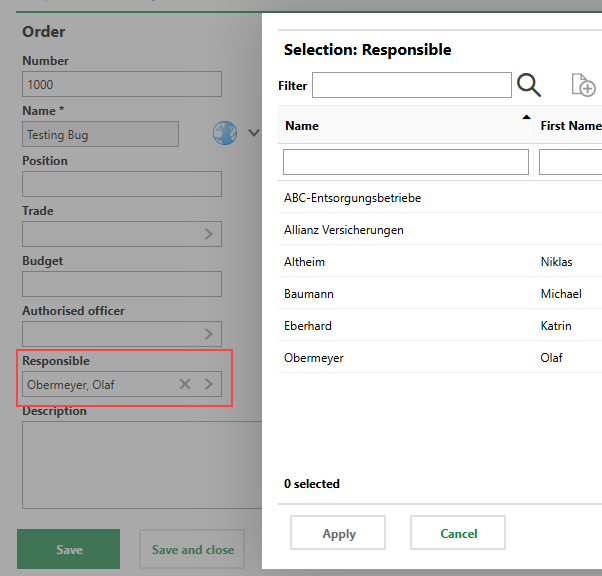
Assigning Project Order to Member of Project Team
Assign Team Members to Tasks
You can also assign team members to tasks in the Responsible field. Note that you cannot save time recordings for a task that is unassigned.
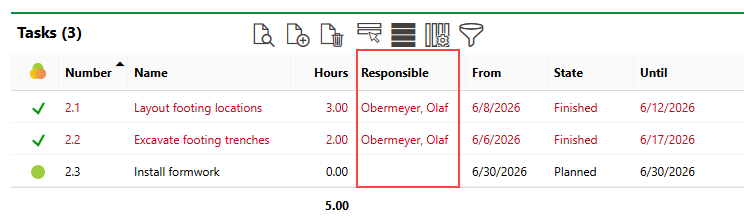
Task Assignment Field
To assign an existing project task to a team member, edit the task.
Responsible Field in Order Details |
Selectable Options in Responsible Field |
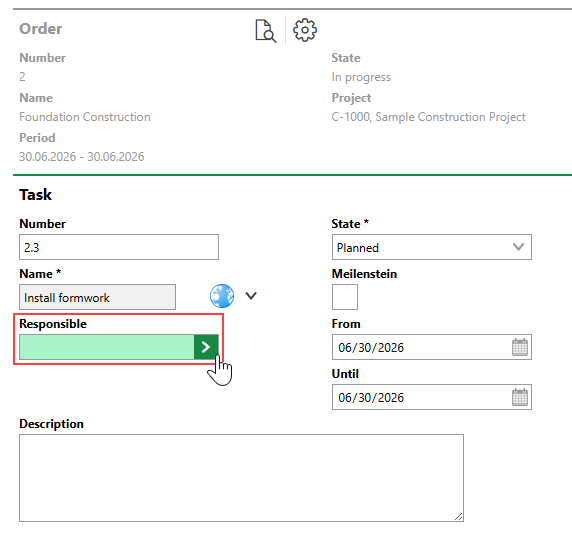
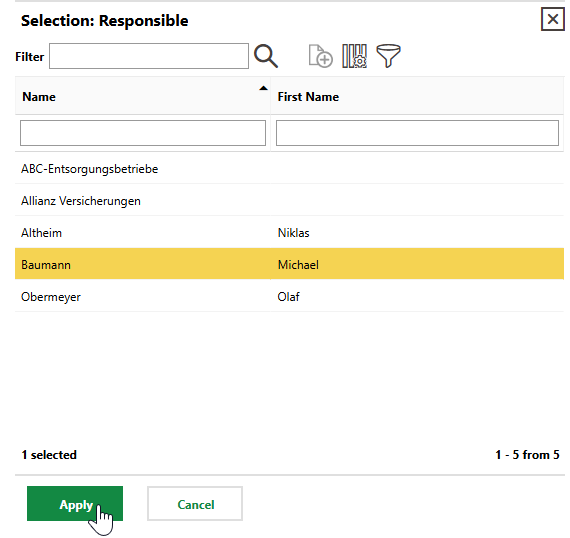
When you click the > button in the Responsible field, you can select any of the project team members listed in the Participants section on the order details page.
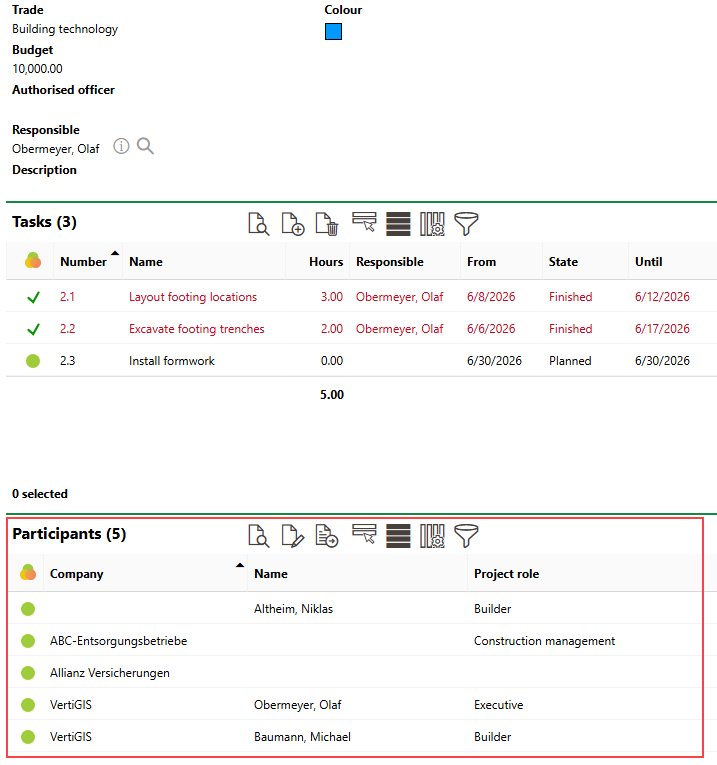
Order Participants from Project Team
To assign members to tasks within the order, you must specify the order's participants in the Participants section on the project order details page.
Select Order Participants
You can add any members of a project's project team as participants for orders associated with the project. Order participants can be assigned to any tasks associated with the order.
To select from members of the project team that you want to add as participants for the order's tasks, click the Additional Editing () icon in the Participants section on the order details page.
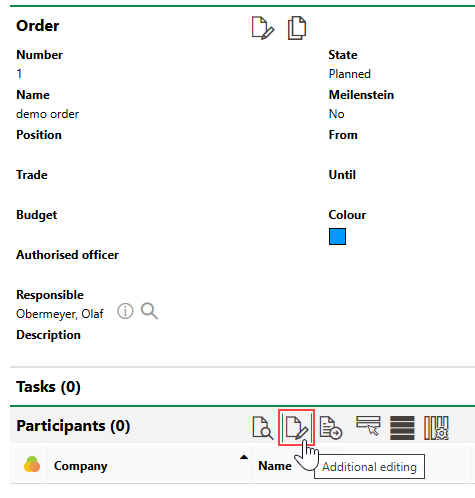
Selecting Participants
You can then click the Add ( ) icon under Assign Participants and select a member of the project team that you want to add as a participant for the order.
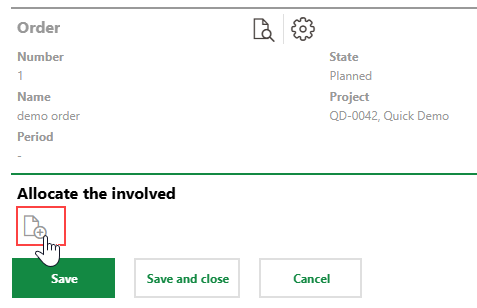
Selecting Participants
Alternatively, click the Assign All Project Team Members () icon in the Participants section to add all members of the project team as participants for the order. Any time you click this icon, newly added members of the project team are added as an order participant.
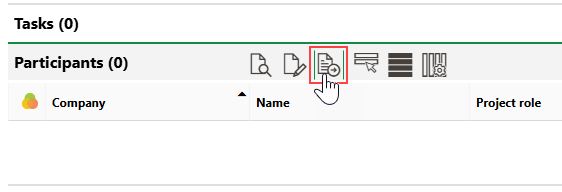
Assigning all Team Members as Participants (1/2)
You can assign work orders to any employees listed in the Participants section, and save time recordings for them.
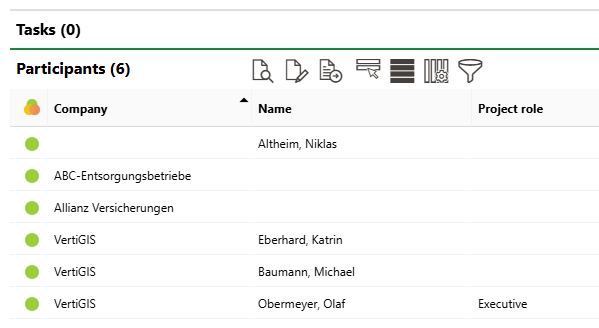
Participants Section
