This topic outlines how to add, edit, and delete project orders in VertiGIS FM's Project Management module.
Add an Order
You can create a new order on the details page for the project the work is associated with.
To Add an Order
1.Navigate to the details page for the project you want to create a new order for.
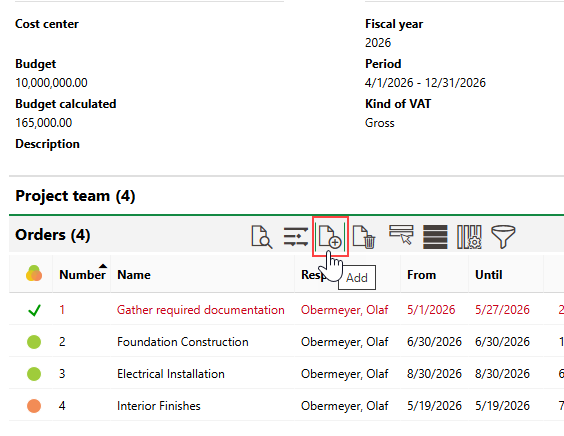
2.Expand the Orders section and click the Add ( ) icon.
3.At minimum, enter a name that describes the new order in the Name text box.
4.Enter additional order details as available.
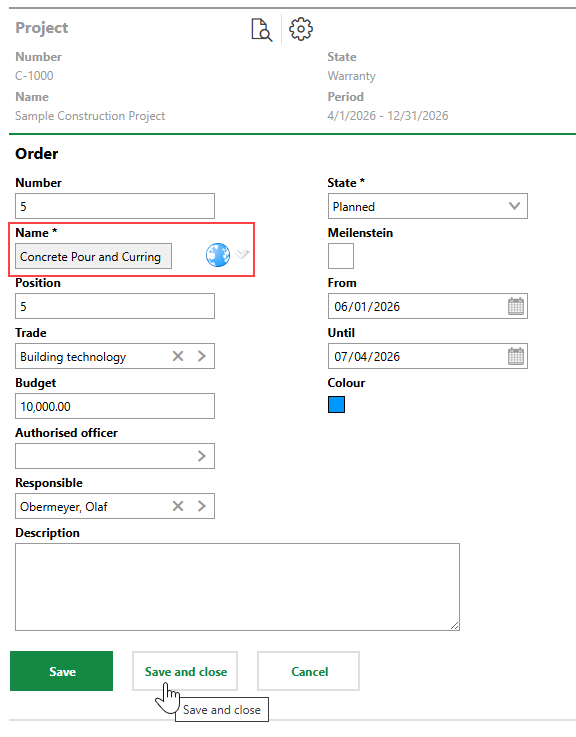
Refer to Order Details for descriptions of all form fields.
5.Click Save or Save and Close.
The new order is now listed in the Orders section.
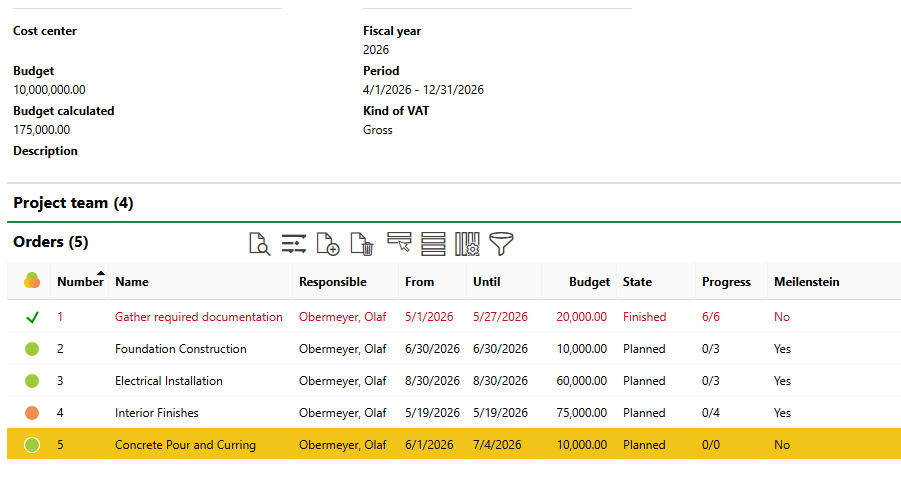
Newly Created Order
Edit an Order
You can edit the properties of an existing order on its details page.
To Edit an Order
1.Navigate to the details page for the project associated with the order you want to edit.
2.Expand the Orders section and double-click an order. Alternatively, select the order and click the View Details ( ) icon.
3.Click the Edit ( ) icon.
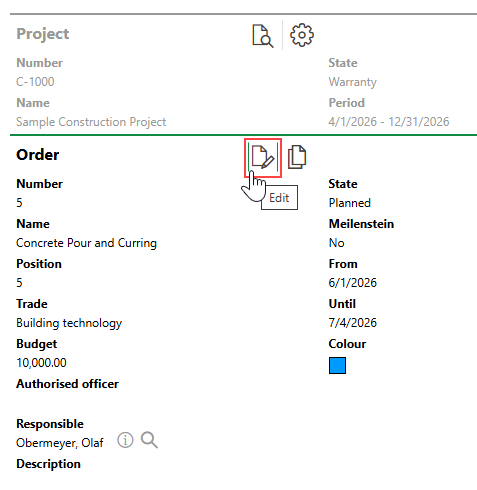
4.Edit the order's details as required.
5.Click Save or Save and Close.
Delete an Order
You can delete project orders that
•are in the Planned or In Progress state
•do not have any child elements (for example, tasks or subcontracts).
To Delete an Order
1.Navigate to the details page for the project associated with the order you want to delete.
2.Select the order you want to delete and click the Delete ( ) icon.
3.Click OK.
