In VertiGIS FM, you can manage a project's costs by setting a project budget, setting budgets for each order in the project, and comparing ordered work with incoming invoices.
Project Budget
You can set the project's overall budget manually when you create a new project or edit an existing one. To set the budget, enter it in the Budget field in the project details.
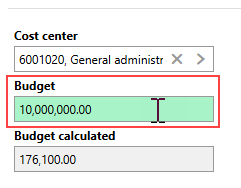
Budget Field in Project Details
Budget Calculated
The Budget Calculated field reflects the total of set budgets for all orders in the project.
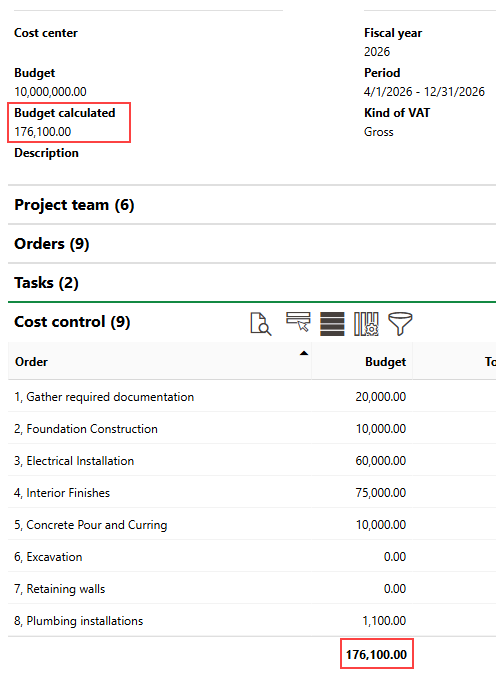
Budget Calculated Property
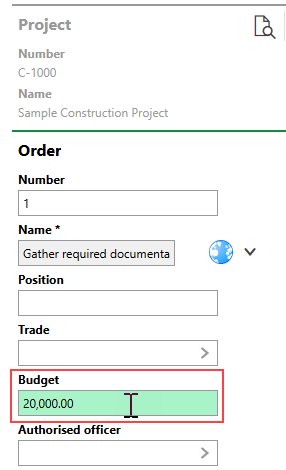
You can enter an order's budget in its Budget field when you create the order or edit an existing one.
Order Budgets
Budgets for projects in VertiGIS FM are managed primarily at the order level. Each order has a budget, work ordered through subcontracts, and invoices received. You can see these breakdowns for each order in the Cost Control section on the project details page.
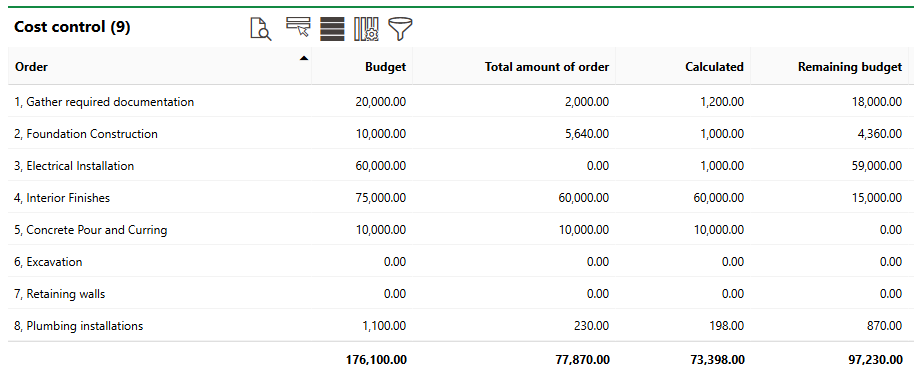
Cost Control Section
Cost Control Data
Column |
Description |
|---|---|
Budget |
The budget set for the order. You can enter this value in the Budget field in the order details.
Budget Field in Order Details |
Total amount of order |
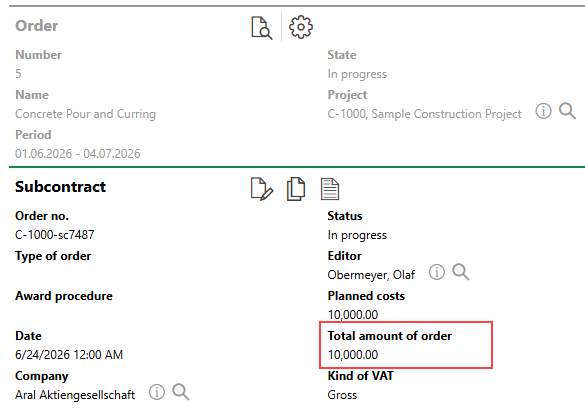
The total cost of the work ordered for the order. This includes work outsourced through subcontracts but not hours recorded by employees assigned to work orders. The value in this column is the sum of values entered in the Total Amount of Order field in the subcontract details for all subcontracts associated with the order. Subcontracts associated with the order are listed in the Subcontracts section on the order details page.
Total Amount of Order Field in Subcontract Refer to Add Subcontracts to a Project Order. |
Calculated |
The total cost of all incoming invoices associated with the order's subcontracts or directly associated with the order. You can see invoices associated with an order by double-clicking the order in the Cost Control section. Invoice amounts included in this value come from invoices listed in the Invoices section on the details pages of subcontracts associated with the order, and in the Invoices section on the order details page. |
Remaining budget |
The remaining amount that can be spent on work for the order. The amount in the Budget field minus the amount in the Total Amount of Order field. |
Double-click an order in the Cost Control section to see its associated incoming invoices.
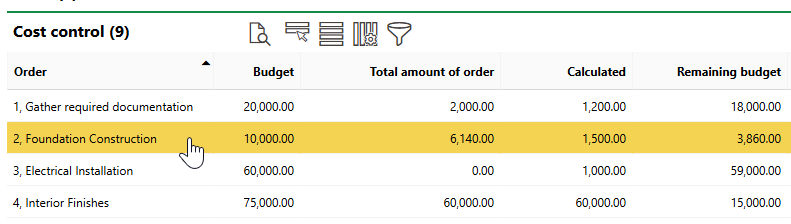
Double-clicking an Order in Cost Control Section
Below the order's high-level budget metrics, the Costs section lists incoming invoices associated with the order. The amount in the Calculated field matches the sum of the invoice amounts.
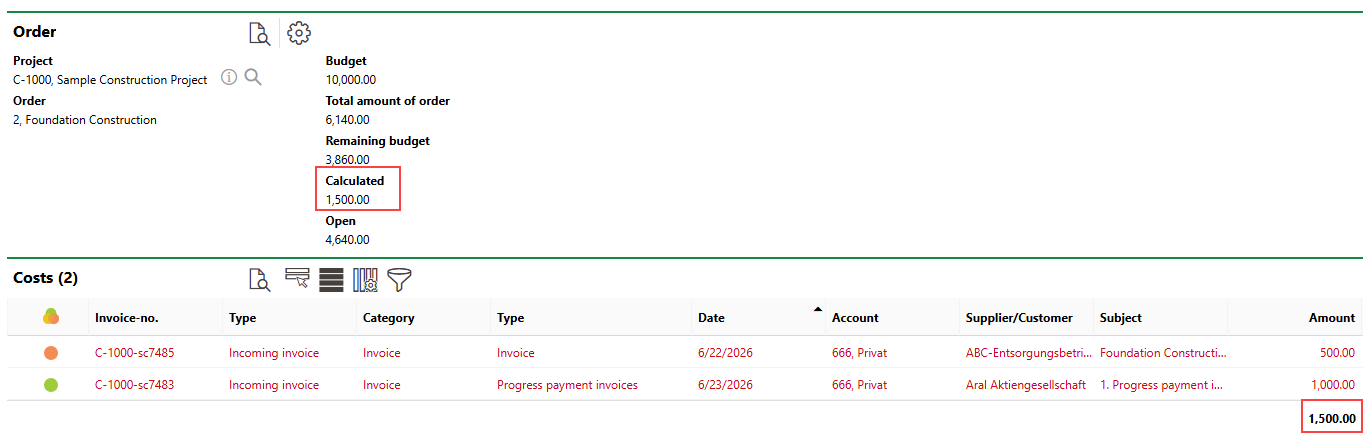
Order's Calculated Property and Invoiced Amount
The Costs section also indicates whether the order's incoming invoices are Finished ( ), Checked, (
 ) or Unchecked (
 ) invoice. Refer to Invoice Statuses.
Ordering and Billing for Projects in VertiGIS FM
The general flow for ordering work and tracking costs for projects is outlined below. Additional documentation is available for managing subcontracts and invoices in VertiGIS FM. Refer to Subcontracts and Invoices for more information.
Add Subcontracts to a Project Order
Subcontracts are orders for work that must be outsourced and completed by a third party. You can add subcontracts to an order in the Subcontracts section on the project's order details page.
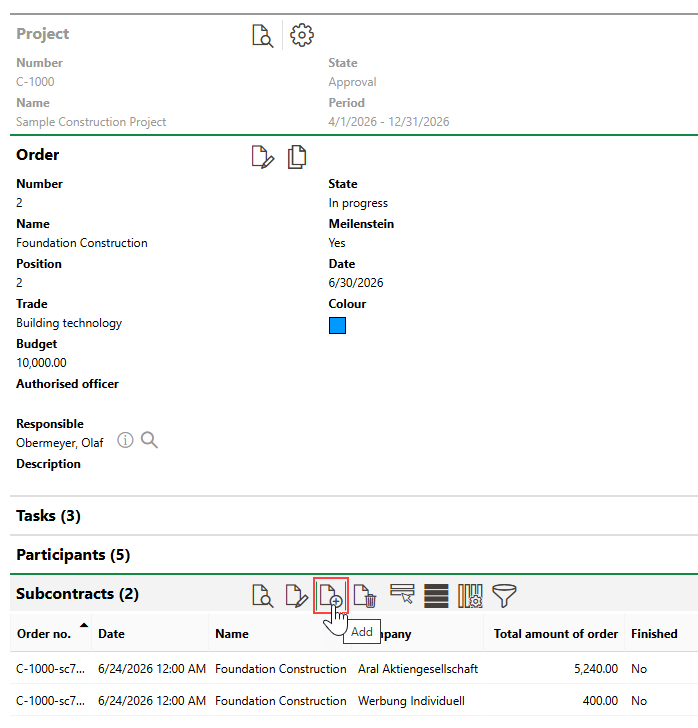
Adding a Subcontract to a Project Order
The amount you enter in the Total Amount of Order field in the subcontract details is added to the order's value in the Total Amount of Order column in the Cost Control section.
Add Invoices
When you update the subcontract's Status to In Progress or Finished, an Invoices section appears on the subcontract's details page.
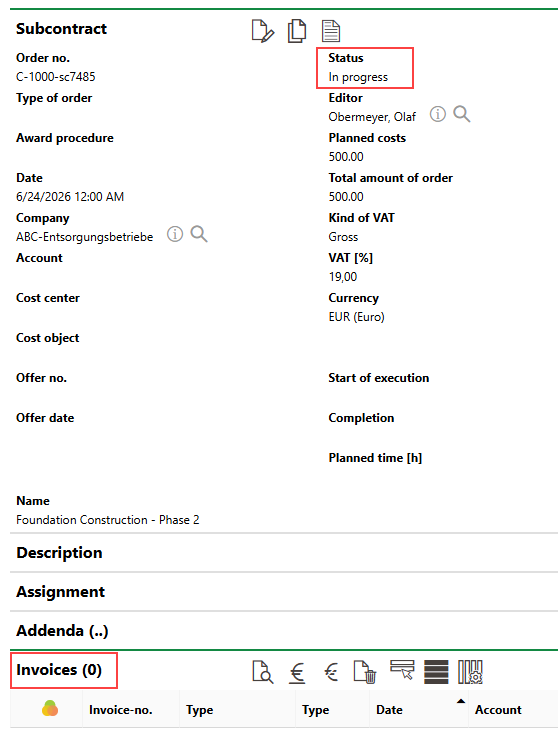
Subcontract Status and Invoice Section
To add an invoice to the subcontract, click the Add Invoice ( ) icon.
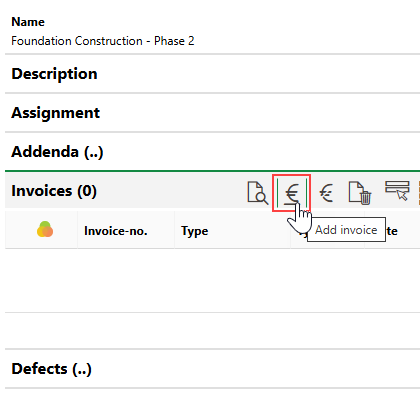
Adding an Invoice
The amount you enter in the Invoice amount section is counted against the order's budget (in the Calculated column in the Cost Control section on the project's details page).
Alternatively, you can add invoices in the Invoices section on the project order's details page.
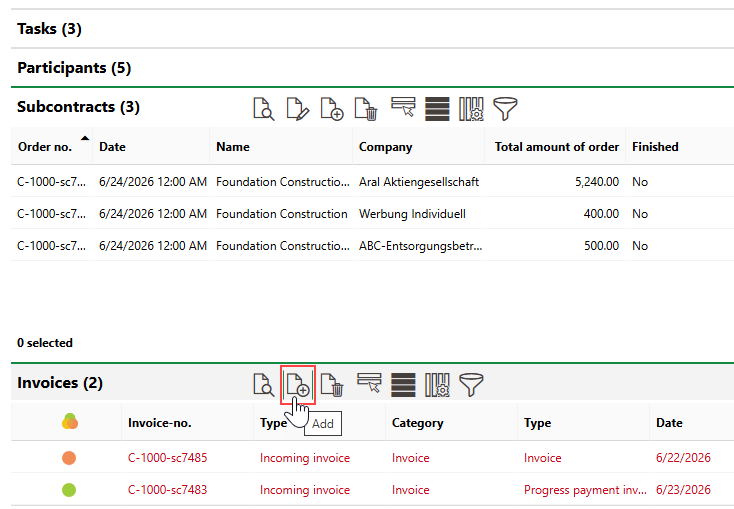
Invoice Section on Order Details Page
Amounts in invoices you create this way still count against the order's budget, but because they do not have associated subcontracts, there is no offsetting amount in the order's Total Amount of Order column in the Cost Control section on the project's details page.
Process Invoices
Invoices received for a project order can be processed when received, according to your organization's processes and invoice management features in VertiGIS FM. Refer to Manage Invoices for more information.
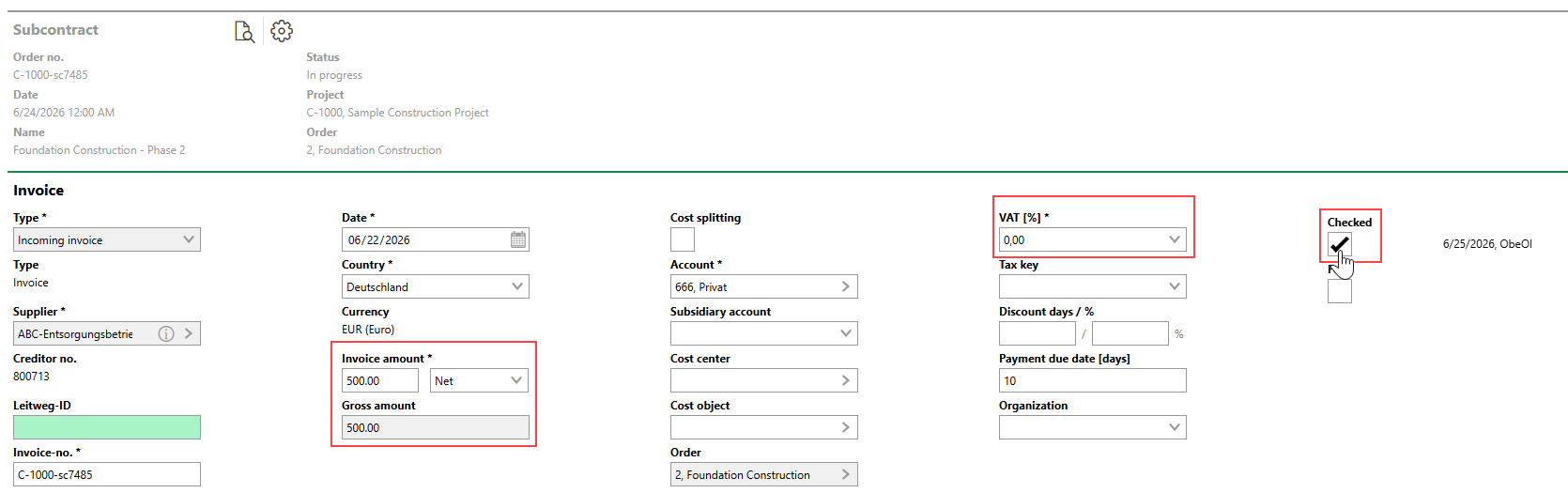
Checking an Invoice
