The Time Recording module is a repository for all employee working hours recorded in VertiGIS FM.
The Time Recording module records working hours for your organization's employees only. It cannot capture working hours for external parties like contractors.
Time recording entries are associated with employees and indicate how many hours the employee worked and the work order or project they worked on.
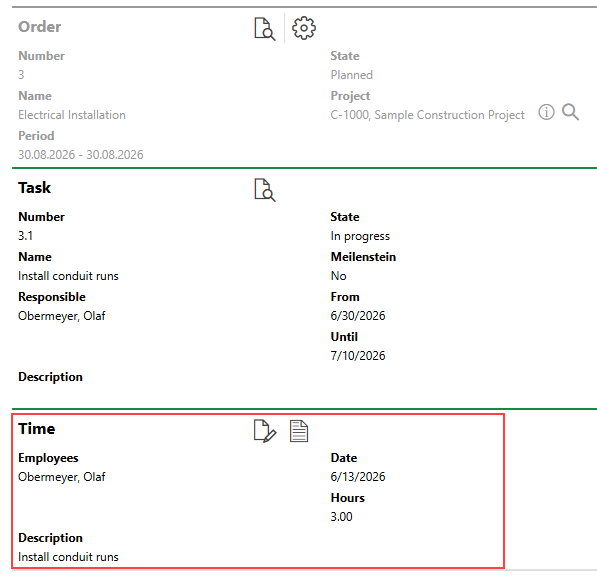
Time Recording Associated with a Task in a Project Order
You can create a time recording entry in VertiGIS FM by
•adding time recordings for other employees in the Time Recording module.
•adding a time recording for your own employee to a work order. This is how VertiGIS FM records working hours to be associated with maintenance work for high-level orders and assets in your system.
•adding a time recording for your own employee to a project order task. This is how VertiGIS FM records working hours to be associated with construction projects in the Project Management module.
•adding a time recording to a general task.
You can review all time recording data in the Time Recording module on its dashboard and search page.
For work orders specifically, you can also use the Settle Orders workflow for routine time recordings.
Dashboard
The Time Management dashboard compiles work orders and time management recording by employee. You can access it by expanding Time Recording in the modules panel and clicking Dashboard.
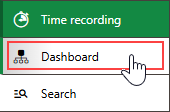
Navigation to Time Recording Dashboard
By default, it shows time recording entries for the employee associated with the user signed in to the application.
To enter time recordings for other employees, the user associated with your employee must be assigned a user role that has the Time recording for other employees permission (Administration > Roles/Permissions > Role Administration > Time Recording) or the Administrator permission (Administration > Roles/Permissions > Role Administration > Platform Permissions) enabled. Refer to Roles and Permissions.
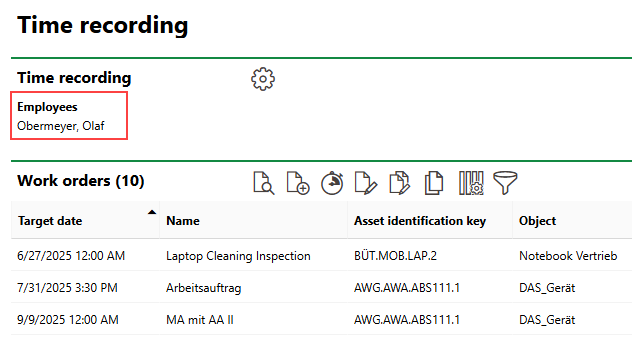
Selected Employee Whose Data Is Shown on Dashboard
Actions
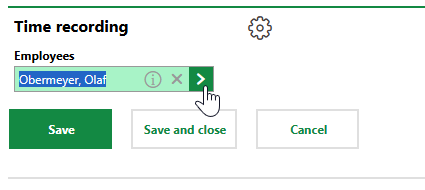
Under Actions, you can change the employee whose time recording data the dashboard shows by clicking Time Recording for Other Employees.
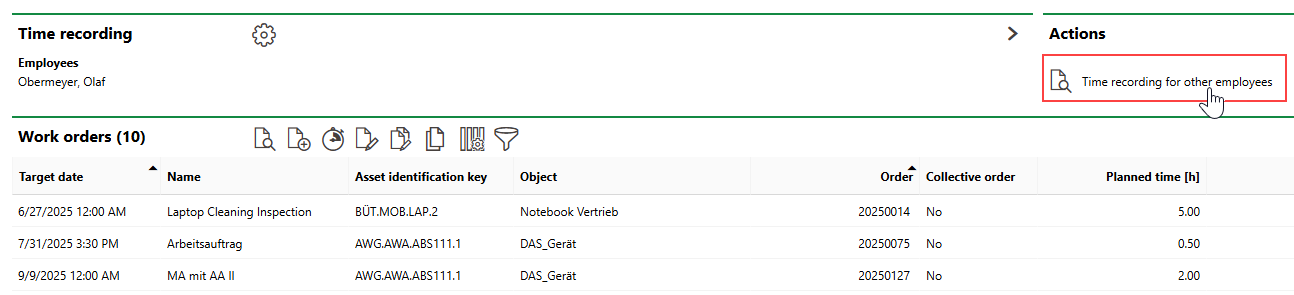
Change Dashboard Employee (1/3)
You may not be able to see the Time Recording for Other Employees link if your Time Management module uses a customized dashboard that does not include the Actions template. Refer to Dashboard Customization for more information.
You can select another employee and then click Save and Close.
Change Dashboard Employee (2/3) |
Change Dashboard Employee (3/3) |
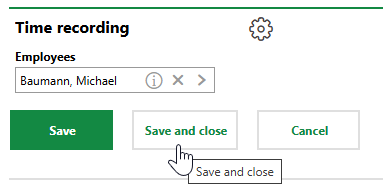
The dashboard reloads with the selected employee's data reflected.
The Time Recording dashboard includes the sections below.
Work Orders
The Work Orders section lists all work orders assigned to the employee selected under Employees.
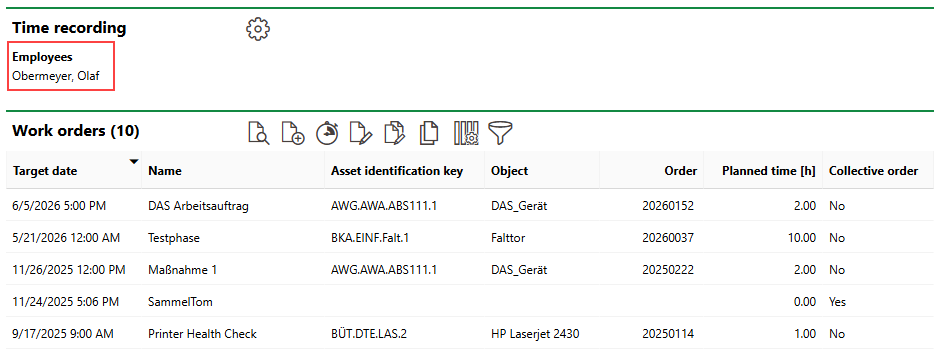
Work Orders Section
Double-click an entry in this section to navigate to the work order's details page and add a time recording to the work order.
Project Management
The Project Management section lists project order tasks that have the employee shown at the top of the dashboard selected in the Responsible field in the task's details.
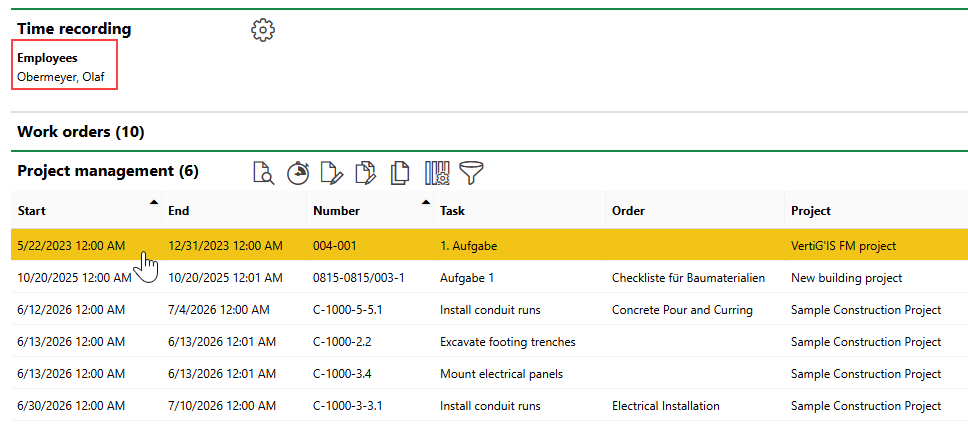
Project Management Section
Double-click a task in this section to navigate to its details page and to add a time recording to the task.
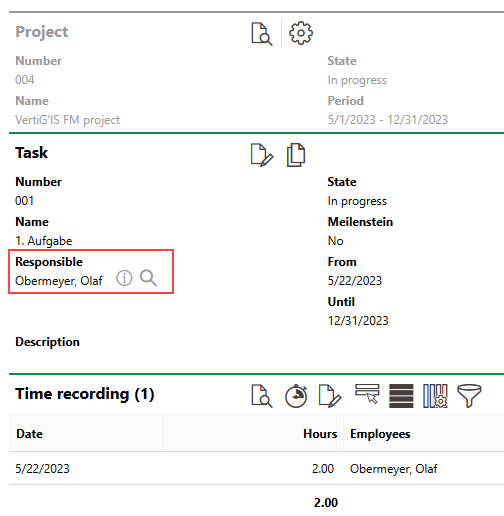
Task Assignment
General Tasks
The General Tasks section lists other miscellaneous work items logged for the employee shown at the top of the dashboard.
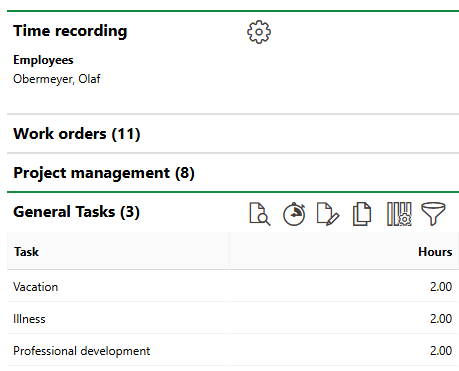
General Tasks Section
You can create time recordings associated with any entries saved in the General Tasks catalog for work not associated with any specific work orders or project orders. Examples may include entries for vacation, illness, and professional development.
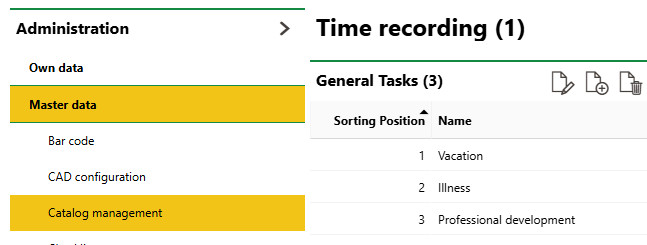
General Tasks Catalog
Refer to Add Time Recordings.
Reports
The Reports section lists download links for the reports the system administrator has made available on this page for the role your user has been assigned. Clicking the link generates the report. Refer to the Report and Query Permissions administration topic for more information.
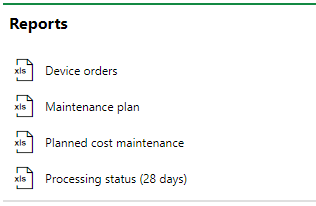
Reports Section
You can generate reports using other data on the search page. Refer to Generate Reports for more information.
Queries
The Queries section lists links to the search queries the system administrator has made available on this page for the role your user has been assigned. Refer to Report and Query Permissions for more information.
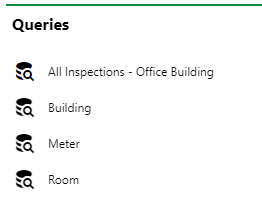
Queries Section
Refer to Save a Query for instructions on how to create a query.
Search Page
Refer to Search Page.
