In the Time Recording module, you can add time recordings to work orders, project order tasks, or general task entries. This workflow lets you add time recordings for other employees, as well as for yourself.
In the core Maintenance module and the Project Management module, employees with sufficient privileges can save time recordings for themselves using workflows within those modules. Refer to the Settle Work Orders Workflow, Add Time Recordings to a Work Order, and Add Time Recordings to a Project Task.
To enter time recordings for other employees, the user associated with your employee must be assigned a user role that has the Time recording for other employees permission (Administration > Roles/Permissions > Role Administration > Time Recording) or the Administrator permission (Administration > Roles/Permissions > Role Administration > Platform Permissions) enabled. Refer to Roles and Permissions.
To Add a Time Recording in the Time Recording Module
1.Navigate to the Time Recording dashboard.
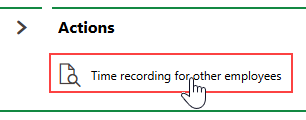
2.To enter a time recording for your own employee, skip to step 6. Otherwise, click Time Recording for Other Employees under Actions.
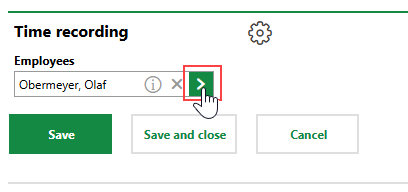
3.Click the > button in the Employees menu.
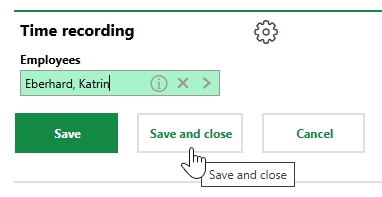
4.Double-click the employee you want to add a time recording for, or select the employee and click Apply.
5.Click Save and Close.
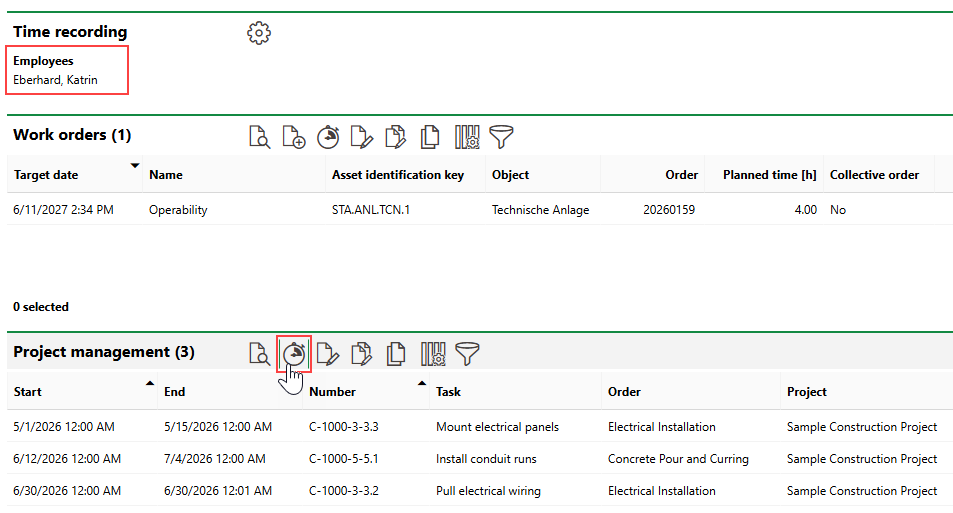
6.On the dashboard, click the Fast Capture Working Period ( ) icon in the section for the type of work item you want to add a time recording to.
▪to add a time recording to one or multiple work orders, click the icon in the Work Orders section.
▪to add a time recording to a project order task, click the icon in the Project Management section.
▪to add a time recording associated with an entry in the General Tasks catalog, click the icon in the General Tasks section.
7.On the page that loads, in the Date menu, select the date the employee worked the hours being saved.
8.In the table, enter the number of hours the employee worked on each work order or task in the text boxes in the Hours column.
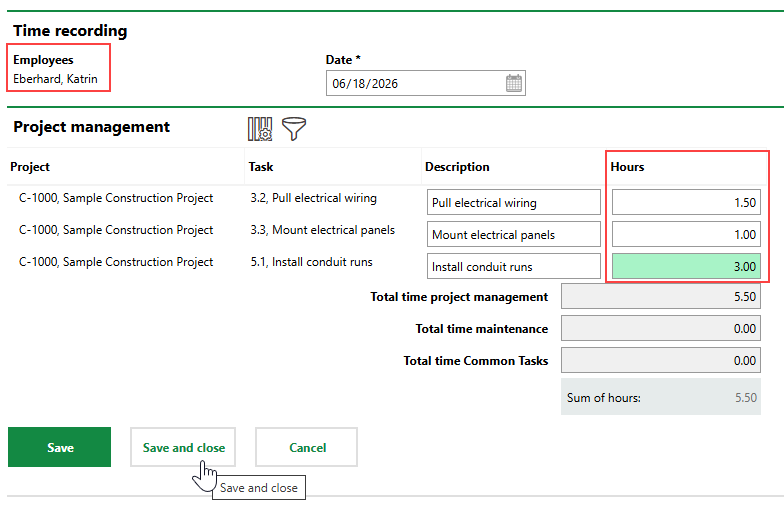
9.Click Save or Save and Close.
You can review the saved time recordings on the Time Recording search page or on the details page for the work order or task.
If you added time recordings for project order tasks, you can see them in the Time Recording section on the details page for the parent project, or on the details page for the task's parent order.
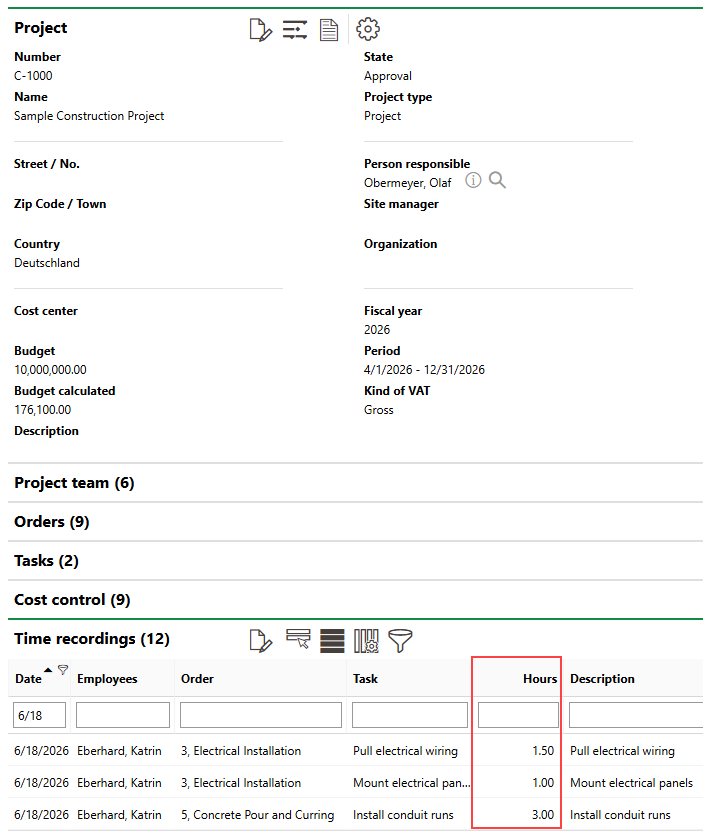
Time Recordings Saved for Project Order Tasks Listed on Project Details Page
If you added a time recording for a work order, you can also see it in the Time Recording section on the details page for the high-level order associated with the work order.
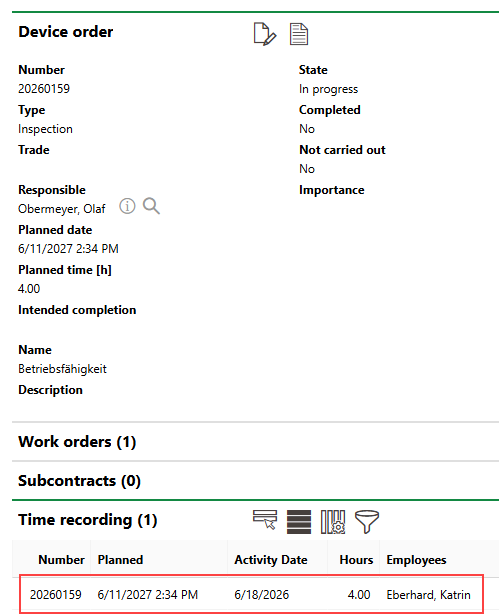
Time Recording Added to Work Order
