This topic outlines how to add, edit, and delete a tree cluster in VertiGIS FM Greenspaces.
This topic outlines how to manually add individual tree clusters in VertiGIS FM. You can alternatively import your own internal record of tree clusters into the VertiGIS FM database using a CSV or XML file. This option is ideal for adding large quantities of tree clusters simultaneously (for example, to establish an initial record of tree clusters in the VertiGIS FM database).
Add a Tree Cluster
You can add a new tree cluster to the database on the Tree Management search page or using the Add Trees workflow on the Tree Management dashboard.
To Add a Tree Cluster on the Tree Management Search Page
1.Navigate to the Tree Management search page.
2.Under Objects, click Tree Cluster, and then click the Add New Tree Cluster ( ) icon.
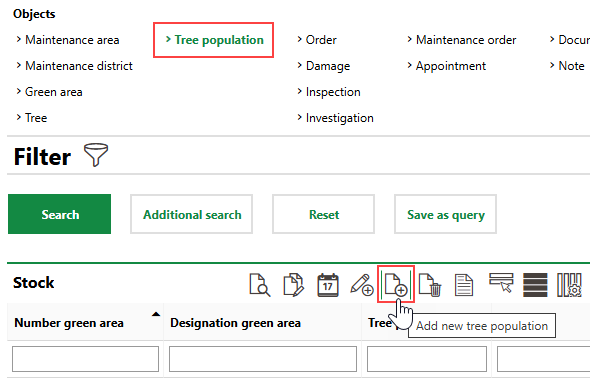
3.At minimum,
▪Enter an identifying number for the tree cluster in the Tree Cluster Nr field.
▪Select an inspection interval from the Inspection Interval menu.
4.Enter any additional tree properties as available. Refer to Tree Cluster Details for descriptions of all form fields.
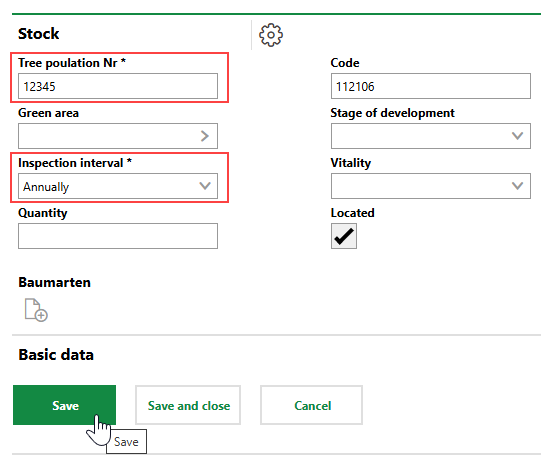
5.Click Save or Save and Close.
To Add a Tree Cluster on the Tree Management Dashboard
1.Navigate to the Tree Management dashboard.
2.Under Operational Procedures, click Add Trees.
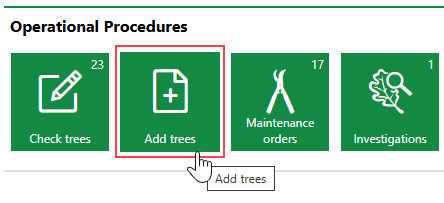
3.Double-click the green area to which you want to add the new tree cluster.
4.In the Tree Clusters section, click the Add () icon.
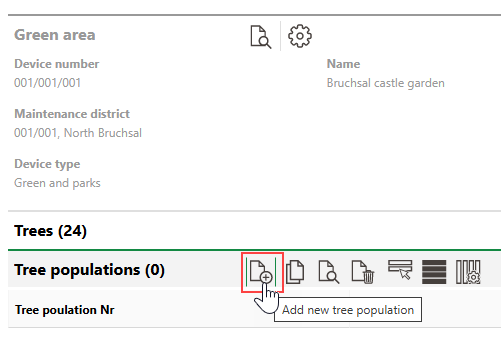
5.Enter the tree cluster's core data in the Tree Cluster Data section.
Refer to Tree Cluster Details for field descriptions.
6.Do either of the following:
▪Select the Without Initial Checking check box. This step circumvents the need to complete an inspection and document that the trees are safely planted.
▪In the Assessment section, select an option from the Safety for Public Circulation menu. This option is required to ensure the tree cluster is planted safely in the green area and does not pose a risk to the public. Enter additional tree inspection details as available.
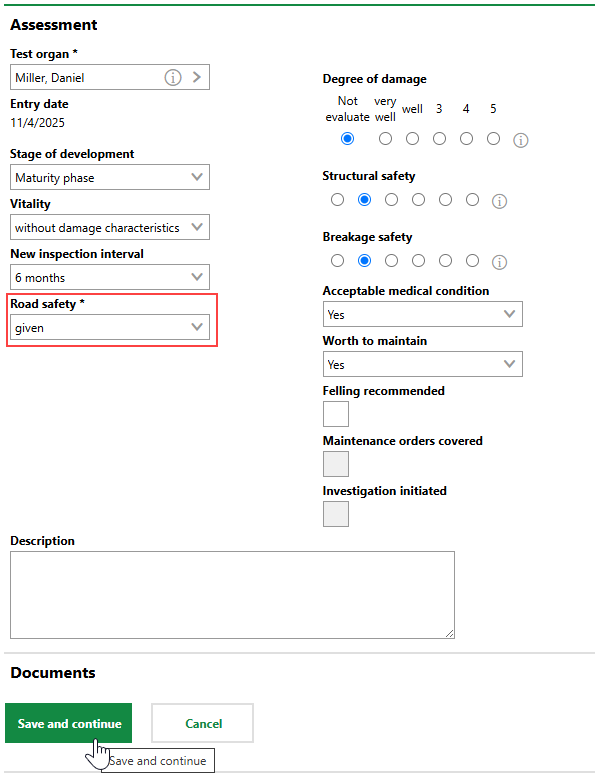
7.Click Save and Continue.
Import Tree Clusters
As an alternative to manually creating tree clusters, you can import them using an Excel file or by integrating your VertiGIS FM instance with a VertiGIS Studio web map that contains tree cluster data.
Refer to Import and VertiGIS Studio Integration for more information.
You can contact support for assistance importing tree clusters or other internal facilities management data into VertiGIS FM.
Edit a Tree Cluster
You can edit a tree cluster's core properties on its details page.
To Edit a Tree Cluster
1.Navigate to the tree cluster's details page.
2.Click the Edit ( ) icon.
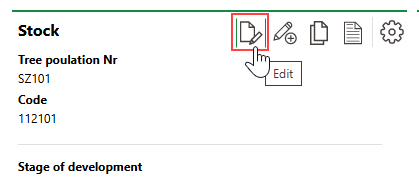
3.Edit the tree cluster's properties as required. Refer to Tree Cluster Details for field descriptions.
4.Click Save or Save and Close.
Batch Edit Tree Clusters
You can perform a batch edit on tree clusters to edit the Tree Cluster Nr, Green Area, Inspection Interval, Code, Stage of Development, and Vitality properties, or any properties stored in the Basic Data or Current Tree Cluster Data tabs, of two or more tree clusters in one action. Tree clusters selected in a batch edit do not need to be from the same version.
You can perform a batch edit on the Tree Management search page.
To Batch Edit Multiple Tree Clusters
1.Navigate to the Tree Management search page.
2.Under Objects, click Tree Cluster.
3.In the search grid, select the tree clusters you want to edit and click the Edit Tree Clusters ( ) icon.
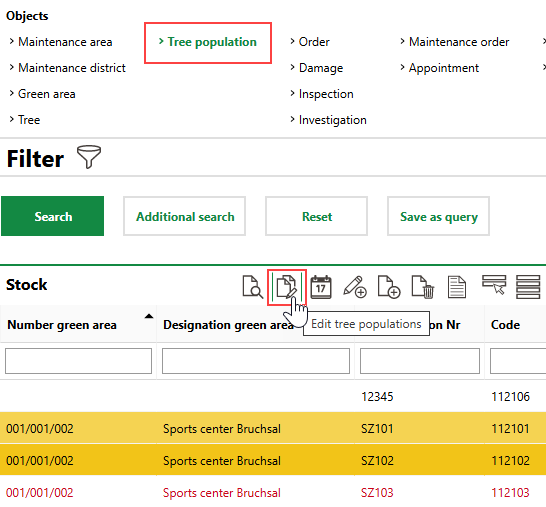
Press the ctrl key on a Windows keyboard to select items in the search grid that are not directly on top of or beneath each other.
4.For the property or properties whose value(s) you want to batch edit, select the check box and select or enter the new value.

5.Click Apply to All. Affected tree clusters are listed in the Inventory section.

6.Click OK on the confirmation dialog.
The new properties are assigned to all selected tree clusters.
Delete a Tree Cluster
You can delete existing tree clusters from the database on the Tree Management search page.
To Delete a Tree Cluster
1.Navigate to the Tree Management search page.
2.Under Objects, click Tree Clusters.
3.Select the tree cluster you want to delete and click the Delete ( ) icon.
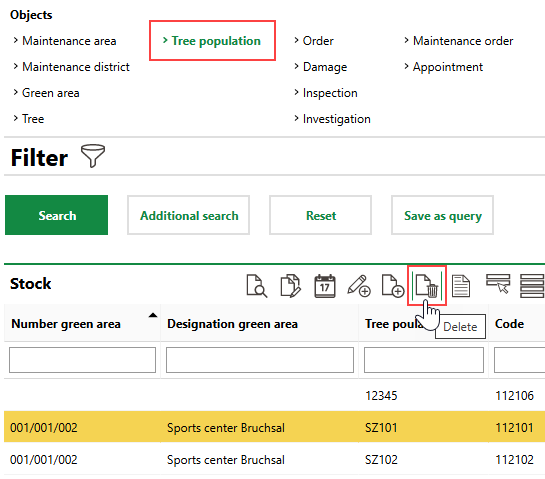
4.Click OK.
Field |
Description |
||||||
|---|---|---|---|---|---|---|---|
Tree cluster Nr |
A serial number or string to identify the tree cluster by. |
||||||
Green area |
The green area in which the tree cluster is located. |
||||||
Inspection interval |
How frequently the tree cluster should be inspected. Selectable options are saved in the Inspection Interval catalog. The value of this property is overwritten by any interval you select in the New Inspection Interval menu when you complete an inspection for the tree cluster. |
||||||
Quantity |
The number of individual trees in the tree cluster. |
||||||
Code |
A serial number or string assigned to the tree cluster internally. Values in this field are often populated using configurations in the Number Ranges administration. |
||||||
Stage of development |
The tree cluster's stage of development. Selectable options are saved in the Stage of Development catalog. This field inherits the value selected in the Stage of Development field in the most recently completed inspection for the tree cluster. |
||||||
Vitality |
A description of the tree cluster's vital status. Selectable options are saved in the Vitality catalog. This field inherits the value selected in the Vitality field in the most recently completed inspection for the tree cluster. |
||||||
Located |
Whether the tree cluster has corresponding GIS features on an integrated web map. |
||||||
Tree species |
Individual species included in the tree cluster. Refer to Tree Species. |
||||||
State |
The current state of the tree cluster. This value is determined by the option selected in the State menu in the tree cluster's most recent inspection. You can also update the tree cluster's status to Cut by selecting a date in the Cut On field and saving the tree cluster.
|
Basic Data
Field |
Description |
|---|---|
Estimated date of planting |
Whether the date selected in the Average Plant Date field is an estimate. |
Average plant date |
An approximate date the trees in the tree cluster were planted. |
Mean age at time of planting [years] |
The average age of the trees in the tree cluster when they were planted. |
Middle age |
The median age of the trees in the tree cluster. |
Cut on |
The date the trees in the tree cluster were cut. Selecting a date in this field and saving the form when you edit the tree cluster updates the tree cluster's State to Cut. Refer to Cut and Replace Tree Clusters. |
Replacement planting for |
The tree or tree cluster that this tree cluster replaced. You can select existing tree clusters whose State in Cut in this field. |
Coordinate system |
The system in which the tree cluster's coordinates are expressed (for example, WGS 84 or Gauss-Krüger). Selectable options are saved in the Coordinate System catalog. |
X / Longitude |
The x-coordinate (longitude) of the tree cluster's location. |
Y / Latitude |
The y-coordinate (latitude) of the tree cluster's location. |
Country |
The country in which the tree cluster is located. Selectable options are activated in the Country Management administration. |
Street |
The street on which the tree cluster is located. |
House number |
The street address of the tree cluster's location. |
Zip Code |
The ZIP or postal code of the tree cluster. |
City |
The city in which the tree cluster is located. |
District |
The district, state, or province in which the tree cluster is located. |
Accomplishment class |
|
Shape of crown |
The shape of the tree cluster's crown. Selectable options are stored in the Shape of Crown catalog. |
Legal status |
The tree cluster's legal status. Selectable options are saved in the Legal Status catalog. |
Location function |
A descriptor for the tree cluster's specific location. Selectable options are saved in the Location Functional catalog. This field inherits the value selected in the Location Function field in the most recently completed inspection for the tree cluster. |
Security expectation traffic |
The expected level of public circulation near the tree cluster. Selectable options are saved in the Security Expectation Traffic catalog. This field inherits the value selected in the Security Expectation Traffic field in the most recently completed inspection for the tree cluster. |
Cadastral district |
The cadastral district in which the tree cluster's land parcel is located. |
Number of land parcel |
Refer to Land Parcels. |
Real estate |
The real estate on which the tree cluster is located. You can select a real estate saved in the system administration if your license does not include VertiGIS FM Buildings. |
Owner |
The owner of the tree cluster. You must select a contact or company stored in the Contact Management module. |
Contact person |
A point of contact for the tree cluster. You must select a contact or company stored in the Contact Management module. |
Access |
A description of the tree cluster's accessibility to the public. Selectable options are saved in the Access catalog. |
Initial registration by |
The VertiGIS FM user who created the tree cluster. |
Initial registration date * |
The date the tree cluster was created in VertiGIS FM. |