In VertiGIS FM Greenspaces, you can designate a tree as cut to indicate that it has been removed from its green area.
Using the replace tree workflow, you can create a new tree that replaces a cut tree's location. If your VertiGIS FM Greenspaces database is integrated with a VertiGIS Studio project, and the cut tree has a corresponding GIS feature, the new tree will inherit the location properties and appear in the same location on the map.
Refer to VertiGIS Studio Integration for more information.
Tree Statuses
Status |
Description |
|---|---|
Active |
The tree is alive and planted in a location in your VertiGIS FM environment. You can create orders, inspections, and investigations for trees in this state. |
Inactive |
The tree is still planted in a green area, but it does not require the same level of care and maintenance as an active tree. You can create some types of maintenance orders for inactive trees. You cannot create inspections or investigations for trees in this state. |
Cut |
The tree was previously planted in a location in your VertiGIS FM environment but has been removed. The tree can no longer be edited in VertiGIS FM once it is in this state. You can create some types of maintenance orders for cut trees. You cannot create inspections or investigations for trees in this state. |
You can change a tree's status from Active to Cut by manually marking the tree as cut or by completing a maintenance order whose order template has the Felling check box selected.
Cut a Tree
You can mark any active tree in VertiGIS FM as cut by editing its core properties and entering the date the tree was cut.
To Cut a Tree
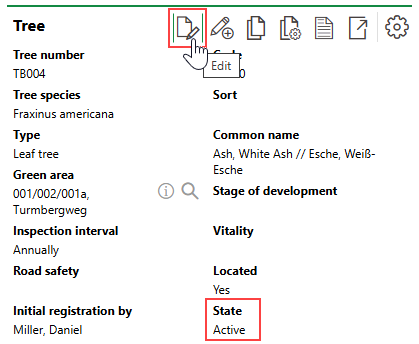
1.Navigate to the details page of the tree you want to cut.
2.Click the Edit ( ) icon.
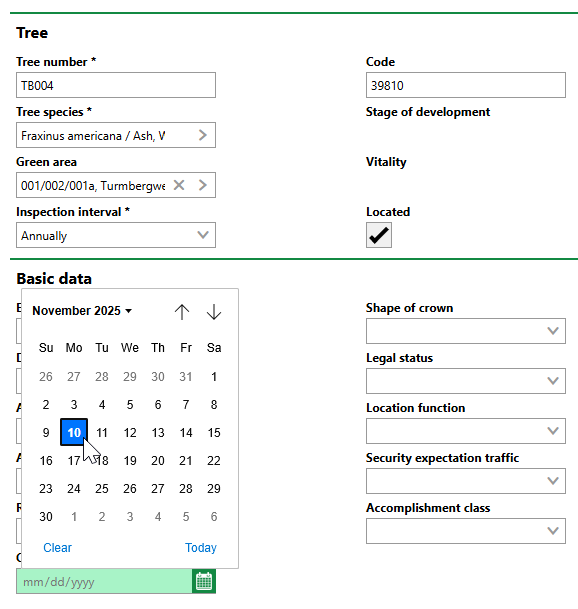
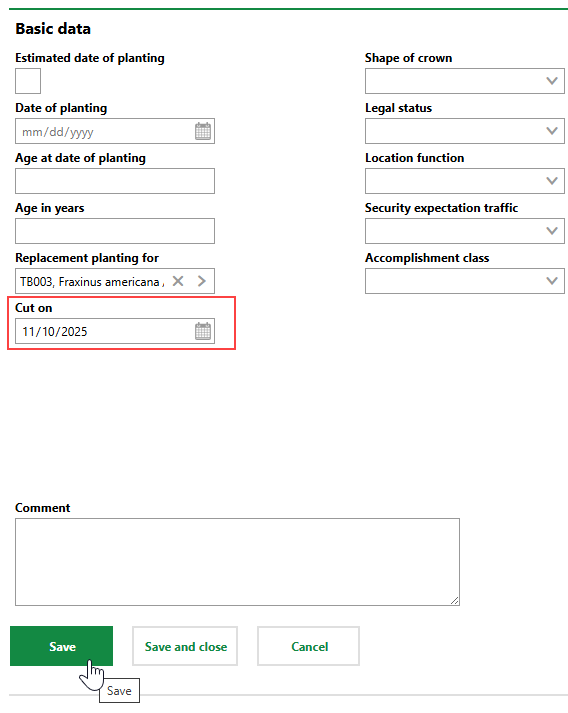
3.In the Basic Data section, select the date the tree was cut in the Cut On field.
4.Click Save or Save and Close.
VertiGIS FM updates the tree's status from Active to Cut.
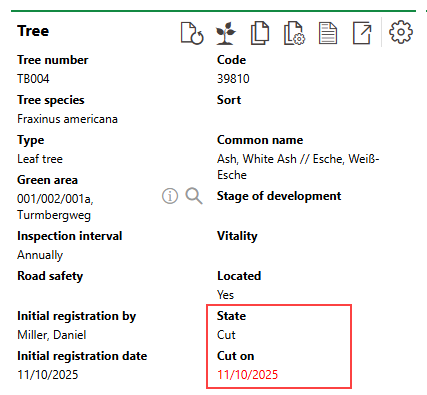
Cut Tree
Cut trees appear in red text on the Tree Management search page.
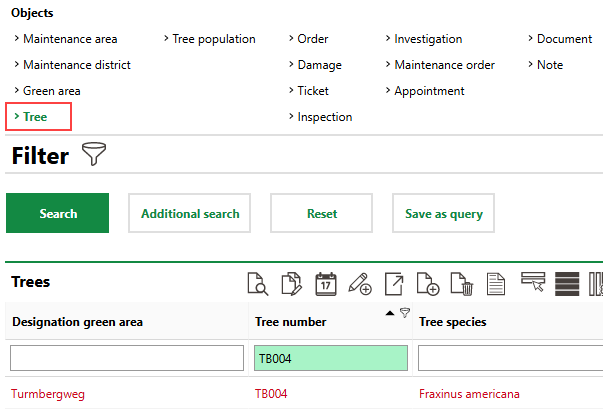
Cut Tree on VertiGIS FM Search Page
Replace a Cut Tree
Using the replace tree workflow, you can easily create a new tree that inherits a cut tree's corresponding GIS feature on an integrated VertiGIS Studio web map. The new tree will be added to the same green area as the cut tree.
You can initiate the replace tree procedure in either of two places: on the Tree Management dashboard or on the details page of the cut tree.
To Replace a Cut Tree from the Dashboard
1.Navigate to the Tree Management dashboard.
2.Under Operational Procedures, click Replacement Planting.
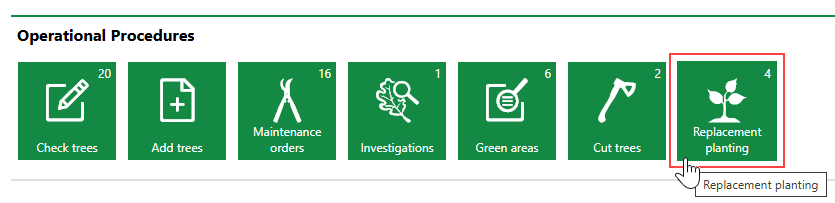
3.From the list of trees whose status is cut, select the tree you want to replace and click the Replacement Planting ( ) icon.
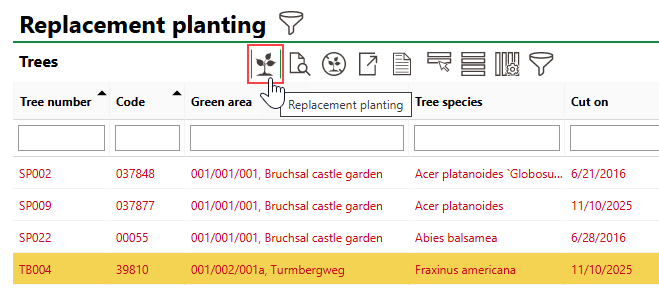
In this step, you are selecting the cut tree whose location data you want the new tree to inherit.
4.Select the species of the replacement tree in the Tree Species menu, and then click Save and Continue.
If you select the Without Initial Checking check box, VertiGIS FM will mark the first system-generated inspection as Finished. The next inspection will be generated according to the inspection interval property.
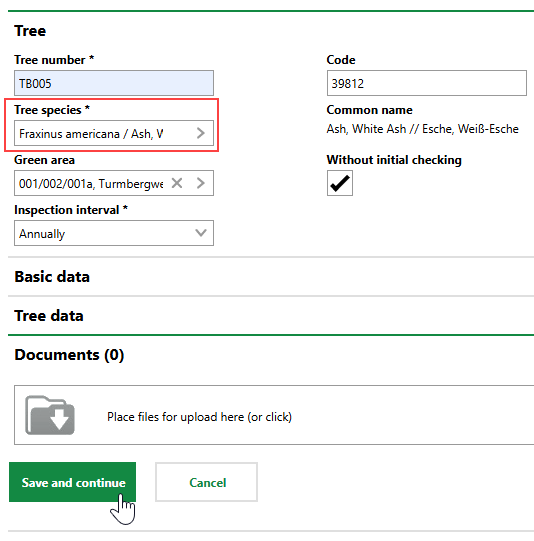
VertiGIS FM adds the replacement tree to the database. The new tree inherits the location properties of the cut tree.
Cut Tree |
Replaced Tree |
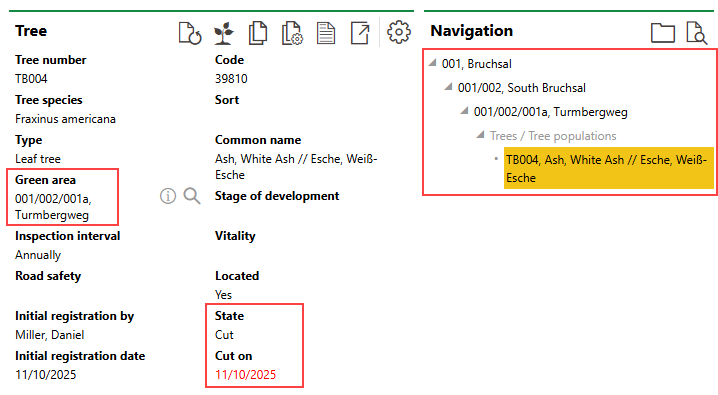
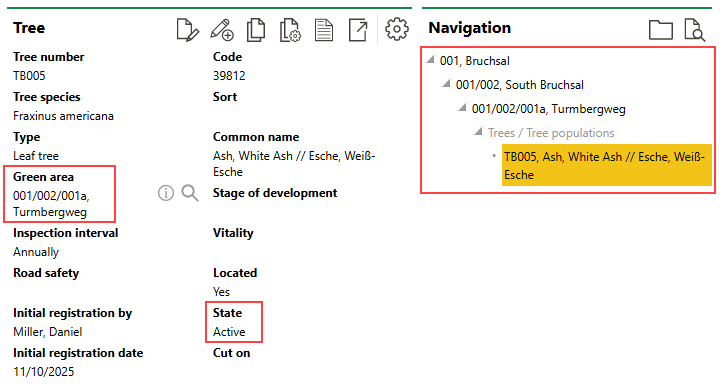
Additionally, the new tree's Replacement Planting For field in the Basic Data field refers to the cut tree that the new tree replaced.
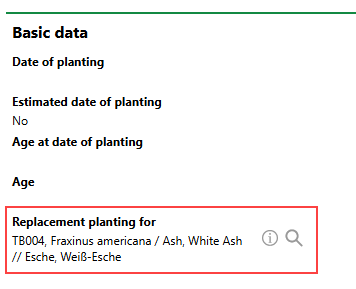
Replacement Planting For Field
To Replace a Cut Tree from the Tree's Details Page
1.Navigate to the details page of a tree that has been cut.
Refer to Cut a Tree.
2.Click the Replacement Planting () icon.
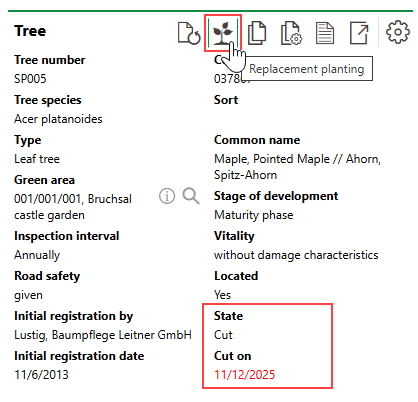
3.Click the > button in the Tree Species menu and select the species of the replacement tree.
4.Enter additional relevant tree details in the Basic Data and Tree Data sections. Refer to Tree Details for field descriptions.
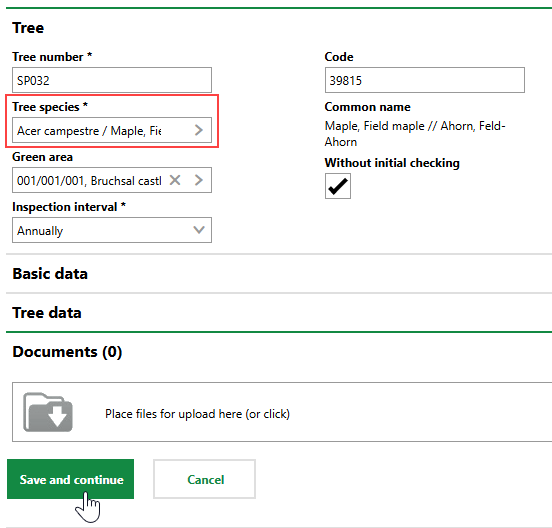
5.Click Save and Continue.
Cut Trees Using Felling Orders
As an alternative to manually cutting trees and tree clusters, you can also update a tree's or tree cluster's status to Cut by completing an order whose order template has the Felling check box selected.
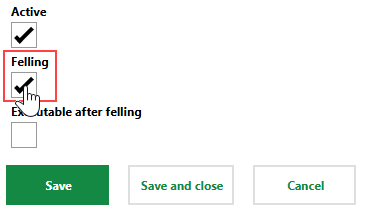
Maintenance Order Catalog Felling Property
This workflow provides employees with a high-level view of trees and tree clusters that have been marked for cutting but not yet cut. To cut a tree using this workflow, you or someone else must create an order for the tree that uses an order template that designates trees associated with the order as needing to be cut.
To mark a tree or tree cluster for cutting or felling, create a new maintenance order for the tree or tree cluster. In the Maintenance Order field, select an order template that has the Felling check box selected.
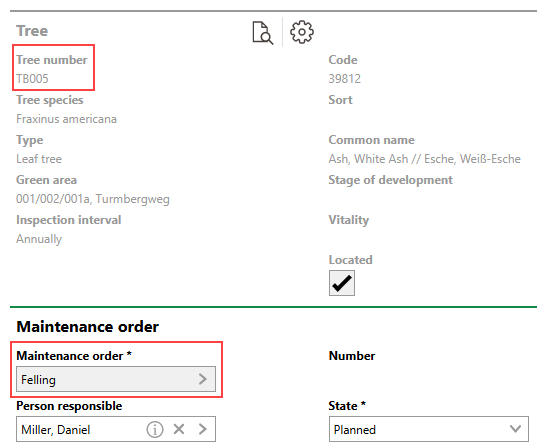
Tree Maintenance Order Template
In this example, the selected order template ("Felling") has the Felling property set to Yes in its Maintenance Orders catalog entry.
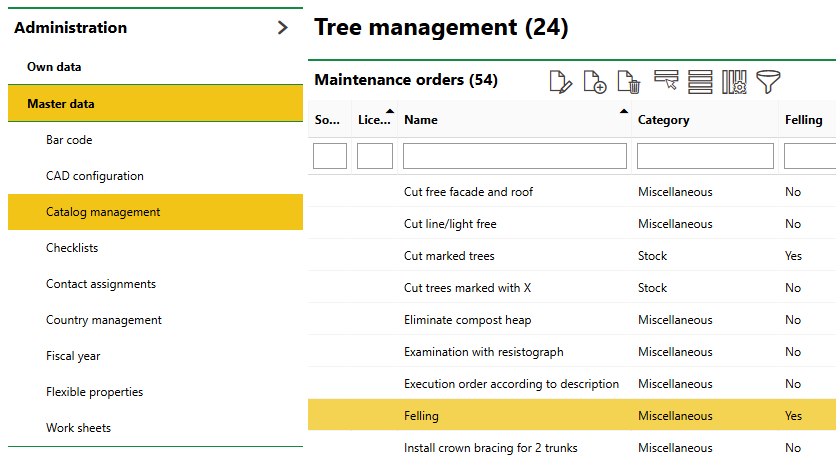
Felling Entry in Maintenance Orders Catalog
On the Tree Management start page, you can now click the Cut Trees button under Operational Procedures.
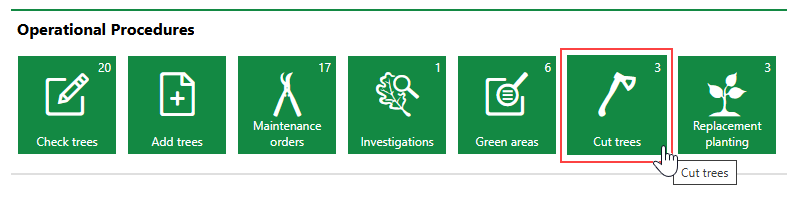
Cut Tree Operational Procedures
The page that opens lists all the maintenance orders for trees and tree clusters that are associated with a Maintenance Type catalog entry that has the Felling property set to True.
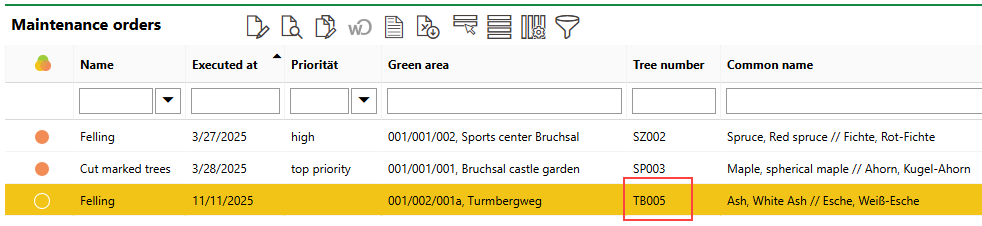
Tree Orders That Require Cutting or Felling
Double-click an order to open it and mark it as complete.
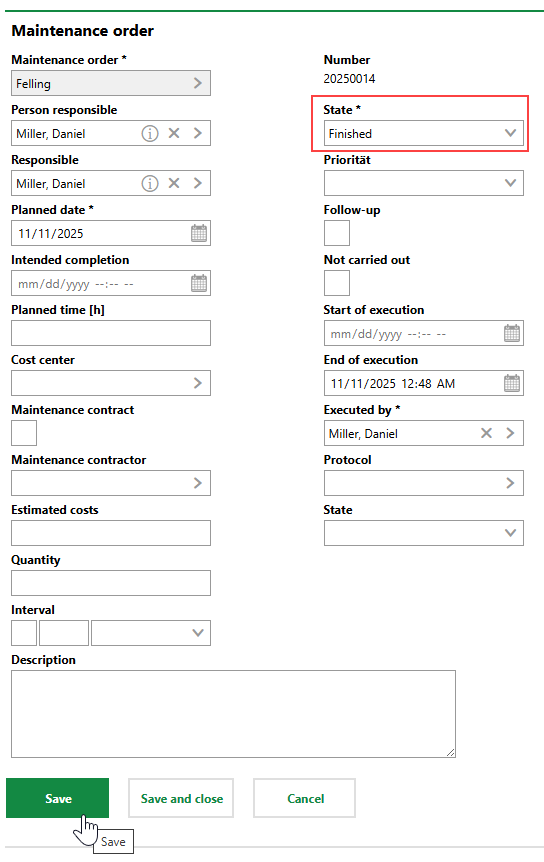
Marking Felling Order as Complete
When you complete the order, VertiGIS FM updates the status of the associated tree (TB005) from Active to Cut.
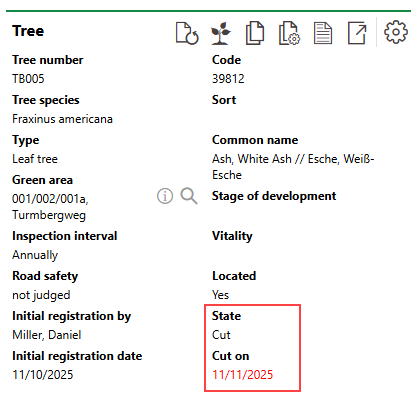
Tree with Status Changes By Order Completion