In VertiGIS FM Greenspaces, you can manually create individual maintenance orders for trees and tree clusters that employees in the field must complete. VertiGIS FM does not programmatically generate orders for trees or tree clusters based on their properties.
Unlike inspections and investigations, maintenance orders are created to address an issue with the tree or tree cluster and are associated with units of work.
Create an Order for a Tree
You can manually create an order for a tree or tree cluster on its details page.
To Create an Order for a Tree
1.Navigate to the details page for the tree or tree cluster for which you want to create an order.
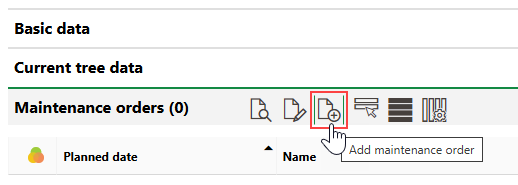
2.Expand the Maintenance Orders section and click the Add Maintenance Order ( ) icon.
3.Click the > button in the Maintenance Order menu and select a template for the order. Selectable options are saved in the Maintenance Order catalog.
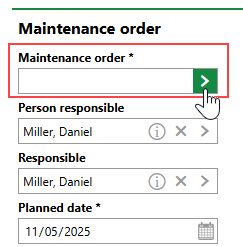
If you are creating an order for a tree cluster, you can only select catalog entries in the Tree Cluster category.
4.Enter additional order details in the appropriate data fields in the form. Refer to Order Details for more information.
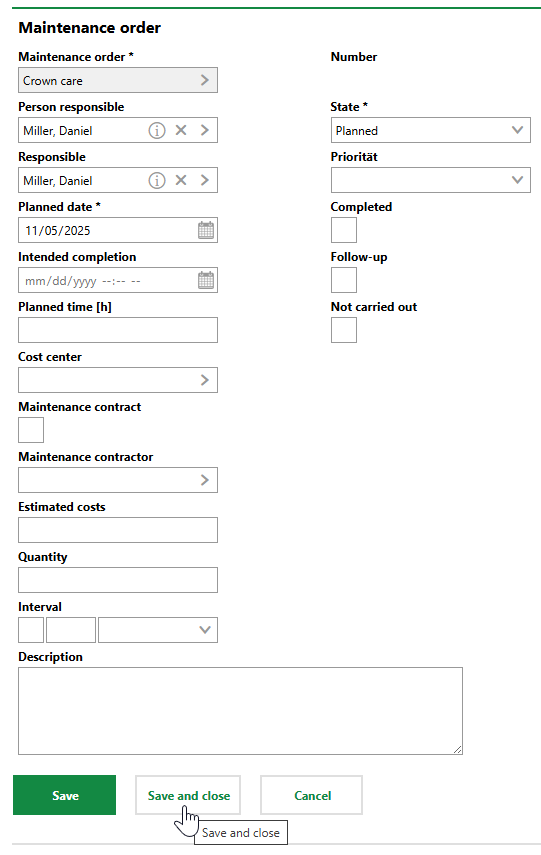
5.Click Save or Save and Close.
The new order appears in the Maintenance Orders section on the tree's or tree cluster's details page.
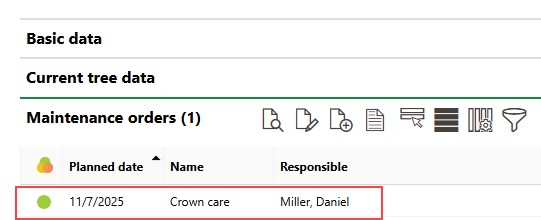
Newly Created Tree Order
You can also create orders when you complete an inspection if the order is to resolve an issue discovered during the inspection.
Cut or Inactive Trees
If a tree's or tree cluster's status is inactive, you can still create orders for it, but in the Maintenance Order field in the order form, you can only select entries in the Maintenance Order catalog that have the Executable After Felling check box selected.
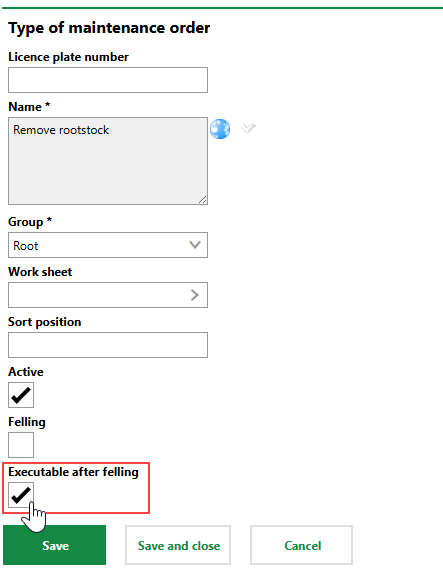
Demo Catalog Entry for Cut and Inactive Tree Orders
Field |
Description |
|---|---|
Maintenance Order |
The Type of Maintenance Order catalog entry associated with the order. The selected entry specifies the area of the tree that the order focuses on, specifies whether it can be applied to trees or tree clusters, specifies whether they can be used to create orders for trees and tree clusters whose status is Cut or Inactive, and can include additional information like work sheets. |
Person responsible |
The employee or contact supervising or managing the order. Selectable options are saved in the Contact Management module. |
Responsible |
The employee or contact directly responsible for the order. Selectable options are saved in the Contact Management module. This is the user that sees the order as assigned to them on the dashboard and in the VertiGIS FM Greenspaces mobile app. |
Planned Date |
The date the order is scheduled to take place. |
Intended Completion |
The date and time by which the order should be completed. |
Planned Time [h] |
The estimated time in hours the order will take to complete. |
Cost Center |
The cost center associated with the order's work. |
Maintenance contract |
Whether a maintenance contract exists for the tree or tree cluster. |
Maintenance contractor |
The company that carries out the order according to the contract. Selectable options are stored in the Contact Management module. |
Estimated Costs |
The estimated costs to complete the order. |
Quantity |
The number of orders of this Maintenance Type that you want to generate for the tree or tree cluster. If you enter 2, for example, VertiGIS FM will create a second identical order when the first one is marked as complete. The Planned Date of the new order will be determined using the time period entered in the Interval field. |
Interval |
The amount of time until an additional, identical order should be scheduled. If you specify a period of time (for example, 2 Days) in this field, VertiGIS FM will generate another order with a corresponding Planned Date.
Completed Tree Order with an Interval Property of 2 Days |
Number |
An identifying number for the order. This value can be system-generated using a Number Ranges configuration. |
State |
The current status of the order (Planned or Finished). Refer to Order Statuses. |
Priority |
The priority level of the order. Selectable options are stored in the Priority catalog. |
Completed |
A check box that, if selected, indicates the work associated with the order is complete. Selecting this check box programmatically updates the order's State property to Finished. |
Follow-up |
An information field to indicate that the completion of the order requires some level of follow-up action. This check box is not associated with the follow-up order functionality in VertiGIS FM Maintenance. |
Not Carried Out |
A check box that can be selected if the order is being closed without all of the required work being completed. Refer to Not Carried Out. |
Start of Execution |
The date the order was started. This field is only visible if the Completed check box is selected. |
End of Execution |
The date the order was completed. VertiGIS FM programmatically fills this field with the date the Completed check box is selected. |
Executed By |
The person who completed the order. You must select a contact or company stored in the Contact Management module. This field is only visible if the Completed check box is selected. |
Protocol |
Selectable options are saved in the Protocol menu. |
State |
The status of the tree (Active, Inactive, or Cut). The State value in the tree's core properties will update to the value you select in this field when you save the order as completed. |
Description |
A general description of the tree. |
Complete an Order for a Tree
Inspections created for a specific tree or tree cluster are listed in the Maintenance Orders section on the tree's details page. By default, the icon in the leftmost column indicates the order's status, which is determined by its Planned Date in relation to the current date.
Inspection or Order Statuses
Status |
Description |
|---|---|
Planned |
No work associated with the inspection, investigation, or order has begun. |
In progress |
Work associated with the inspection, investigation, or order is underway. This status cannot be assigned to orders and investigations associated with trees. |
Finished |
The order, investigation, or inspection is complete. The search page only shows these orders, investigations, or inspections if you select the Include History check box in the Filter menu. |
The icon symbol that accompanies the order in search pages and on details pages is based on its deadlines and not necessarily its status.
Order Status Symbols
Symbol |
Description |
|---|---|
|
The inspection, investigation, or order's Planned Date is in the future. |
|
The inspection, investigation, or order's Planned Date is today. |
|
The intended deadline has passed, and the inspection, investigation, or order is overdue. |
|
The inspection, investigation, or order is complete. |
|
The inspection, investigation, or order was closed, but the work associated with the inspection or order was not completed. |


When an order for a tree or tree cluster is completed by an employee, you can mark it as complete on the tree's or tree cluster's details page.
To Complete an Order for a Tree or Tree Cluster
1.Navigate to the details page for the tree or tree cluster associated with the order you want to mark as complete.
2.Expand the Maintenance Orders section.
3.Select the order you want to complete and click the Edit ( ) icon.
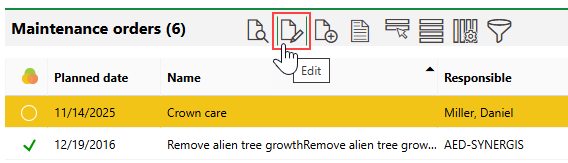
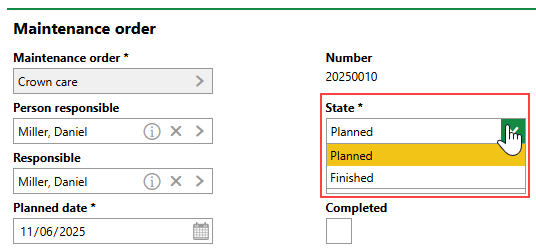
4.Do either of the following:
▪From the State drop-down menu, select Finished.
▪Select the Completed check box.
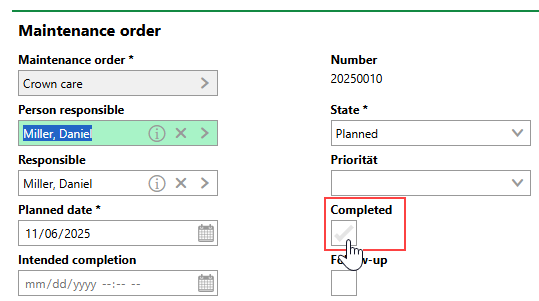
5.Review the order form and add or edit any details as required. Refer to Order Details for field descriptions.
6.Click Save and Close.
The icon next to the order in the Maintenance Orders section on the tree's or tree cluster's details page now indicates that the order is complete.
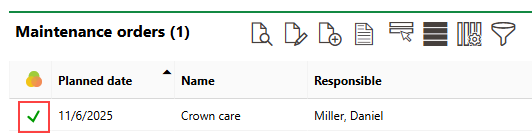
Maintenance Orders Section
If a value greater than 1 was entered in the Quantity field, VertiGIS FM will generate another order with a Planned Date determined using the Interval property in the order. In the example below, the Quantity is 2 and the Interval is 2 Days.
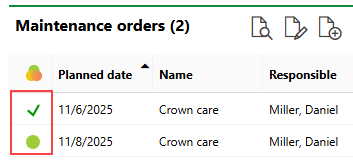
Completed Tree Order with an Interval Property of 2 Days
Search Page
You can also complete orders from the Tree Management search page by clicking Orders under Objects, double-clicking the order you want to complete, and clicking the Edit () icon.
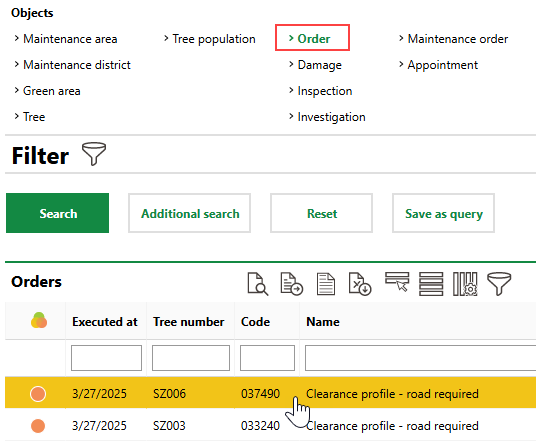
Initiating an Order from the Search Page
The process to complete the order is then identical to the one outlined above.
Not Carried Out
When editing an order or inspection, you can select the Not Carried Out check box to indicate that the order is being closed despite the associated work not being completed.
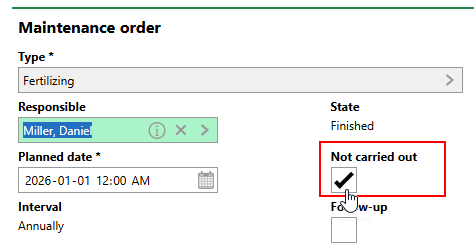
Not Carried Out Check Box
When you select this check box, VertiGIS FM updates the order's State to Finished. When you click Save and Close, the order's status icon indicates that the work was not completed.
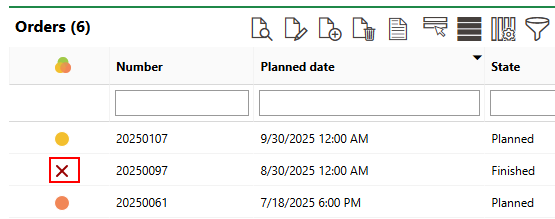
Status Icon for Order Not Carried Out
When saving an order as Not Carried Out, you can include a note in the Description field explaining that the work was deemed not necessary or otherwise cancelled..
Update Tree Status By Order Completion
As an alternative to manually cutting trees and tree clusters, you can also update a tree's or tree cluster's status to Cut by completing an order whose order template has the Felling check box selected.
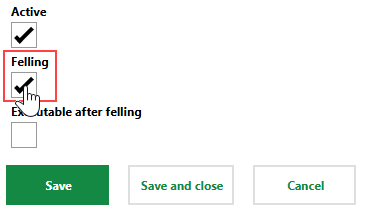
Maintenance Order Catalog Felling Property
This workflow provides employees with a high-level view of trees and tree clusters that have been marked for cutting but not yet cut. To cut a tree using this workflow, you or someone else must create an order for the tree that uses an order template that designates trees associated with the order as needing to be cut.
To mark a tree or tree cluster for cutting or felling, create a new maintenance order for the tree or tree cluster. In the Maintenance Order field, select an order template that has the Felling check box selected.
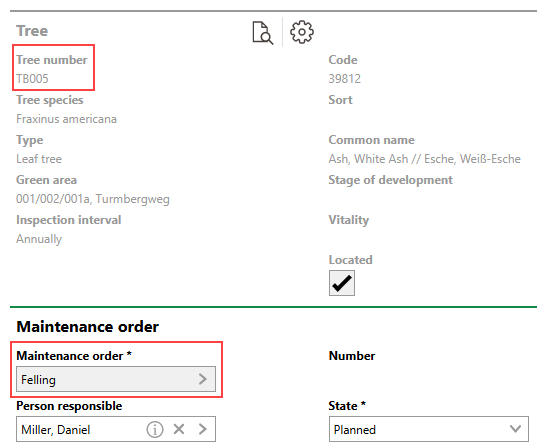
Tree Maintenance Order Template
In this example, the selected order template ("Felling") has the Felling property set to Yes in its Maintenance Orders catalog entry.
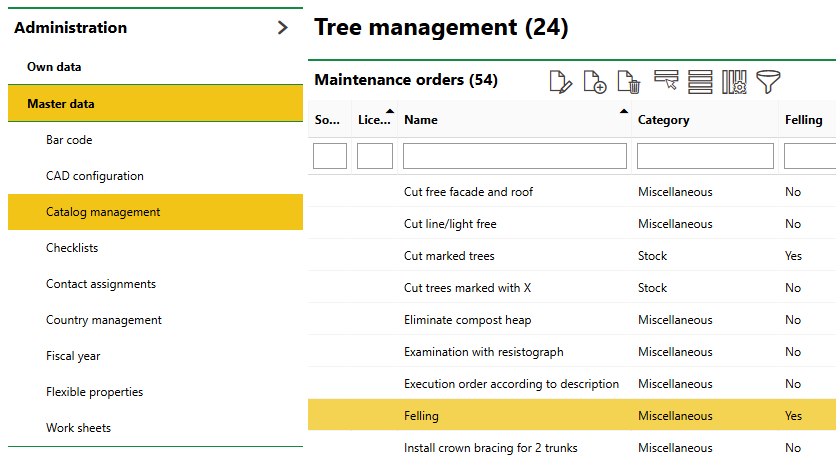
Felling Entry in Maintenance Orders Catalog
On the Tree Management start page, you can now click the Cut Trees button under Operational Procedures.
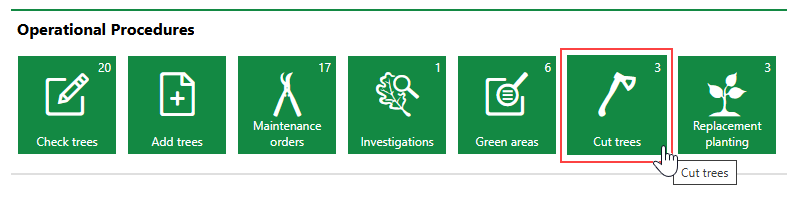
Cut Tree Operational Procedures
The page that opens lists all the maintenance orders for trees and tree clusters that are associated with a Maintenance Type catalog entry that has the Felling property set to True.
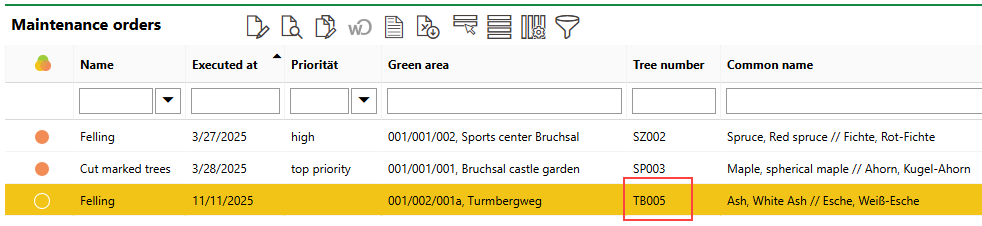
Tree Orders That Require Cutting or Felling
Double-click an order to open it and mark it as complete.
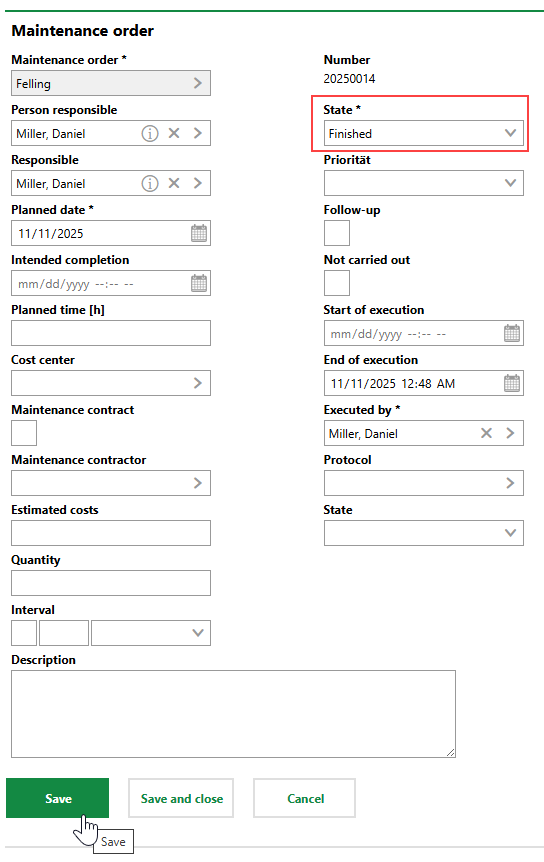
Marking Felling Order as Complete
When you complete the order, VertiGIS FM updates the status of the associated tree (TB005) from Active to Cut.
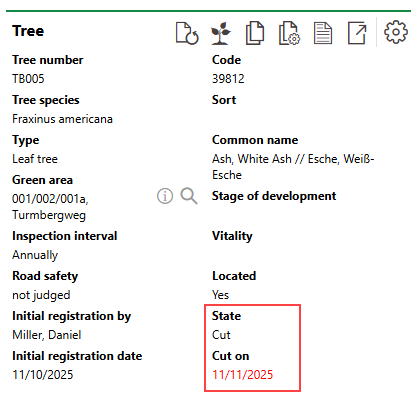
Tree with Status Changes By Order Completion