Projects in the VertiGIS FM database represent construction projects your organization is managing. A project's details page in VertiGIS FM provides an overview of its status, budgets, people, orders, tasks, and other important information.
Project Details Page
Each project you create in VertiGIS FM has its own details page. You can access an existing project's details page on the Project Management search page, by clicking Project under Objects and then double-clicking a project in the search grid.
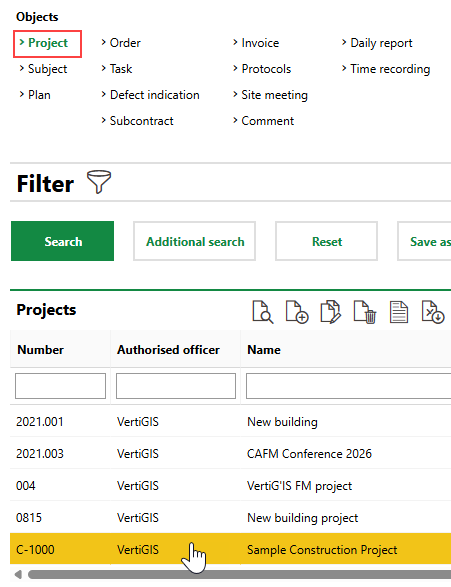
Navigation to an Existing Project
A project's details page contains the data fields and sections below.
Details
Each project has the following core properties.
Project Details
Field |
Description |
||||||||||
|---|---|---|---|---|---|---|---|---|---|---|---|
Number |
A unique number or code to sort and identify the project by. |
||||||||||
Name |
A name that describes the project. |
||||||||||
State |
The current state of the project.
|
||||||||||
Project Type |
The type of project. Selectable options are saved in the Project Type catalog. This field may indicate whether the project is external and billable, or internal. |
||||||||||
Object |
The data object associated with the project. You can select a device, component, or building asset (i.e., a real estate, building, floor, building construction, or room in a building hierarchy). |
||||||||||
Person Responsible |
A person who can be contacted for general inquiries about the project. You must select an employee, a contact, or a company stored in the Contact Management module. |
||||||||||
Site Manager |
The site manager for the project. You must select an employee, a contact, or a company stored in the Contact Management module. |
||||||||||
Organization |
The department or organization within in your company that is associated with the project (for example, Support, Distribution, Administration). Selectable options are stored in the Organizations section on the Administration > Own Data > Client or Administration > Own Data > Tenant page. |
||||||||||
Country |
The country in which the project is taking place. Selectable options are activated in the Country Management administration. |
||||||||||
Zip Code |
The ZIP or postal code of the site of the project. |
||||||||||
City |
The city the site of the project is located in. |
||||||||||
Street |
The street the site of the project is located on. |
||||||||||
House number |
The address of the site of the project. |
||||||||||
Cost center |
The cost center associated with the project. |
||||||||||
Budget |
The budget for the project. You can manually enter a budget in this field. The currency for monetary amounts is associated with the country selected on the Own Company or Tenant administration page. |
||||||||||
Budget calculated |
The total of the set budgets of all orders associated with the project. This field reflects the total of all Budget properties of the orders associated with the project. |
||||||||||
Fiscal year |
The project's base fiscal year for reporting and budgeting purposes. |
||||||||||
From |
The date the project begins. |
||||||||||
To |
The date the project is expected to end. |
||||||||||
Kind of VAT |
Whether the monetary amounts associated with the project include taxes. •Net: tax is not included. •Gross: tax is included. The tax rates applied are based on the selection in the Country field in the project details. Refer to Country Management for more information. |
Project Team
The Project Team section lists the employees, contacts, and companies that are members of the project's project team.
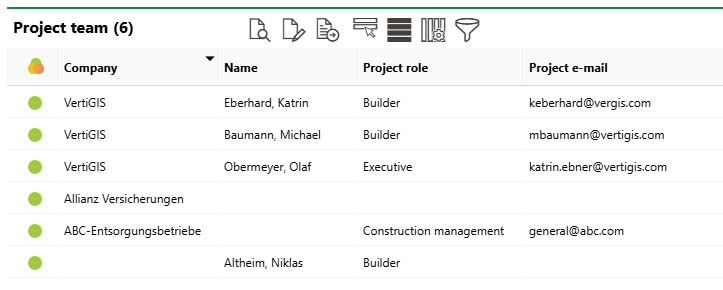
Project Team Section
Parties in this section can be assigned to project orders and be added to the orders' participant groups. Team members added to a participant group for an order can be assigned tasks associated with the project order and have time recordings saved for work on the task.
Refer to Manage Project Team for more information.
Orders
The Orders section lists orders associated with the project.
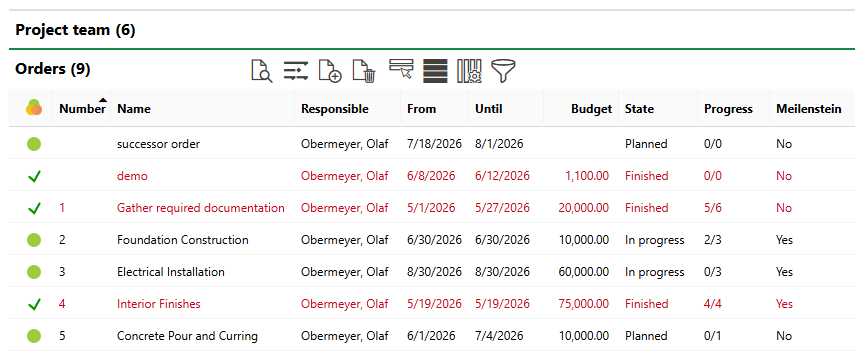
Orders Section
The table in the Orders section shows the order's name, status, key dates, and budget. The Progress column indicates how many of the order's tasks have been completed.
Refer to Manage Project Orders for more information.
Project Order Statuses
Icon |
Description |
|---|---|
|
The order's status is Planned or In Progress, and the order's Until or Milestone date has passed. |
|
The order's status is Planned or In Progress, and the order's Until or Milestone date is in the future. |
|
The order's status is Finished. |


Tasks
The Tasks section lists tasks associated directly with the project. Tasks listed here are not associated with a specific order. You can see other project tasks in the Tasks sections on the details pages for orders associated with the project.
Refer to Manage Order Tasks.
Cost Control
The Cost Control section lists the orders in the project and indicates each one's respective budget, amount in work ordered (Total Amount of Order), amount in received incoming invoices (Calculated), and remaining budget.
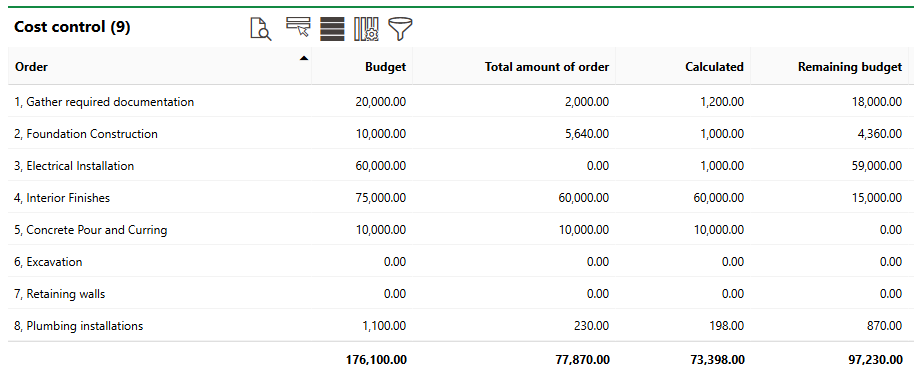
Cost Control Section
These amounts should be considered in relation to the project's overall budget in the Budget field in the project's details.
Refer Order Budgets for more information about how to manage the values shown in this table.
Time Recordings
The Time Recording section lists time recordings saved by your employees for work completed on project tasks. Each entry in the table includes a value for the date, employee, order, task, and number of hours worked.
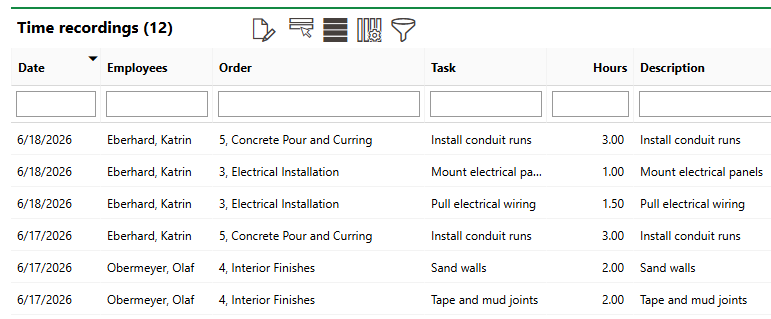
Time Recordings Section
Refer to Add Time Recordings to Tasks or Time Recording Module.
Accounting of Time
The Accounting of Time section lists entries in which time recordings documenting employee work on various project order tasks have been reviewed and checked by a project leader.
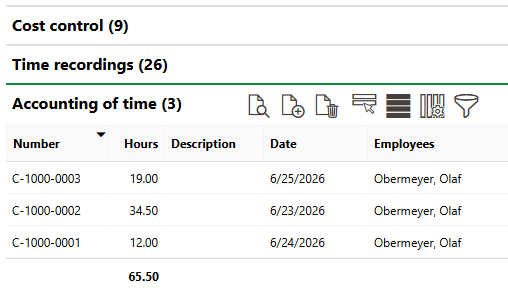
Accounting of Time Section
Refer to Review Time Recordings.
Construction Reports
In the Construction Reports section, you can record brief reports that document the weather on a given day. Click the Add ( ) icon to add a new entry.
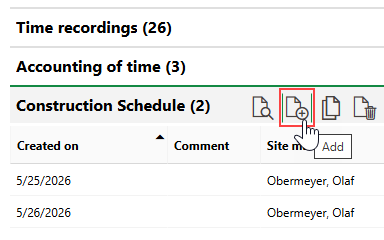
Adding a Construction Report (1/2)
In the form that opens, you can describe the weather and its effect on the project.
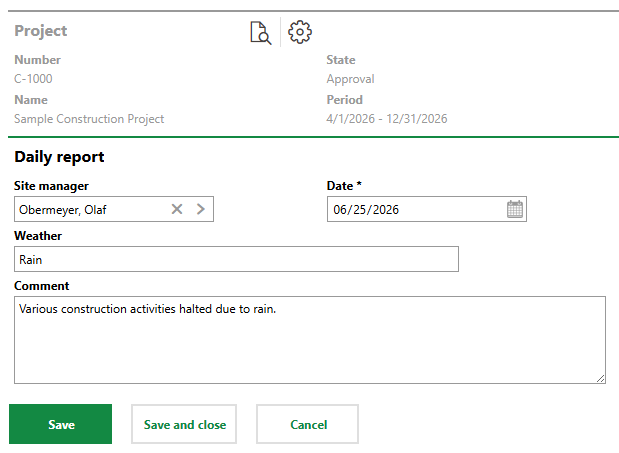
Adding a Construction Report (2/2)
If the weather is identical to that from an entry recorded on a previous date, you can select the entry and click the Copy ( ) icon instead of clicking the Add ().
When you have saved the report, you can click the Add () icon in the Trades section and select entries from the Trade catalog to describe the activities performed on the site that day.
Defect Indications
The Defect Indications section lists defect indications associated with the project.
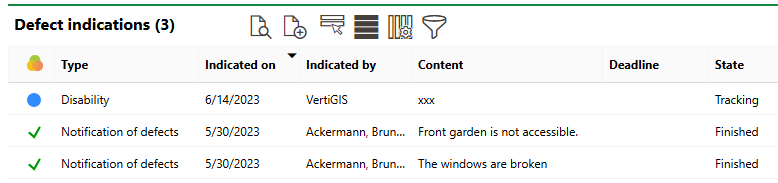
Defect Indications Section
Refer to Defect Indications for more information.
Plans
In the Plans section, you can upload documents relevant to the execution of the project. These can include site plans, foundation plans, floor plan drawings, and more. Refer to Upload Floor Plan Documents.
Documents
The Documents section lists the documents, including image files, associated with the project. Refer to Document Management for more information, including instructions on how to upload a document.
The Project Management module includes unique functionality for document management.
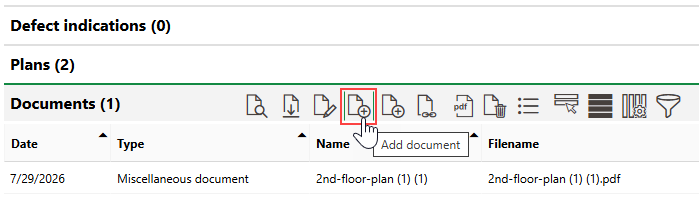
Adding a New Document
After you click Add Document (), you can associate the new document with other projects or members of the project team.
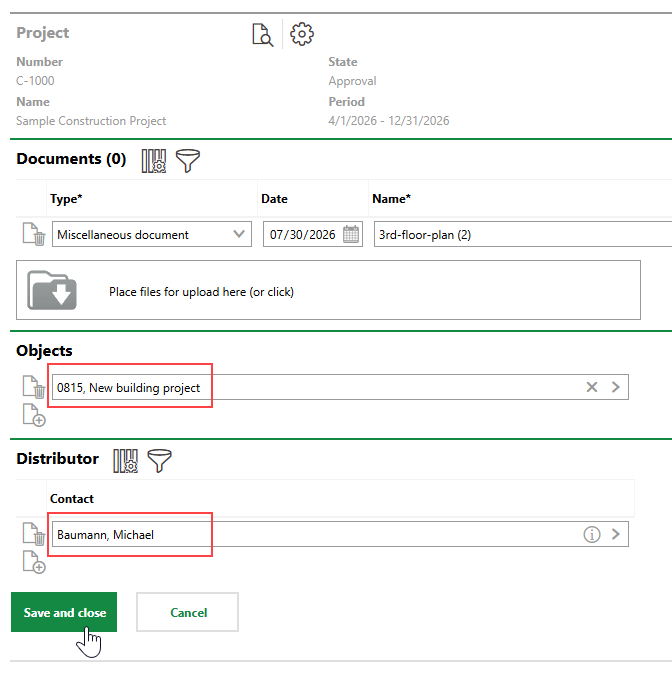
Selecting Associated Objects and Projects and Project Team Members
•Click the Add () icon in the Objects section to associate the document with another project. The document will appear in the Documents section on both projects' details pages.
•Click the Add () icon in the Distributor section to associate the document with a member of the project team. The document will appear in the New Documents and Plans section on the dashboard when the user associated with the selected project team member is signed in to VertiGIS FM.
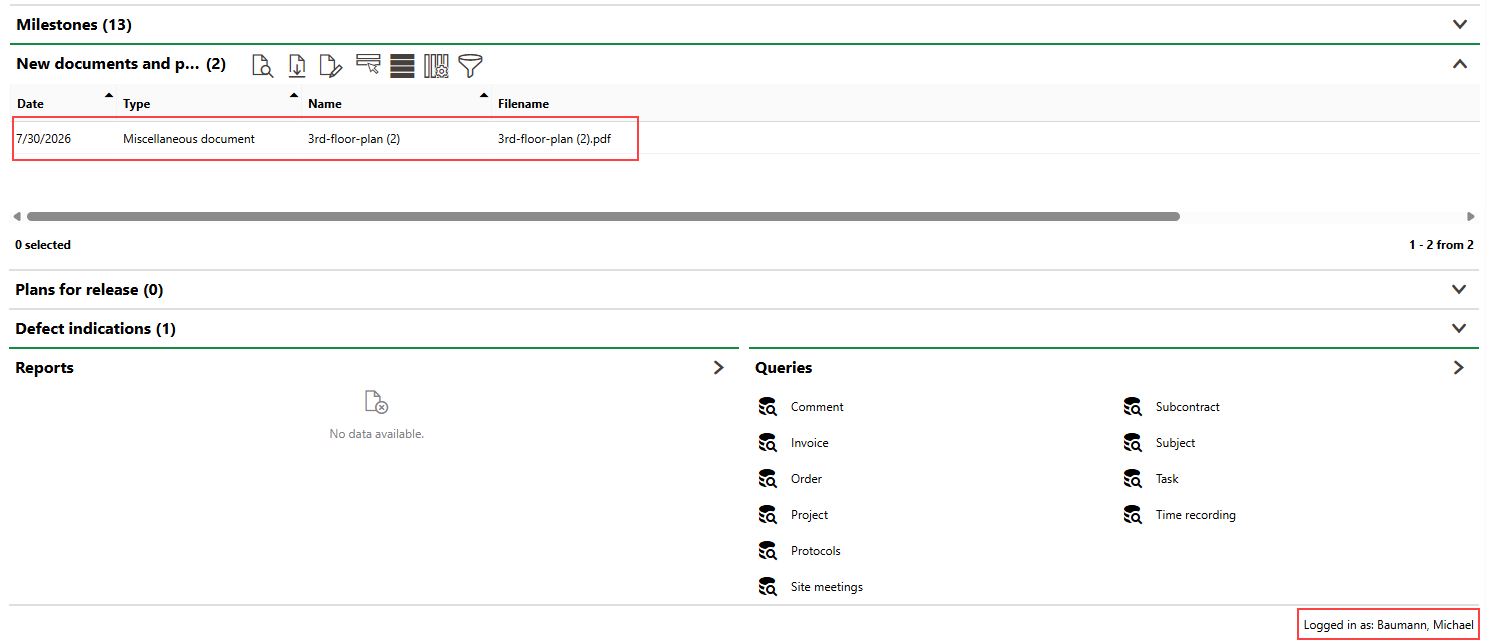
Dashboard for User Associated with Project Team Member Selected as Document Distributor
With sufficient privileges, the distributor can themselves add other distributors or upload a revised version of the document.
Appointments
The Appointments section lists the scheduled appointments (a call or in-person meeting) that are associated with the project. Appointments are action items that can be scheduled for any object in VertiGIS FM. They are not the same thing as orders.
To add an appointment for the project, click the Add () icon in the Appointments section on the details page.
Notes
The Notes section lists notes that have been posted in relation to the project.
