A project administrator or manager can periodically review time recordings for employees working on the project (or time sheets) to document their approval of the employees' working hours on project order tasks.
Saved time recordings are reviewed in the Accounting of Time section on the project's details page. Each entry in this section represents a single review in which the administrator has reviewed one or multiple time recordings for multiple employees.
Refer to the Time Recording module for more information.
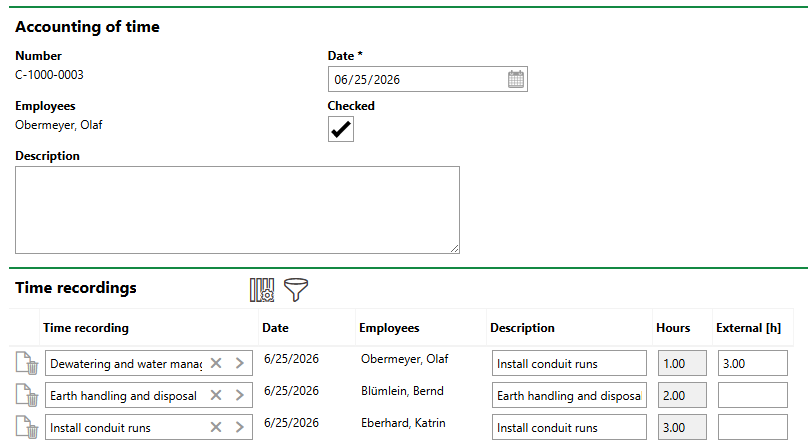
Creating a New Accounting of Time Entry
Review Unchecked Time Recordings
As an administrator or manager, you can review time recordings daily, weekly, or as frequently as your organization requires. All new time recordings saved since the last review are visible in the next review. Hours with time recordings in a single Accounting of Time entry do not all have to have been recorded on the same date.
Review unchecked time recordings on the details page for the project associated with the work.
To Review Unchecked Time Recordings
1.Navigate to the details page for the project associated with the time recordings you want to review.
2.Expand the Accounting of Time section and click the Add ( ) icon.
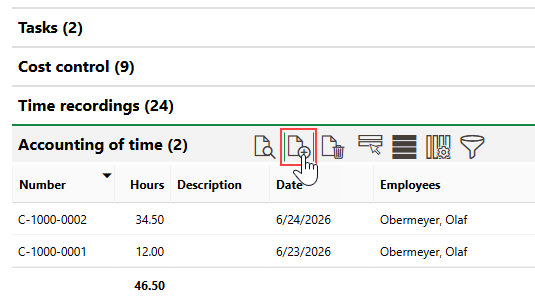
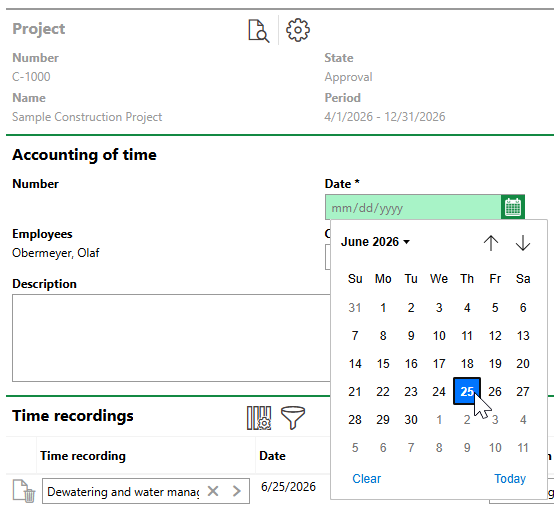
3.Click the calendar icon in the Date menu and select the date associated with the review. Typically, users select today's date.
4.Review the tasks, dates, employees, and hours associated with each time recording. If the time sheet is inaccurate, you can
▪click the > button to change the time recording in the position on the time sheet to another unchecked time recording. The employee and number of hours update based on the selection.
▪click the Delete ( ) icon to delete the time recording from the time sheet outright.
▪type the number of hours contributed by third parties in the External [h] text boxes for each time recording. These do not affect the number of billable hours recorded for the employee.
5.Select the Checked check box.
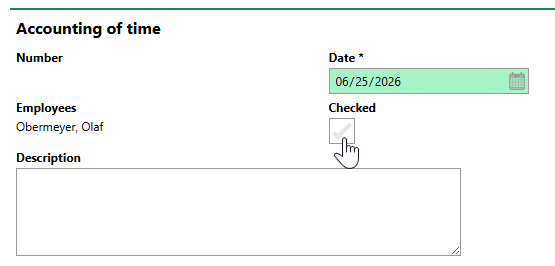
6.Click Save and Close.
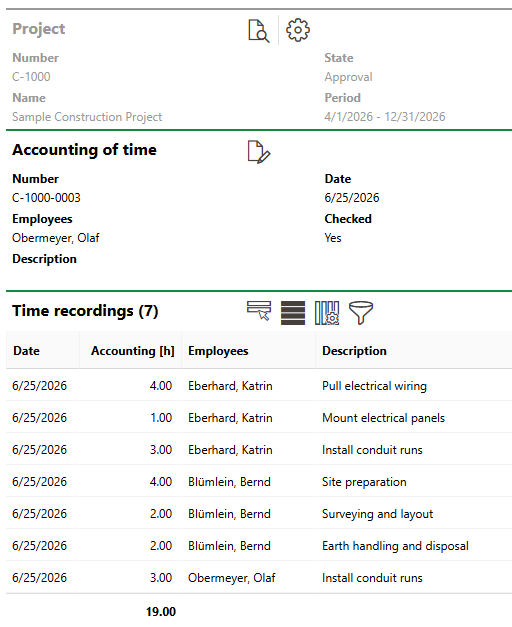
When you save the checked time sheet, VertiGIS FM programmatically assigns it a number that includes the project's Number property and an integer suffix that increments with each checked time sheet.
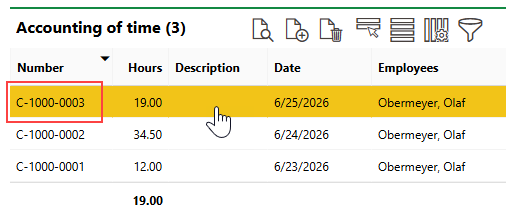
System-Assigned Time Recording Review Number
Double-click an entry in this section to review the approved time recordings for the associated date.
Completed Time Accounting
You cannot change most of the content after selecting the Checked check box and clicking Save, but if you click the Edit ( ) icon, you can deselect the Checked check box to delete time recordings from the sheet or add external hours.
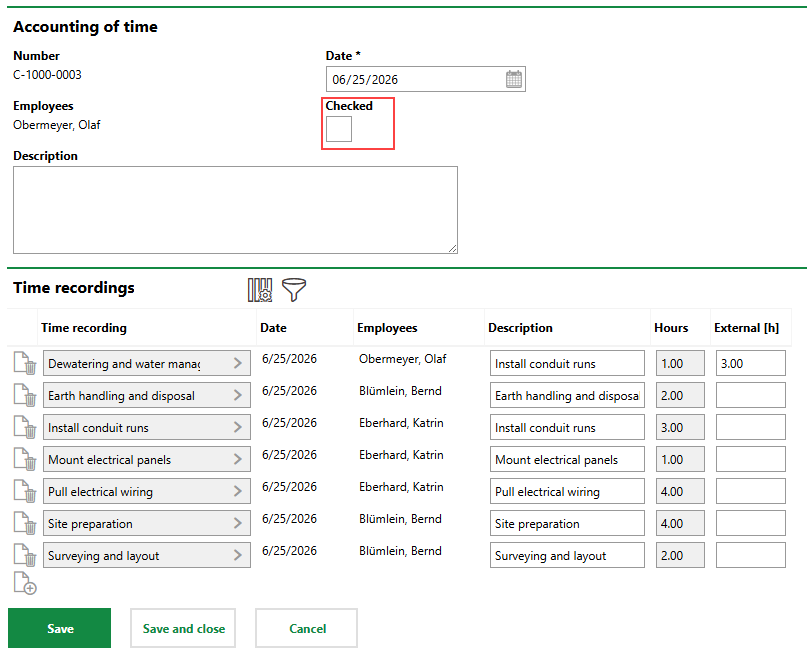
Editing a Completed Time Accounting
