Green areas refer to assets like parks, city squares, agricultural areas, walkways, roads, forests, playgrounds, and gardens. Refer to Green Areas in the core VertiGIS FM Greenspaces for more information.
In the VertiGIS FM Greenspaces mobile app, you can manage, edit, locate, and process maintenance work for green areas in your system.
View Green Areas
To see a list of green areas in your database, tap the Greenspaces widget at the bottom of the Green tab on the dashboard.
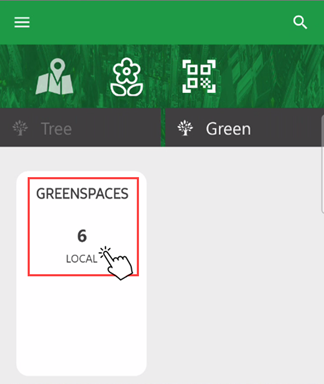
Greenspaces Widget on Dashboard
The app opens a full list of green areas in your system. Tap any green area's tile to navigate to its details page.
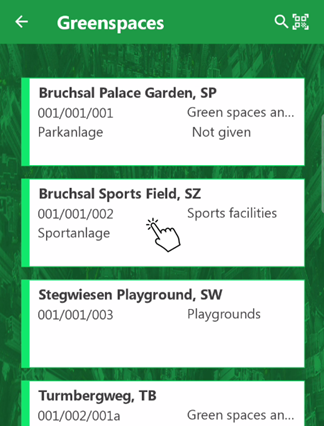
List of Green Areas in Database
Alternatively, you can access a green area's details page by tapping its corresponding polygon on an integrated web map.
Tiles with the  icon represent green areas you have edited since the last time you synchronized the app.
Green Area Details Page
Each green area in your system has its own details page that shows some of the green area's properties, the trees and tree clusters located within it, outstanding inspections for the green area, and partial areas located within the green area.
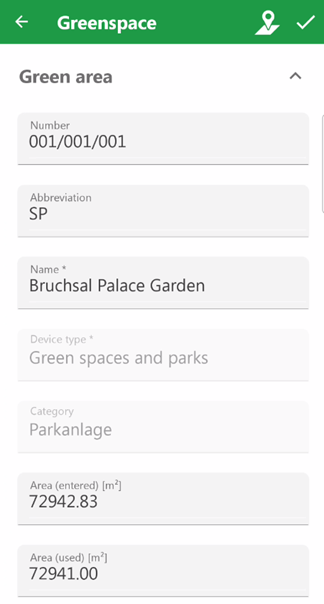
Green Area Details Page
Details Page Buttons
Button |
Description |
|---|---|
|
Returns to the most recently viewed page in the app. |
|
Opens the integrated web map, focused on the point or polygon that represents the entity whose details page you are viewing. This button only appears if your implementation has an integrated web map and a feature layer mapped to the type of entity whose details page you are viewing. |
|
When viewing the details page for an inspection, order, or investigation, opens the details page for the tree, tree cluster, or green area associated with the work. |
|
Saves changes made in the form on the details page for a tree, tree cluster, green area, order, inspection, or investigation. |


You can see the following green area properties on the version of the details page available in the mobile app. You can access additional fields when you view the green area details page in the web version of VertiGIS FM.
Field |
Description |
|---|---|
Number |
The green area's identifying number in your system. |
Abbreviation |
An abbreviation to identify the green area by. This abbreviation automatically is used to identify partial areas in the Number field for any partial areas added to the green area. |
Name |
The name of the green area. |
Type |
The type of group that describes the green area or its use (for example, park, sports facility, field, cemetery, or public square). Selectable options are saved in the Type catalog. |
Category |
An additional grouping property for the green area. Selectable options are saved in the Category catalog. |
Area (entered) [m²] |
The total area in m2 of the green area. |
Area (used) [m²] |
The area in m2 of the green area that requires inspections and maintenance. |
Contact person |
The internal point of contact for the green area. You can select any employees or contacts stored in the Contact Management module. |
Safety for Public Circulation |
Whether it is safe for the public to circulate in the green area. This field is populated using the value selected in the Safety for Public Circulation field in the most recently completed inspection for the green area. |
Stage of development |
The green area's development stage. This field is populated using the value selected in the Stage of Development field in the most recently completed inspection for the green area. |
State |
The green area's current development state or condition. This field is populated using the value selected in the State field in the most recently completed inspection associated with the green area. |
Comment |
Additional notes about the green area. |
Partial Areas
The Partial Areas section lists the partial areas specified within the green area.
Refer to Partial Areas for more information.
Trees
The Trees section lists trees located in the green area.
You can assign a tree to a green area by selecting it in the Green Area menu on the tree's details page in the web version of VertiGIS FM. You cannot assign trees to green areas in the VertiGIS FM Greenspaces mobile app.
Tree Clusters
The Tree Clusters section lists tree clusters located in the green area.
You can assign a green area to a green area by selecting it in the Green Area menu on the tree cluster's details page in the web version of VertiGIS FM. You cannot assign tree clusters to green areas in the VertiGIS FM Greenspaces mobile app.
Defects
The Defects section lists defects logged against the green area.
Inspections
The Outstanding Inspections section indicates whether the green area has inspections you need to complete. Tap View to see the list of green areas assigned to you.
See Green Area Location
If your VertiGIS FM environment has an integrated web map with a layer mapped to tree, tree cluster, or green area entities in your database, you can see the location of the asset associated with an inspection, order, or investigation by tapping the map button ( ) in the top-right corner of the app.
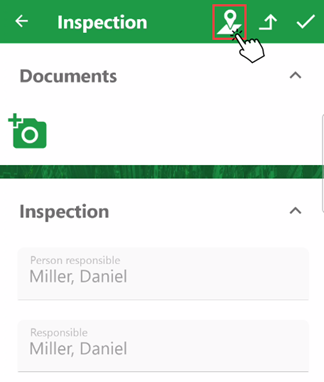
Map Button for Tree Inspection
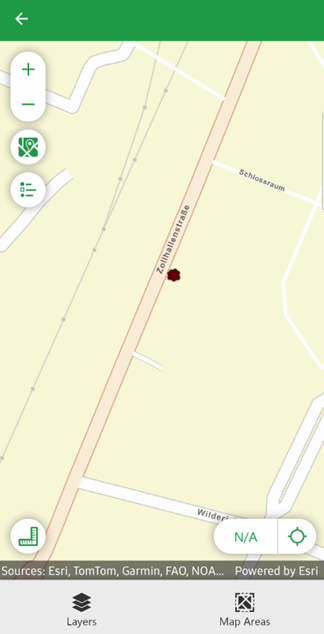
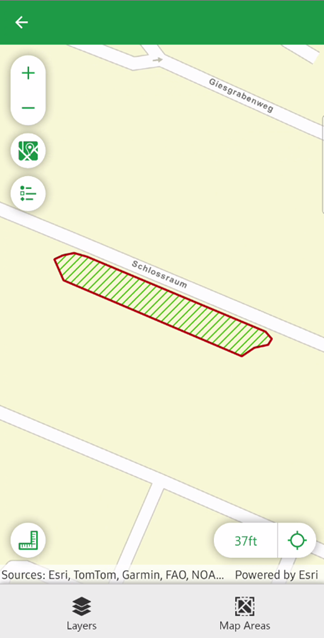
The page that opens shows the asset's location on your web map. The asset's GIS feature can be a point (tree) or a polygon (green area).
Point Showing Location of Associated Tree |
Polygon Showing Location of Associated Green Area |
For more information, refer to View Trees on Web Map.
Edit Green Areas
You can edit the green area's properties available in the mobile app form whenever you are viewing its details page. Simply tap in the text box or menu and update the property as required.
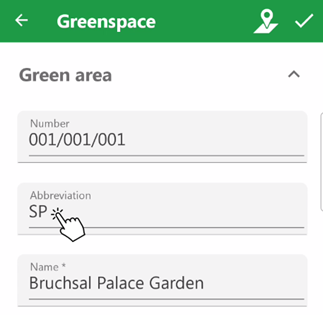
Editing a Green Area (1/2)
Tap the check mark icon in the top-right corner to save the changes.
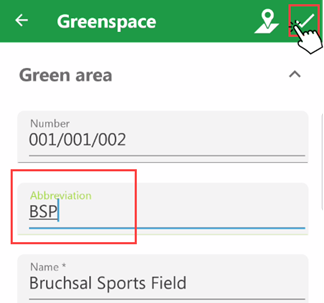
Editing a Green Area (2/2)