A tree cluster is a group of trees that are close in physical proximity and share common attributes. In VertiGIS FM, tree clusters allow you to treat multiple individual trees as a single data object. For example, if five trees that are close together will require identical inspections on an ongoing basis, you may opt to manage them in VertiGIS FM as a tree cluster instead of five separate trees. The use of tree clusters in VertiGIS FM may vary between customers and organizational needs.
In the VertiGIS FM Greenspaces mobile app, you can manage the existing tree clusters in your database, add new ones, and access the investigations, orders, and inspections associated with a specific tree cluster.
For more information about tree clusters in VertiGIS FM, refer to Tree Clusters in the core Tree Management section.
View Tree Clusters
To see a list of tree clusters in your database, tap the Tree Cluster widget at the bottom of the Tree Cluster tab on the dashboard.
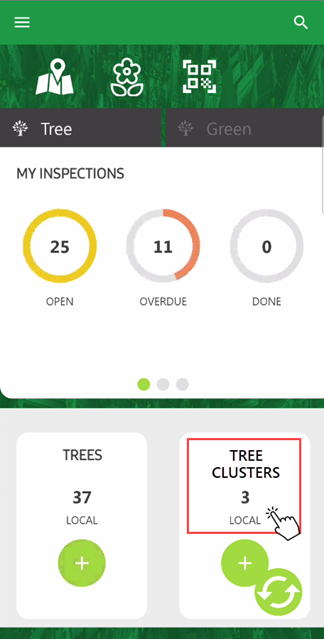
Tree Clusters Widget on Dashboard
The app opens a full list of tree clusters in your system. Tap any tree cluster's tile to navigate to its details page.
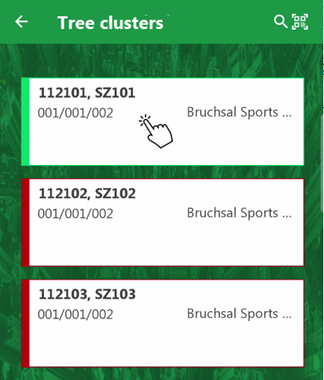
List of Tree Clusters in Database
Tree Cluster Statuses
Status |
Description |
|
|---|---|---|
Green |
|
The tree cluster has no scheduled inspections or order with overdue or upcoming Planned Dates. |
Yellow |
|
The tree cluster has no scheduled inspections or orders with overdue Planned Dates, but there are inspections, orders, or investigations to be completed in the next five months. |
Red |
|
The tree cluster has inspections or orders that are overdue based on their Planned Dates. |


Alternatively, you can access a tree cluster's details page by tapping its corresponding point on an integrated web map, or by green area, by navigating to a green area's details page and tapping View in the Tree Cluster section to see the list of tree clusters planted in it.
Tiles with the  icon represent tree clusters you have edited since the last time you synchronized the app.
Tree Cluster Details Page
Each tree cluster in your system has its own details page that shows the tree cluster's properties and the orders, inspections, and investigations associated with it.
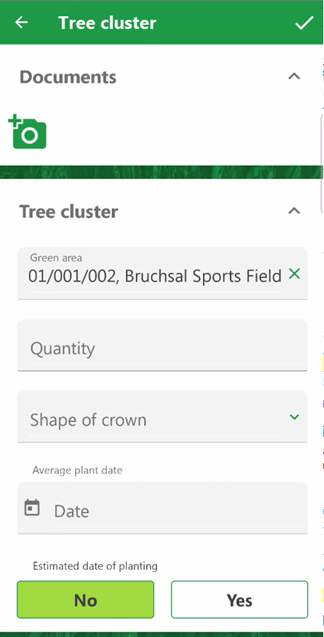
Tree Cluster Details Page
Details Page Buttons
Button |
Description |
|---|---|
|
Returns to the most recently viewed page in the app. |
|
Opens the integrated web map, focused on the point or polygon that represents the entity whose details page you are viewing. This button only appears if your implementation has an integrated web map and a feature layer mapped to the type of entity whose details page you are viewing. |
|
When viewing the details page for an inspection, order, or investigation, opens the details page for the tree, tree cluster, or green area associated with the work. |
|
Saves changes made in the form on the details page for a tree, tree cluster, green area, order, inspection, or investigation. |


You can see the following tree cluster properties on the version of the details page available in the mobile app. You can access additional fields when you view the tree cluster details page in the web version of VertiGIS FM.
Field |
Description |
|---|---|
Green area |
The green area in which the tree cluster is located. |
Quantity |
|
Shape of crown |
The shape of the tree cluster's crown. Selectable options are stored in the Shape of Crown catalog. The value of this property is overwritten by any interval you select in the State of Crown menu when you complete an inspection for the tree cluster. |
Average plant date |
An approximate date the trees in the tree cluster were planted. |
Estimated date of planting |
Whether the date selected in the Average Plant Date field is an estimate or an exact date. |
Tree Species
The Tree Species section lists the individual species included in the tree cluster. You can select any entries saved in the Tree Species catalog as species present in the tree cluster.
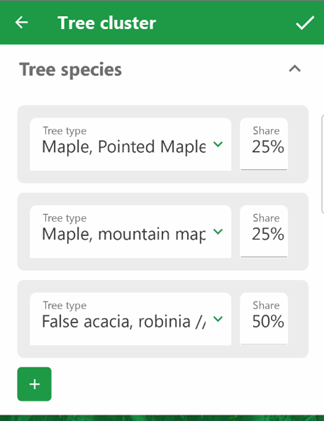
Tree Species Section
Tap in the Tree Type or Share box for an existing entry to change the species or its share of the tree cluster.
To add a new entry for another species included in the tree cluster, tap the + button.
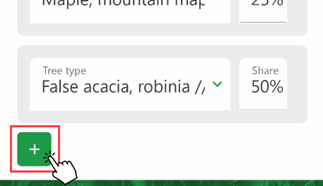
Adding a Tree Species
Tree Cluster Data
Data in the Current Tree Data section is inherited from corresponding data fields in the most recently completed tree cluster inspection.
Tree Cluster Data
Field |
Description |
|---|---|
Average cluster height |
The average height of trees in the tree cluster. |
Mean treetop diameter |
The mean (i.e., average) crown diameter of trees in the tree cluster. |
Mean treetop height [m] |
The mean (i.e., average) crown height of trees in the tree cluster. |
Trunk slant |
|
Number of trunks |
|
Mean trunk circumference [cm] |
The mean (i.e., average) circumference of trees in the tree cluster. |
Equipment present |
|
Equipment |
|
Stage of development |
The tree cluster's stage of development. Selectable options are saved in the Stage of Development catalog. |
Vitality |
A description of the tree cluster's vitality, as determined by the most recent inspection of the tree cluster. |
Entry Date |
The date the most recent inspection of the tree cluster was completed (i.e., the Executed On date recorded in the inspection), or the date the data was otherwise entered. |
Outstanding Inspections
The Outstanding Inspections section indicates whether the tree cluster has inspections you need to complete. Tap View to see the list of tree clusters assigned to you.
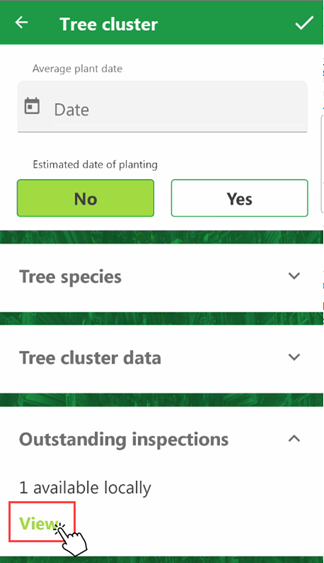
Outstanding Inspections Section
Refer to See Tree Clusters by Tree and Inspection Management in the VertiGIS FM Greenspaces App.
The Inspections section does not include completed inspections. You can see inspections you have completed since the last app synchronization by tapping the Done counter on the Inspections widget on the Tree tab of the dashboard.
Currently, you cannot create new inspections using the mobile app.
Maintenance Orders
The Maintenance Orders section indicates whether the tree cluster has maintenance orders you need to complete.
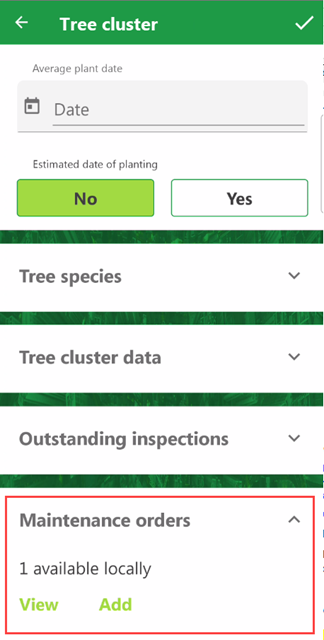
Maintenance Orders Section
Tap View to see the list of orders assigned to you, or tap Add to add a new order for the tree cluster.
See Tree Cluster Location
If your VertiGIS FM Greenspaces implementation includes an integrated web map with a feature layer mapped to tree clusters in your database, you can see the tree cluster's location by tapping the map icon in the top-right corner of the details page.
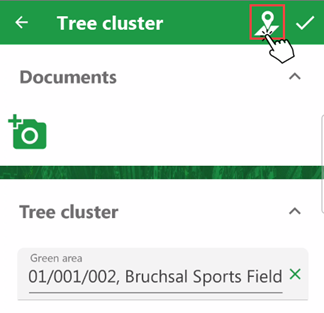
Map Icon
The map loads with the tree cluster's feature point or polygon in the center of the screen. Other tree clusters are not shown on the map.
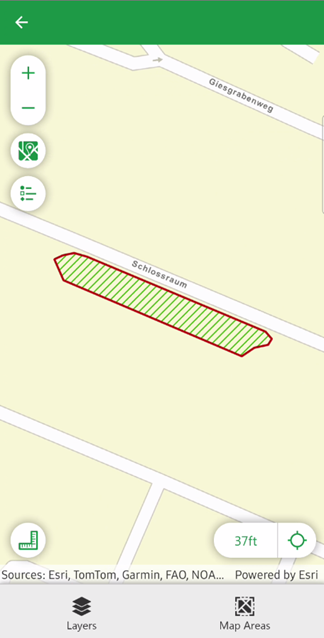
Tree Cluster Shown on Integrated Web Map
Edit Tree Clusters
You can edit a tree cluster's properties whenever you are viewing its details page in the mobile app. Simply tap in the text box or menu and update the property as required.
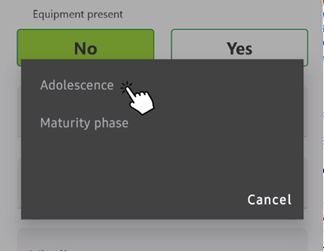
Editing a Tree Cluster (1/2)
Tap the check mark icon in the top-right corner to save the changes.
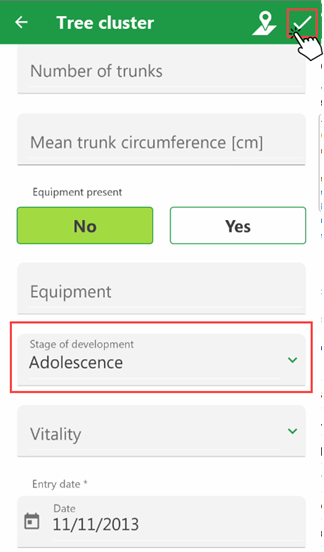
Editing a Tree Cluster (2/2)
Add Tree Clusters
You can add a new tree cluster to the VertiGIS FM database on the dashboard of the VertiGIS FM Greenspaces app.
Adding a new tree cluster using the mobile app differs slightly from the procedure to add a new tree cluster in VertiGIS FM web. When you add a tree cluster using the mobile app, you must capture certain details usually added during a tree inspection.
To Add a Tree Cluster
1.On the Tree tab of the dashboard, do either of the following:
▪tap the + button on the Tree Clusters widget.
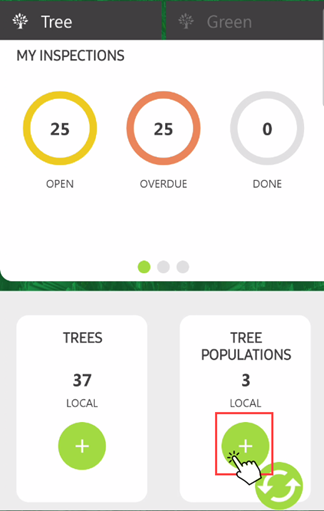
▪tap anywhere else on the Tree Clusters widget, and then tap the + button in the bottom-right corner.
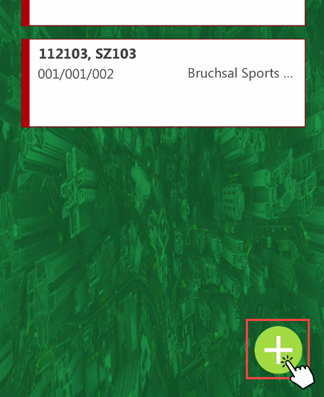
2.Enter the tree cluster's core properties in the corresponding data fields. The following fields are mandatory:
▪Green area (Tree Cluster section)
▪Safety for public circulation (Assessment section)
Refer to Tree Cluster Details for descriptions of fields in the Tree Cluster and Tree Data sections. Refer to Inspection Management in the VertiGIS FM Greenspaces App for information about the Assessment section.
3.Tap the check mark icon in the top-right corner.
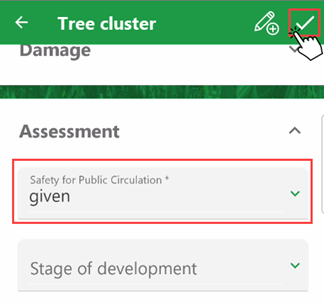
You can find the new tree cluster in the list of tree clusters that opens when you tap the check mark icon. A New tag appears on the tile of the newly added tree cluster.
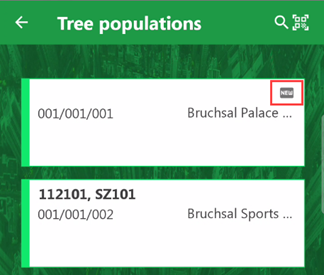
Newly Added Tree
Initially, the new tree cluster will not have a Tree Number or Code property in the app. When you synchronize the app, someone can assign the new tree cluster these properties in the web version of VertiGIS FM.