A tree inspection is a routine review of a tree's or tree cluster's condition that requires the employee who completes it to gather and enter data related to the tree's health.
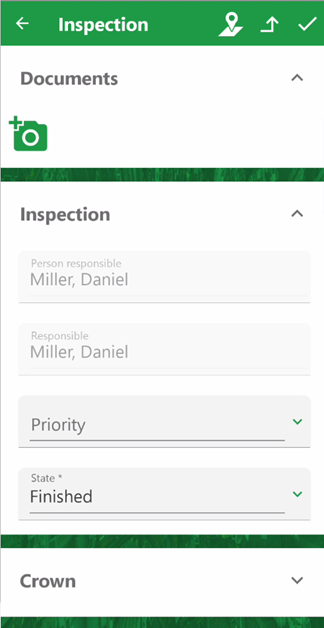
Tree Inspection Form
VertiGIS FM generates inspections for all trees in the system according to their Inspection Interval property. Administrators can also manually create individual tree inspections and assign them to employees. Refer to Create and Complete Tree Inspections for general information.
Using the VertiGIS FM Greenspaces mobile app, you can view, add, update, and complete tree inspections.
Conduct Inspections in the App
To conduct inspections using the VertiGIS FM Greenspaces app, open an inspection assigned to you, document the findings of the inspection, and then complete the inspection. Each phase of the procedure is outlined below.
See Inspections Assigned to You
You can access a list of all tree inspections assigned to you on the dashboard, by tapping the Open counter on the My Inspections widget. Tap the Overdue counter to see a list of all tree inspections whose Planned Dates have passed.
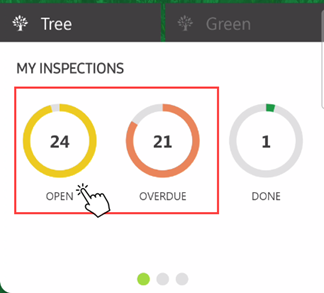
My Inspections Counters
To open a tree inspection, tap its tile in the list of inspections that opens.
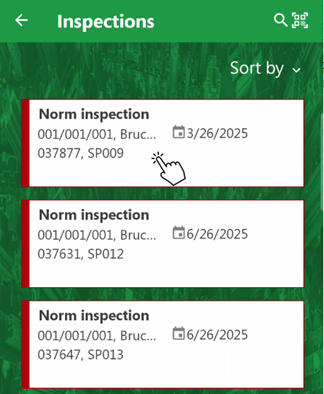
Tree Inspections List
Dashboard widgets only include data for trees located in green areas you select in the app's green area filter.
Inspection Statuses
Status |
Description |
|
|---|---|---|
Green |
|
The inspection's Planned Date is more than 5 months away. |
Yellow |
|
The inspection's Planned Date is fewer than 5 months away. |
Red |
|
The inspection's Planned Date is in the past. |


See Inspections by Tree
You can see inspections scheduled for the same tree by navigating to the tree's details page and expanding the Outstanding Inspections section. This section shows all inspections for the tree that are assigned to you and have not been completed.
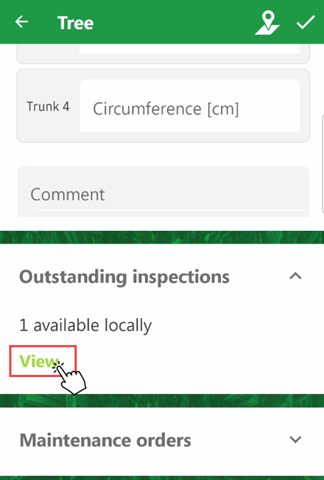
Outstanding Inspections Section
On the list of inspections that opens for the tree, tap the inspection you want to open.
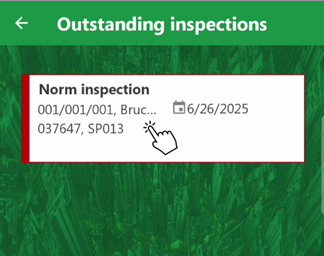
Inspections Associated with Tree
Tree Inspection Details
Each inspection in the VertiGIS FM Greenspaces app has the following high-level details, which you can see on the inspection's details page when you tap its tile.
Inspection Details
Field |
Description |
|---|---|
Person Responsible |
The user or party supervising or managing the inspection. Must be selected from an entry created in the Contact Management module. |
Responsible |
The user directly responsible for the inspection. Must be selected from an entry created in the Contact Management module. The user selected here sees the order as assigned to them on the dashboard and in the VertiGIS FM Greenspaces mobile app. |
Priority |
The inspection's priority. Selectable options are saved in the Priority catalog. |
State |
The current status of the inspection (Planned or Finished). |
Planned Date
An inspection's Planned Date does not appear in the inspection's high-level details in the mobile app, but you can see it on the list of tiles when you view all inspections.
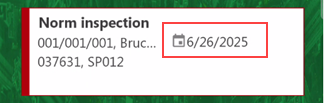
Inspection Planned Date Property
Document Findings
The inspection form opens when you tap a tile. Scroll down in the form to record tree information in the appropriate sections.
Crown/Root/Trunk/Location/Other Damages
In the Crown, Root, Trunk, Location, and Other Damages sections, document issues with the tree's respective parts or areas.
The Crown, Root, Trunk, Location, and Other Damages sections do not appear for inspections of tree clusters. The information is only relevant for tree inspections.
The Crown, Root, Trunk, Location, and Other Damages sections are only visible when the inspection's status is Finished.
Document issues with the tree's surrounding area in the Location section. Document miscellaneous issues in the Other Damages section.
Tap the + button to add an issue.
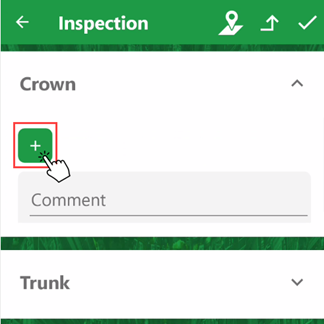
Adding an Issue
VertiGIS FM programmatically selects the check box for an issue if you select a severity level other than 0.
Lists of potential issues that can be documented, as well as damage severity indices for each one, are determined by the customer and added to VertiGIS FM using import files.
Tap an issue in the list, and then tap a number to describe the severity of the issue between 0 (no issue) and 5 (major issue).
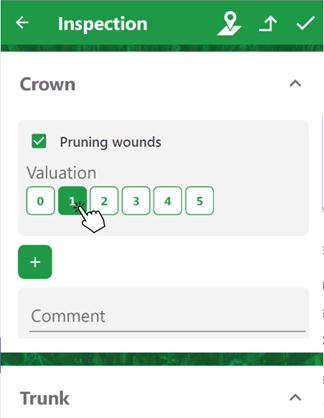
Assessing Issue Severity
For each issue you add to the inspection, VertiGIS FM will create an entry in the Damage History section on the tree's or tree cluster's details page.
You can add as many issues as necessary in each section. You can also enter comments to describe the tree component generally in the Comment text box.
Remove an Issue
If you mistakenly add an issue to a tree inspection using the VertiGIS FM Greenspaces mobile app, deselect the check box next to it.
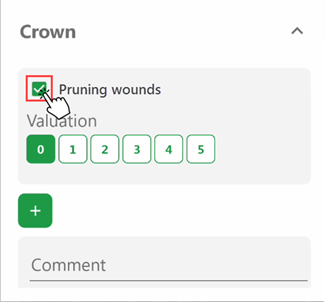
Removing an Issue (1/2)
The issue will not be documented in the system when you complete the inspection.
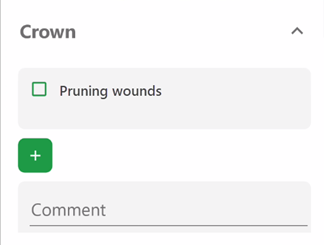
Removing an Issue (2/2)
Assessment
In the Assessment section, enter high-level assessments of the tree based on the inspection. Notably, the app requires you to select an option from the Safety for Public Circulation menu to complete the inspection. This setting determines whether it is safe for members of the public to be near the tree.
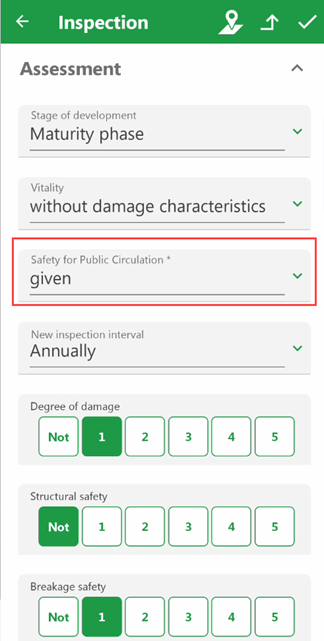
Assessment Section
Assessment Fields
Field |
Description |
|---|---|
Stage of Development |
The inspection's stage of development. Selectable options are saved in the Stage of Development catalog. |
Vitality |
A description of the inspection's vital status. Selectable options are saved in the Vitality catalog. |
Safety for Public Circulation |
Whether it is safe for the public to circulate near the inspection. Selectable options are saved in the Safety for Public Circulation catalog. This field is mandatory. The selected value will appear in the Safety for Public Circulation field in the inspection's core properties when you complete the inspection. |
New Inspection Interval |
For Norm Inspections only, when the next system-generated inspection for the inspection should be scheduled for (i.e., how much time should be added to the current date to determine the next inspection's Planned Date). Selectable options are saved in the Inspection Interval catalog. |
Degree of Damage |
An overall assessment of damage to the inspection. You can assess the damage on a scale of 0 (no damage) to 5 (severe damage). |
Structural Safety |
An overall assessment of the inspection's structural safety. You can assess the safety on a scale of 0 (no threat) to 5 (very unsafe). |
Breakage Safety |
An overall assessment of the inspection's breakage safety. You can assess the safety on a scale of 0 (no threat) to 5 (very unsafe). |
Acceptable medical condition |
Whether the inspection's health is in an acceptable condition (yes or no). |
Worthy to maintain |
Whether the inspection should be maintained (yes or no). |
Felling recommended |
A check box that, if selected, indicates felling is recommended for the inspection. |
Description |
Additional comments or observations about any of the data entered in this section. |
Tree Data
In the Tree Data section, enter tree measurements you record during the inspection.
Tree Data
Field |
Description |
|---|---|
Tree height [m] |
The height of the tree in meters. The data entered in this field in a completed tree inspection overwrites the value in the Tree height [m] field in the Basic Data section of the tree details. |
Crown diameter [m] |
The diameter of the tree crown in meters. The data entered in this field in a completed tree inspection overwrites the value in the Crown diameter [m] field in the Basic Data section of the tree details. |
Trunk Slant present |
Whether the tree's trunk slants out of the ground at an angle. The selection in this field in a completed tree inspection overwrites the value in the Trunk Slant field in the Current Tree Data section of the tree details. |
Number of trunks |
The number of trunks the tree has. The data entered in this field in a completed tree inspection overwrites the value in the Number of trunks field in the Current Tree Data section of the tree details. |
Tree grate |
A description of the inspection's grate or cover, if applicable. Selectable options are saved in the Tree Grate catalog. The value selected in this field in a completed inspection inspection overwrites the value in the Tree Grate field in the Current Tree Data section of the tree details. |
Sub planting |
The tree's sub-irrigation planting system. Selectable options are saved in the Sub Planting catalog. The value selected in this field in a completed inspection inspection overwrites the value in the Sub Planting field in the Current Tree Data section of the tree details. |
Stage of development |
The inspection's stage of development. Selectable options are saved in the Stage of Development catalog. |
Vitality |
A description of the inspection's vital status. Selectable options are saved in the Vitality catalog. |
Room efficiency |
The data entered in this field in a completed tree inspection overwrites the value in the Room Efficiency field in the Current Tree Data section of the tree details. |
Date |
The date the measurements documented in this section were recorded. |
Typist |
The person who is submitting the measurements. By default, the user signed in to the app is selected in this field. |
Trunk 1 |
The circumference of the tree's first trunk in centimeters. The value entered here is reflected in the Trunk 1 circumference [cm] field in the Current Tree Data section of the tree details. |
Trunk 2 |
The circumference of the tree's second trunk in centimeters. The value entered here is reflected in the Trunk 2 circumference [cm] field in the Current Tree Data section of the tree details. |
Trunk 3 |
The circumference of the tree's third trunk in centimeters. The value entered here is reflected in the Trunk 3 circumference [cm] field in the Current Tree Data section of the tree details. |
Trunk 4 |
The circumference of the tree's fourth trunk in centimeters. The value entered here is reflected in the Trunk 4 circumference [cm] field in the Current Tree Data section of the tree details. |
Maintenance Orders
In the Maintenance Orders section, you can tap the + button to associate the inspection with a maintenance order in the system. A typical workflow could involve creating a maintenance order for a tree based on the results of an inspection.
Investigations
In the Investigations section, you can tap the + button to associate the inspection with an investigation in the system.
You can only associate investigations with tree inspections, not inspections for tree clusters.
Documents
In the Documents section at the top of the inspection form, you can attach any files relevant to the inspection. This is typically used to attach photos that show the tree's condition.
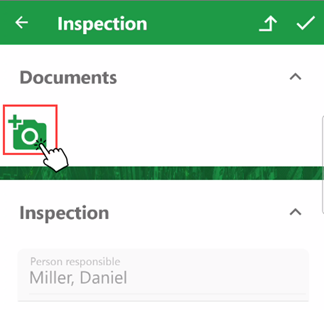
Adding a Document
Complete an Inspection
Tap a tree inspection's tile in the list of inspections assigned to you to open the inspection. When you open an inspection in the app, the form programmatically selects Finished from the State menu. The system updates the inspection's status accordingly when you tap the check mark button ( ) in the top-right corner.
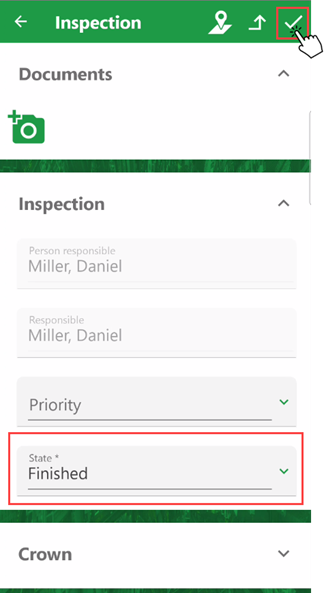
Saving a Completed Tree Inspection
If you want to enter observations without completing the investigation, you can tap in the State menu and manually change the inspection's status back to Planned, but this action hides some sections on the inspection form. The Crown, Trunk, Root, Location, and Other Data sections are not available when the inspection's status is Planned.
When you mark the inspection complete, the Done counter on the My Inspections dashboard widget indicates that you have completed an inspection using the mobile app.
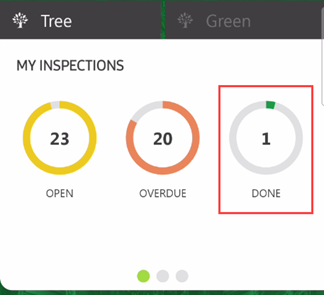
Completed Tree Inspection
The Done counter resets to 0 when you synchronize the app.
See Tree Locations
If your VertiGIS FM environment has an integrated web map with a layer mapped to tree, tree cluster, or green area entities in your database, you can see the location of the asset associated with an inspection, order, or investigation by tapping the map button ( ) in the top-right corner of the app.
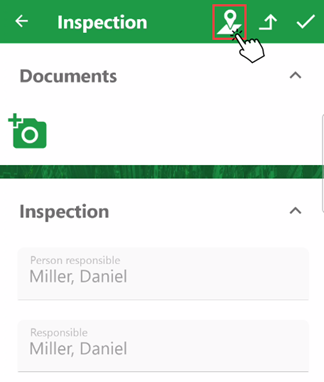
Map Button for Tree Inspection
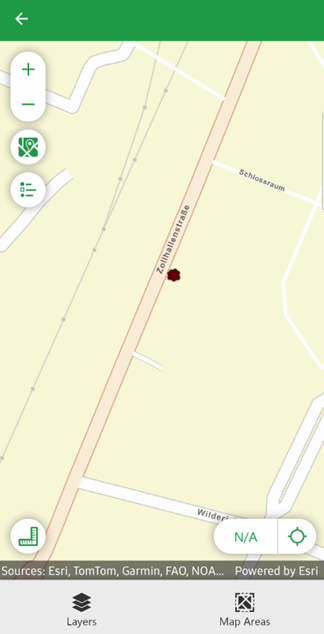
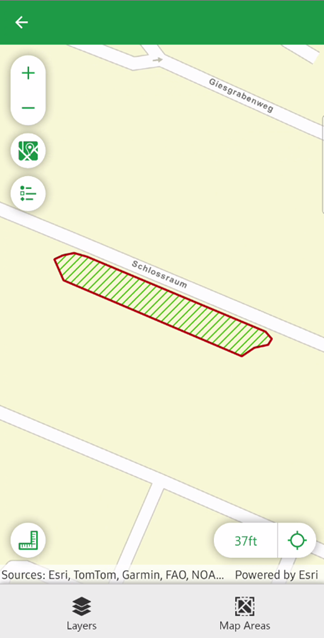
The page that opens shows the asset's location on your web map. The asset's GIS feature can be a point (tree) or a polygon (green area).
Point Showing Location of Associated Tree |
Polygon Showing Location of Associated Green Area |
For more information, refer to View Trees on Web Map.
Navigate to Tree Details
If you want to open the details page for the tree or tree cluster associated with the inspection, tap the button in the top-right corner of the app.
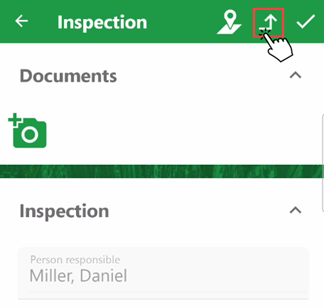
Navigating to Details Page for Tree Associated with Order
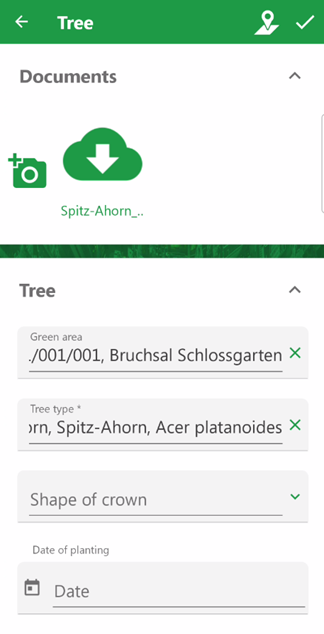
On the page that opens, you can review the tree's or tree cluster's core properties and make any necessary updates.
Refer to Trees and Tree Clusters.