If your VertiGIS FM environment is integrated with a web map with trees and tree clusters mapped to feature layers, you can see them on the map in the VertiGIS FM Greenspaces app.
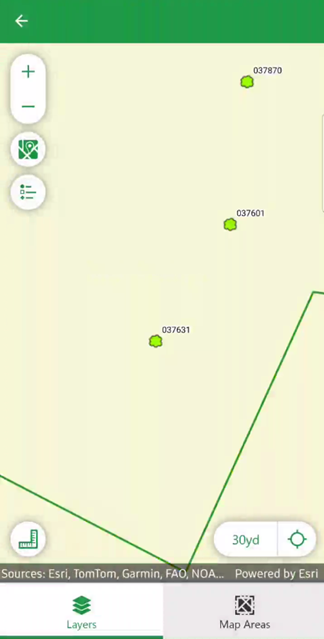
Web Map in VertiGIS FM Greenspaces App
To access the web map, tap the map button at the top of the dashboard.
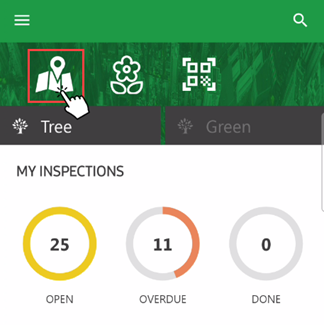
Open Map Button
You cannot access the map when this button is greyed out. If you cannot tap the map button, review your app permissions to ensure VertiGIS FM Greenspaces can access your location settings. You can also try synchronizing the app or resetting it to begin a new session.
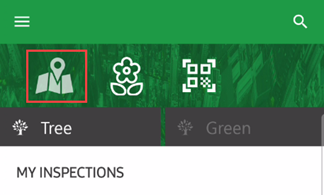
Open Map Button Disabled
Layers
Tap Layers in the bottom-right corner of the map to see the layers that have been mapped to VertiGIS FM. Web maps integrated with VertiGIS FM Greenspaces typically include point layers for trees and tree clusters and polygon layers for green areas.
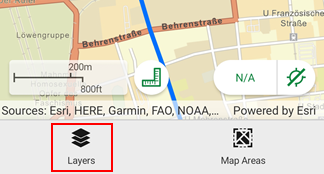
Layers Button
Refer to Set Layer Mapping for more information.
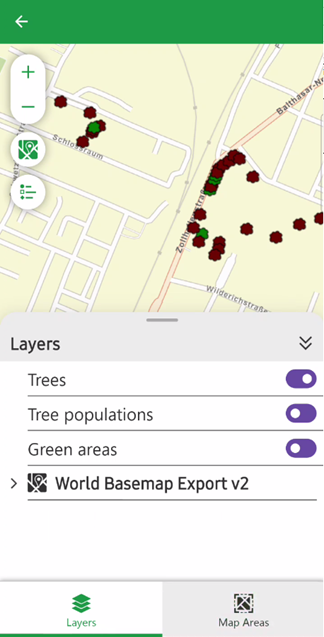
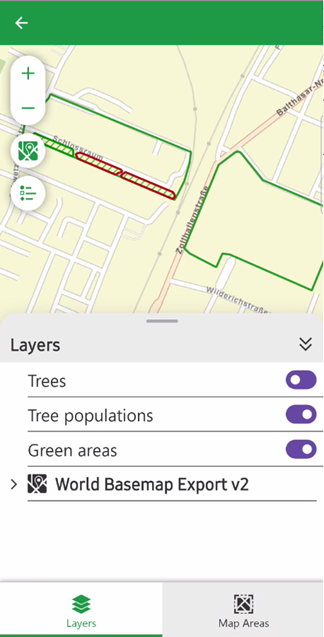
Tap the toggles on each layer to show or hide the assets or entities on the map.
Tree Layer Shown |
Tree Cluster and Green Area Layers Shown |
Legend
To see the type of objects the symbols on the map represent, tap the  icon to show the legend.
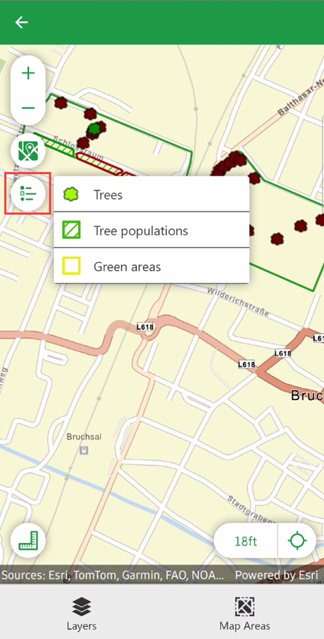
Layers Legend
Link to Objects
Tap a tree or tree cluster on the map to navigate to its details page in the VertiGIS FM Greenspaces app.
Tapping Tree on Web Map (1/3) |
Navigating to Tree Details Page (2/3) |
Tree Details Page Opens (3/3) |
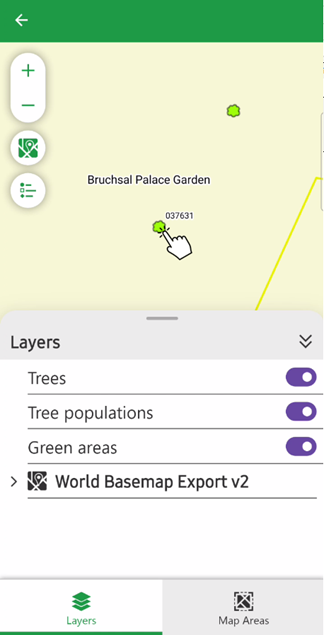
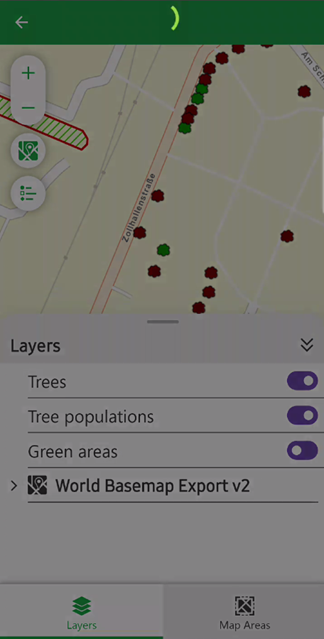
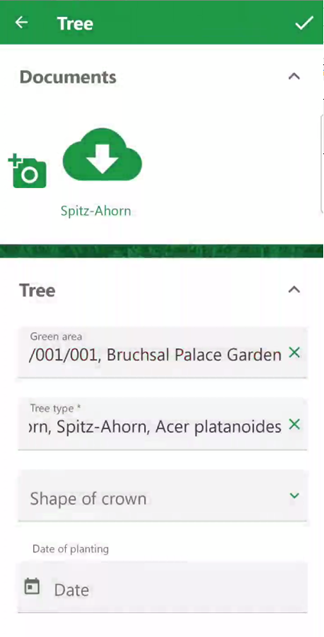
If you tap a feature inside a polygon, the mobile app opens the details page for the polygon feature. To tap a point on a feature layer, hide the polygon layer. For example, to open the details page for a tree within a green area, hide the green area layer and then tap the tree point.
Locate Objects
If your trees, tree clusters, and green areas are mapped to feature layers in your web map, you can locate a specific asset by tapping the map icon in the top-right corner of its details page in the app.
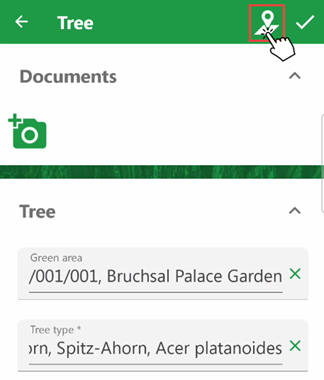
Locating a Tree
Tapping this icon opens the web map with the asset whose details page you were viewing centered.
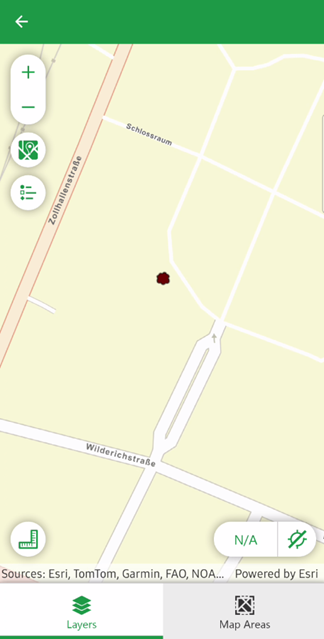
Enter value Shown on Integrated Web Map
You can also tap the map icon on details pages for inspections, orders, or investigations. This opens the web map with the asset (tree, tree cluster, or green area) that is associated with the work item centered on the map.
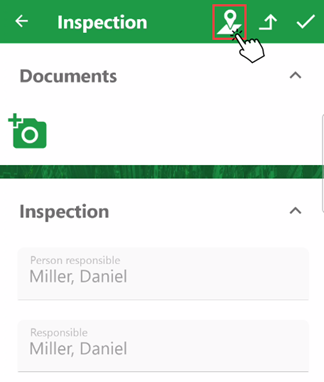
Map Button for Tree Inspection
Add Feature for New Asset
If you add a tree, tree cluster, or green area to the database using the VertiGIS FM Greenspaces mobile app, and the asset type has is mapped to a feature layer in your GIS project, you can document its location by tapping the pencil icon in the top-right corner.
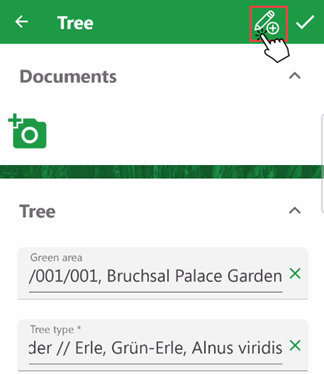
Add Feature Workflow Icon
You can also access the add feature workflow on the form to add the new asset, instead of saving the new asset without a location.
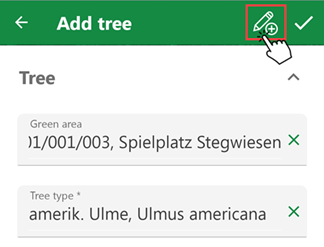
Add Feature Tree Workflow Icon
Zoom
Zoom in or out on the map by applying two fingers to the touchscreen or by tapping the +/- buttons in the top-left corner.
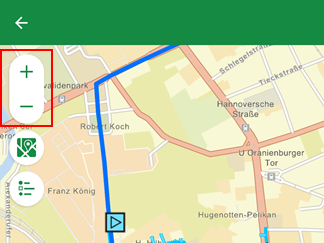
Zoom Buttons