Workflows available in the VertiGIS FM Greenspaces mobile app are accessed from the dashboard, which opens when you sign in to the app. The dashboard shows information relevant to the user signed in to the application, based on the enabled green areas.
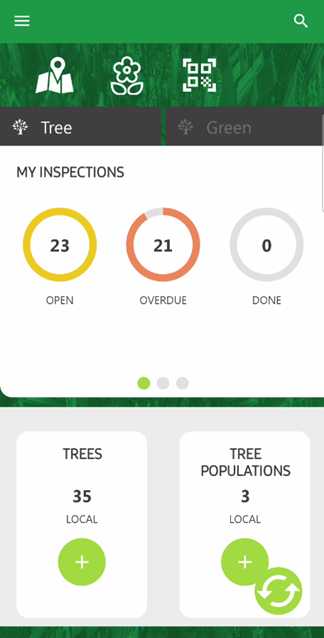
Dashboard
General Dashboard Navigation
Refer to the sections below for tips about navigating the dashboard.
Tabs
Dashboard content in the mobile app is divided into the Tree and Green tabs.
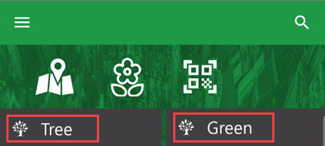
Dashboard Tabs
Currently, the bulk of the app's functionality is accessed on the Tree tab. It shows tree orders, inspections, and investigations assigned to your user, and links to lists of trees and tree clusters in the green areas included in your filter. On the Green tab, you can make basic edits to green areas in your system and process green area inspections.
Refer to the topics below for information about the contents of both tabs:
Widgets
The dashboard is a collection of widgets that show orders, inspections, and investigations assigned to your user, as well as counters and links to lists of trees and tree clusters in your filtered green areas.
The Tree tab shows one of the three job-related widgets at a time. Swipe left or right on a widget to navigate between them.
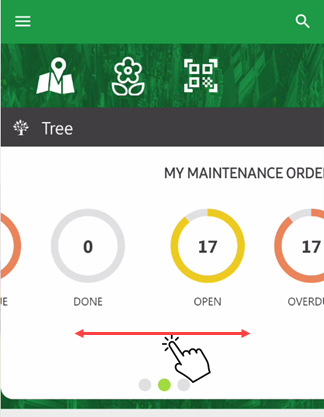
VertiGIS FM Greenspaces App Dashboard
Icons
Available on both tabs, the icons below provide shortcuts to key features in the app.
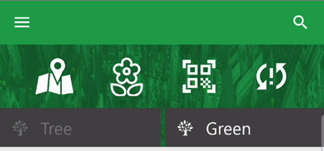
Dashboard Icons
Dashboard Icons
Icon |
Description |
|---|---|
|
When tapped on the dashboard, opens your integrated web map in the mobile app. You can see the location of all assets mapped to feature layers, and show or hide layers as required. When tapped on the details page for a tree, tree cluster, or green area, opens your integrated web map showing the asset centered on the map. Other assets are not visible. When tapped on the details page for an inspection, order, or investigation, opens your integrated web map showing the asset associated with the inspection, order, or investigation centered on the map. |
|
Opens the green area filter so that you can select which green area's tree data the dashboard shows. |
|
Opens the device's camera so that you can scan QR codes affixed to assets in the field. |
|
Opens a list of data objects that caused synchronization errors the last time you tapped the Synchronize button. This icon only appears if synchronization errors occurred the last time you tapped the Synchronize button. |


Navigational Buttons
You can tap navigation buttons below when viewing a list of entities (for example, lists of trees or inspections) or details pages (for example, a tree's details page or an order's details page).
Entity Lists Buttons
Button |
Action |
|---|---|
|
Returns to the most recently viewed page in the app. |
|
Opens a search bar that lets you search the list of entities by keyword. |
|
Opens a barcode scanner. The app filters the list of entities for ones associated with a barcode you scan. |


Details Pages Buttons
Button |
Description |
|---|---|
|
Returns to the most recently viewed page in the app. |
|
Opens the integrated web map, focused on the point or polygon that represents the entity whose details page you are viewing. This button only appears if your implementation has an integrated web map and a feature layer mapped to the type of entity whose details page you are viewing. |
|
When viewing the details page for an inspection, order, or investigation, opens the details page for the tree, tree cluster, or green area associated with the work. |
|
Saves changes made in the form on the details page for a tree, tree cluster, green area, order, inspection, or investigation. |