The green area filter allows you to restrict which assets and orders you see in the VertiGIS FM Greenspaces mobile app. When you apply the green area filter, the app's dashboard widgets and lists only reflect
•trees and tree clusters that have one of the included green areas selected as their location in the Green Area field in the tree or tree cluster details;
•orders, inspections, and investigations associated with trees and tree clusters that have one of the included green areas selected as their location;
•selected green areas; and
•green area inspections for selected green areas.
The VertiGIS FM Greenspaces mobile app prompts you to apply the filter whenever you sign in. You can change the selected green areas in the filter at any time by following the instructions below.
To Apply Green Area Filter
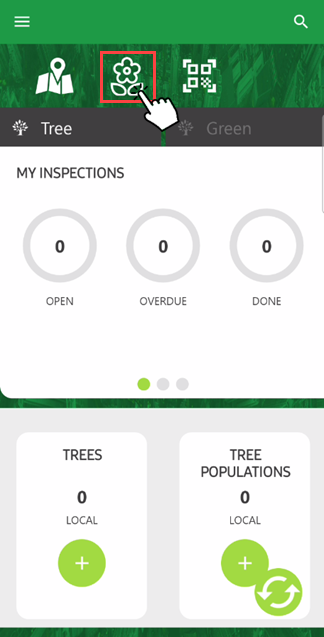
1.On the dashboard, tap the green area icon.
2.Tap the icon next to the green areas you want to filter in or out of the dashboard data.
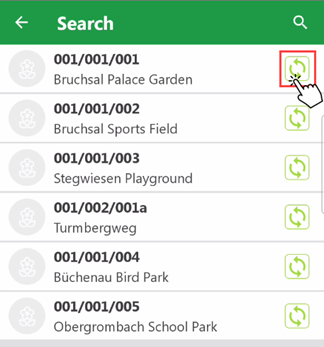
▪Green areas with the  icon next to them are included in the dashboard data.
▪Green areas with the  icon next to them are excluded from the dashboard data.
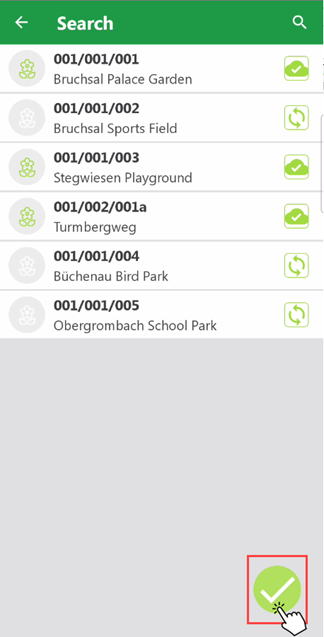
3.Tap the check mark button in the bottom-right corner.
When you tap the check mark button, the app synchronizes with the VertiGIS FM database, and the dashboard reloads to include tree data associated with the green areas you selected.
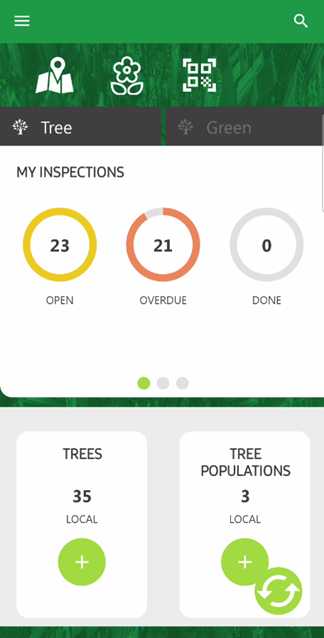
Dashboard with Green Areas Enabled