The current version of the VertiGIS FM Greenspaces includes functionality for basic green area inspection processing. You can see all outstanding inspections associated with a green area, enter conditions for the green area's Safety for Public Circulation and Stage of Development properties, and mark the inspection as complete.
You cannot create new inspections for a green area in the VertiGIS FM Greenspaces mobile app. VertiGIS FM generates inspections for a green area according to intervals established for the green area. Refer to Create Green Area Inspections for more information.
Green Area Inspection Statuses
When you tap View in the Inspections section on a green area's details page, you can see all the inspections generated for it. The colour of the tile indicates the status of the inspection.
Green Area Inspection Statuses
Status |
Description |
|
|---|---|---|
Green |
|
The inspection's Planned Date is more than five months away, or you have updated the inspection's status to Finished but not yet synchronized the app with the VertiGIS FM database. |
Yellow |
|
The inspection's Planned Date is fewer than five months away. |
Red |
|
The inspection's Planned Date is in the past, and the inspection is overdue. |


Tiles with the  icon represent green area inspections you have edited since the last time you synchronized the app.
Complete a Green Area Inspection
You can complete green area inspections in the VertiGIS FM Greenspaces mobile app by selecting a green area, opening one of its inspections, and updating the inspection's properties.
To Complete a Green Area Inspection
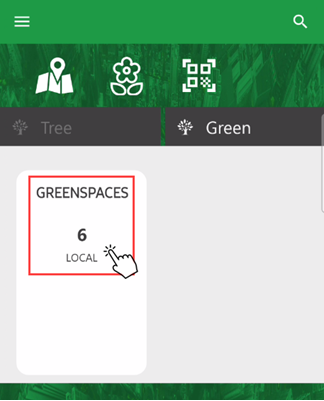
1.On the Green Area tab of the dashboard, tap the Greenspaces widget.
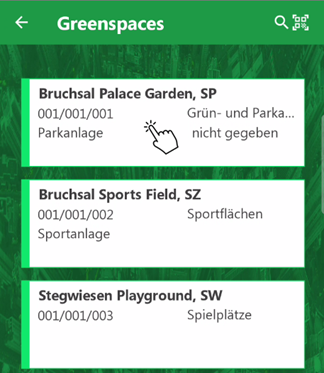
2.Tap the tile for the green area you want to complete an inspection for.
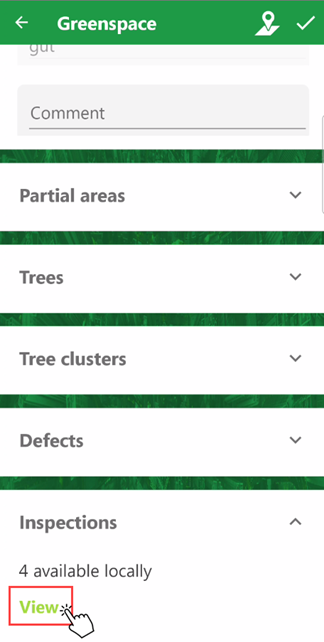
3.Scroll down on the green area's details page, expand the Inspections section, and tap View.
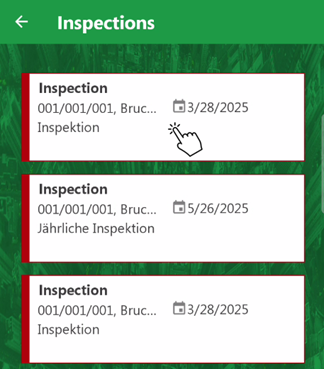
4.Tap the tile of the inspection you want to open.
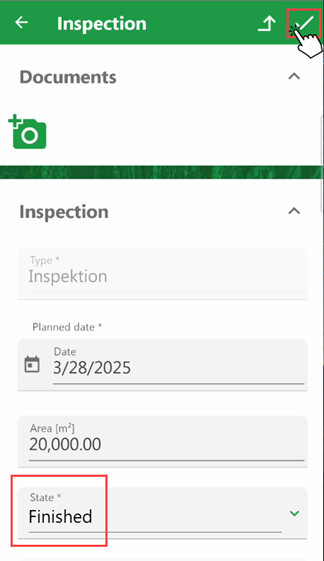
5.Tap in the Safety for Public Circulation and Stage of Development menus and select the appropriate values based on the inspection.
6.Tap in the State menu and select Finished.
7.Tap the check mark icon in the top right corner.
When you update the inspection's status and save the changes, the inspection's tile updates to reflect its new status.
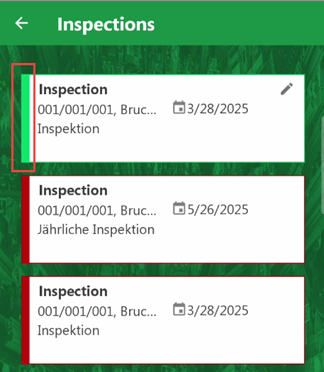
Updated Inspection Status
Green Area Inspection Details
Field |
Description |
|---|---|
Type |
The Type of Inspection catalog entry associated with the inspection. |
Planned Date |
The date the inspection is scheduled to take place. |
Area [m2] |
The area to be inspected in m2. |
State |
The current state of the inspection. Refer to Green Area Inspection Statuses. |
Person responsible |
The manager or supervisor in charge of the inspection. |
Person responsible |
The employee user directly assigned to the inspection. |
Safety for Public Circulation |
Whether the green area is safe for public use. Selectable options are saved in the Safety for Public Circulation catalog. |
Stage of development |
The stage of development of the asset. Selectable options are saved in the Stage of Development catalog. This field is only applicable to green area inspections. The value selected from this menu appears as the Stage of Development value in the green area's details after you save the completed inspection. The Stage of Development value in the green area's details will be updated again when another inspection associated with the green area is completed and a different Stage of Development value is selected. |