In VertiGIS FM Greenspaces, an order refers to a unit of corrective or preventative maintenance work for a tree or tree cluster.
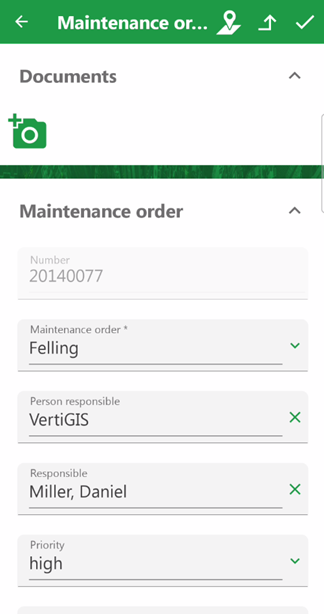
Order Form
Orders for trees and tree clusters are created manually and assigned to employees in the system to complete in the field. Using the VertiGIS FM Greenspaces app, you can update and complete orders, see the locations of associated trees and tree clusters on an integrated web map, and add new orders to the system.
View Orders Assigned to You
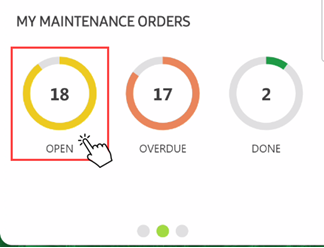
You can access a list of all tree orders assigned to you on the dashboard, by tapping the Open counter on the My Maintenance Orders widget. Tap the Overdue counter to see a list of all tree orders whose Planned Dates have passed.
My Maintenance Orders Counters
To open a tree order, tap its tile in the list of orders that opens.
Tree Orders List
In the form that opens, you can document your findings and mark the order as complete.
Dashboard widgets only include data for trees located in green areas you select in the app's green area filter.
Order Statuses
Status |
Description |
|
|---|---|---|
Green |
|
The order's Planned Date is more than 5 months away. |
Yellow |
|
The order's Planned Date is fewer than 5 months away. |
Red |
|
The order's Planned Date is in the past. |


See Orders by Tree
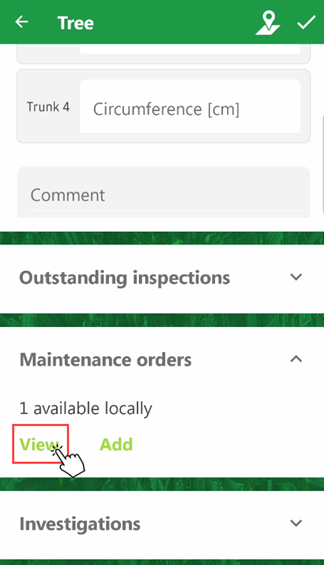
You can see orders scheduled for the same tree by navigating to the tree's details page and expanding the Maintenance Orders section. This section shows all orders for the tree that are assigned to you and have not been completed.
Maintenance Orders Section
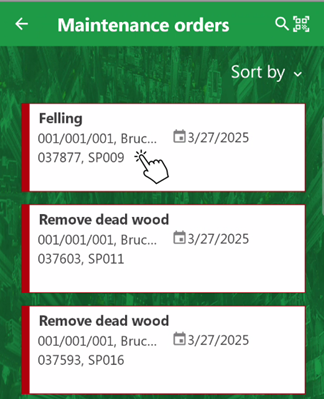
On the list of orders that opens for the tree, tap the order you want to open.
List of Orders Associated with Tree
Update an Order
When you tap an order's tile in the list of tree orders, the order's form opens.
To update the order, tap in any of the fields and update the selection. Refer to Order Details for descriptions of each field.
Complete an Order
When you open an order in the app, the form programmatically selects Finished from the State menu. When you tap the check mark button ( ) in the top-right corner, the system updates the order's status accordingly.
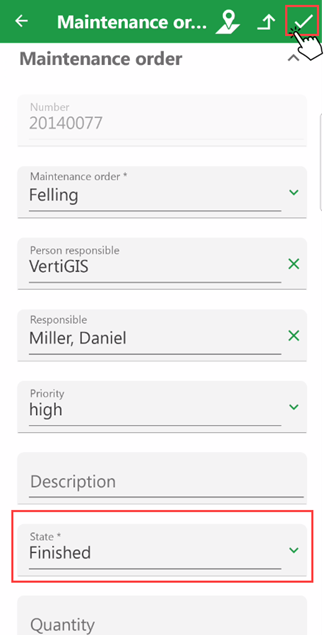
Saving a Completed Tree Order
Field |
Description |
|---|---|
Number |
An identifying number for the order. This value can be system-generated using a Number Ranges configuration. |
Maintenance order |
The Type of Maintenance Order catalog entry associated with the order. The selected entry specifies the area of the order that the order focuses on, specifies whether it can be applied to trees or tree clusters, specifies whether they can be used to create orders for trees and tree clusters whose status is Cut or Inactive, and can include additional information like work sheets. This is a required field when creating an order. |
Person Responsible |
The employee or contact supervising or managing the order. Selectable options are saved in the Contact Management module. |
Responsible |
The employee or contact directly responsible for the order. Selectable options are saved in the Contact Management module. This is the user that sees the order as assigned to them on the dashboard and in the VertiGIS FM Greenspaces mobile app. |
Priority |
The priority level of the order. Selectable options are stored in the Priority catalog. |
Description |
A general description of the order. |
State |
The current status of the order (Planned or Finished). This is a required field when creating an order. |
Executed by |
The person who completed the order. You must select a contact or company stored in the Contact Management module. |
Protocol |
Selectable options are saved in the Protocol menu. |
Planned date |
The date the order is scheduled to take place. This is a required field when creating an order. |
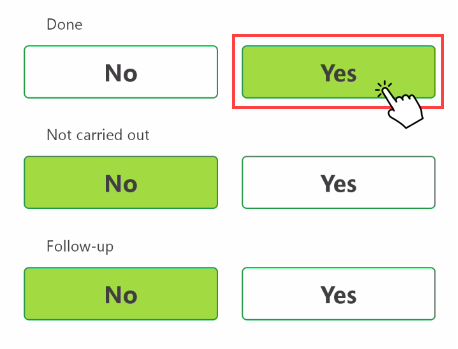
Done |
Whether the work associated with order is complete.
|
Not carried out |
A check box you can select if you want to close the order without completing the associated work. |
Follow up |
An information field to indicate that the completion of the order requires some level of follow-up action. This feature is not associated with the follow-up order functionality in VertiGIS FM Maintenance. |
Upload Documents
In the Documents section at the top of the order form, you can attach any files relevant to the order. This is typically used to attach photos.
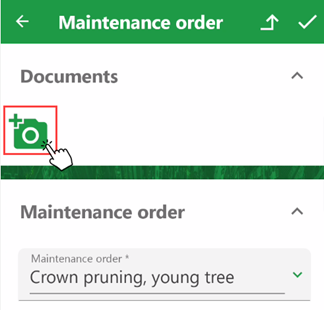
Uploading a Document
See Tree Location
If your VertiGIS FM environment has an integrated web map with a layer mapped to tree, tree cluster, or green area entities in your database, you can see the location of the asset associated with an inspection, order, or investigation by tapping the map button ( ) in the top-right corner of the app.
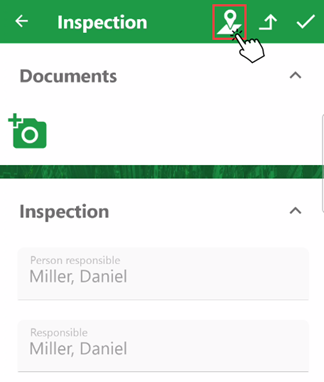
Map Button for Tree Inspection
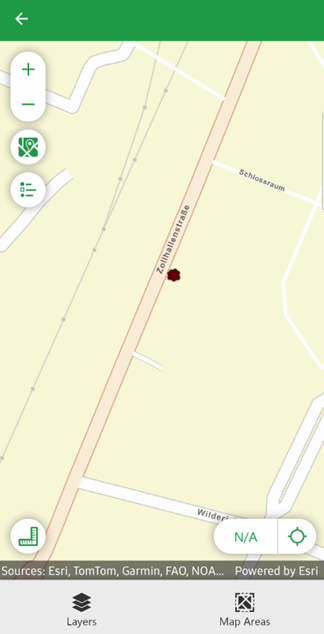
The page that opens shows the asset's location on your web map. The asset's GIS feature can be a point (tree) or a polygon (green area).
Point Showing Location of Associated Tree |
Polygon Showing Location of Associated Green Area |
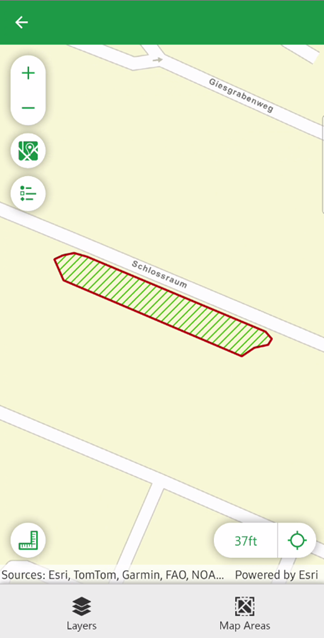
For more information, refer to View Trees on Web Map.
Navigate to Tree Details
If you want to open the details page for the tree or tree cluster associated with the order, tap the button in the top-right corner of the app.
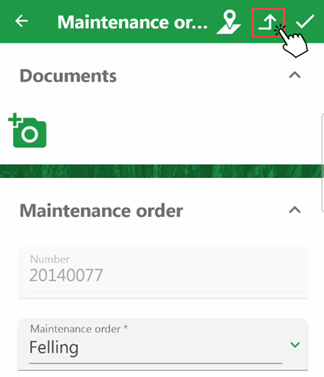
Navigating to Details Page for Tree Associated with Order
On the page that opens, you can review the tree's or tree cluster's core properties and make any necessary updates.
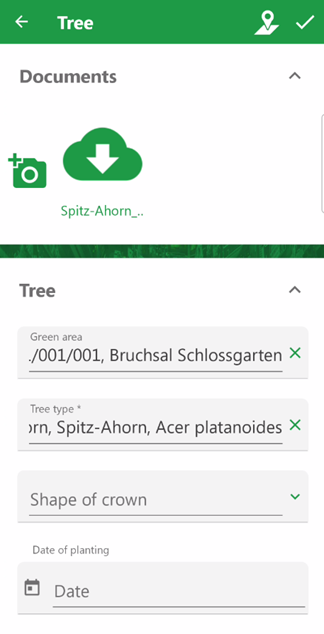
Tree Details Page
Refer to Trees and Tree Clusters.
Add a Tree Order
You can add maintenance orders for trees in the VertiGIS FM Greenspaces app on the details page for the tree or tree cluster you want to create the order for.
You can create orders for a tree on its details page, or initiate the process on the app dashboard.
To Add a Tree or Tree Cluster Order
1.On the Tree tab of the dashboard, tap Trees or Tree Clusters.
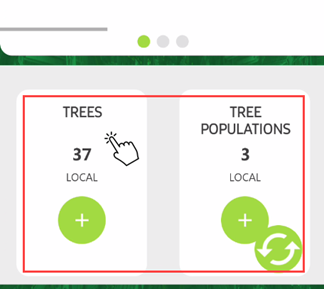
2.Tap the tile for the tree or tree cluster you want to create an order for.
Refer to Tree Statuses to identify tiles representing trees that have outstanding inspections, orders, or investigations.
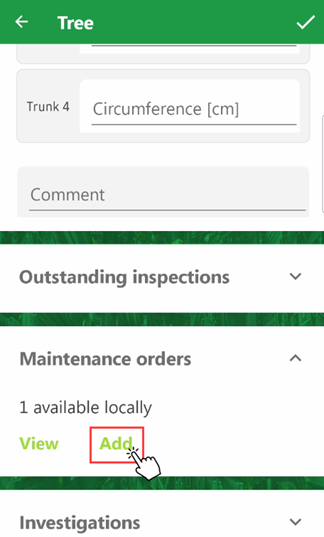
3.Swipe towards the bottom of the details page and expand the Maintenance Orders section.
4.Tap Add.
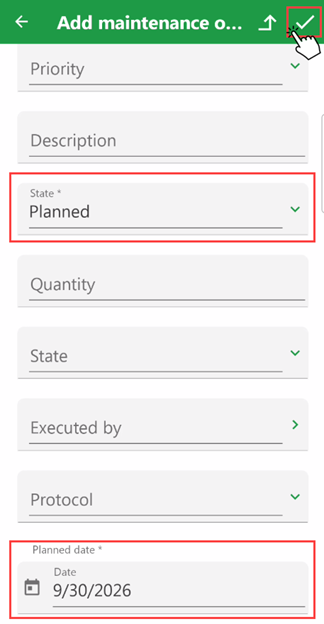
5.Enter the order details in the form. At minimum, you must complete the following mandatory fields:
▪Maintenance order
▪State
▪Date
By default, the user signed in to the application is selected in the Responsible field. Select a different user if you want the order to appear on another employee's dashboard.
6.Tap the check mark button in the top-right corner.
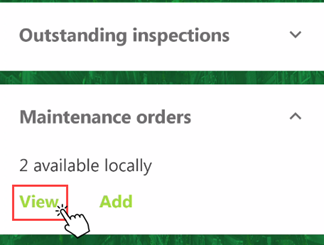
You can access the new order by tapping View in the Maintenance Orders section on the tree or tree cluster's details page, or by tapping the Open counter on the My Maintenance Orders dashboard widget.
Maintenance Orders Section on Tree Details Page |
My Maintenance Orders Widget on Dashboard |
A New tag appears on the tiles of newly created orders.
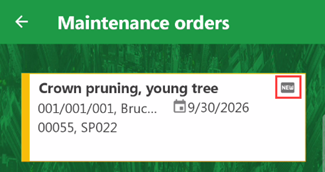
New Order