Orders for a project should be broken down into child tasks so that time spent working on the order can be properly documented. Working time that is recorded for tasks is associated with project employees, which allows you to easily process invoicing for your payroll.
Existing order tasks are listed in the Tasks section on its project order's details page.
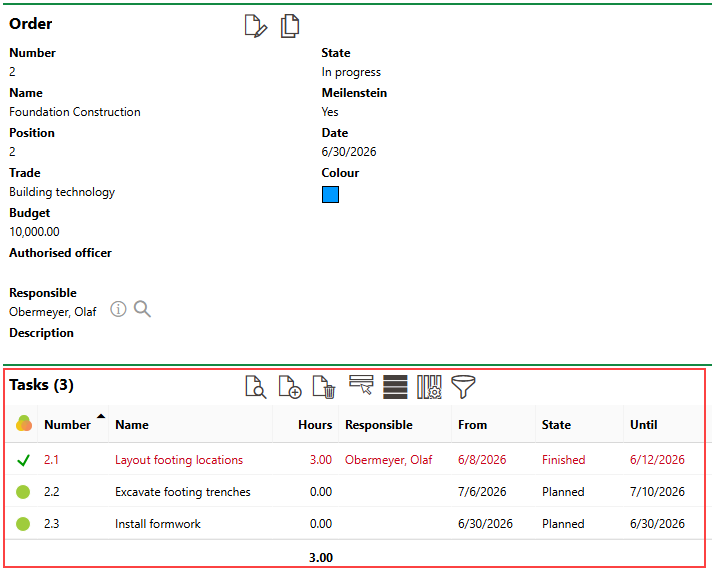
Tasks Section
Field |
Description |
||||||
|---|---|---|---|---|---|---|---|
Number |
A number or code used to identify and serialize the task. |
||||||
Name |
A name that describes the task. |
||||||
Responsible |
The person responsible for the completion of the task. You can select any people listed in the Participants section on the order details page, which can include any members of the project team. You must select an employee who has a pay rate in this field to add time recordings for the task. |
||||||
State |
The current state of the task.
|
||||||
Milestone |
A check box that, if selected, indicates that the task must be completed by a deadline specified in the Date field. If this check box is not selected, you can specify the time range during which work on the task will occur in the From and Until fields. |
||||||
Date |
The date the task must be completed by. This field only appears if the Milestone check box is selected. |
||||||
From |
The date work on the task begins. This field only appears if the Milestone check box is not selected. |
||||||
Until |
The date work on the task ends. This field only appears if the Milestone check box is not selected. |
||||||
Description |
A general description of the task. |
Add a Task to an Order
You can add a task on a project order on the order's details page.
To Add a Task to an Order
1.Navigate to the details page for the order you want to add the task to.
2.Expand the Tasks section and click the Add ( ) icon.
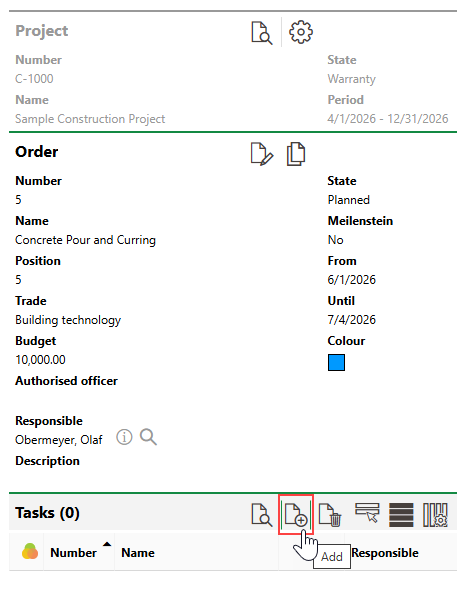
3.At minimum, enter a name that describes the new task in the Name field.
4.Enter additional task details as required. Refer to Task Details for form field descriptions.
You must select someone who has an hourly pay rate in the Responsible field to record time recordings for the task. You will only be able to save time recordings for the employee you select in this field.
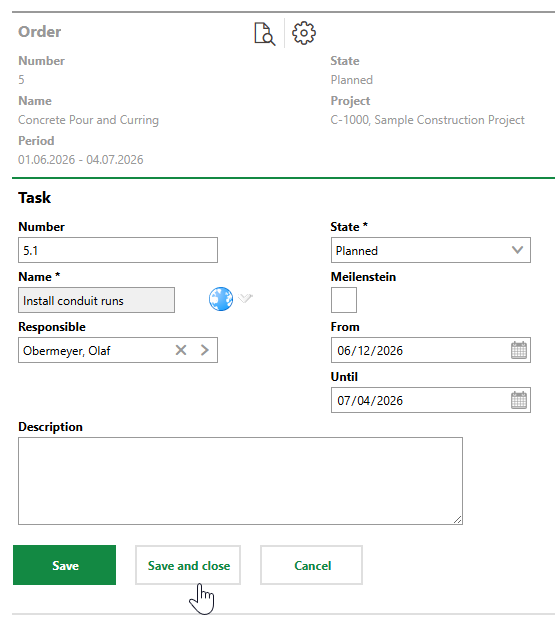
5.Click Save or Save and Close.
Edit a Task
You can edit an existing task, for example, if you need to change its status or deadline.
To Edit a Task
1.Navigate to the details page for the order associated with the task you want to edit.
2.Expand the Tasks section and double-click the task you want to open.
3.Click the Edit ( ) icon.
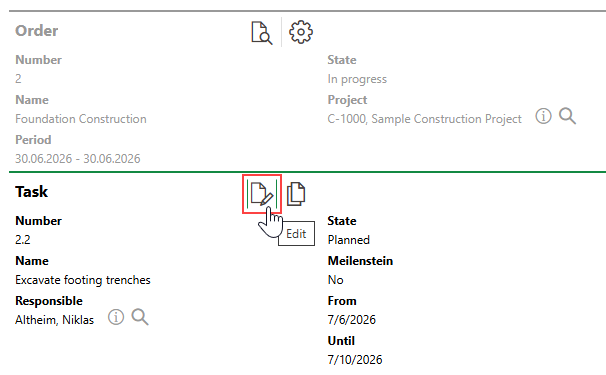
4.Edit the task details as necessary.
5.Click Save and Close.
Delete a Task
To delete a task, select it in the Tasks section and click the Delete ( ) icon, and then click OK.
Add Time Recordings to a Task
A time recording outlines the amount of time an employee has spent working on a task. If the employee has an hourly wage saved in VertiGIS FM, you can use their working hours to calculate their paycheques and generate invoices.
You can add time recordings to a task if
•an employee is selected in the task's Responsible field.
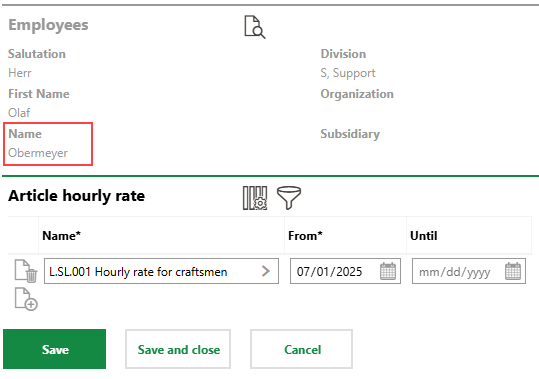
•the employee selected in the Responsible field has an hourly wage saved in the Article Hourly Rate section on their employee details page.
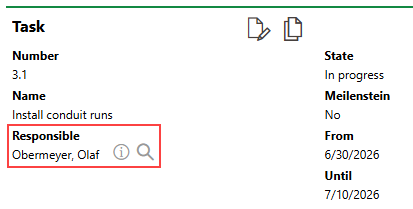
Responsible Field in Task Details |
Hourly Rate Saved for Employee Selected in Responsible Field |
The hourly rate associated with the selected article is saved in the Storage module.
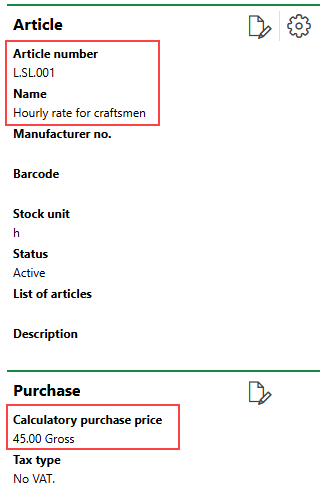
Article and Hourly Rate for Selected Employee
There are different processes to add time recordings depending on whether you, as the user signed in to the application, are adding a time recording for yourself or for another employee.
Add Your Own Time Recording
If the employee selected in the Responsible field is associated with your user, you can add time recordings when you open a task in the Project Management module.
To Add a Time Recording to a Task
1.On the order details page, expand the Tasks section and double-click the task you want to add a time recording to.
2.Ensure an employee is selected in the Responsible field, and that the employee has an hourly rate saved in the Article Hourly Rate section on their employee details page.
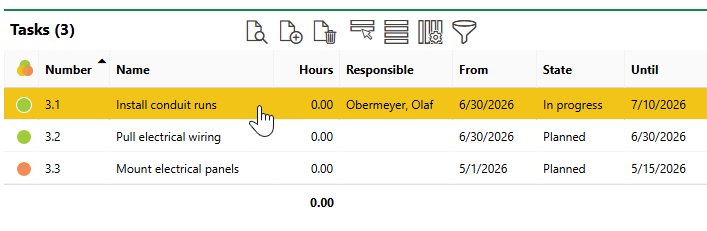
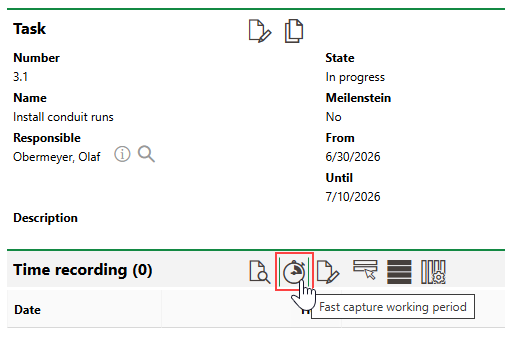
3.Click the Fast Capture Working Period ( ) icon.
4.In the Date menu, select the date the employee worked on the task.
5.In the Hours text box, enter the number of hours the employee spent working on the task.
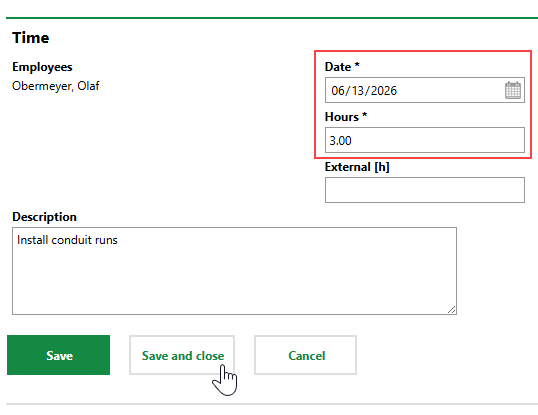
6.Click Save and Close.
The working hours are now recorded for the task.
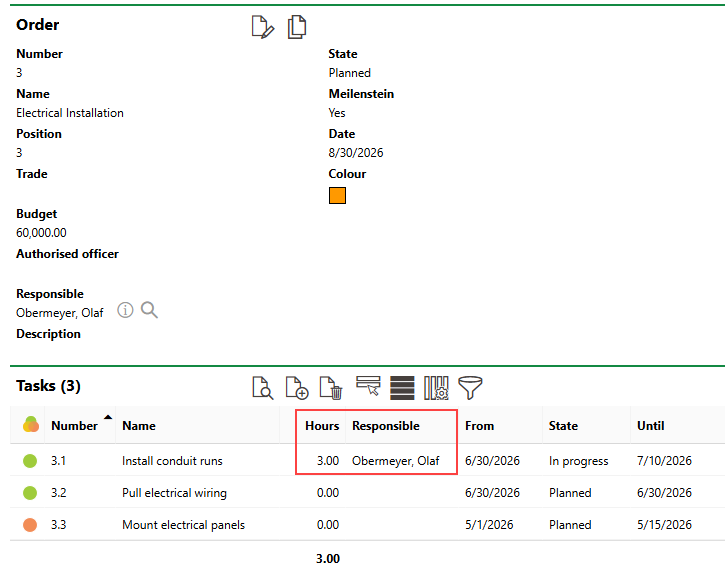
Recorded Working Hours
Add Time Recordings for Another Employee
If another employee is selected in the task's Responsible field, you can add time recordings for them in the Time Recording module.
To enter time recordings for other employees, the user associated with your employee must be assigned a user role that has the Time recording for other employees permission (Administration > Roles/Permissions > Role Administration > Time Recording) or the Administrator permission (Administration > Roles/Permissions > Role Administration > Platform Permissions) enabled. Refer to Roles and Permissions.
Refer to Add Time Recordings in the Time Management module for instructions.
Review Time Recordings
You can also review working hours recorded for order tasks in the Time Recording module.
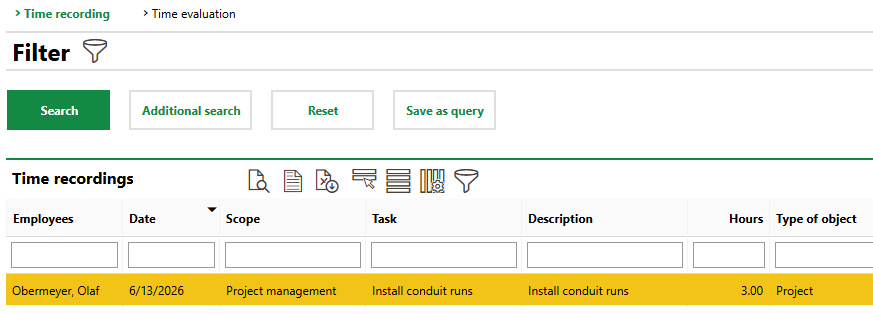
Recorded Hours in Time Recording Module
You can access the Time Recording module in the modules panel.
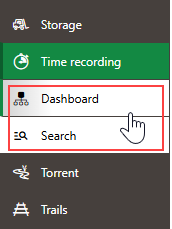
Time Recording in Modules Panel
Saved time recordings can later be reviewed and approved by an administrator or manager for the project.
Dashboard
In addition to the options outlined above, you can also view and create new time recordings by task and employee on the Project Management legacy dashboard, under Actions.
Mark Tasks Complete
You can manually mark tasks as complete in VertiGIS FM when all associated work in the field is finished.
Ideally, you should document a task's working hours before marking it as complete, but you can still add working hours to a task whose status is Finished.
To Mark Tasks as Complete
1.Navigate to the details page for the order associated with the task you want to close.
2.Expand the Tasks section and double-click the task you want to close. Alternatively, you can select the task and click the View Details ( ) icon.
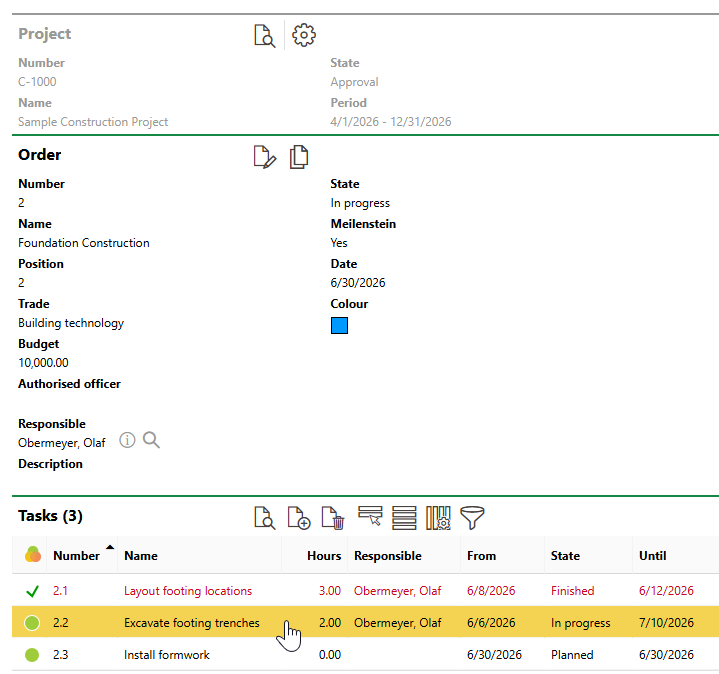
3.Click the Edit () icon.
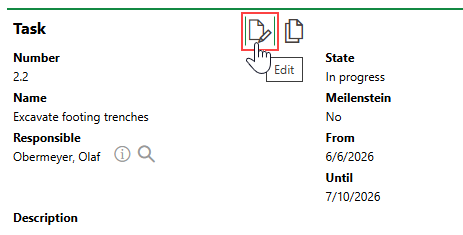
4.Click in the State menu and select Finished.
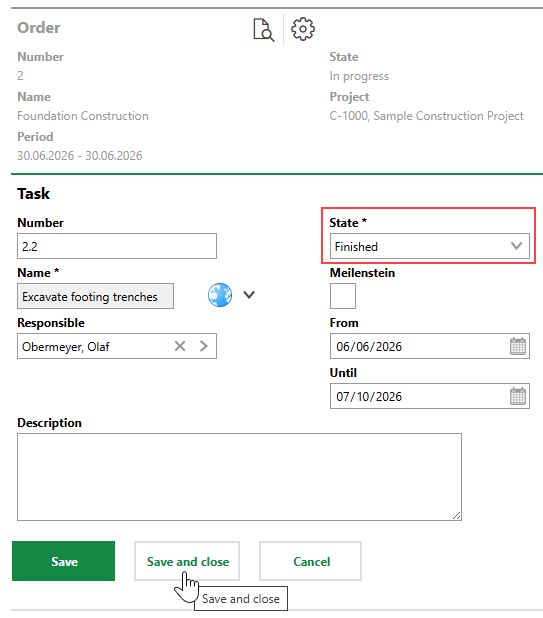
5.Click Save and Close.
The task's status icon now indicates that it is complete.
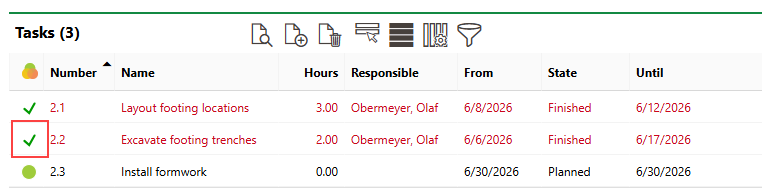
Task Marked Complete
