Using the Condition Assessment module, you can create, assign, and complete thorough inspections of buildings managed in the VertiGIS FM Buildings product.
Building inspections include
•requirements to inspect any specified building construction components and devices in the building.
•checklists associated with the building's Building Type property.
•the ability to log status ranges during the inspection.
•the ability to create investment plan items, defects, and follow-up orders during the inspection.
VertiGIS FM documents any new data objects (for example, a defect) as having been created during the inspection.
Depending on your system's configuration, a building inspection can include sections for the items described below. The employee who performs the inspection can enter data in these sections when they complete the inspection.
Checklists
Building inspections include a section for each order checklist in the building management checklist administration that
•has the inspection's Type property (specified in the inspection strategy properties) selected in its Kind of Inspection field, and
•has the building's Building Type selected in Building Types section.
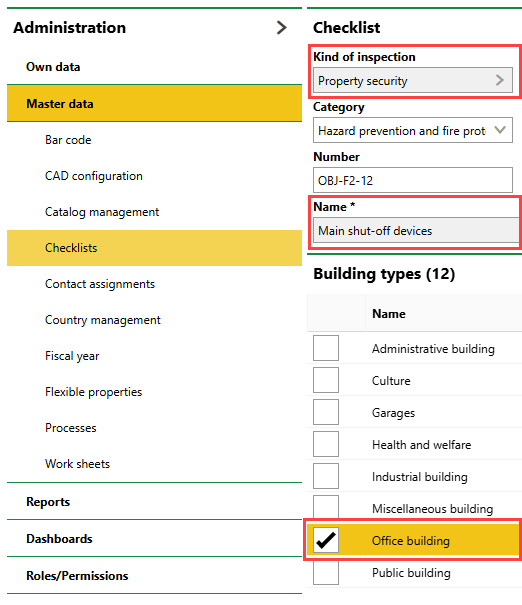
Building Management Order Checklist Showing Kind of Inspection and Building Type Properties
In the example above, the "Main Shut-off Devices" checklist appears in Property Security inspections created for buildings that have Office Building selected in the Building Type field.
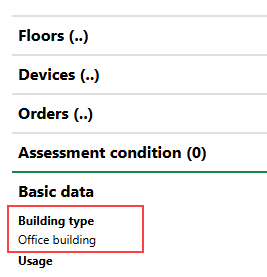
Building Type Property
The Building Type property is in the Basic Data section on the building's details page. Selectable options are saved in the Building Type catalog.
The employee assigned to the inspection must complete any required items in the checklist to complete the inspection. If the checklist includes items that are not designated as required, the employee can optionally complete them.
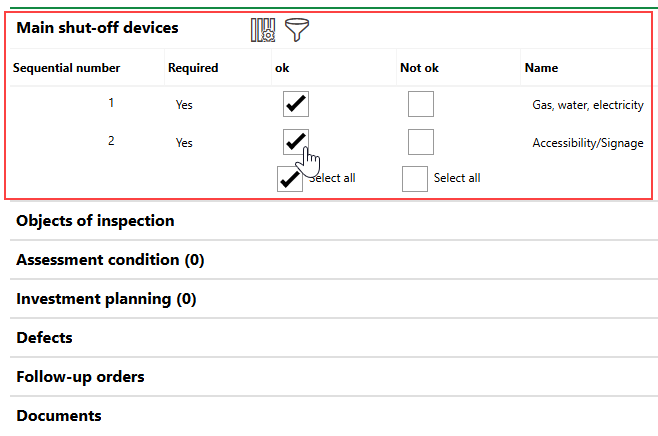
Checklist Section in Building Inspection
Objects of Inspection
The Objects of Inspection section lists all of the assets located in the building that the employee must inspect. These include
•devices that have the building selected in the Location field in the device details.
•building construction components that are installed in the building.
The employee who completes the inspection must select the Checked check box for each asset in this section. Optionally, they can select a condition that describes each asset's state from the Assessment catalog, enter comments for each asset, upload photos or documents for each asset, and create defects or orders associated with each asset.

Objects of Inspection Section and Checked Check Boxes
Devices whose Safety Related property is set to No are not included in the inspection if you select the Only Security-Relevant Objects check box when you create the inspection.
Condition Assessment
In the Condition Assessment section, the employee who performs the inspection can record formal condition assessments of features and components within the building. The individual items the user can assess are stored on the status ranges page for the building asset.
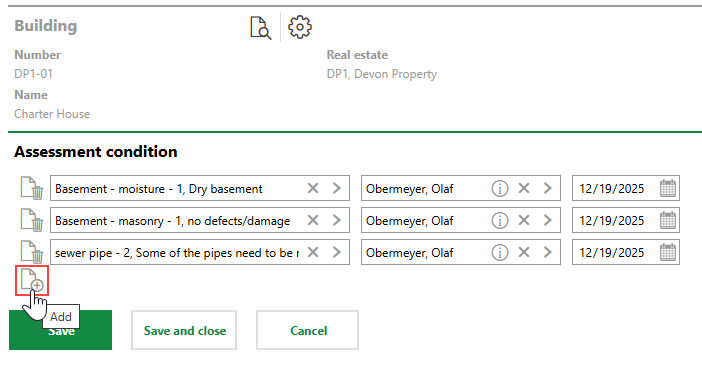
Entering Condition Assessments During Building Inspection
Refer to Enter Condition Assessments During Building Inspections and Status Ranges for more information.
Investment Plan
In the Investment Planning section, you can add a line item to the investment plan for the building's real estate. Click the Add ( ) icon to add a new line item.
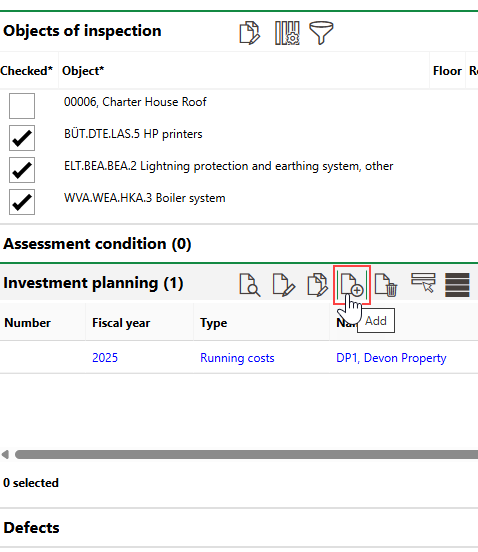
Investment Plan Section
You can also view, edit, and delete line items already in the investment plan for the set fiscal year.
Refer to Position Details for descriptions of fields in the new line item form. Refer to Investment Plans for information about managing investment plans in VertiGIS FM.
Defects
You can log defects discovered during the inspection in the Defects section. Click the Add () icon to add a defect.
The details page for the new defect will indicate that it was documented during the inspection.
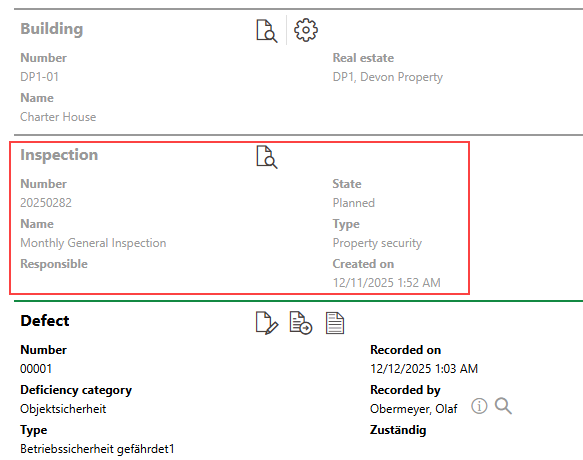
Defect Logged During Inspection
Follow Up Orders
In the Follow Up Orders section, you can create a follow-up order if any maintenance work needs to be assigned based on the inspection.
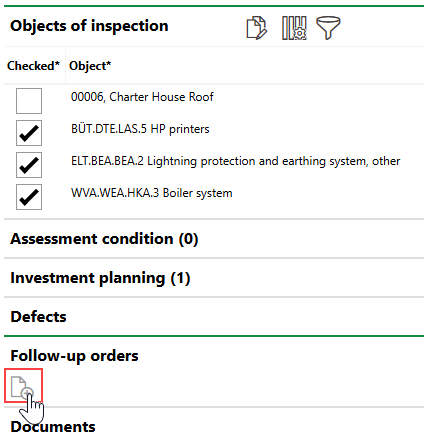
Add Follow Up Order Icon
The order details page for the follow-up order will indicate that it was created during the inspection.
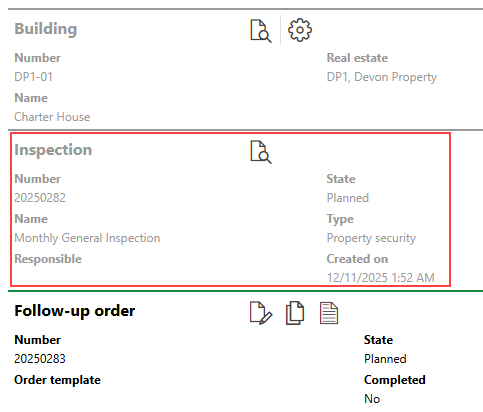
Inspection Associated with Follow-Up Order
Documents
You can upload documents (for example, photos taken during the inspection) in the Documents section.
Refer to Upload Documents.