A building inspection strategy is an inspection for a building that recurs according to a time interval (for example, weekly, monthly, or annually). If you do not want an inspection to recur, you can omit an interval to create a single inspection.
Create a Building Inspection Strategy
You can create an inspection strategy two ways: by using the Create Inspection workflow on the Condition Assessment legacy dashboard, or on the building's details page.
To Create a Building Inspection Strategy on the Condition Assessment Dashboard
1.Navigate to the Condition Assessment legacy dashboard.
2.Under Operational Procedures, click Add Inspection.
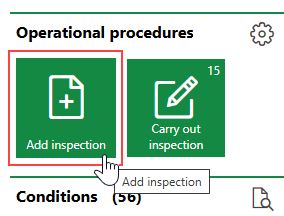
If you do not see the Operational Procedures template, an administrator must add it to your custom dashboard or restore the legacy dashboard. Refer to Dashboard Customization.
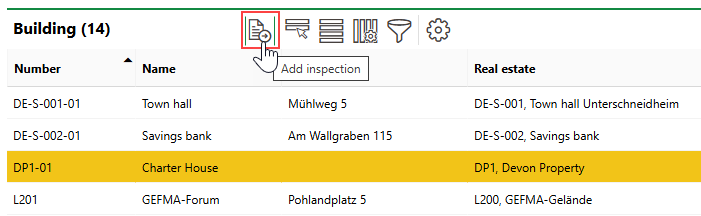
3.In the Building section, select the building for which you want to create an inspection and click the Add Inspection ( ) icon.
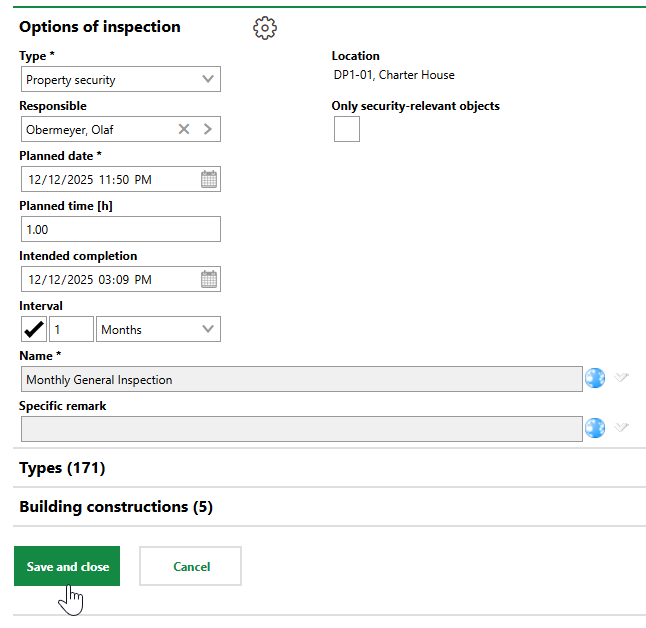
4.Enter the inspection strategy's properties in the Options of Inspections form. Refer to Inspection Strategy Details for information about each field in the form.
5.In the Types section, select the device versions whose assets must be checked during inspections associated with this strategy. The employee who performs the inspections will be required to check all devices located in the building that belong to a selected version.
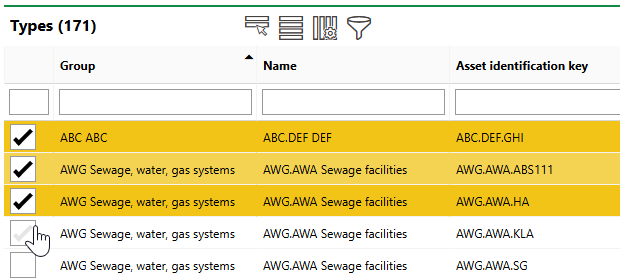
6.In the Building Constructions section, select the building construction groups whose components must be checked during inspections associated with this strategy. The employee who performs the inspections will be required to check all building construction components in the building that belong to a selected group.
Refer to Objects of Inspection.
7.Click Save or Save and Close.
To Create a Building Inspection Strategy on the Building Details Page
1.Navigate to the details page for the building for which you want to create an inspection.
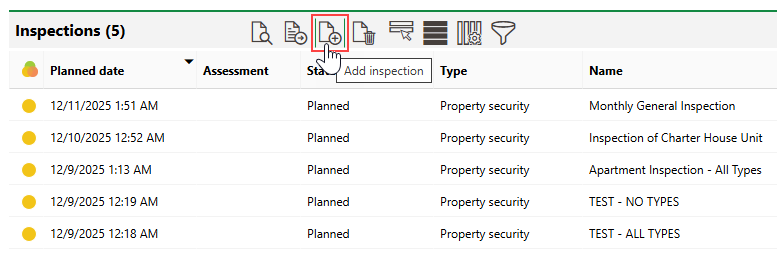
2.Expand the Inspections section and click the Add Inspection ( ) icon.
3.Enter the inspection strategy's properties in the Options of Inspections form. Refer to Inspection Strategy Details for information about each field in the form.
4.In the Types section, select the device versions whose assets must be checked during inspections associated with this strategy. The employee who performs the inspections will be required to check all devices located in the building that belong to a selected version.
5.In the Building Constructions section, select the building construction groups whose components must be checked during inspections associated with this strategy. The employee who performs the inspections will be required to check all building construction components in the building that belong to a selected group.
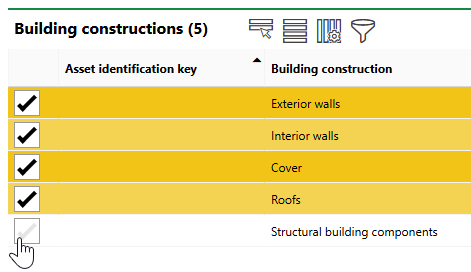
Refer to Objects of Inspection.
6.Click Save or Save and Close.
Field |
Description |
|---|---|
Type |
The inspection category. Selectable options are saved in the Kind of Inspection catalog. Entries in this catalog are also associated with order checklists in the building checklist administration. The inspection type you select in this field determines what checklists the employee who performs the inspection must complete. |
Responsible |
The employee, contact, or team responsible for the inspection. Must be selected from an entry created in VertiGIS FM Contact Management. |
Planned Date |
The date the first inspection generated by the interval should be completed. |
Planned time [h] |
The number of hours of work the inspection is expected to take to complete. |
Intended completion |
The date and time by which the inspection should be completed. |
Interval |
The amount of time between inspections. If you select this check box, when the employee completes an inspection created by this strategy, VertiGIS FM will schedule a subsequent inspection using this amount of time in days, weeks, or months as soon as an existing inspection is completed. |
Name |
A name for inspections associated with this strategy (for example, Monthly Office Tower Inspection). |
Specific remark |
|
Location |
The building being inspected. VertiGIS FM populates this field with the building you select for inspection. |
Only security-relevant objects |
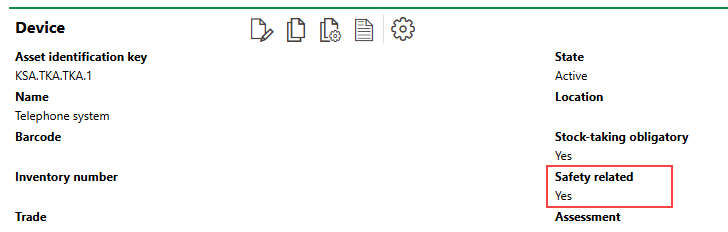
A check box that, if selected, limits the devices the employee must inspect in the building to devices whose Safety Related property is set to Yes.
Safety Related Property If you select the Only security-relevant objects check box, devices located in the building whose Safety Related property is set to No will not be listed in the Objects of Inspection section in the inspection form. The Safety Related property can be set at the device level in the device details, but it is typically set at and inherited from the device's version details. |