Employees assigned building inspections can record them as completed using the Carry Out Inspection workflow from the Condition Assessment dashboard, or on the building's details page.
Complete Building Inspections from the Condition Assessment Dashboard
The Carry Out Inspection workflow consolidates building inspections and rental agreement inspections assigned to the employee signed in to the application.
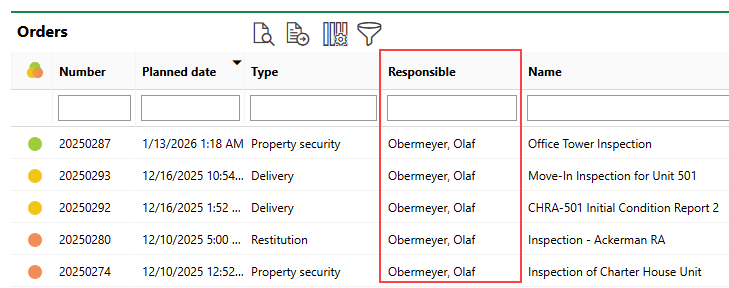
Carry Out Inspections Page for Rental Agreements
When the employee signed in to VertiGIS FM begins the Carry Out Inspection workflow, they can see all inspections assigned to them that have not been completed.
To Complete Building Inspections from the Condition Assessment Dashboard
1.Navigate to the Condition Assessment legacy dashboard.
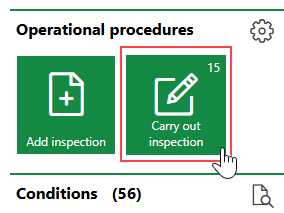
2.Under Operational Procedures, click Carry Out Inspection.
3.Select the inspection you want to complete and click the Carry Out Inspection ( ) icon.
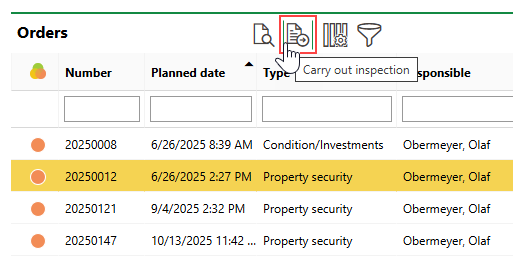
If this page is empty, no outstanding inspections are assigned to you.
4.Expand the section for each checklist in the inspection. Review every item in each checklist and record the results in the checklist. Refer to Complete Checklists for more information.
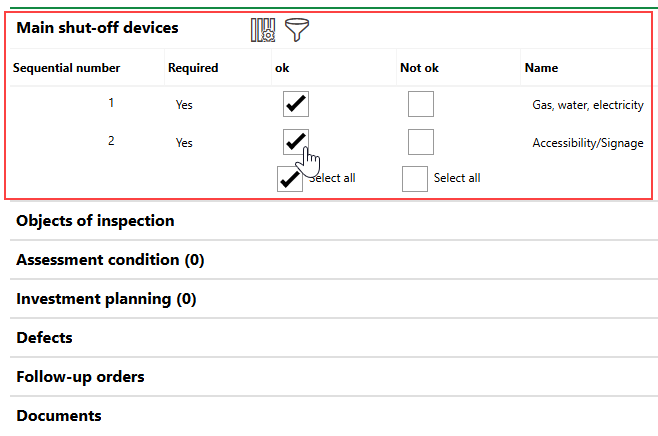
5.Expand the Objects of Inspection checklist. Review the condition of each asset and building construction component in the list, and record the status in the section. Optionally, you can describe the condition of each asset by selecting an option from the Assessment menu. Selectable options are saved in the Assessment catalog.
Refer to Objects of Inspection for more information.
6.Optionally,
•Enter relevant status range condition assessments in the Assessment Condition section.
•Create an investment plan line item in the Investment Plan section.
•Record any defects in the Defects section.
•Create any required maintenance orders in the Follow-up Orders section.
•Upload relevant photos or documents in the Documents section.
7.From the State menu in the Inspection section, select Finished.
8.From the Assessment menu, select the overall condition of the building. Selectable options are saved in the Assessment catalog.
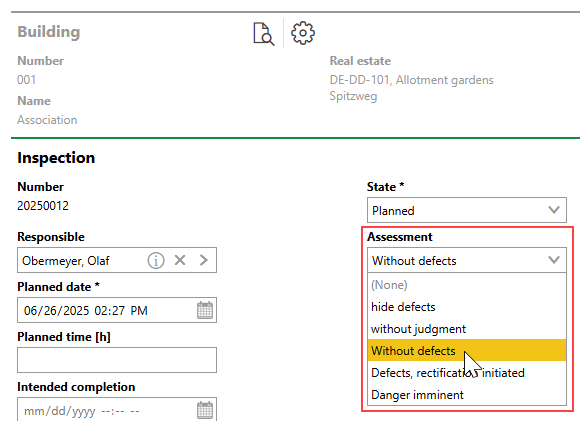
9.Enter additional inspection details as required. Refer to Inspection Details.
10.Click Save or Save and Close.
VertiGIS FM produces an error message if any mandatory inputs are missing from the inspection.
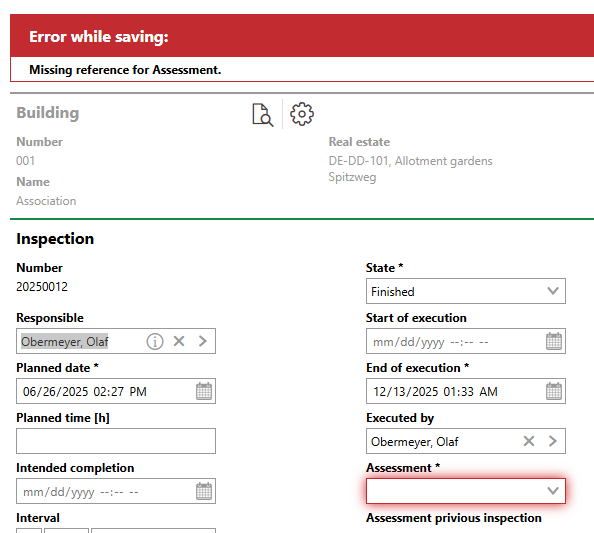
Error Message Due to Missing Inspection Assessment
Complete Building Inspections on the Building's Details Page
Employees can also complete building inspections by navigating to the building's details page. The building details page does not group inspections by the employee to whom they are assigned.
To Complete Building Inspections on the Building's Details Page
1.Navigate to the details page of the building for which you want to complete an inspection.
2.Expand the Inspections section.
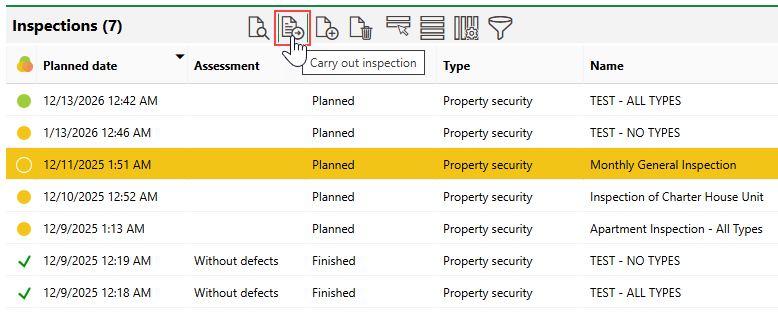
3.Select the building inspection you want to perform and click the Carry Out Inspection () icon.
4.Expand the section for each checklist in the inspection. Review every item in each checklist and record the results in the checklist. Refer to Complete Checklists for more information.
5.Expand the Objects of Inspection checklist. Review the condition of each asset and building construction component in the list, and record the status in the section. Optionally, you can describe the condition of each asset by selecting an option from the Assessment menu. Selectable options are saved in the Assessment catalog.
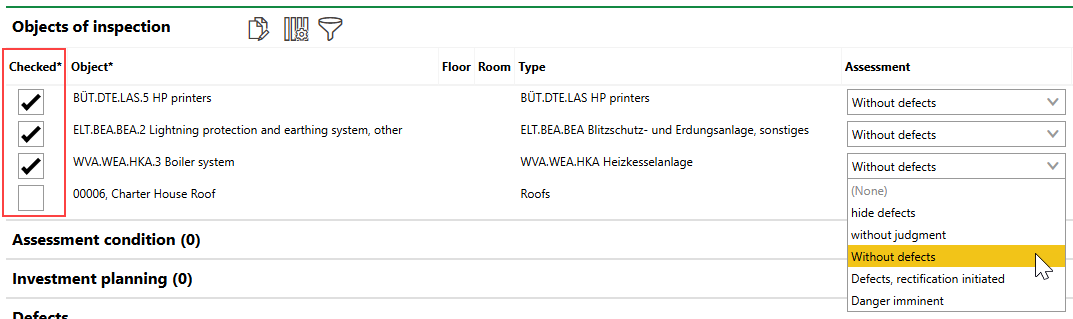
Refer to Objects of Inspection for more information.
6.Optionally,
•Enter relevant status ranges in the Assessment Condition section.
•Create an investment plan line item in the Investment Plan section.
•Record any defects in the Defects section.
•Create any required maintenance orders in the Follow-up Orders section.
•Upload relevant photos or documents in the Documents section.
7.From the State menu in the Inspection section, select Finished.
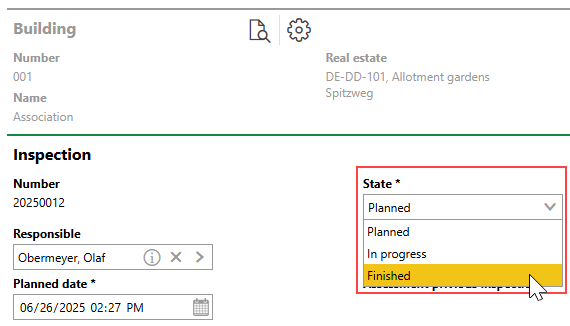
If you want to indicate that the inspection has been started but cannot yet be recorded as completed, select In Progress. You can then click Save without completing the remaining steps.
8.From the Assessment menu, select the overall condition of the building. Selectable options are saved in the Assessment catalog.
9.Enter additional inspection details as required. Refer to Inspection Details.
10.Click Save or Save and Close.
VertiGIS FM will produce an error message if any mandatory data is missing from the inspection.
Intervals
When you complete a building inspection associated with a strategy that has an Interval field, VertiGIS FM creates a new building inspection based on the amount of time specified in the Interval property.
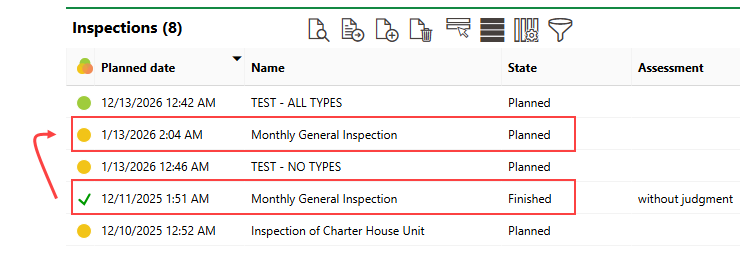
New Inspection Generated by Completed Inspection
The Interval property is specified in the inspection strategy's details.
Field |
Description |
|---|---|
Number |
The system-assigned number for the inspection. Refer to Number Ranges. |
Responsible |
The employee, contact, or team responsible for the inspection. Must be selected from an entry created in VertiGIS FM Contact Management. |
Planned Date |
The date the inspection should be completed. |
Planned time [h] |
The number of hours the inspection is expected to take to complete. |
Intended completion |
The date and time by which the inspection should be completed. |
State |
The current state of the inspection. Use this drop-down menu to update the inspection's status. •Planned: the inspection has not started •In progress: the inspection has started but is not yet completed. •Finished: the inspection is complete. |
Start of Execution |
The date and time the inspection began. This field is only visible when Finished is selected from the State menu. |
End of Execution |
The date and time the inspection ended. By default, VertiGIS FM populates this field with the date and time Finished is selected from the State menu. This field is only visible when Finished is selected from the State menu. |
Executed by |
The user who completed the inspection. By default, VertiGIS FM populates this field with the user completing the inspection in the application. This field is only visible when Finished is selected from the State menu. |
Assessment |
The overall condition of the building. Selectable options are saved in the Assessment catalog. |
Assessment previous inspection |
The condition of the building recorded in the previous inspection generated by this strategy. No value appears in this field if it is the first inspection in a strategy. |
Description of Overall Condition |
A text box in which you can enter an overall description of the building's condition, or elaborate on the condition selected in the Assessment field. |
Confirmation of usability |
A check box that, if selected, indicates that the building can operate normally. |
Comment about the usability of the object |
A text box in which you can explain the selection in the Confirmation of Usability menu. |
Name |
A name for inspections associated with this strategy (for example, Monthly Office Tower Inspection). |
Specific remark |
|