Using the cost transfer workflow, you can create invoices based on your employees' time recordings entered on work orders for maintenance of assets in your VertiGIS FM Maintenance database. This workflow helps ensure billing for your employees' time recordings is processed in a consistent, orderly fashion.
You can access the cost transfer workflow by clicking Cost Transfer under Operational Procedures on the VertiGIS FM Maintenance dashboard.
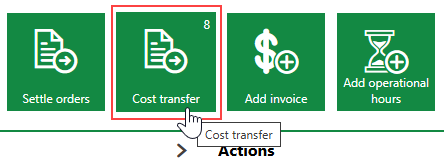
Settle Orders Workflow Button
Prerequisites
This workflow relies on data saved in the Costs and Budget module and your employees' billing information. To enable the cost transfer process, your VertiGIS FM environment should be set up for invoicing.
Your VertiGIS FM environment must satisfy all of the requirements below before you can implement the cost transfer workflow effectively.
Work Order with Time Entry
An employee in your system must be assigned a work order associated with an order for maintenance on an asset in the Device and Systems Structure. You can then add a time recording entry to the work order to record the number of hours the employee spent on the work order.
You cannot transfer time recordings for assets in the Component Structure.
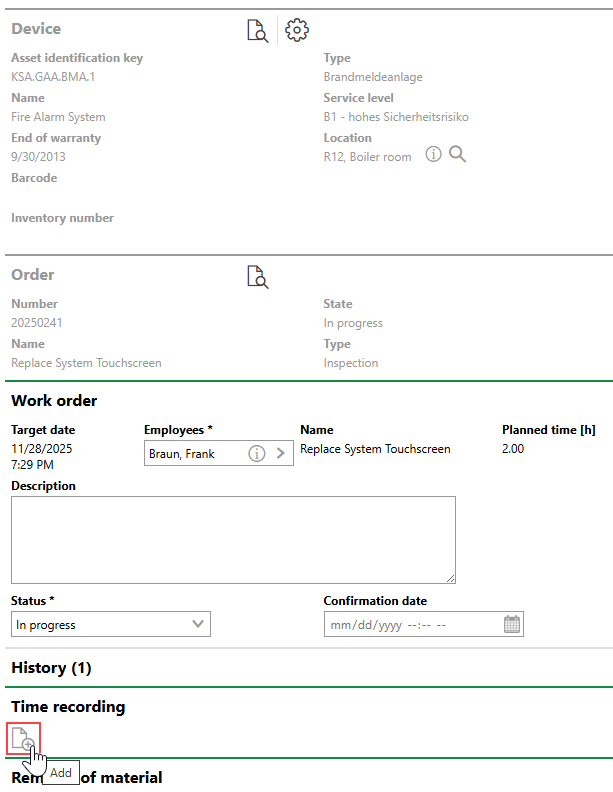
Adding a Time Recording to a Work Order
When adding the time entry, you must ensure you select the check box in the Cost Transfer column ( ).
).
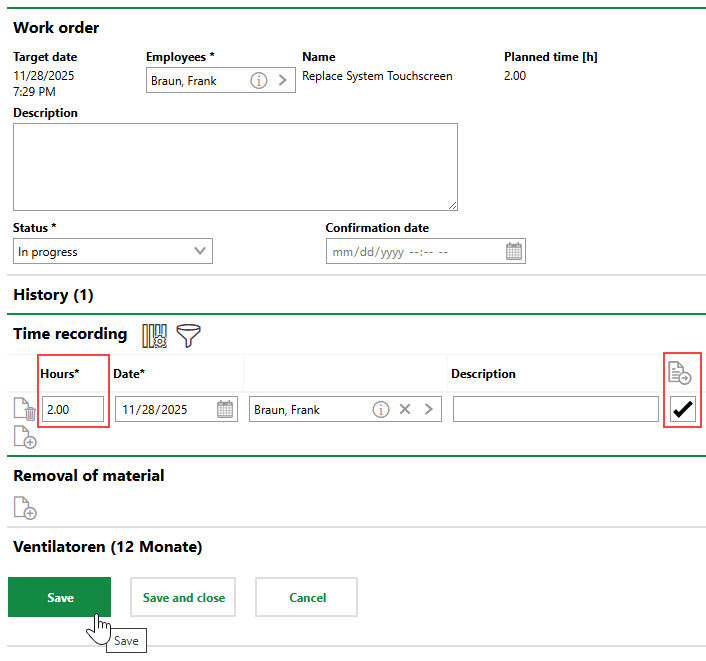
Time Recording with Cost Transfer Option Selected
Cost Center with Cost Allocation Property Assigned to Asset Associated with Work Order
The device associated with the order, work order, and time recording must have a cost center assigned to it. A device's cost center association is stored in the Commercial Characteristics tab on its details page and can be selected when you edit the device.

Cost Center Field in Device's Commercial Characteristics
The cost center assigned to the device must have a cost allocation property that indicates whether the funds are allocated internally or externally and whether taxes are included.
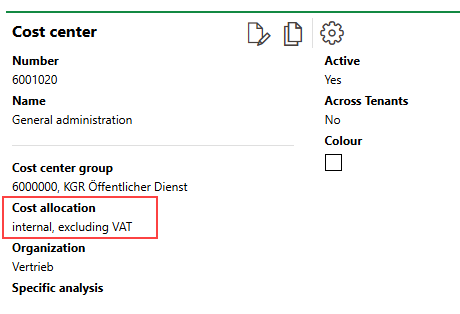
Cost Center Cost Allocation Property
Selectable options for this property are saved in the Cost Allocation catalog. The Allocation Type property of the selected catalog entry determines the type of invoice that the cost transfer will generate:
•Internal: cost transfer of the recorded working hours creates an internal incoming company billing invoice.
•External: cost transfer of the recorded working hours creates a goods issue (external invoice) that is sent to a payer.
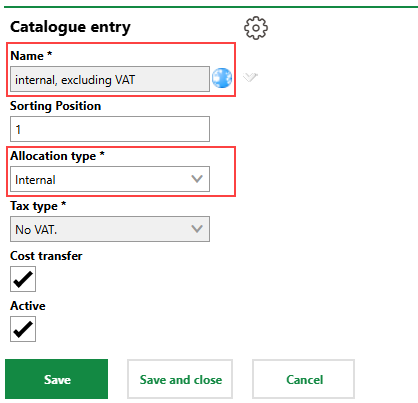
Cost Allocation Catalog Entry
Cost Allocation Property Assigned to Employee
The cost allocation property associated with the cost center selected in the device's properties must also be assigned to the employee whose working hours are recorded in the work order.
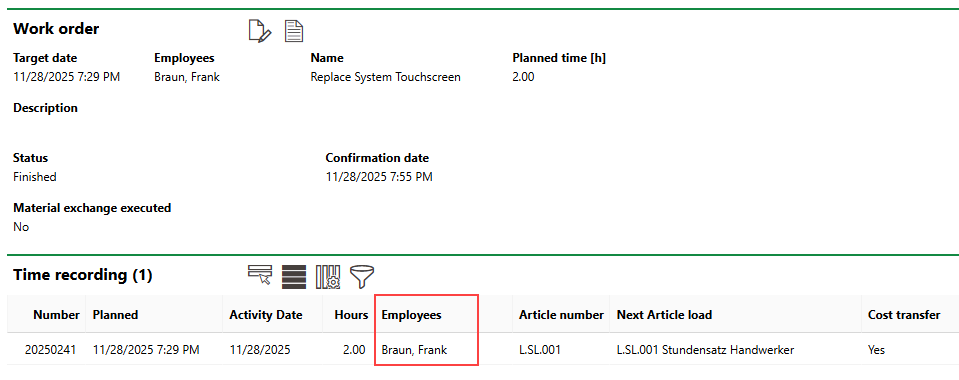
Time Recording Employee Assignment
You can link a cost allocation entry to the employee on the employee's details page. To link a cost allocation entry to the employee, you must also select a ledger account from which the funds are paid.
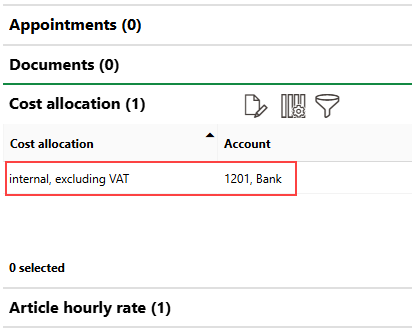
Cost Allocation Assigned to Employee (Frank Braun)
Article Assigned to Employee
The employee must also have an hourly rate article assigned to them on the employee's details page. You can assign an article to an employee in the Article Hourly Rate section on the employee's details page.
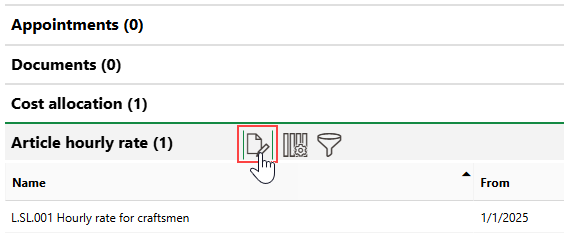
Working Article Assigned to Employee (Frank Braun)
When you assign an article to an employee, you can select any existing article in the Storage module.
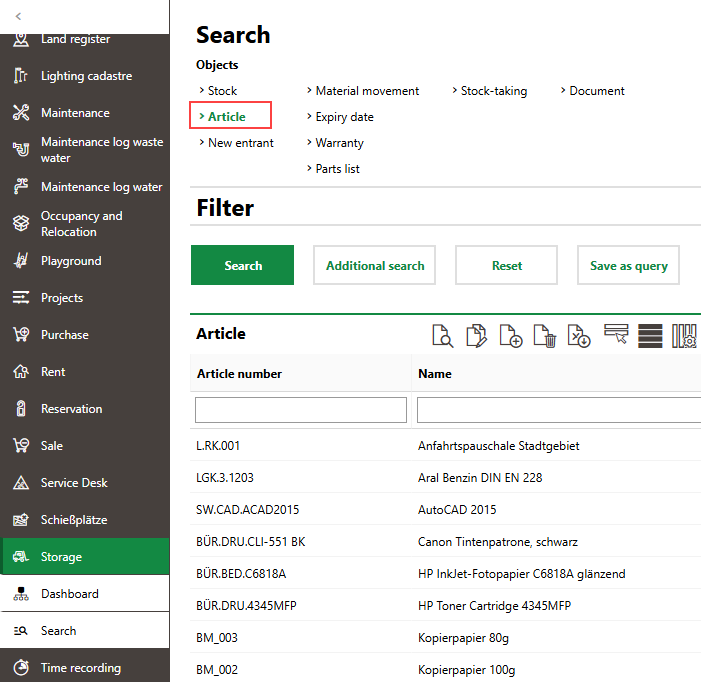
Articles Saved in Storage Module
Articles have a Calculatory Purchase Price field that determines how much money the employee is paid per hour. This value is used to calculate the amount earned by the employee based on the number of working hours saved in the selected time recordings when you initiate the cost transfer workflow.
You can access the Storage module by expanding Storage in the modules panel and clicking Dashboard or Search.
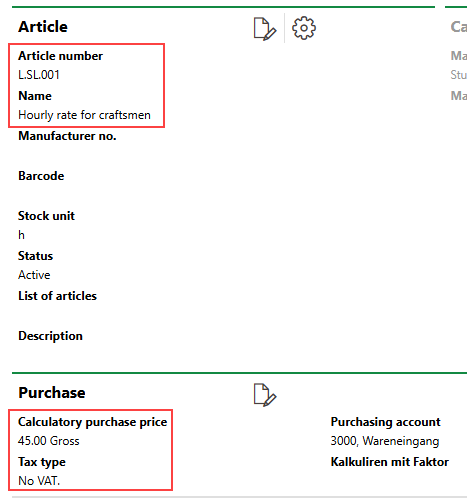
Employee Wage Saved in Article
Create an Invoice Using the Cost Transfer Workflow
If an employee has working hours recorded on work orders and all of the conditions outlined in the section above are met, you can initiate the Cost Transfer workflow to create an internal or outgoing invoice based on the employee's working hours and recorded time. The cost allocation property assigned to the employee and the device's cost center determines the type of invoice that will be created.
To Create an Invoice Using the Cost Transfer Workflow
1.Navigate to the VertiGIS FM Maintenance dashboard.
2.In the Operational Procedures section, click Cost Transfer,
If you do not see the Operational Procedures template, an administrator must add it to your custom dashboard or restore the legacy dashboard. Refer to Dashboard Customization.
3.Select the time recording entry or entries you want to include in the invoice and click the Cost Transfer () icon.
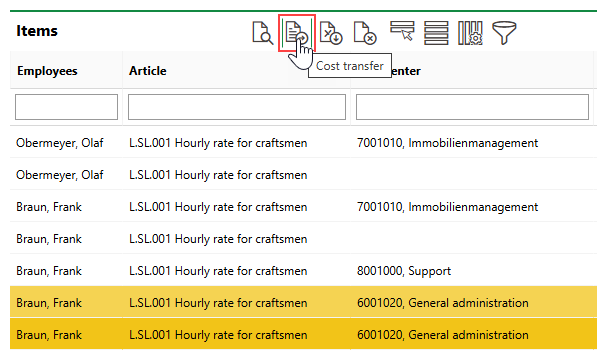
You can include multiple time recording entries in the same invoice if they are associated with the same cost center, and the cost center's cost allocation property is assigned to the employee. Therefore, you can include all of an employee's time recordings for the same device in a single invoice.
4.At minimum, select a date for the invoice in the Date field, enter a subject in the Subject field, and click Apply to All. The time recordings in the Items section will be reflected in the invoice.
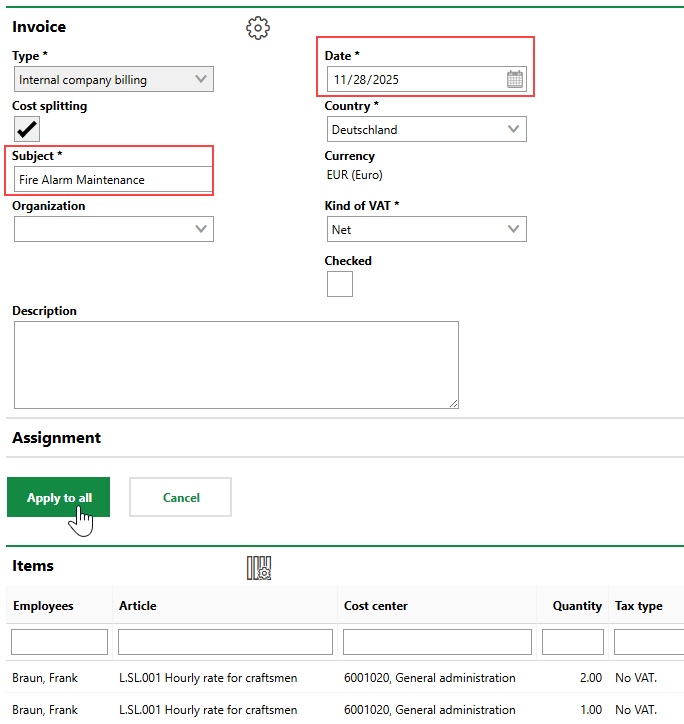
5.Click OK.
You can now view, edit, and process the resulting invoice in the Costs and Budget module.
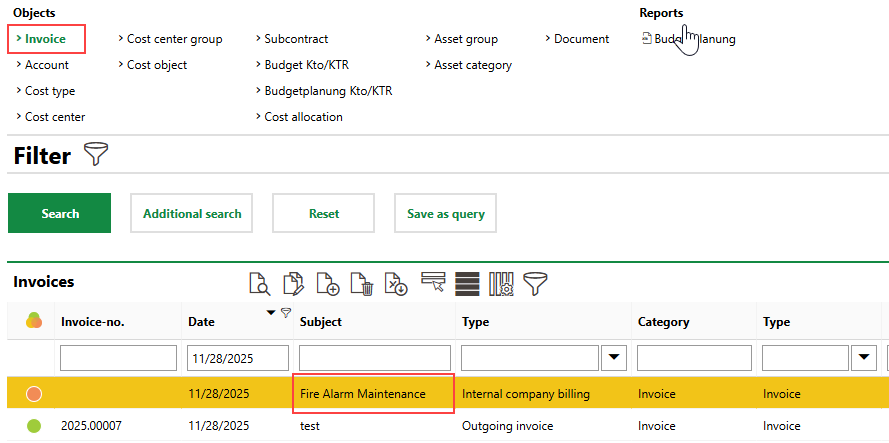
New Invoice Generated by Cost Transfer
In this example, because the employee worked for 3 hours at a rate of 45.00/hour, and an internal invoice was generated, it lists offsetting amounts of the employee's amount earned (3 × 45 = 135.00).
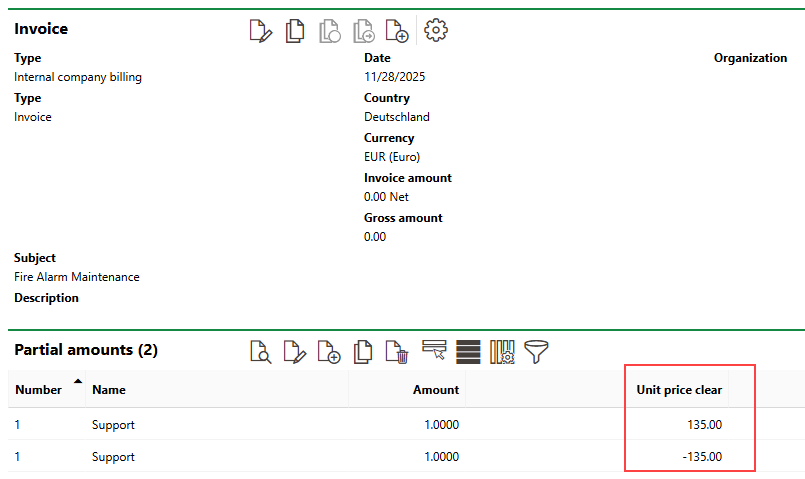
Internal Invoice
The time recording entries will remain on the Cost Transfer page until the resulting invoice is processed (i.e., checked or printed). You cannot create another invoice using these time recordings.
Refer to Manage Invoices for more information.
