A budget pool with cost centers requires you to add a separate budget pool entity to the database and then select multiple shared budgets (amounts shared between an account and a cost center) to it. The sum of the shared budgets added to the budget pool is available to cover costs whose invoices invoke any of the selected account-cost center pairings. Refer to the sections below for instructions on how to set up a budget pool that uses cost centers.
Enable Budget Pooling
To create a budget pool with cost centers, enable the Covered Bond setting in the Costs and Budget product settings (Administration > Settings > Product Settings > Costs and Budget).
Because this type of budget pool requires you to create shared budgets between accounts and cost centers, the Budgeting by account/cost center (if unselected, by account/cost object) setting should also be enabled.
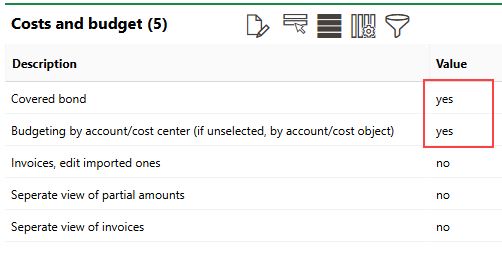
Required Product Settings for Budget Pooling with Cost Centers
You cannot change the Covered Bond setting from Yes to No if there is a budget pool that uses cost centers in the database.
If you do not have permission to change product settings, contact an administrator.
Create Shared Budgets
To create a budget pool with cost centers, you must already have created shared budgets between accounts and cost centers. A shared budget is debited when an invoice that invokes an account and a cost center associated with the budget is checked. Refer to Set a Shared Budget for detailed instructions.
You can see all shared budgets you add to VertiGIS FM on the Costs and Budget search page, by selecting Budget by account/cost center under Objects.
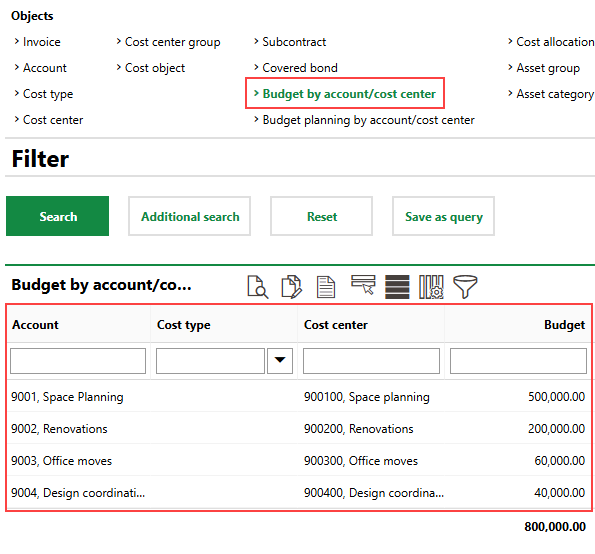
Shared Budgets in VertiGIS FM Database
Create a Budget Pool
When you have enabled budget pooling in the product settings, add a budget pool to the system. This procedure is unique to budget pools with cost centers. Budget pools with a cost type do not require you to add a budget pool to the system.
To Create a Budget Pool
1.Navigate to the Costs and Budget search page.
2.Under Objects, click Covered Bond.
If you do not see Covered Bond in the Objects section, edit the section authorization to show it.
3.Click the Add ( ) icon.
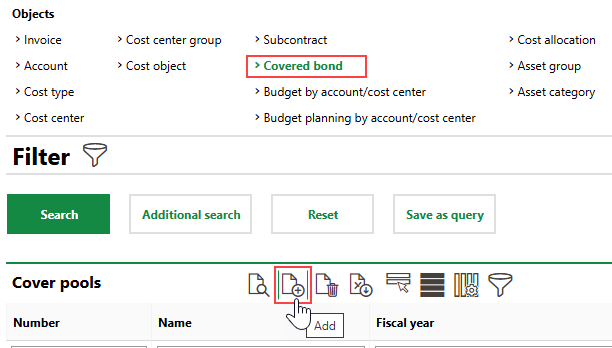
4.Enter the budget pool's core properties in the corresponding fields. Refer to Budget Pool Properties.
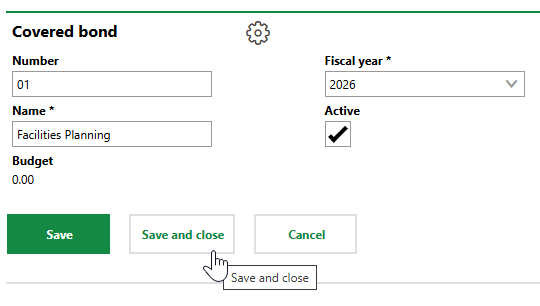
5.Click Save and Close.
Field |
Description |
|---|---|
Number |
A number to sort and identify the budget pool. |
Fiscal year |
The fiscal year associated with the budget pool. You can select any year saved in the VertiGIS FM administration. |
Name |
The name of the budget pool. |
Active |
Whether the budget pool is currently in use. |
Budget |
The budget pool's budget. When you create the budget pool, this field indicates 0.00. This field reflects the sum of the budgets set for account-cost center pairings (shared budgets) added to the budget pool. |
Add Shared Budgets to the Budget Pool
If the shared budgets you want to add to the budget pool are present in the VertiGIS FM database and you have created the budget pool, add the shared budgets to the budget pool. The sum of the shared budgets you add to the budget pool will be the budget pool's amount, available to cover costs associated with any invoices that invoke one of the account-cost center pairings.
To Add Shared Budgets to the Budget Pool
1.Navigate to the details page for the budget pool you created.
2.Click the Edit ( ) icon in the Budget by account/cost center section.
3.Select the check boxes next to the shared budgets you want to add to the budget pool.
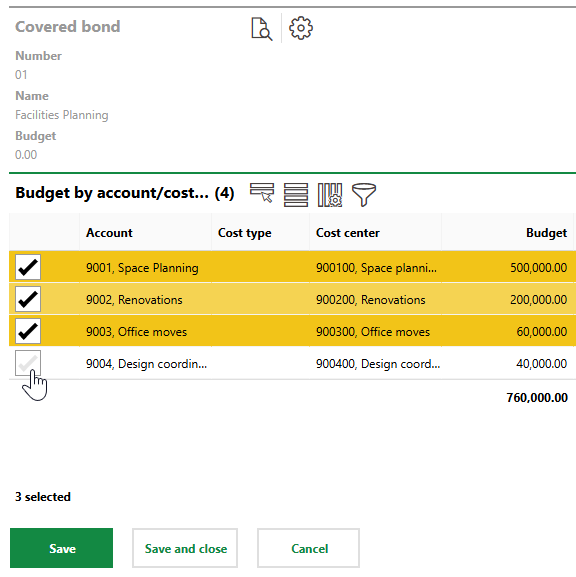
4.Click Save and Close.
The Budget by account/cost center section now indicates the shared budgets in the budget pool. The Budget and Remaining Budget columns indicate the initial and remaining funds in the budget pool.
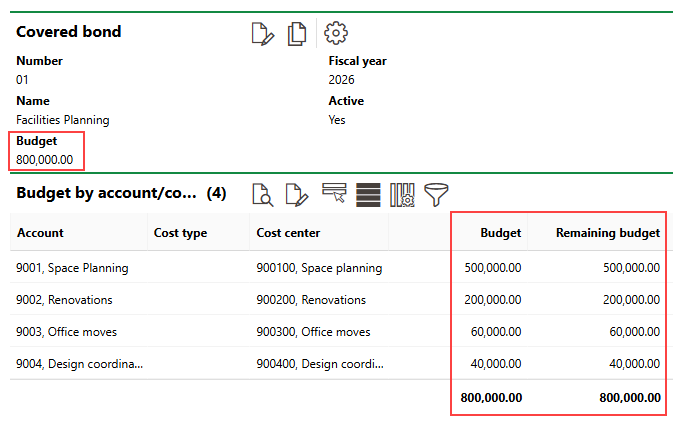
Budget Amounts
Process Invoices
The budget pool is debited or credited as you check invoices associated with one of the account-cost center pairings in the budget pool.
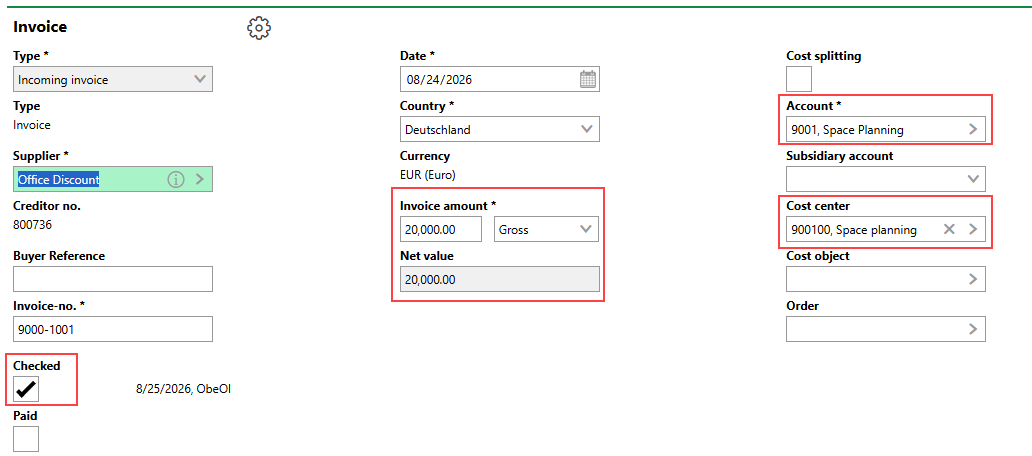
Invoice Invoking a Shared Budget
When you check the invoice, the Budget by account/cost center section indicates that the shared budget for account 90001 and cost center 900100 (Space Planning) has been debited $20,000. Accordingly, the budget pool's total remaining budget decreases from $800,000 (its full amount) to $780,000.
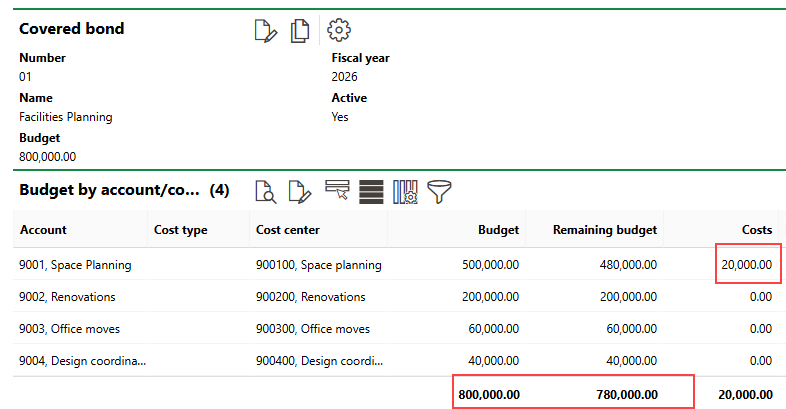
Budget Pool with Checked Invoice
The invoice also appears in the Costs/Revenues section on the budget details page for the account and cost center associated with the shared budget.
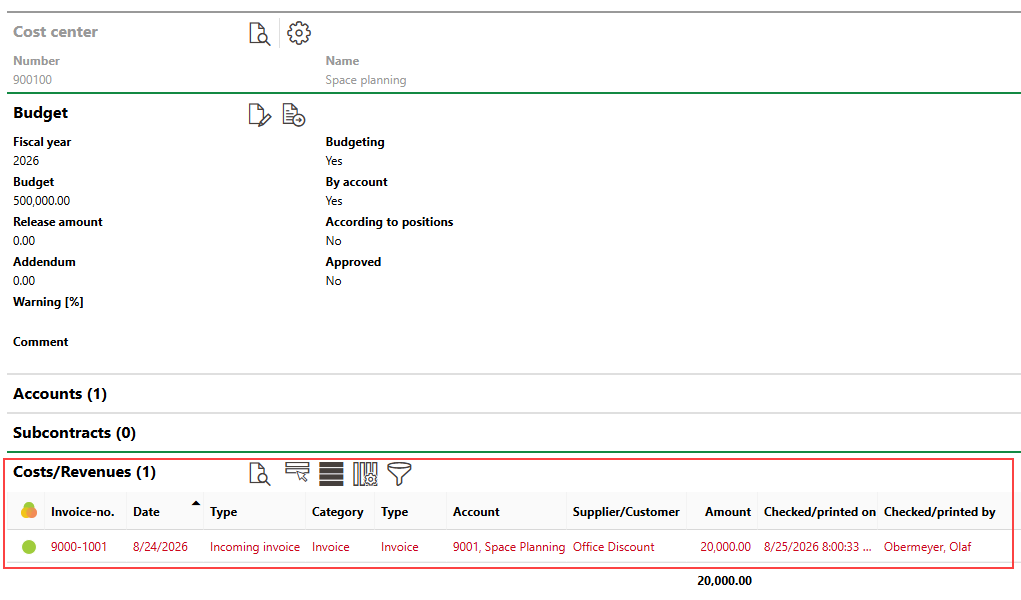
Details Page for Cost Center in Shared Budget
Only checked invoices that invoke an account and the cost center associated with the same budget affect the budget pool. If the invoice invokes an account or a cost center in a shared budget in the pool, or if it invokes an account from one shared budget in the pool and a cost center from another, the budgets associated with the individual account or cost center are affected.