The Remove Meter workflow allows you to quickly remove a meter from a metering point using the VertiGIS FM Energy app. Unlike the Replace Meter workflow, it does not require you to assign a different meter to the metering point.
Remove a Meter from a Metering Point
To remove a meter from a metering point, simply select any meter with a metering point assignment in VertiGIS FM.
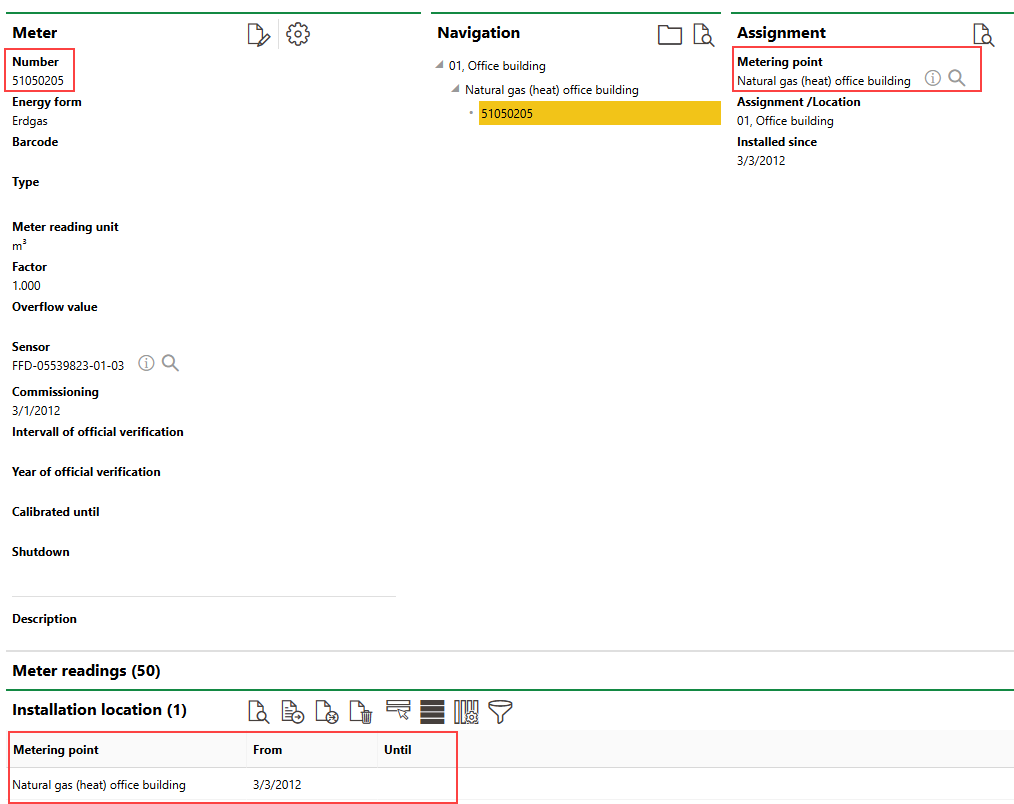
Meter Assigned to Metering Point
For example, the app can be used to remove meter 51050205 from metering point "Natural gas (heat) office building".
To Remove a Meter from a Metering Point
1.Open the VertiGIS FM Energy app and swipe to the Remove Meter widget on the dashboard.
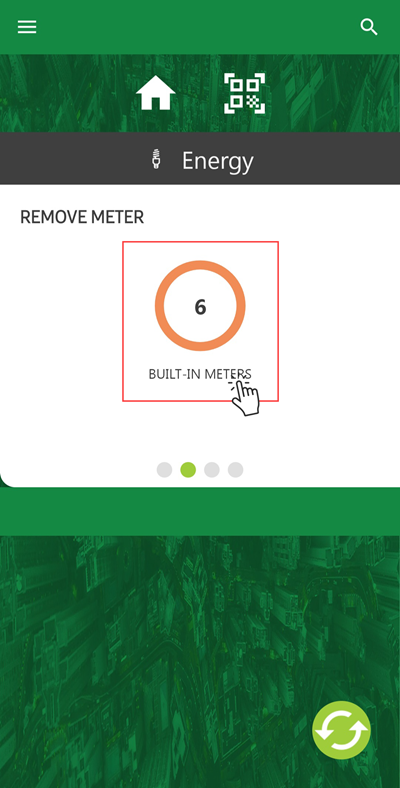
2.Tap the widget that indicates the number of meters assigned to metering points.
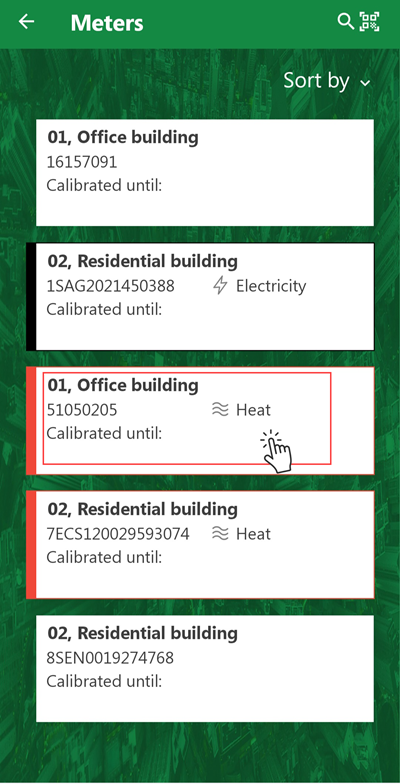
3.Tap the meter you want to remove from its assigned metering point.
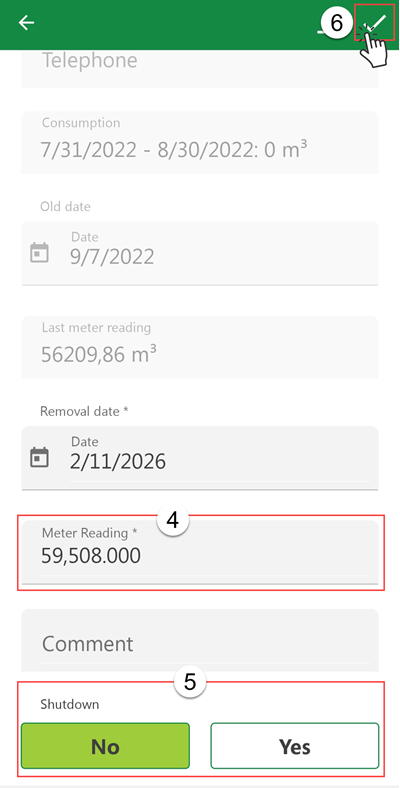
4.Tap in the Meter Reading text box and enter the current meter reading for the meter you are removing from the metering point.
By default, the app selects today's date as the date the meter reading is being recorded. You can tap in the Date field and use the date picker to record a different date for the meter reading.
5.Under Shutdown,
▪tap Yes if you want to decommission the meter being removed, or
▪tap No if you want the meter to remain active so that it can be assigned to other metering points.
6.Tap the check mark icon in the top-right corner.
Click the Exit icon if you want to save the meter reading data but remove the meter from the metering point later. Refer to Save Changes During Removal.
When your device is connected to the Internet, you can synchronize the app. VertiGIS FM reflects that meter 51050205 is no longer assigned to metering point "Natural gas (heat) office building", and that the assignment ended on the date you synchronized the app and the database following the removal.
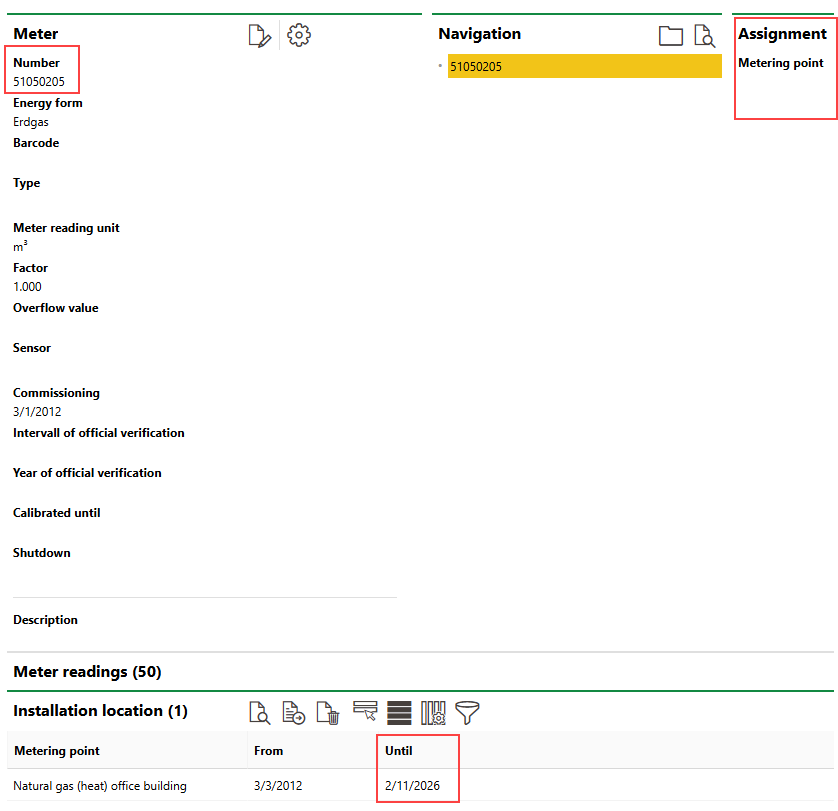
Meter Removed from Metering Point in VertiGIS FM
Save Changes During Meter Removal
If you enter a closing meter reading for the meter assigned to the metering point but need to complete other actions or await confirmation before removing the meter, you can exit the remove meter workflow by tapping the exit icon in the top-right corner.
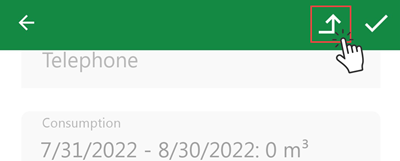
Exit Icon
Tap Save on the prompt that appears if you want to save the inputs you entered in the meter reading form. Tap Discard to discard the data entered in the form.
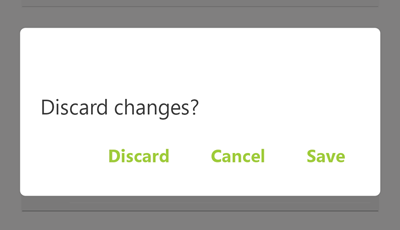
Exit Confirmation Prompt
When you return to the remove meter workflow, a pencil icon indicates which meters have meter reading data already saved.
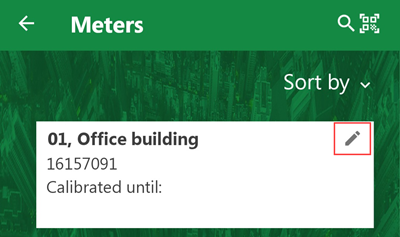
Meter with Saved Data in Meter Reading Form
Saved meter readings you have not submitted is lost when you synchronize the app.