With the Replace Meter workflow, you can use the VertiGIS FM Energy app to easily switch out the meter assigned to a metering point with another meter that has the same Energy Form property as the metering point.
Replace a Meter Assigned to a Metering Point
The VertiGIS FM Energy App can be used to quickly replace which meter is assigned to a metering point for a given energy type.
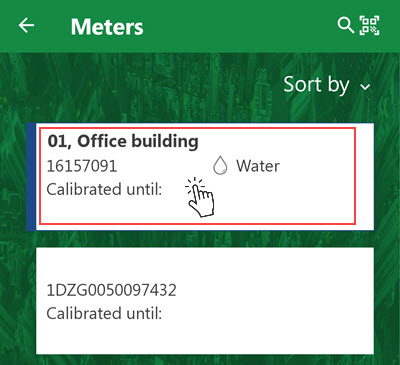
For example, you can replace meter 16157091 with a different meter whose Energy Type property is Water at the metering point Water Office Building.

Meter Assigned to Metering Point
When you complete the replace meter workflow in the app and synchronize the app with the database, VertiGIS FM will reflect the new meter assignment at the metering point.
During this procedure, you must select the meter you want to remove from the metering point and enter a closing meter reading, select a new meter you want to assign to the metering point, and enter an opening meter reading for the newly assigned meter.
To Replace a Meter Assigned to a Metering Point
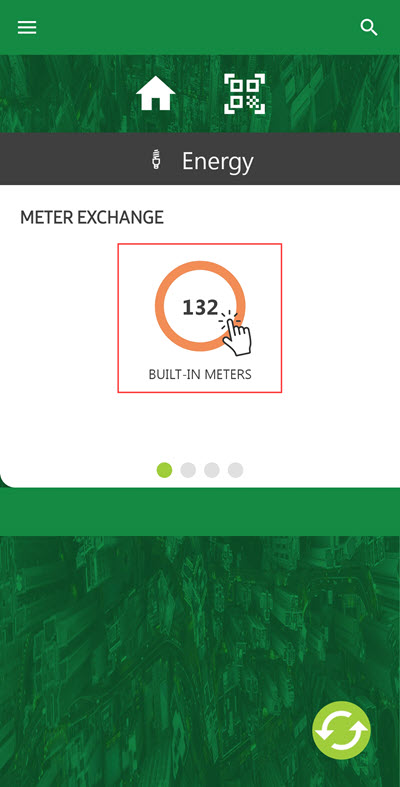
1.Open the VertiGIS FM Energy app and swipe to the Meter Exchange widget on the dashboard.
2.Tap the widget that indicates the number of meters assigned to metering points.
3.Tap the meter you want to replace at the assigned metering point.
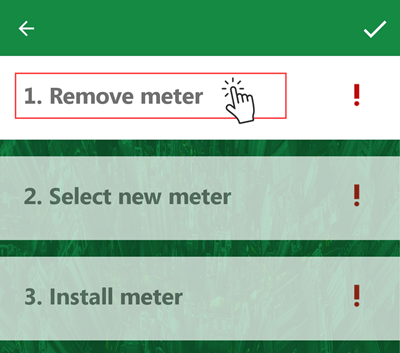
4.Tap Remove Meter.
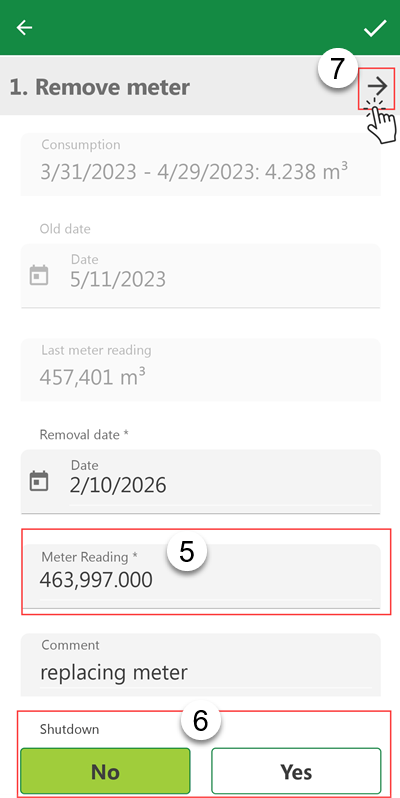
5.Tap in the Meter Reading text box and enter the current meter reading for the meter you are removing from the metering point.
By default, the app selects today's date as the date the meter reading is being recorded. You can tap in the Date field and use the date picker to record a different date for the meter reading.
6.Under Shutdown,
▪tap Yes if you want to decommission the meter being replaced, or
▪tap No if you want the meter to remain active so that it can be assigned to other metering points.
7.Tap the arrow icon in the top-right corner.
8.Under Select Meter, tap the empty text box.
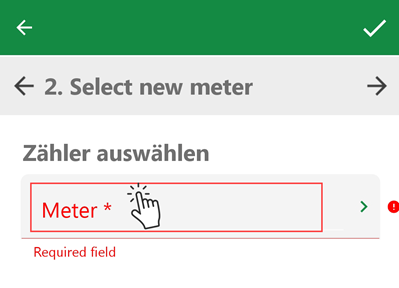
9.Tap the meter you want to assign to the metering point.
You must assign a meter that has the same Energy Form property as the metering point to which you want to assign it.
10.Tap the arrow icon in the top-right corner.
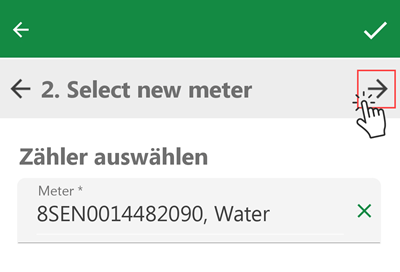
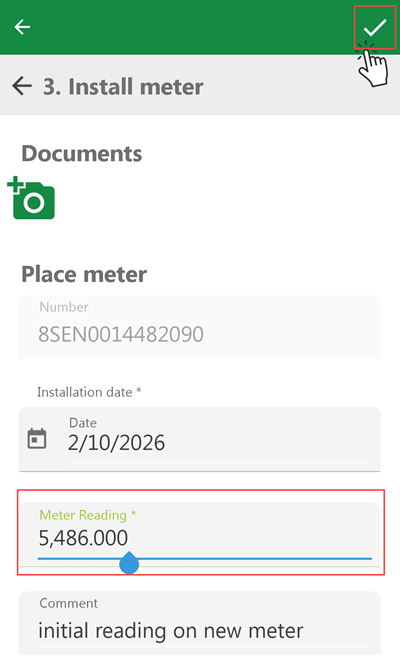
11.Tap in the Meter Reading box and enter the current reading for the meter you are assigning to the metering point.
12.Tap the check mark icon in the top-right corner.
When your device is connected to the Internet, you can synchronize the app. VertiGIS FM reflects that meter 16157091 has been replaced with meter 8SEN0014482090 at metering point Water Office Building.
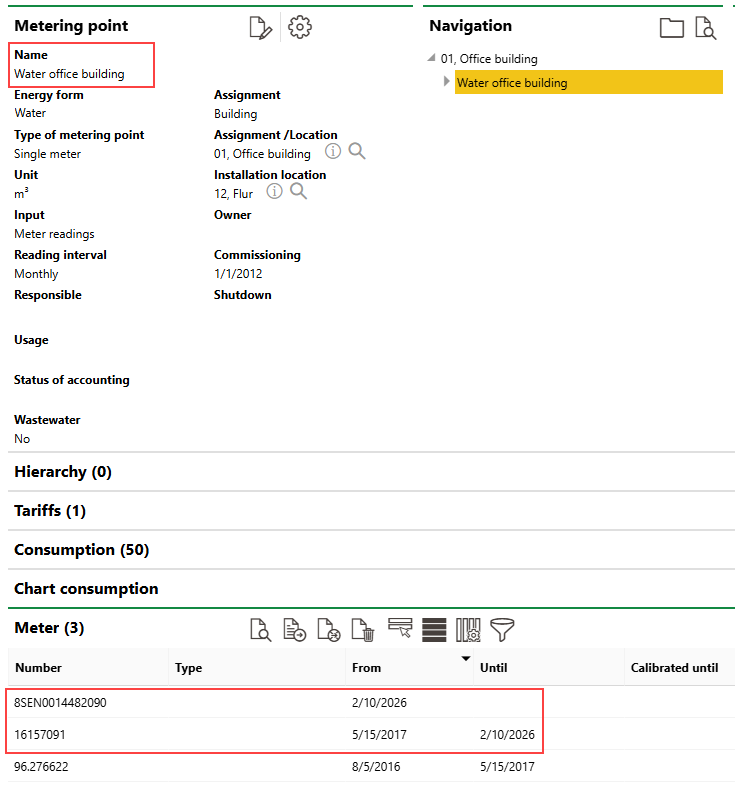
Metering Point with Meter Replaced
On the details page for the meter that you assigned to the metering point, the initial meter reading value for the meter at its new metering point is reflected in the Meter Readings section.
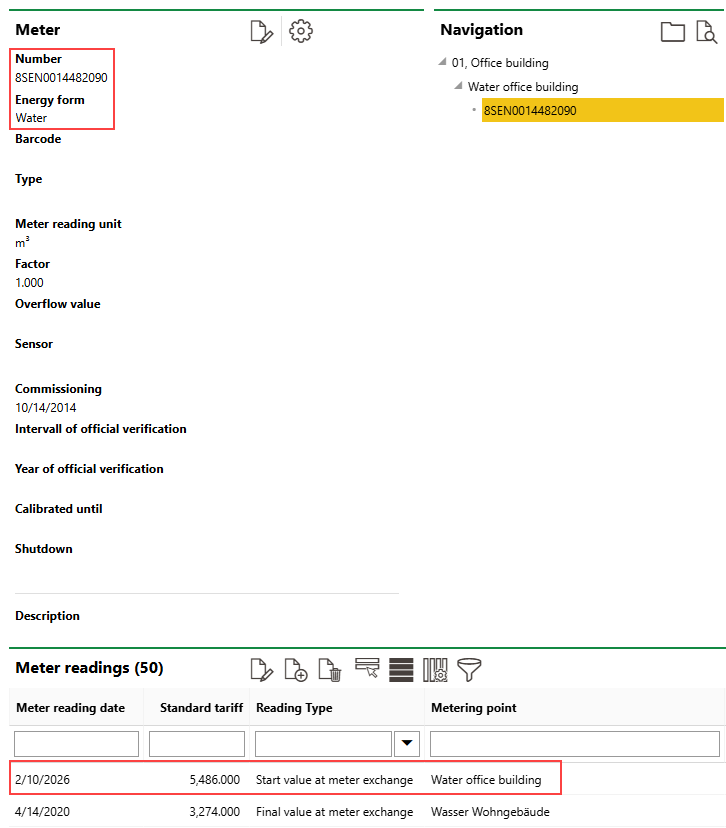
Initial Meter Reading Value for New Meter Assigned to Metering Point