The VertiGIS FM Energy app shows you which meters are missing required meter readings and allows you to quickly record these readings based on the meter's current value.
Required meter readings are determined by the Reading Interval property of the metering point to which the meter is assigned. A meter may need to have a meter reading recorded monthly, quarterly, or annually. Refer to Record Meter Readings and Required Readings for more information.
Record a Missing Meter Reading
The Record Meter Reading workflow allows you to quickly record meter readings for meters whose required reading interval has passed. The meter reading value is entered in the VertiGIS FM database as soon as you synchronize the app.
To Record a Missing Meter Reading
1.Open the VertiGIS FM Energy app and swipe to the Outstanding Meter Reading widget on the dashboard.
2.Tap the Open counter on the widget.
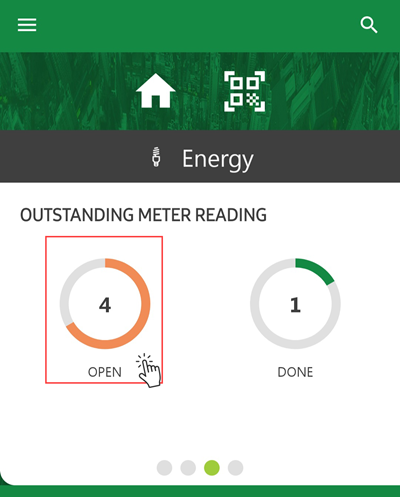
The Open counter indicates the number of missing meter readings. The Done counter indicates the number of meter readings that have been saved in the app but not yet synchronized into the VertiGIS FM database.
3.Tap the meter for which you want to record a meter reading.
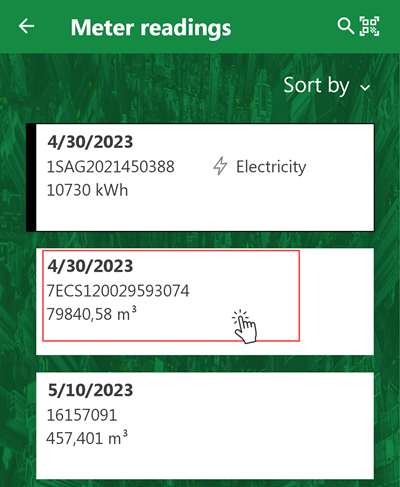
The date above the meter in the meter readings list indicates the last date a reading was recorded for the meter. The value below the meter is the value recorded on that date.
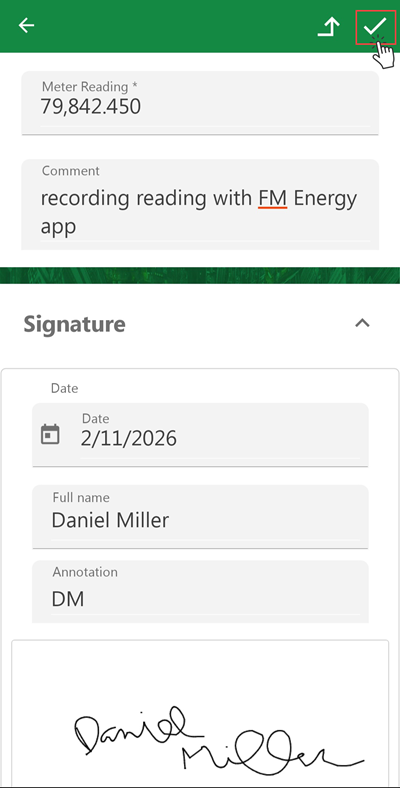
4.Tap in the Meter Reading text box and enter the current meter reading for the meter you are removing from the metering point.
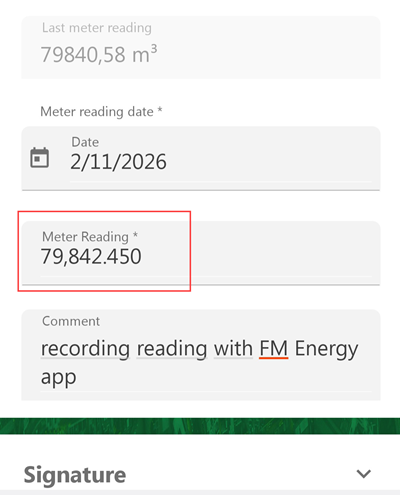
By default, the app selects today's date as the date the meter reading is being recorded. You can tap in the Date field and use the date picker to record a different date for the meter reading.
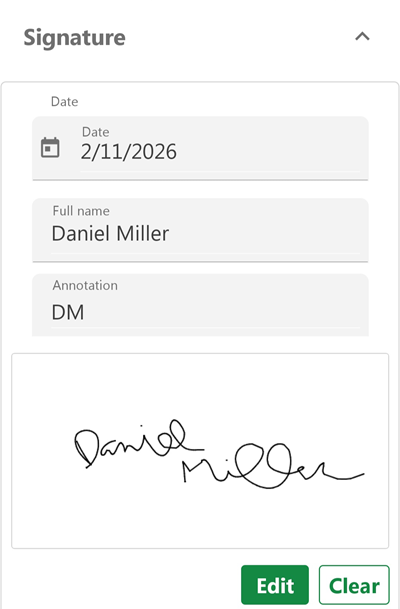
5.Optionally, if you want to personally sign off on the meter reading. scroll down to the Signature section and tap it to expand it.
▪Enter the date, your name, and your initials in the corresponding fields in the Signature form.
▪Tap the box that says Tap to add signature, record your signature on the device's touchscreen, and tap Save.
6.Tap the check mark icon in the top-right corner.
The meter reading for the meter has been recorded, and the counters on the Outstanding Meter Reading dashboard update accordingly. When you complete a meter reading, the Open counter decreases by one, and the Done counter increases by one.
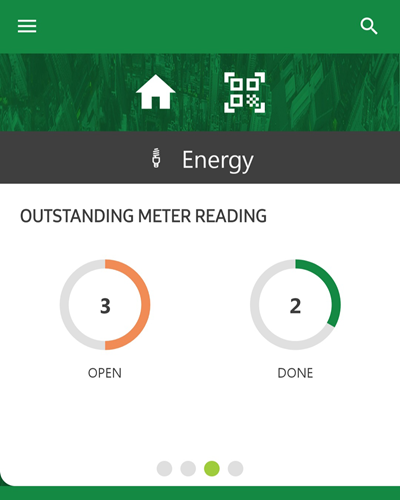
Updated Meter Reading Widgets
Tap the Done counter to see the meter reading you just recorded. Tap the pencil icon on the reading's tile if you want to edit the recorded value.
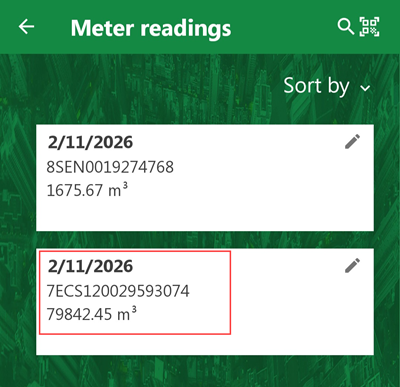
Recorded Meter Reading
When you are ready to submit the meter reading, synchronize the app and the VertiGIS FM database.
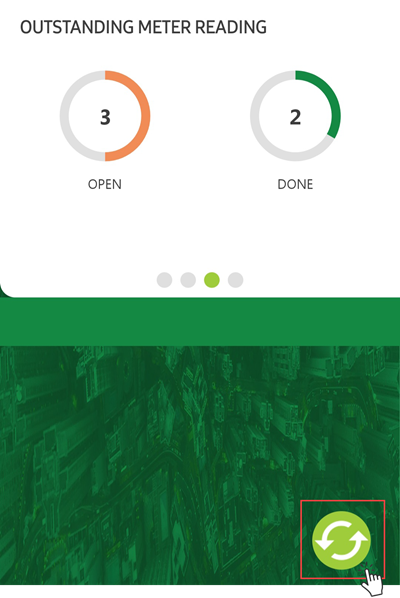
Synchronize Button
The stored meter readings are added to the VertiGIS FM database. You can see the meter readings in the Meter Readings section on the details page for the associated meter.
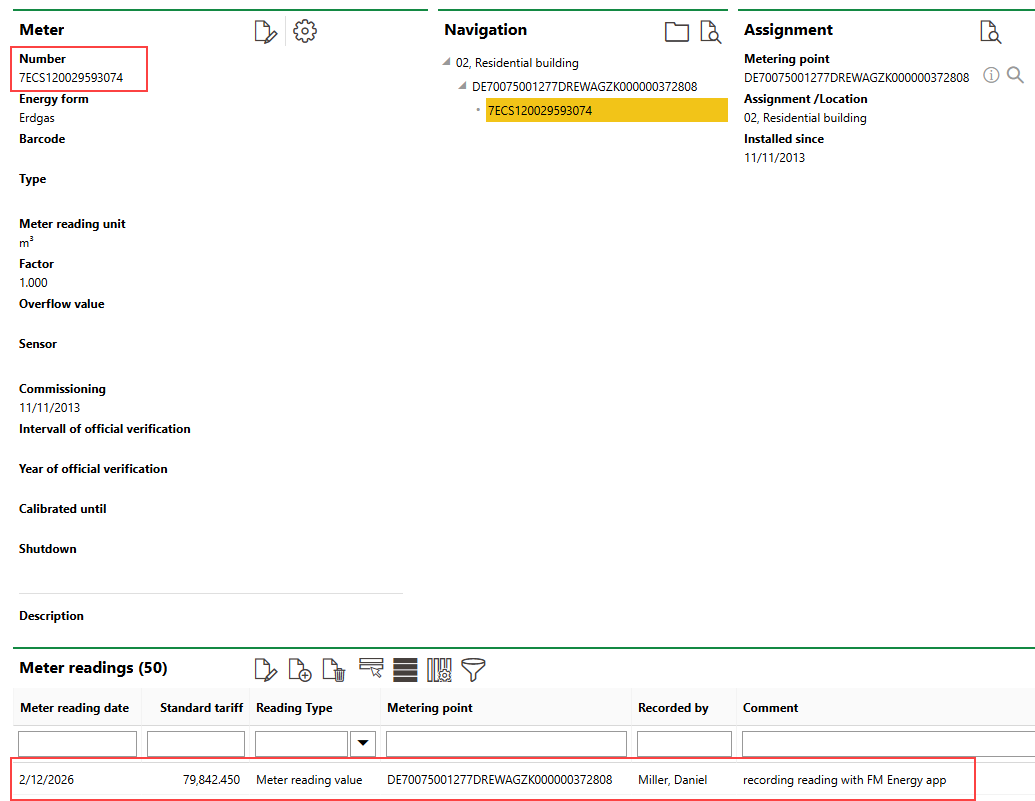
Meter Reading Recorded in VertiGIS FM Energy App Shown on Meter's Details Page in VertiGIS FM
Double-click the reading's entry in the Meter Readings section to see more meter reading details, including the signature you entered.
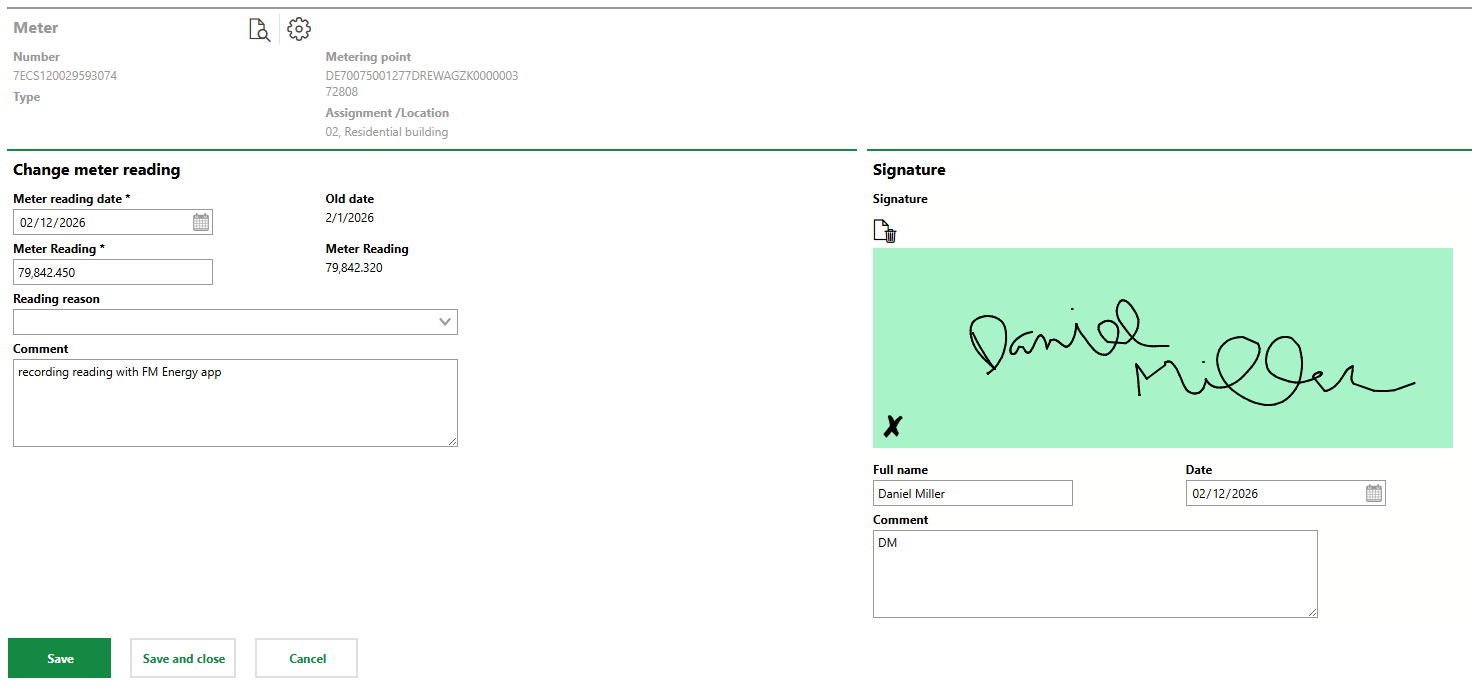
Recorded Meter Reading Details
When the synchronization completes, the Done counter on the Outstanding Meter Reading dashboard widget resets to 0.
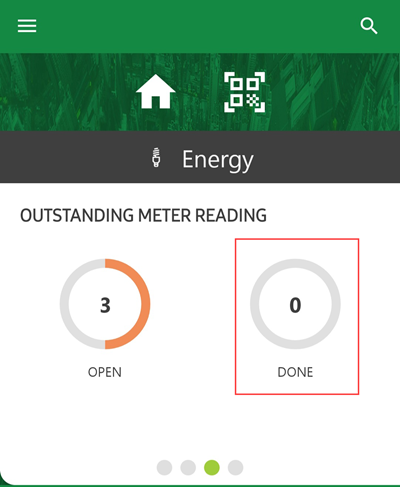
Reset Done Counter on Dashboard Widget for Outstanding Meter Readings