You can record a meter reading for any active meter in the system, including meters that are not missing required meter readings, in the VertiGIS FM Energy app. To record meter readings using a workflow that only highlights meters missing required readings, refer to Record an Outstanding Meter Reading.
Alternatively, you can add a meter reading for a meter in the VertiGIS FM Energy app by tapping the + button when viewing a meter's readings.
Record a Meter Reading for Any Meter
You can record a meter reading for any active meter in the system by swiping to the Meters widget on the dashboard.
To Record a Meter Reading for Any Meter
1.Open the VertiGIS FM Energy app and swipe to the Meters widget on the dashboard.
2.Tap the Open counter on the widget.
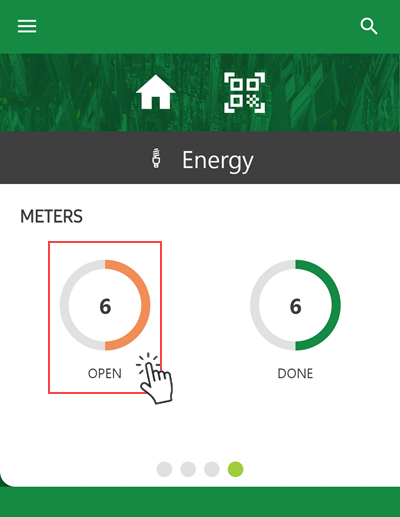
The Open counter indicates the number of meters assigned to active metering points in the system. The Done counter indicates the number of meters that were previously assigned to a metering point but have been removed or replaced.
3.Tap the meter for which you want to record a meter reading.
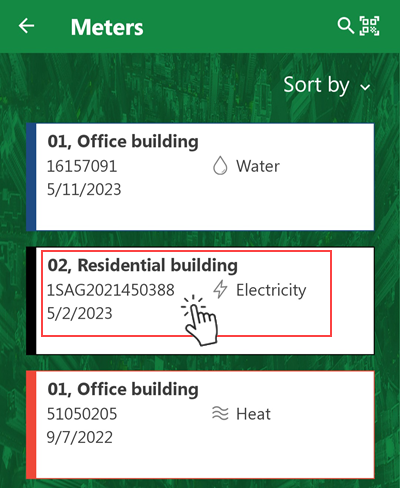
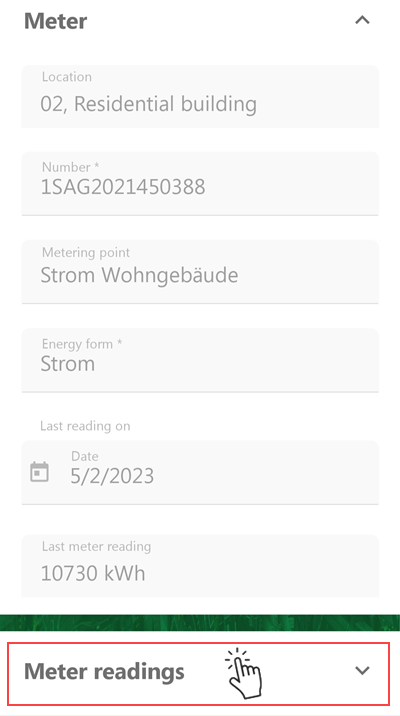
4.Swipe to the bottom of the form and expand the Meter Readings section.
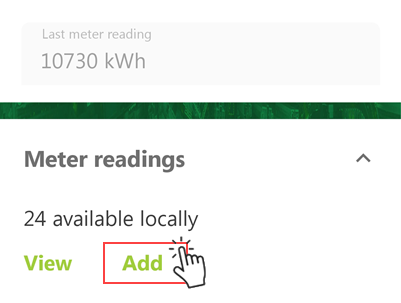
5.Tap Add.
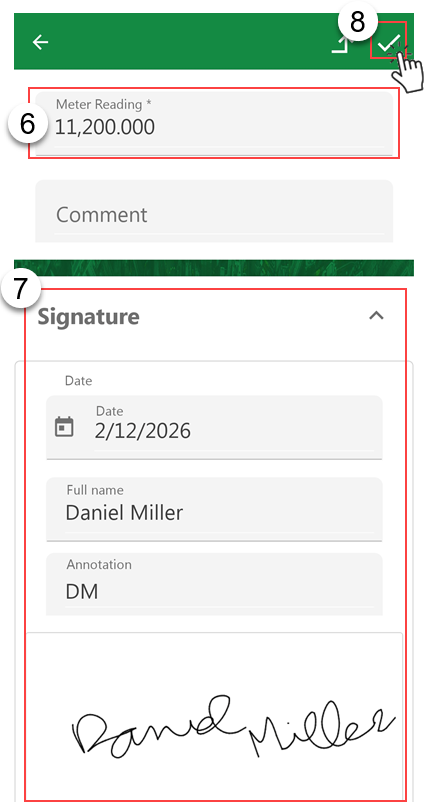
6.Tap in the Meter Reading text box and enter the current meter reading for the meter you are removing from the metering point.
7.Optionally, if you want to personally sign off on the meter reading. scroll down to the Signature section and tap it to expand it.
▪Tap the date, your name, and your initials in the corresponding fields in the Signature form.
▪Tap the box that says Tap to add signature, record your signature on the device's touchscreen, and tap Save.
8.Tap the check mark icon in the top-right corner.
After you submit the meter reading, you can synchronize the app when your device is connected to the Internet.
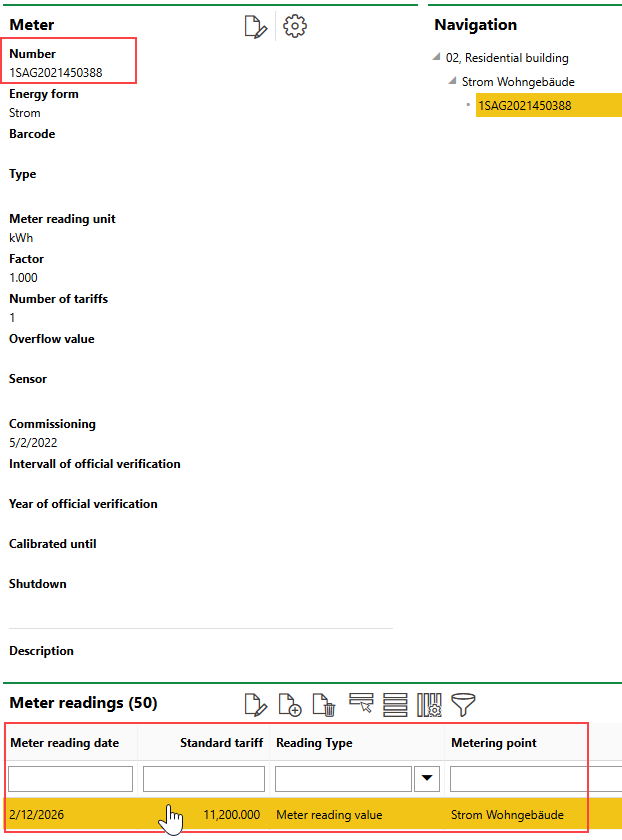
Any Meter Reading
Because VertiGIS FM only allows you to record one reading per meter every day, the app will remove the meter whose meter reading you submitted from the Open tab after you synchronize the app.
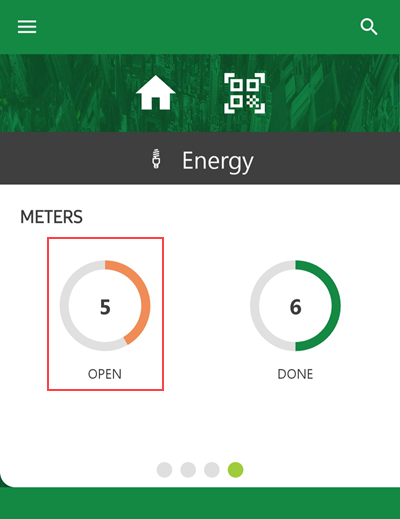
Decreased Open Meter Counter
Save and Exit
If you enter a meter reading for a meter but need to complete other actions or await confirmation before submitting the meter reading, you can exit the workflow by clicking the exit icon in the top-right corner.
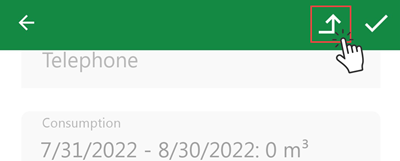
Exit Icon
Tap Save on the prompt that appears if you want to save the inputs you entered in the meter reading form. Tap Discard to discard the data entered in the form.
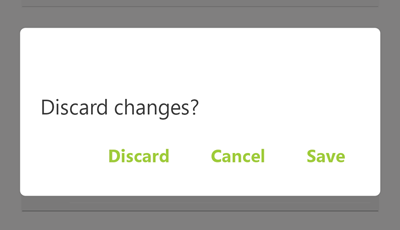
Exit Confirmation Prompt
When you return to the workflow by tapping the Open counter on the dashboard widget, a pencil icon indicates which meters have meter reading data already saved.
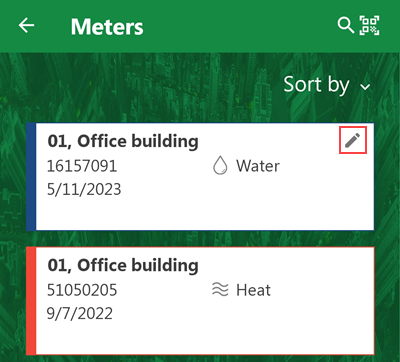
Meter with Saved Data in Meter Reading Form
Saved meter readings you have not submitted are lost when you synchronize the app.