Before you can conduct counts of your inventory, you must plan the stocktaking. This involves specifying the range of building locations whose inventory must be counted, the specific inventory versions and device versions whose individual assets must be counted, and the date the stocktake will occur.
Plan a Stocktake
You can plan a stocktake to be completed in the future using the workflow available on the Inventory Management legacy dashboard.
You cannot plan a stocktake for a building location that already has an active stocktake. You must complete the existing stocktake before you can plan a new stocktake for a building that already has an active stocktake, or for a room in a building that has an active stocktake.
To Plan a Stocktake
1.Navigate to the Inventory Management legacy dashboard.
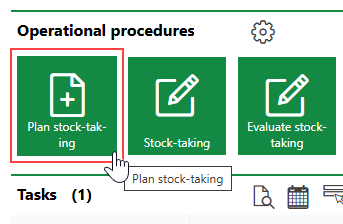
2.Under Operational Procedures, click Plan Stocktake.
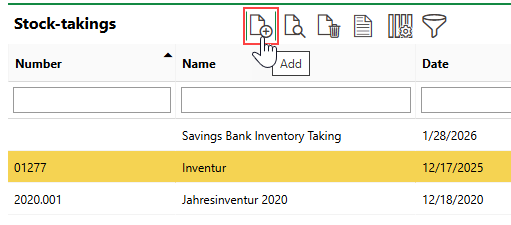
3.Click the Add ( ) icon.
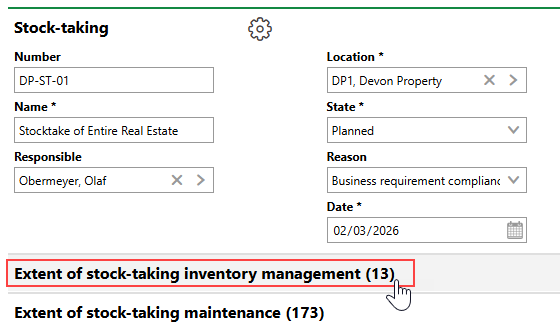
4.Enter the stocktake details in the corresponding form fields. Refer to Stocktake Details for field descriptions.
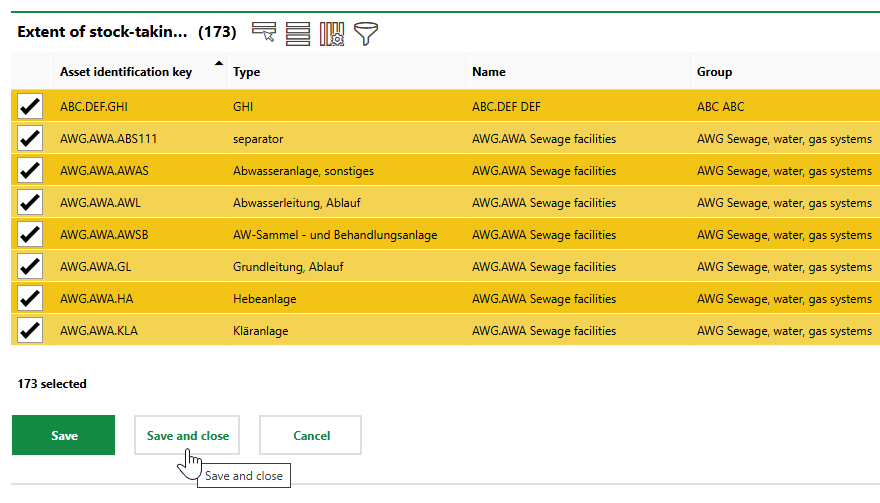
5.Expand the Extent of stock-taking inventory management tab.
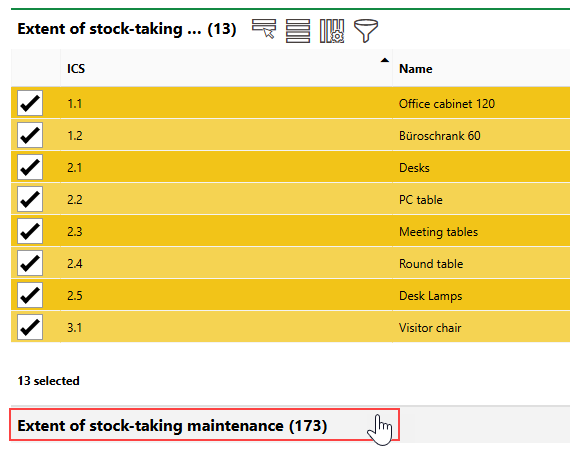
6.In the Extent of stock-taking inventory management tab, select the inventory versions whose inventory items you want to include in the stocktake. Inventory items in the building location selected in the Location field that belong to the selected versions must be counted in the stocktake. If you want the employee who conducts the stocktake to count all inventory items in the location regardless of their version, leave all the check boxes in this section selected.
7.Expand the Extent of stock-taking maintenance tab.
8.In the Extent of stock-taking maintenance tab, select the device versions whose devices you want to include in the stocktake. Devices in the building location selected in the Location field that belong to the selected versions must be counted in the stocktake. If you want the employee who conducts the stocktake to count all devices in the location regardless of their version, leave all the check boxes in this section selected.
9.Click Save or Save and Close.
The new planned stocktake appears in the table on the Plan Stocktakings page.
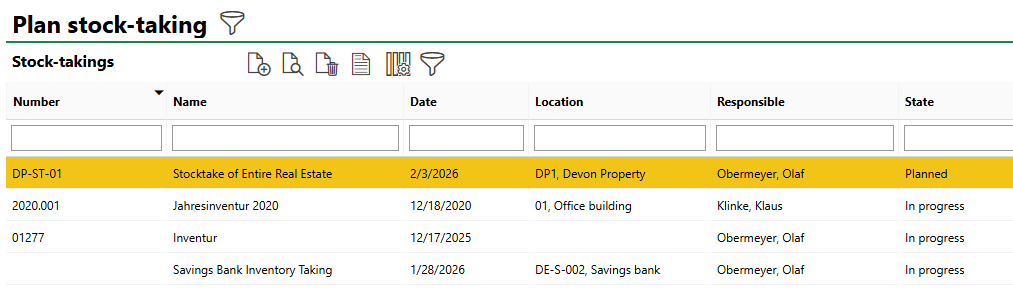
New Planned Stocktake
Field |
Description |
|---|---|
Number |
A unique identifying code for the stocktake. |
Name |
A name for the stocktake (for example, "Commercial Building Inventory Count"). |
Responsible |
The employee, contact, or team responsible for the stocktake. Must be selected from an entry created in VertiGIS FM Contact Management. You can only select users assigned user roles that have the "Start Taking All Inventories" permission enabled. |
Location |
The real estate, building, floor, or room whose inventory is being counted. Stocktakes in VertiGIS FM require you to count the inventory in the building locations below the selected location in the Building Hierarchy. For example, •stocktakes planned for a building require employees to count inventory located directly in the selected building, inventory located directly on all the floors inside the building, and inventory located in all the rooms on all the floors in the building. •stocktakes planned for a floor require employees to count inventory located directly on the selected floor and inventory located in all the rooms on the floor. •stocktakes planned for a room require employees to count inventory located in the selected room. |
State |
The current state of the stocktake. Stocktakes can be •Planned, •In Progress, or •Completed. |
Reason |
The reason the stocktake has been scheduled. Selectable options are saved in the Reason (Inventory) catalog. |
Date |
The date the stocktake is scheduled to occur. |