All stocktakes whose status is Planned or In Progress appear on the Conduct Stocktakes page, which you can access by clicking Stock-taking under Operational Procedures on the Inventory Management legacy start page.
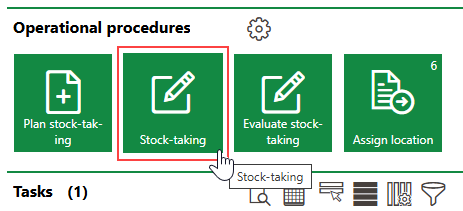
Link to Execute Stocktakes Page
You can execute the stocktake for any of the Planned or In Progress stocktakes in the table.
Stocktake Methods
You can conduct stocktakes using either of two methods: by scanning the barcodes of items in the specified location, or by visually identifying each item and documenting it as counted in VertiGIS FM.
Barcode Scanning
Inventory items and devices can be identified according to the Barcode value in the asset's core properties.
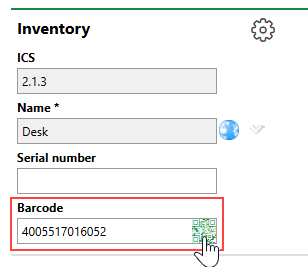
Barcode Property in Inventory Item Details
Using the Inventory Management Mobile App, you can count items by scanning the barcodes of any items in a given building, floor, or room. VertiGIS FM updates the location of each inventory item based on the building location in which you scan it. If a barcode is not scanned during the stocktake of its associated building location, the system documents it as missing.
VertiGIS FM recommends using the barcode scanning method to conduct stocktakes. Barcode scanners ensure each item in the system has an exact match with the assets in your system, and save employees considerable amounts of time by not requiring to manually inspect each asset for a numerical identifier.
Supported Barcode Types
Barcode scanning in the VertiGIS FM Inventory Management module supports the following barcode types:
•UPC-A, UPC-E
•EAN-8, EAN-13
•Code 39, Code 93, Code 128
•ITF
•Codabar
•MSI
•RSS-14
•QR code
•Data Matrix
•Aztec
•PDF-417
Item Selection
If you do not have the Inventory Management Mobile Application, you can visually confirm inventory counts and document them during the stocktake.
A list of inventory items and devices that have a location (real estate, building, floor, or room) selected in their Location property is available for each building location inspected during a stocktake.
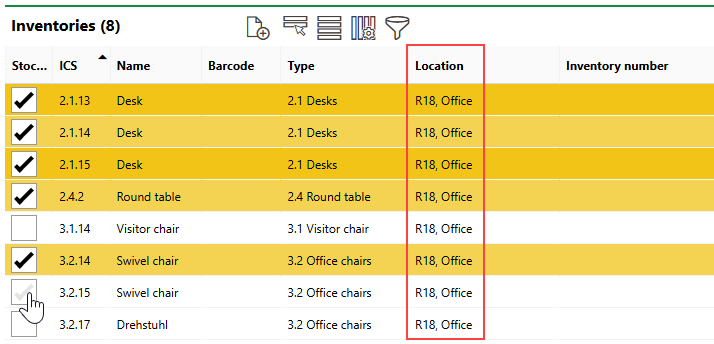
Manual Item Selection During Stocktake
Conduct a Stocktake
In VertiGIS FM, stocktakes for a location must be conducted according to the location's building hierarchy. You must complete stocktakes for locations in the hierarchy in ascending order (subordinate levels before their superior nodes). For example, when conducting a stocktake that has a floor selected in its Location field, you must complete the stocktake of the inventory in all of the rooms on the floor before you can complete the stocktake of the inventory directly on the floor.
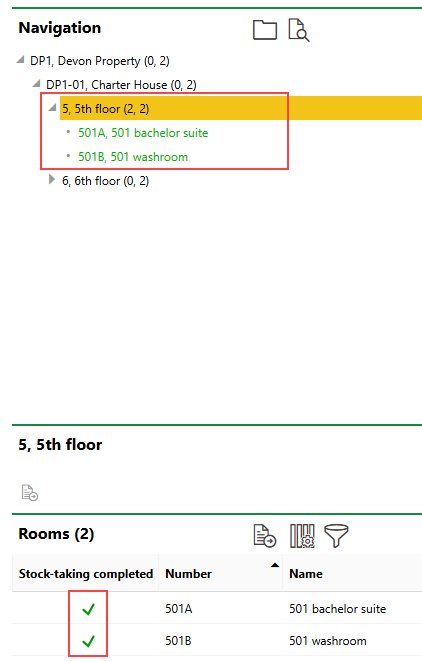
Stocktaking Page for Floor Showing Completed Stocktakes for Subordinate Rooms
You must complete a stocktake for all subordinate levels of the building hierarchy, even if it does not have any inventory associated directly with the location.
The procedure below outlines how to execute a stocktake scheduled for a real estate. This requires the employee to inspect all of the inventory on the real estate, as well as inventory located in buildings on the real estate, on floors in the building, and in rooms on the floors. The screens shown in the procedure below differ if the stocktake is created for a lower level in the building hierarchy. For example, a stocktake scheduled for a floor does not require the employee to conduct stocktakes for the building and real estate above it in its hierarchy.
The procedure shows how to conduct a stocktake using manual item selection. For instructions on how to conduct stocktakes using the barcode scanner, refer to Inventory Management Mobile Application (documentation available soon).
To Execute a Stocktake
1.On the Inventory Management legacy start page, under Operational Procedures, click Stocktake.
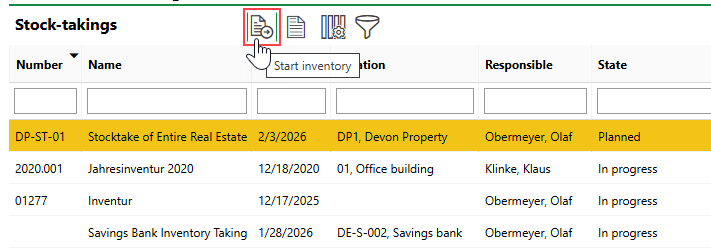
2.Select the stocktake you want to execute and click the Start Inventory ( ) icon
3.In the Navigation section, click all the available  icons to expand the entire building hierarchy.
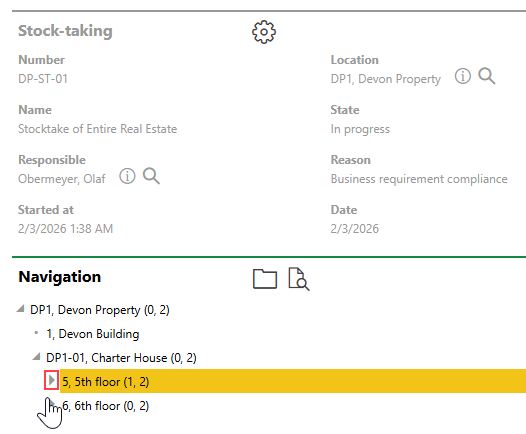
The first number in brackets next to the location indicates how many subordinate building locations are within the superior location (for example, how many rooms on a floor). The second number indicates how many of these subordinate locations have had their stocktake completed.
4.Double-click an instance of the lowest level in the building hierarchy of the location selected in the stocktake's Location field.
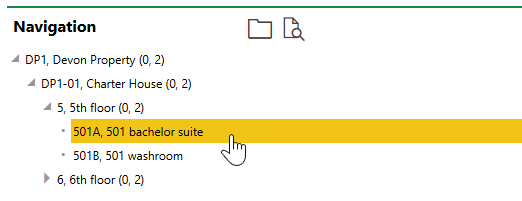
The lowest level in a building hierarchy is normally a room, unless the building's floors have no rooms.
VertiGIS FM prevents you from recording a location in the building hierarchy as complete if there are locations below it in the building hierarchy whose inventory has not yet been counted.
5.Under the Number and Name properties for the building hierarchy level, click the Start Inventory () icon.
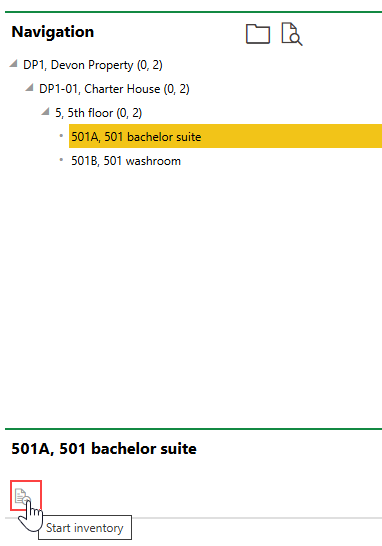
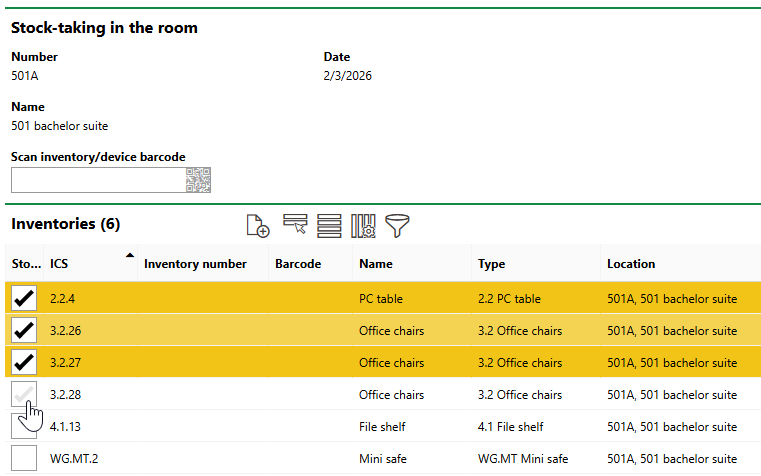
6.In the Inventory section, select the check box for each inventory item you count as present in the location.
7.In the Devices section, select the check box for each device you count as present in the location.
8.Click Complete Location.
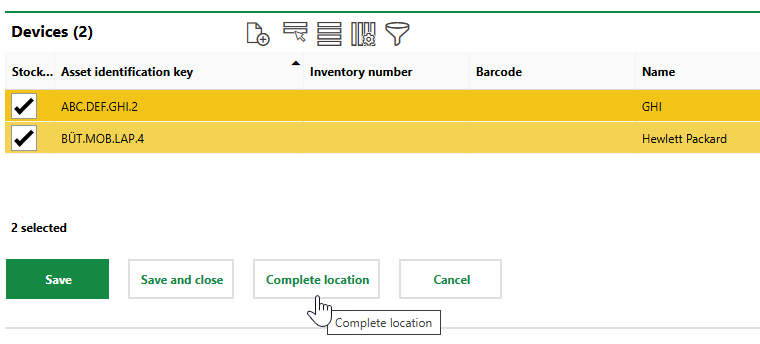
You can click Save or Save and Close if you want to save the selected inventory items and devices as counted but need to return to the location later.
If any inventory items or devices in the lists are not selected, VertiGIS FM presents a confirmation message confirming that you want to remove the unselected inventory from the location. If you click OK, VertiGIS FM will remove the location from the item's Location field.
If the stocktake's status is Planned, the system updates it to In Progress the first time you click Save, Save and Close, or Complete Location.
9.Double-click the other instances of the same building hierarchy level as the one you just completed (in this example, the other rooms on the floor) and repeat steps 5-8 for each instance of the building hierarchy level.
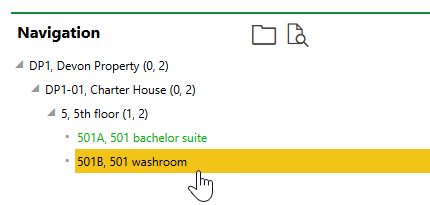
Locations whose stocktake is complete appear in green in the Navigation tree.
10.When you have completed the stocktake for all instances of the subordinate building hierarchy nodes (i.e., for all rooms on the floor), double-click the node above it in the hierarchy (the floor).
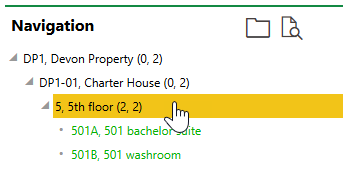
11.Repeat steps 5-8 for this node.
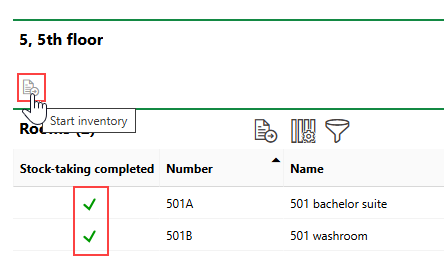
12. Repeat steps 4-11 for other instances of the same levels of the building hierarchy as the ones you just completed (the rooms and floors).
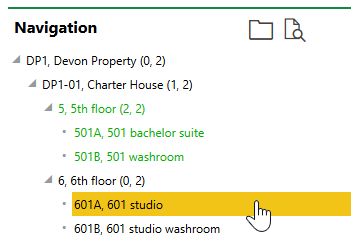
13.When you have completed the stocktake for the lowest level in the hierarchy and its superior nodes, double-click the level above the superior node (in this example, the building).
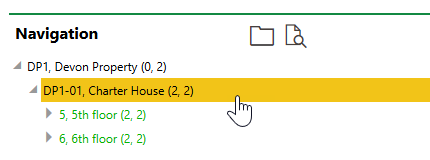
14.Repeat steps 5-8 for this level.
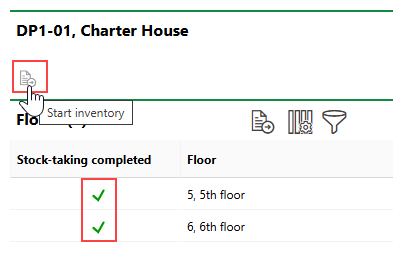
15.Continue this pattern until you have conducted stocktakes of all subordinate locations in the building hierarchy.
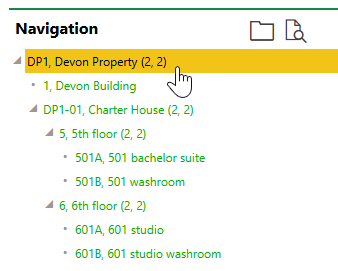
16.Repeat steps 5-8 for the highest level in the building hierarchy.
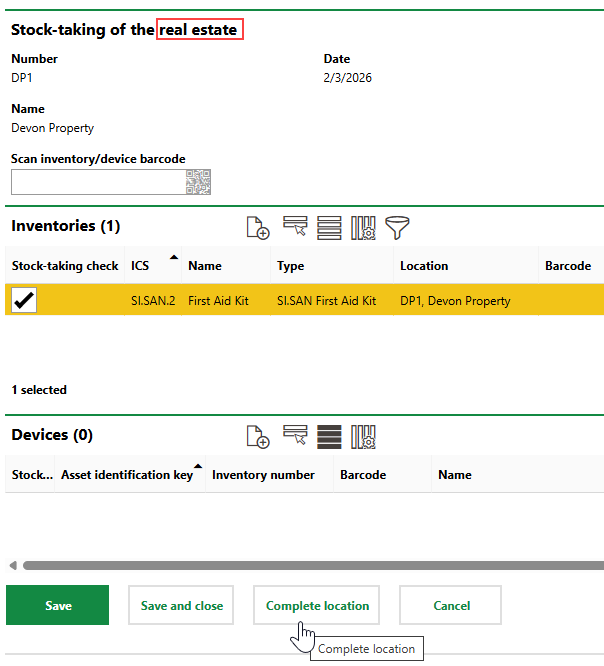
The highest level of a building hierarchy that requires a stocktake is the location selected in the Location field in the stocktake's properties.
When you have completed the stocktake for every area of the building location targeted by the stocktake, you can review and complete the stocktake.
Add New Entrants
You can scan barcodes on inventory items and devices that do not exist in your system. VertiGIS FM will record the location in which you scanned the barcode and allow you to sort the asset into the Inventory Management Structure (inventory items) or Device and Systems Structure (devices) when you review the stocktake.
If you are not using a barcode scanner, you can also add new assets manually during a stocktake by clicking the Add ( ) icon in the Inventories or Devices sections.
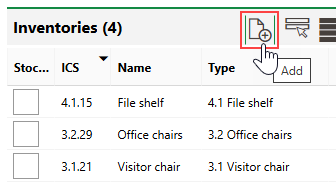
Adding a New Entrant
When you add the new inventory item or device, you can click the Type menu to select an inventory or device version into which you want to sort the new asset. Alternatively, you can simply click Save on the form to add the new entrant without selecting a version or entering any properties. The employee who reviews the stocktake later can sort the new entrant into a version in the Inventory Management Structure or Device and Systems Structure.