When you have conducted a stocktake of the targeted location, as well as the locations beneath it in the building hierarchy, you can review the stocktake and record it as complete.
You can review and complete stocktakes on the Stocktake Evaluation page, which you can access under Operational Procedures on the Inventory Management dashboard.
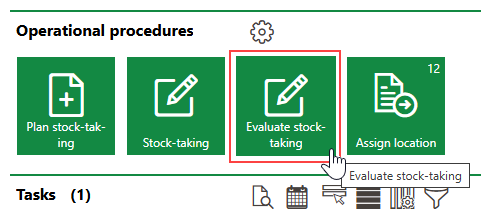
Link to Stocktake Evaluation Page
Complete a Stocktake
To complete a stocktake is to review the scanned or counted inventory and to change its status to Complete. The system prevents you from recording a stocktake as complete if you have not finished conducting the stocktake.
To Complete a Stocktake
1.Navigate to the Inventory Management dashboard.
2.Under Operational Procedures, click Evaluate Stocktaking.
3.Select the stocktake you want to review and click the Evaluate Stocktaking ( ) icon.
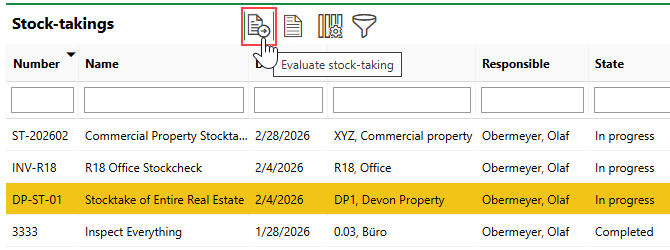
4.Review the data in each of the sections on the Stocktake Review page. Refer to Stocktake Review Page for information about the contents of each section.
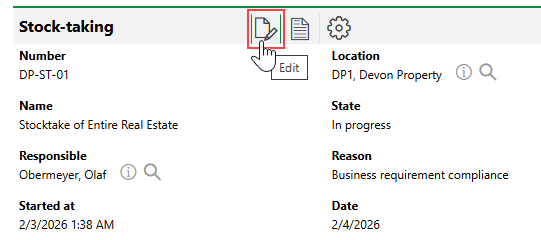
5.Click the Edit ( ) icon at the top of the page.
6.From the State menu, select Complete.
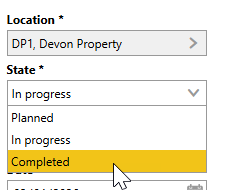
7.Click Save or Save and Close.
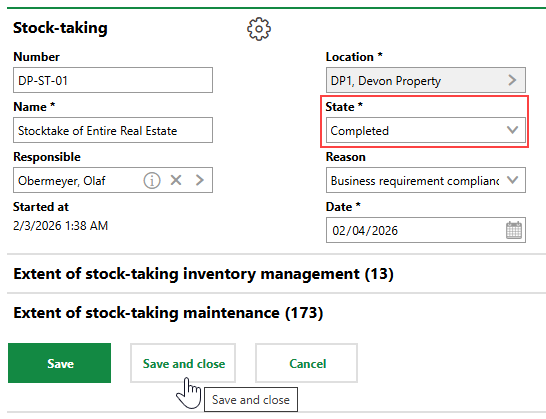
Stocktake Review Page
The Stocktake Review Page provides an overview of the results of the stocktake. Its sections indicate which inventory was counted or scanned in the location that matches its location in VertiGIS FM, which inventory is missing, which inventory has been relocated, and which new inventory items and devices have been discovered and need to be added to the VertiGIS FM database.
Stocktaking
The Stocktaking section stores the stocktake's core properties.
Stocktake Details
Field |
Description |
|---|---|
Number |
A unique identifying code for the stocktake. |
Name |
A name for the stocktake (for example, "Commercial Building Inventory Count"). |
Responsible |
The employee, contact, or team responsible for the stocktake. Must be selected from an entry created in VertiGIS FM Contact Management. You can only select users assigned user roles that have the "Start Taking All Inventories" permission enabled. |
Location |
The real estate, building, floor, or room whose inventory is being counted. Stocktakes in VertiGIS FM require you to count the inventory in the building locations below the selected location in the Building Hierarchy. For example, •stocktakes planned for a building require employees to count inventory located directly in the selected building, inventory located directly on all the floors inside the building, and inventory located in all the rooms on all the floors in the building. •stocktakes planned for a floor require employees to count inventory located directly on the selected floor and inventory located in all the rooms on the floor. •stocktakes planned for a room require employees to count inventory located in the selected room. |
State |
The current state of the stocktake. Stocktakes can be •Planned, •In Progress, or •Completed. |
Reason |
The reason the stocktake has been scheduled. Selectable options are saved in the Reason (Inventory) catalog. |
Date |
The date the stocktake is scheduled to occur. |
Inventory and Equipment
The Inventory and Equipment section lists the assets that, according to the VertiGIS FM database, were located in the building locations included in the stocktake before the stocktake was conducted.
The Location column indicates the location in which the asset was scanned or manually selected during the stocktake. In the example below, inventory item 3.2.17 (swivel chair) was not found during the stocktake. All of the other assets that were originally associated with the location targeted by the stocktake were scanned or manually selected during the stocktake of room R18, Office.
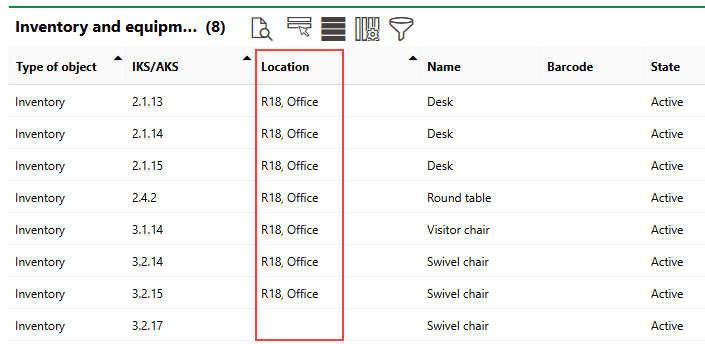
Inventory and Equipment Section Showing the Assets' Post-Stocktake Locations
Location Changed
The Location Changed section lists the assets
•that were scanned during the stocktake of the building location and had previously been associated with a different building location, or did not have an assigned location.
•whose location was manually changed in VertiGIS FM since the last stocktake.
New Entries
The New Entries section lists assets that were scanned or added manually during the stocktake that do not have a matching barcode in the VertiGIS FM database.
Entries in this section also appear in the New Entrants section, which lists assets that need to be sorted into a version in the Inventory Management or Device and Systems Structure.
Refer to Sort New Entrants.
Without Location
The Without Location section lists assets that were, according to the VertiGIS FM database, located in one of the building locations included in the stocktake but not scanned or selected during the stocktake. Assets listed in the Inventory and Equipment section that have empty cells in the Location column also appear in this section.
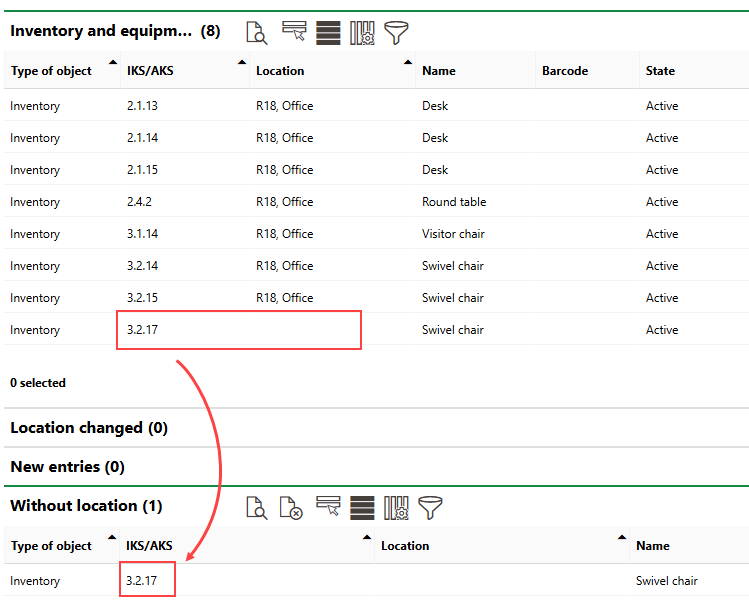
Asset Not Scanned or Counted During Stocktake
New Entrants
The New Entries section lists assets that were scanned or added manually during the stocktake that do not have a matching barcode in the VertiGIS FM database.
It is recommended that you sort these assets into a version in the Inventory Management Structure or Device and Systems Structure before completing the stocktake. The asset will not appear in future stocktake lists for the location unless it is sorted into the proper asset management structure. VertiGIS FM preserves the asset's location property even if it is not sorted into a version.
Refer to Sort New Entrants.