The Administration > Roles/Permissions > Role Administration provides an overview of all user roles within the system.
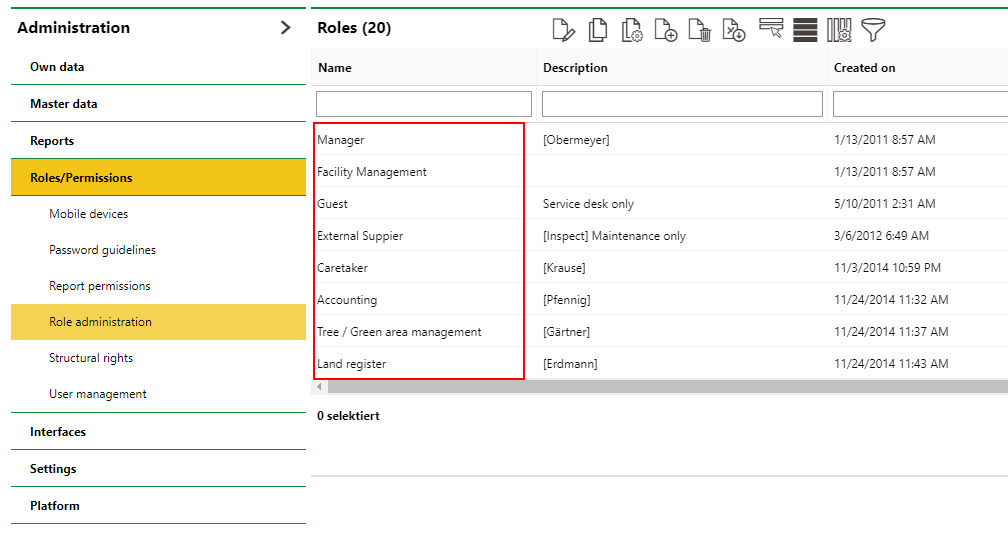
Role Administration Page
Roles
Roles are groups of employees who have the same job title or play similar roles within the organization. Typically, people within the same roles require the same access and permissions.
Each role is associated with permissions for actions that users assigned the role can perform in VertiGIS FM. When you add a role to a user's profile, they gain permissions to perform the actions specified within the role.
Double-click a role in the Roles section to manage its settings and permissions.
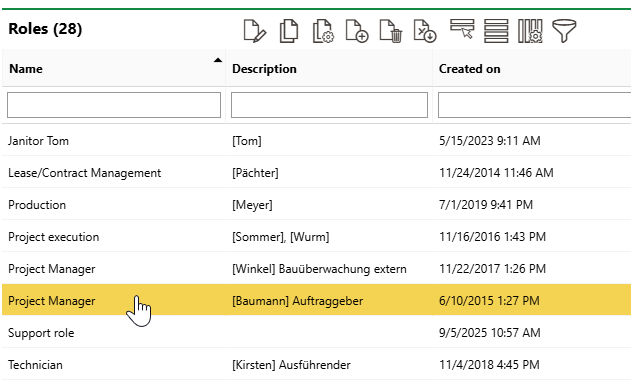
Opening a Role
Each role has its own details page on which you can specify the role's settings and permissions. You can perform the actions outlined below on the details page for any existing user role.
See Users Assigned User Role
The Users section lists users currently assigned the role. These users are affected by changes you make to their role's permissions or settings.
You cannot assign users to a user role on the user role's details page. Refer to Assign Roles to a User.
Set Sign-In Start Page
In the Start Page section, you can specify which page users assigned the role see when they sign in to VertiGIS FM.
From the Area menu, select the type of page users assigned to this role will see when they sign in to the application:
•Application homepage: users land on the VertiGIS FM home page, which includes links to dashboards and search pages associated with all of the products and modules included in their licence.
•Dashboard: users land on the legacy or customized dashboard associated with the product or module selected in the Product menu.
•Search page: users land on the search page associated with the product or module selected in the Product menu.
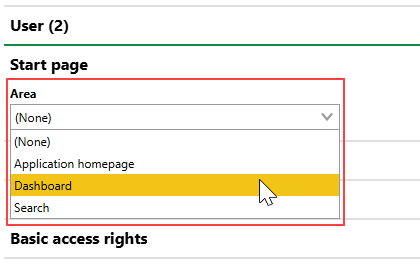
Area Menu
If you select Dashboard or Search in the Area menu, the Product menu loads. You can then select the product or module whose dashboard or search page you want the users to see when they sign in.
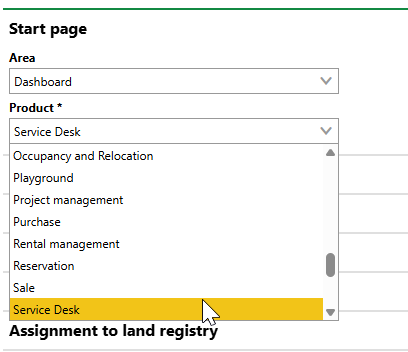
Product Menu
In the example shown in the screen capture above, users assigned the role will land on the Service Desk dashboard when they sign in to VertiGIS FM.
A user role's start page settings are overridden by any start page settings made at the individual user level. Refer to Start Page (User Management).
Manage Role Permissions
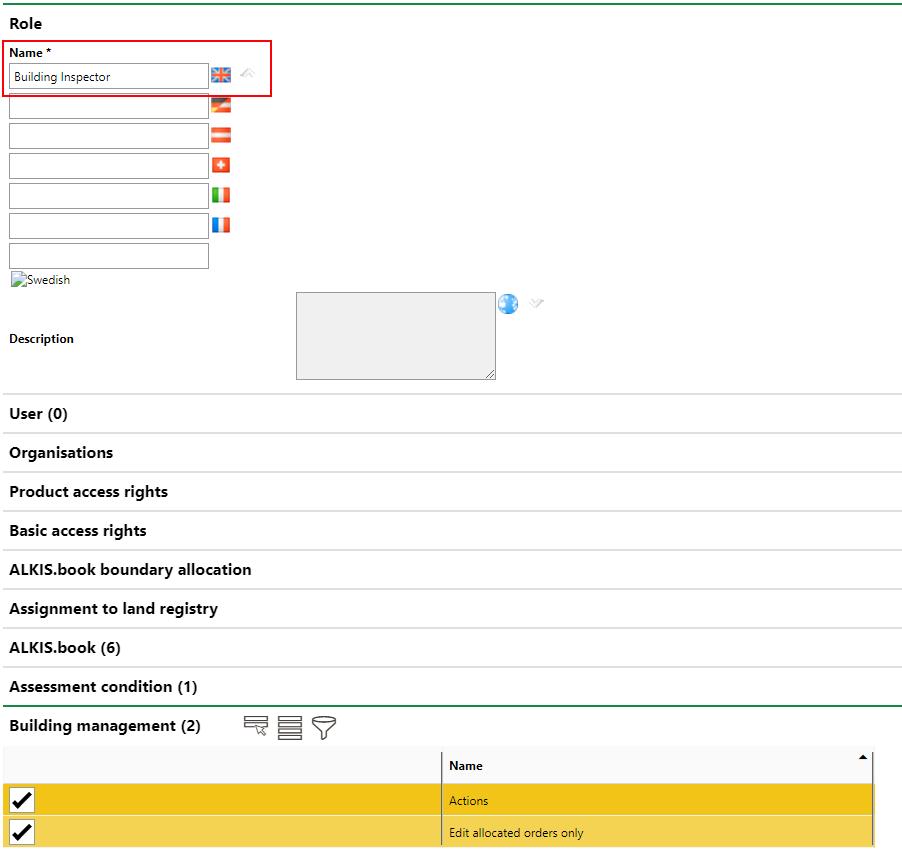
To see the enabled permissions for users assigned to the user role, expand the sections for the various products and modules. Users can perform the actions associated with selected check boxes.
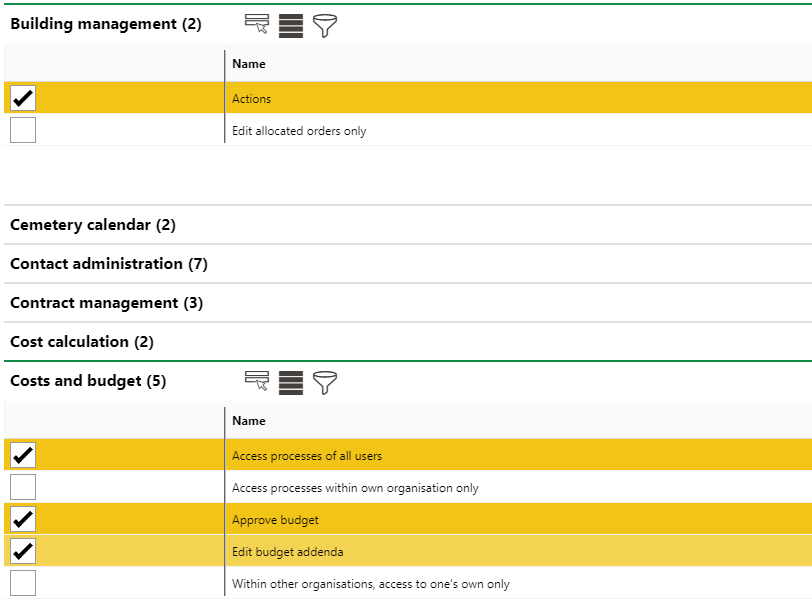
Permissions within Selected Role
Depending on the product or module, the name of the permission may refer to a specific action within the product or module. Conversely, some products and modules have a permission titled "Actions", which allows users to complete all the actions within that section of the application. With VertiGIS FM Buildings, for example, user roles can have a single permission enabled that effectively lets them work within the product fully.
Enable and Disable Permissions for a Role
Select and deselect check boxes to add or remove permissions for users assigned to the user role:
•To give a permission to the users assigned to the role, select the check box next to the permission and click Save.
•To remove a permission from users assign to the role, deselect the check box next to the permission and click Save.
Manage Product Access Rights
As an alternative to assigning permissions for individual actions in various VertiGIS FM products to user roles, you can assign them permissions for entire products and modules in the Product Access Rights section. You can give users assigned the role permissions to perform all actions within the product or module, or you can limit permitted actions to Read, Add, Write, and Delete groups within the products.
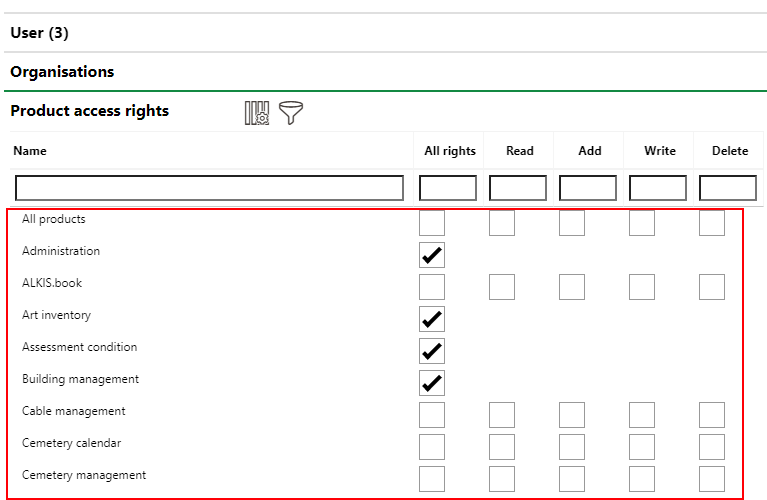
Product Access Rights Section for the Selected Role
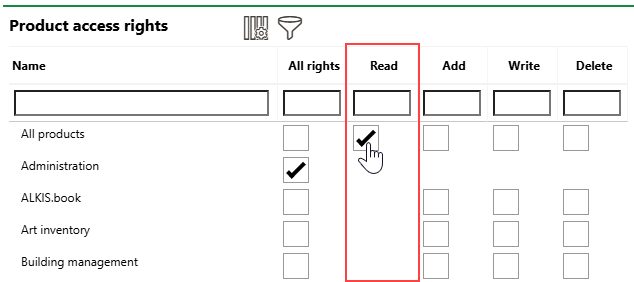
Select the check box in the All Rights column and the All Products row to give the user role access to all actions in all products and modules included in your licence.
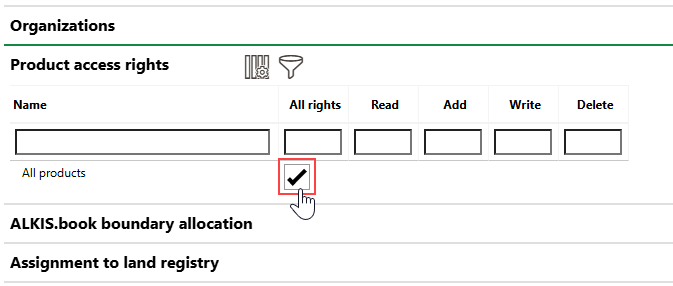
All Rights for All Products and Modules
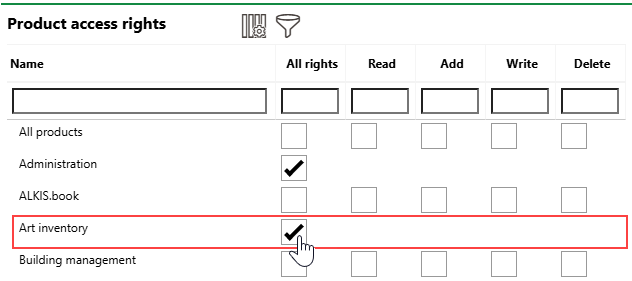
Select the All Rights check box for an individual product or module to assign the user all Read, Add, Write, and Delete permissions for the module and to hide each group's corresponding check boxes. Select the Read, Add, Write, or Delete check box in the All Products column to assign the user the associated permissions for all products and modules. VertiGIS FM hides the action group's check box for each product or module when its All Products check box is selected.
All Rights Assigned for Single Product or Module |
Read Permissions Assigned for All Products and Modules |
Permission Type |
Permitted Actions |
|---|---|
Read |
View data in the VertiGIS FM product or module. |
Add |
Add objects or entities in the product or module to the VertiGIS FM database. |
Write |
Edit existing objects or entities in the product or module. |
Delete |
Delete existing objects or entities in the product or module. |
Organizations
In the Organizations section, you can select departments or areas of your organization that users assigned the role are members of. Click the Add ( ) icon to add a new organization, or click the Delete (
 ) icon next to an existing organization to remove its association with the user role.
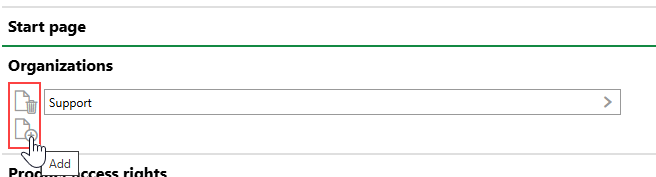
Organizations Section
You can assign user roles any organizations listed in the Organizations section on the Administration > Own Data > Own Tenant or Client page. To assign an organization that does not appear in the drop-down menu, add it on the tenant or client page first.
Refer to Own Client or Tenant.
Add Roles to the System
If your system has users who require permissions that do not match the permissions enabled in existing roles, you can create a new role on the Role Administration page.
To Add a Role to the System
1.Navigate to the Role Administration page (Administration > Roles/Permissions > Role Administration).
2.Click the Add Role () icon.
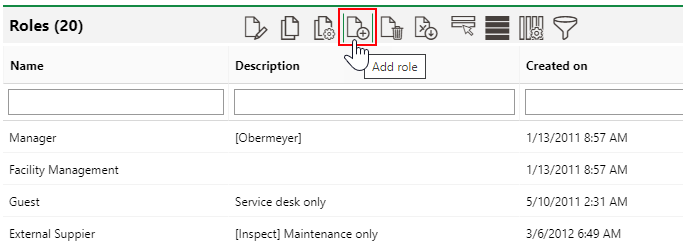
3.In the Name text box, enter a descriptive name for the new role.
If you plan to have users authenticate in VertiGIS FM using single sign-on (SSO) via LDAP and want the groups or roles assigned to your users in the Active Directory to double as roles in VertiGIS FM, ensure the names of the roles match the names of the groups in the Active Directory exactly.
4.Expand the sections for the products in which users assigned this role will work and assign it the permissions they will require. Alternatively, expand the Product Access Rights section and grant the role rights to entire VertiGIS FM products and modules. You can grant the role as many or as few permissions as required.
Refer to Product Access Rights and Permission Types.
5.Click Save and Close.